
Is your Google Pixel 9 stuck in one orientation and refusing to flip when you turn it sideways? It's a common hiccup where the screen rotation just stops responding, leaving you manually rotating videos or struggling with apps that should switch to landscape.
The cause can be anything from a quick settings toggle to a deeper software glitch. Here are the most effective ways to get your Pixel's auto-rotate working smoothly again on Android 15.
Toggle the Quick Settings Tile
The fastest thing to check is the auto-rotate toggle in your quick settings panel. It's incredibly easy to tap this by accident when pulling down your notifications.
When auto-rotate is off, you'll see a portrait lock icon. Swipe down from the top of your screen twice to fully expand the quick settings tray. Look for the icon that looks like a phone with a circular arrow around it and tap it.
The icon should highlight, and the lock should disappear, indicating rotation is now active. I'd start with this one, as it fixes the issue about half the time.
Check the Full Rotation Settings Menu
Android 15 on the Pixel 9 offers more granular control over rotation. If the quick tile doesn't seem to work, dive into the full settings menu.
Go to Settings > Display > Auto-rotate screen. Make sure the main toggle at the top is switched on. Right below it, you'll find an option for "Allow rotation on Home screen."
By default, the Pixel launcher doesn't rotate. If you want your home screen and app drawer to go into landscape mode, you need to enable this setting here. It's separate from the system-wide auto-rotate toggle.
Restart Your Pixel 9
A simple restart can clear out temporary software bugs that might be confusing the accelerometer. It's a good second step after checking your settings.
Press and hold the Power button and Volume Up button together until the power menu appears on screen. Then, tap "Restart." Wait for the phone to completely reboot before testing the rotation again. This takes about a minute.
Force a Full Reboot
If a standard restart doesn't do the trick, a force restart can help. This is a slightly more thorough reboot that doesn't erase any of your data or settings.
On the Pixel 9, you force restart by pressing and holding the Power button for about 30 seconds. Keep holding it even after you see the Google logo. The screen will go black and the device will restart on its own.
Release the button once you feel the phone vibrate for the reboot. This method can resolve deeper system freezes that affect sensors.
Test and Calibrate Motion Sensors
Auto-rotate depends on your phone's accelerometer and gyroscope. You can check if these are functioning correctly using a hidden diagnostic menu.
Open your Phone app and dial *#*#7287#*#*. This opens the "Field Diagnostic" tool. Tap on "Sensor Test" or a similar option. You'll see live data from your sensors.
Tilt and rotate your phone. The values for the accelerometer and gyroscope should change rapidly as you move. If they're stuck or not responding, it points to a sensor issue. Some users have reported success by gently tapping the phone against their palm to unstick a sensor, though this isn't a guaranteed fix.
Check for Problematic Apps
Sometimes, a single app can cause system-wide rotation problems, especially if it has permission to control screen orientation. Think about if the issue started after you installed a new app.
Try using different apps to see if rotation fails everywhere or just in specific places like Chrome or YouTube. You can also boot into Safe Mode to disable all third-party apps temporarily.
To enter Safe Mode, press and hold the power button, then tap and hold the "Power off" option on the screen. Tap "OK" when prompted to reboot to Safe Mode. If auto-rotate works perfectly here, a downloaded app is likely the culprit.
Update Your System Software
Google regularly releases updates and Feature Drops that fix bugs. A glitch with the rotation sensors could be a known issue that's already been patched.
Go to Settings > System > System update. Tap "Check for update." If an update is available, install it. Make sure your phone is connected to Wi-Fi and has at least a 50% charge before starting.
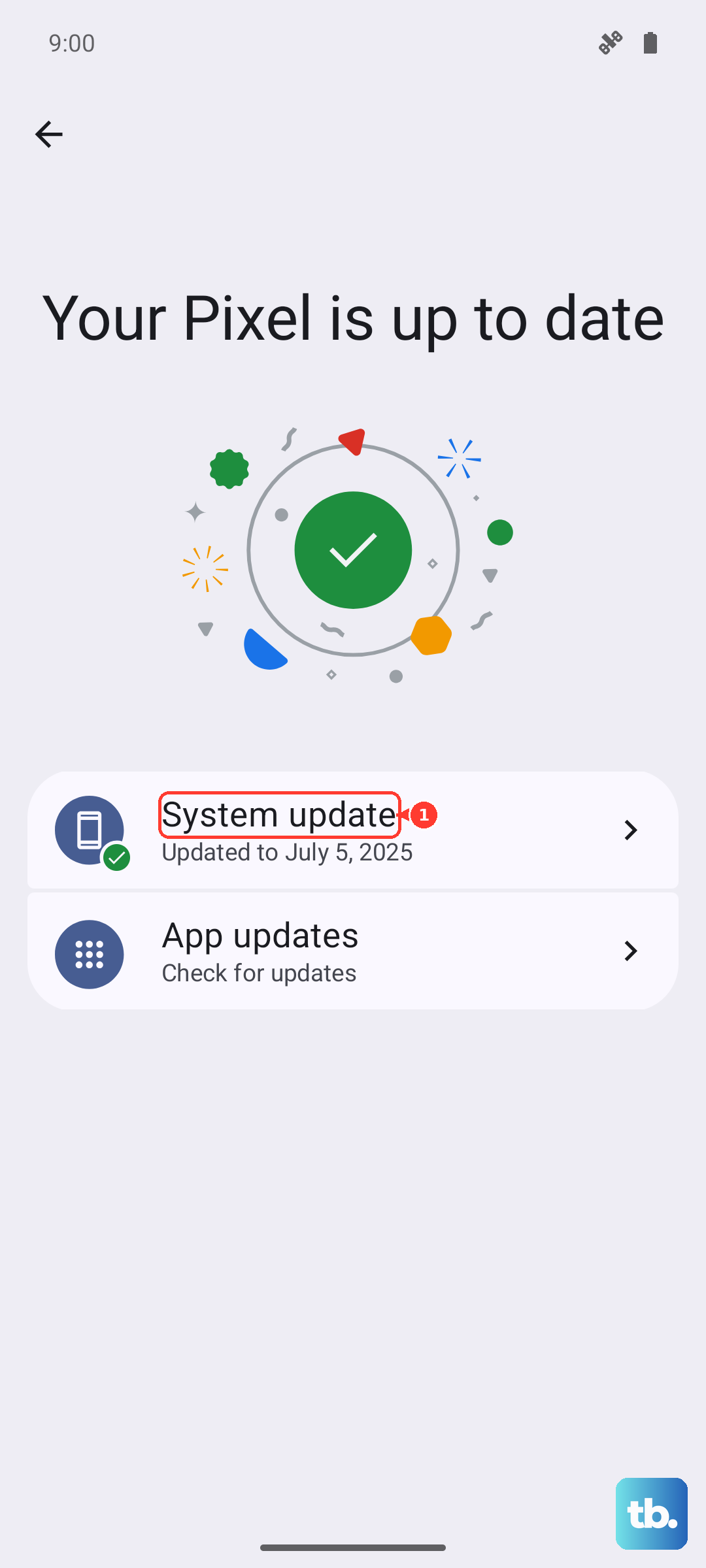
After the update completes, give your phone a fresh restart and test the rotation again. I've seen Feature Drop updates specifically address sensor performance on past Pixel models.
Consider a Hardware Check
If all the software steps fail and your sensors show no movement in the diagnostic tool, there might be a physical problem. The Pixel 9's sensors are part of a mainboard component.
Think about whether the phone has had any recent drops or impacts, even in a case. While not common, physical damage can disconnect or damage the tiny sensors. If your device is still under warranty, contacting Google Support would be the next logical step for a diagnostic.