
If your Google Pixel 8 has a black screen and won't turn on, the first thing to try is a force restart. Press and hold the Power button for a full 30 seconds. You should feel a vibration and see the Google logo appear as the phone reboots. This simple step resolves a surprising number of unresponsive phone issues.
Charge Your Phone Properly
Your Pixel 8 might have a completely drained battery. Plug it into a wall outlet using the official 30W Google charger or another high-quality USB-C PD charger. Let it charge undisturbed for at least 30 to 45 minutes.
While it's charging, check the cable and power adapter. Try a different USB-C cable and a different wall plug if you have them. Look for any debris in the phone's USB-C port, as lint can prevent a solid connection. A can of compressed air can help clear it out gently.
There's a known software behavior where the phone might stop charging at 80% if Adaptive Charging is active. This feature learns your routine to finish charging by your wake-up time. If you plug it in midday, it might hold at 80%. You can check this in Settings > Battery > Battery health > Charging optimization > Adaptive charging once the phone is on again.
Check for Overheating
The Pixel 8 can get warm during fast charging, especially in a hot environment. If it overheats, it will stop charging to protect the battery. Feel the back of the phone. If it's very hot, unplug it and move it to a cooler spot.
Let it cool down completely for 15-20 minutes. Remove any thick case that might be trapping heat. Then, try charging it again with a standard, slower charger instead of the fast charger to see if it begins taking a charge.
Try Wireless Charging
Since the Pixel 8 supports Qi wireless charging, this is a great way to test if the problem is with the USB-C port. Place your phone on a Qi-certified wireless charger. You should see a charging indicator light on the pad or feel a vibration from the phone.
If it starts charging wirelessly but not via the cable, the issue is almost certainly with the port, the cable, or the adapter. This narrows down the troubleshooting significantly.
Boot into Safe Mode
If the phone turns on but gets stuck on a black screen or the Google logo, a recently installed app might be causing a conflict. Booting into Safe Mode loads Android without any third-party apps.
First, force restart the phone by holding the Power button for 30 seconds. As soon as you see the Google logo appear, press and hold the Volume Down button. Keep holding it until the animation finishes and you see "Safe mode" in the bottom corner of the screen.
If the phone boots successfully in Safe Mode, you know a downloaded app is the culprit. You can then restart normally and begin uninstalling apps you recently added.
Perform a Factory Reset (Recovery Mode)
This is a last resort, as it will erase all data on your phone. Only do this if you have a backup or have accepted the data loss. This can fix severe software corruption.
With the phone off, press and hold the Power button and Volume Down button together. When the Fastboot Mode screen (the Android robot with an open hatch) appears, use the Volume buttons to scroll to "Recovery Mode" and press the Power button to select it.
You'll see an Android robot with a red exclamation mark. Press and hold the Power button, then tap the Volume Up button once while still holding Power. Use the volume keys to navigate to "Wipe data/factory reset" and select it with the Power button. Confirm the action.
Update Your Phone's Software
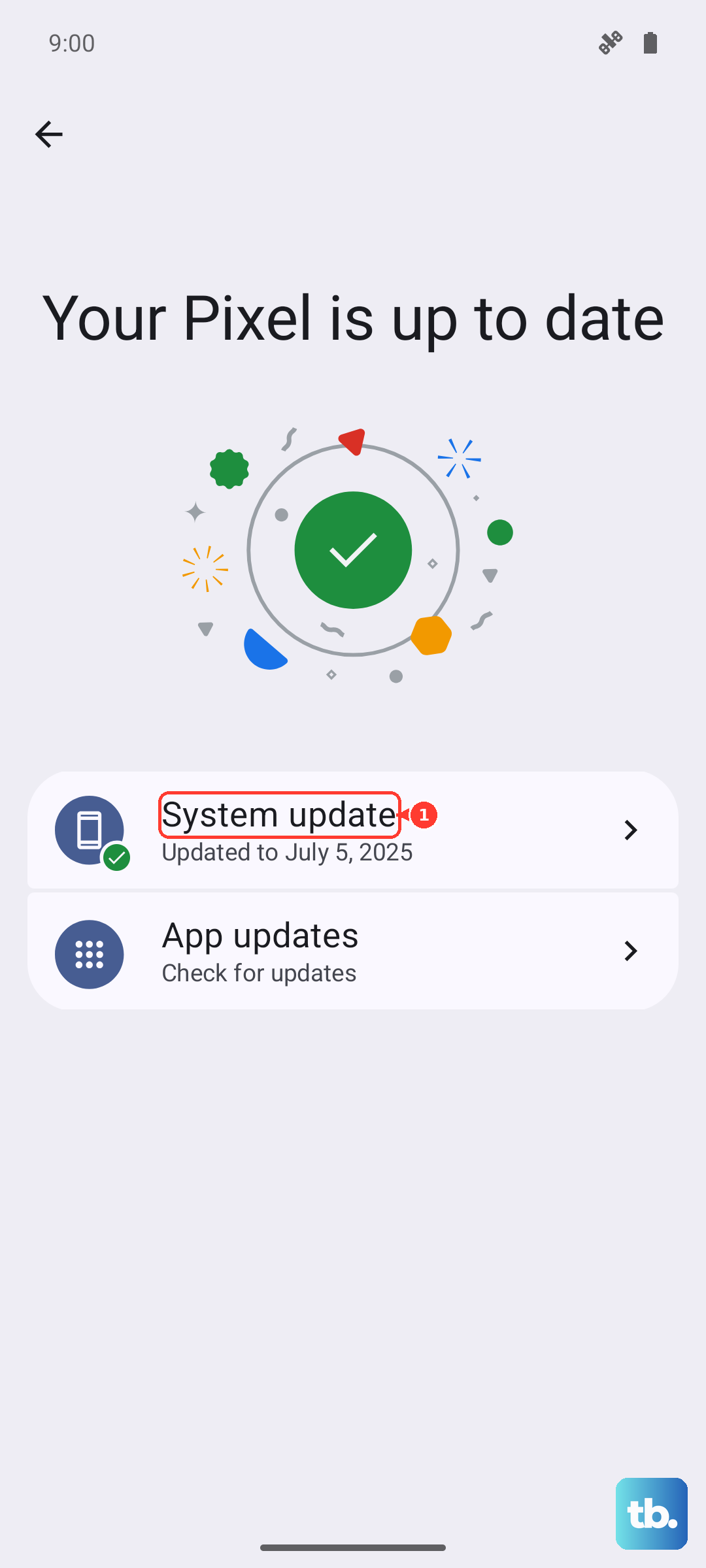
Google has released firmware updates addressing various bugs, including some related to power and charging. If you can get the phone to turn on, immediately check for an update.
Go to Settings > System > System update. If an update is available, install it. Keeping your Pixel 8 updated is one of the best ways to prevent these kinds of software glitches from happening in the first place.
Look for Physical or Water Damage
Inspect your phone for any signs of damage. Check the screen for cracks, even small ones, that could cause internal failure. Look at the USB-C port for bent pins or corrosion.
If the phone was recently exposed to moisture, even high humidity, it could cause a short. Leave the phone in a dry, warm place with silica gel packets for at least 24 hours before attempting to turn it on or charge it again. I've seen phones recover from this after a thorough drying period.