
When your Google Pixel 8 won't send pictures, it's usually a quick fix. The most common culprit is a spotty data connection, whether you're on Wi-Fi or mobile data. I'd start by checking that first.
Check Your Mobile Data and MMS Settings
Open the Settings app and go to Network & internet > Mobile network. Make sure the "Mobile data" toggle is switched on. While you're there, tap on Advanced and look for an option called "MMS messages receive" or similar, and ensure it's enabled.
Some carriers require specific Access Point Names (APNs) for MMS to work. You can find and edit these in the same Mobile network menu under Access Point Names. If you're unsure of the correct settings, a quick web search for "[Your Carrier] MMS APN settings" should point you in the right direction.
Verify Your Internet Connection
If you're trying to send via an app like WhatsApp or Telegram, a weak internet connection will stop pictures in their tracks. For Wi-Fi, check the signal icon in your status bar. Try toggling Airplane mode on for 10 seconds and then off again to reset the radios.
If you're relying on mobile data, look at your signal strength. Sending a high-resolution photo requires a decent connection. Moving to a different location or switching from 5G to LTE can sometimes provide a more stable link for the upload.
Force Close and Reopen Your Messaging App
A temporary glitch in the app you're using can cause sends to fail. Swipe up from the bottom of your screen and hold to enter the app overview. Find your messaging app, like Google Messages, and swipe it all the way up to close it.
Wait a moment, then tap the app icon to reopen it fresh. Try sending the picture again. This clears out any cached processes that might be hanging.
Clear the App's Cache (Not Data)
If force-closing didn't help, the app's temporary cache might be corrupted. Go to Settings > Apps and select your messaging app. Tap on Storage & cache and then hit Clear cache.
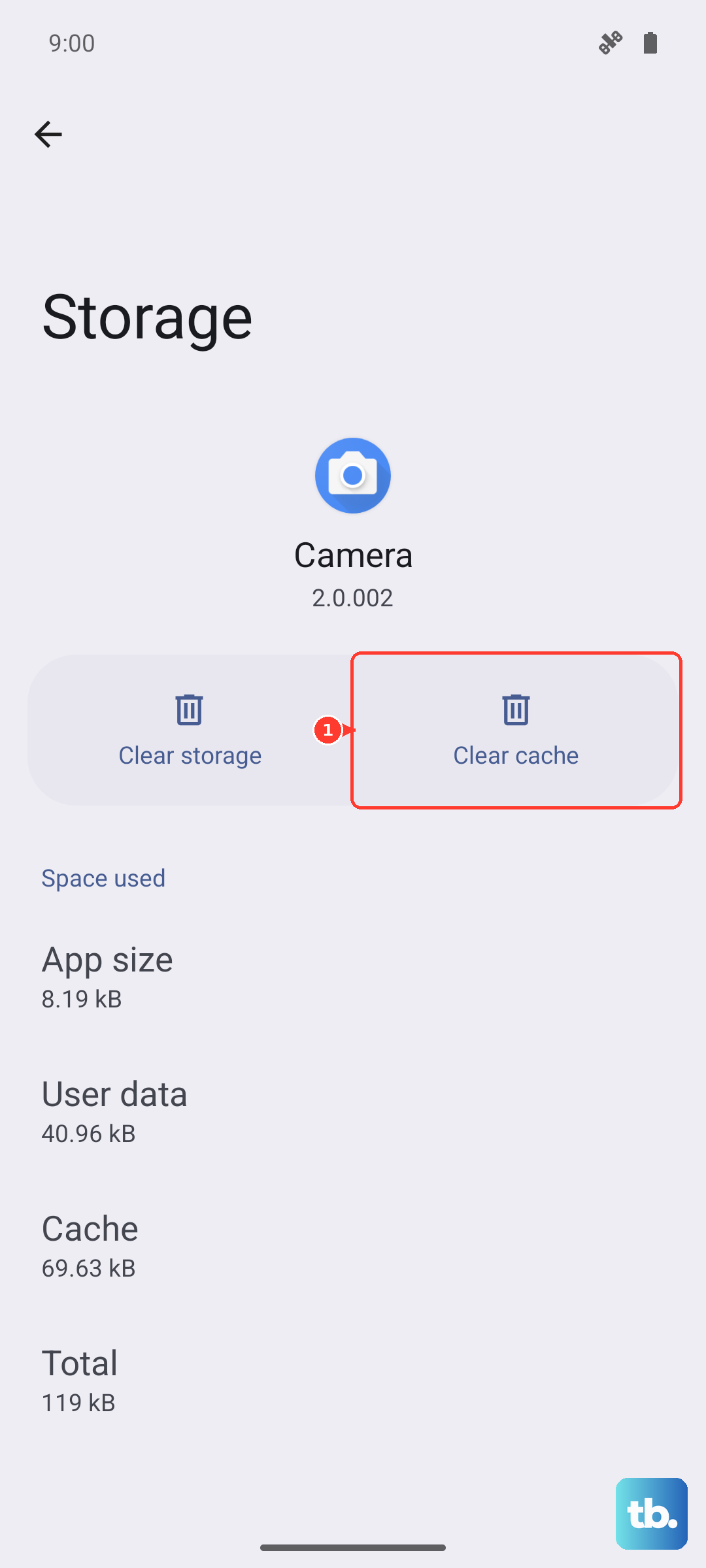
This removes temporary files without touching your message history or personal settings. After clearing, restart the app and attempt to send your photo once more.
Check for Android and Carrier Services Updates
Outdated software can lead to all sorts of bugs, including MMS failures. Head to Settings > System > System update to check for the latest Android version. Google has been known to release firmware fixes for connectivity issues.
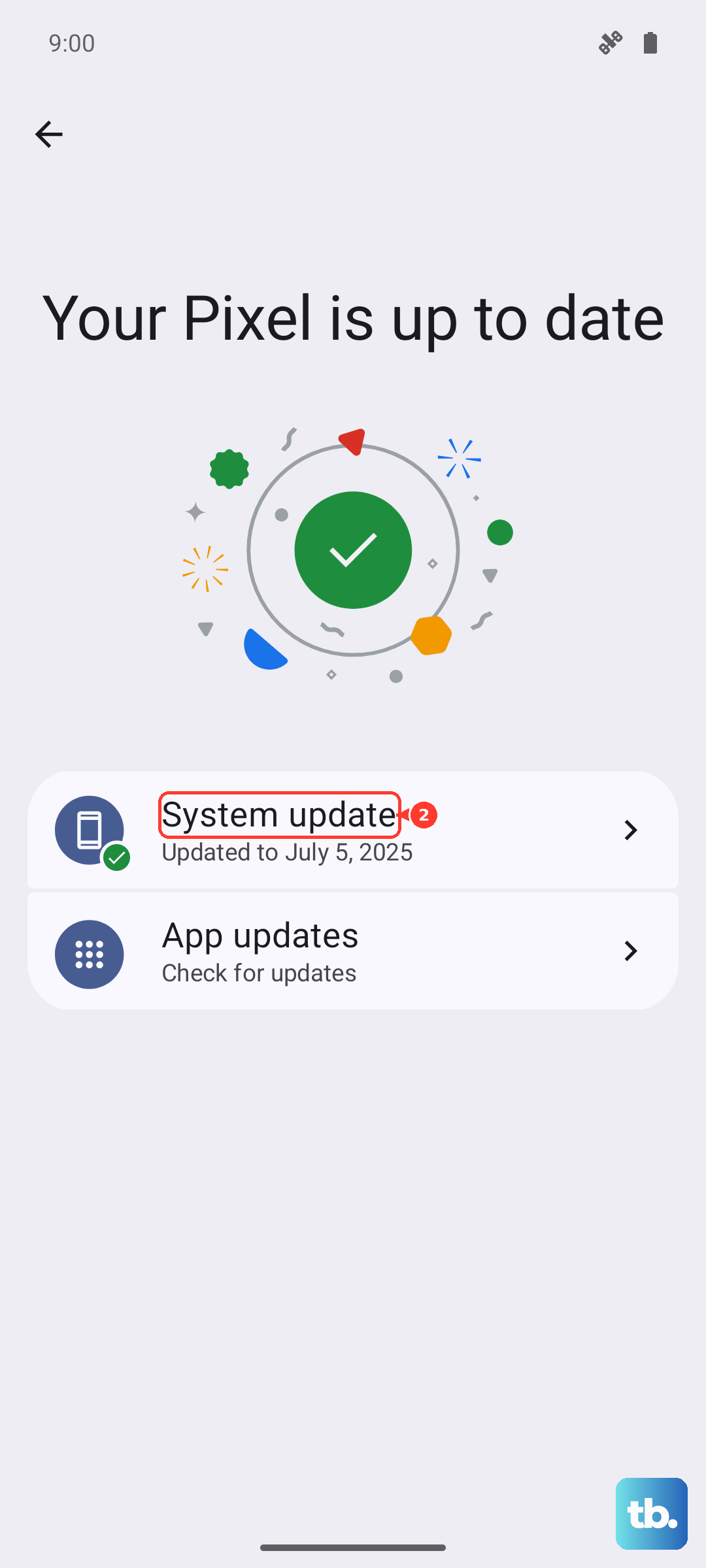
Also, open the Google Play Store, tap your profile icon, and go to Manage apps & device. Under "Updates available," look for an update to "Carrier Services." This app handles communication between your phone and your carrier's network for services like MMS.
Restart Your Pixel 8
A simple reboot can solve a multitude of problems by refreshing all system processes. Just press and hold the Power button and Volume Up button together until the power menu appears, then tap "Restart." If your phone is unresponsive, you can force a restart by pressing and holding the Power button for about 30 seconds until you feel it vibrate and see the Google logo.
Try Sending in Safe Mode
Booting into Safe Mode temporarily disables all third-party apps. This helps you figure out if a recently downloaded app is interfering with your messaging. To enter Safe Mode, press and hold the Power button, then tap and hold the "Power off" option on your screen until you see a prompt to reboot to Safe Mode.
Once in Safe Mode (you'll see "Safe mode" in the bottom corner), try sending a picture. If it works, a third-party app is the culprit. You'll need to restart normally and uninstall apps one by one to find the offender.
Reset Your Network Settings
This will wipe all your saved Wi-Fi networks, Bluetooth pairings, and cellular settings back to default, which can clear up persistent connection bugs. Go to Settings > System > Reset options.
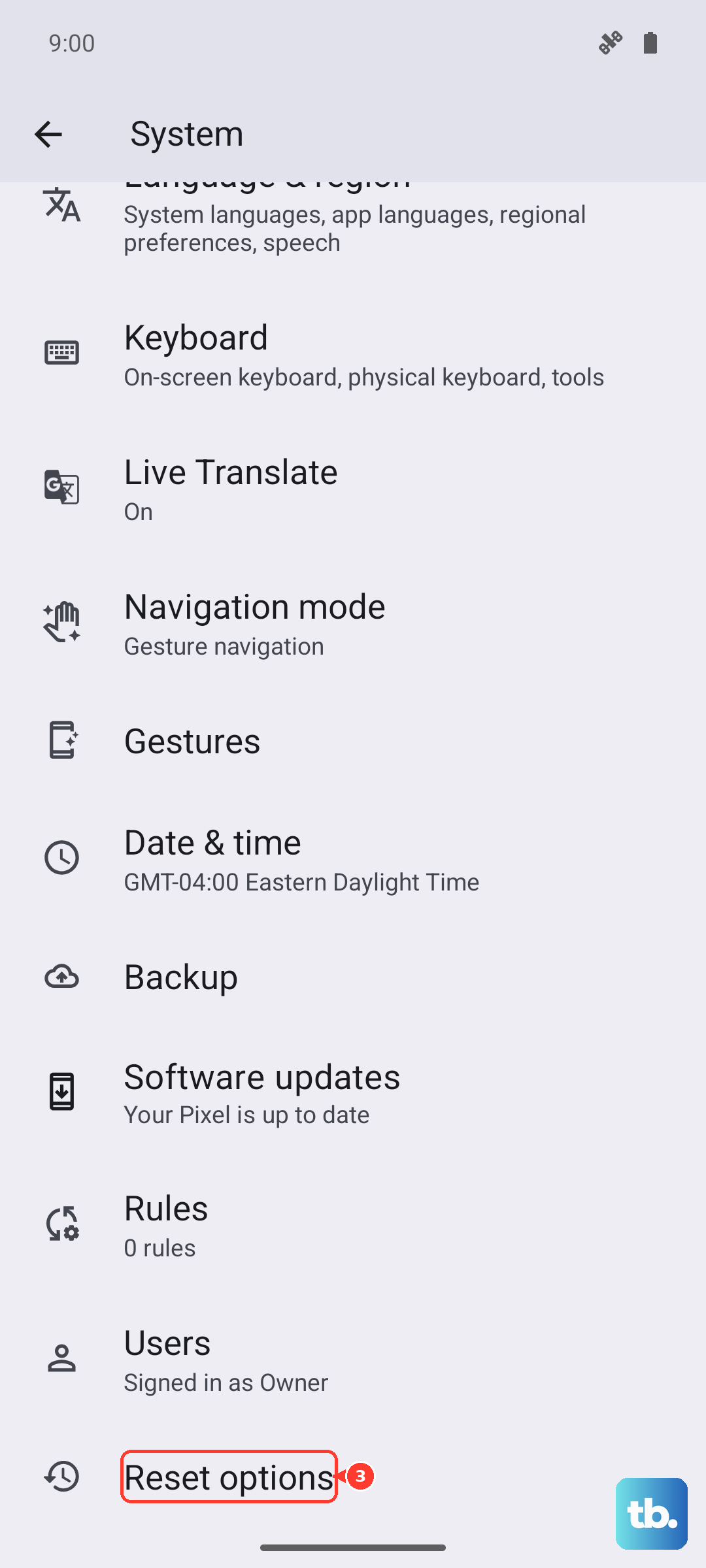
Tap on Reset Wi-Fi, mobile & Bluetooth. Confirm the action and enter your PIN if prompted. After the phone reboots, you'll need to reconnect to your Wi-Fi and re-pair Bluetooth devices, but it often resolves stubborn network-related sending issues.
Check the Specific Messaging App's Permissions
The app you're using needs permission to access your media files to send them. Go to Settings > Apps and select your messaging app. Tap on Permissions.
Ensure that permissions for "Photos and videos" or "Files and media" are set to "Allow." Without this access, the app can't attach the picture from your gallery to the message.
Try an Alternative Messaging App
If pictures still won't send from your default app, install a different one like Signal or WhatsApp as a test. If you can send photos successfully through the alternative app, the problem is likely with your primary app's configuration or data.
In that case, you could try the nuclear option for that app: clearing its storage. Go to the app's info page in Settings (Settings > Apps > [App Name] > Storage & cache) and tap Clear storage. Warning: this will delete all messages and settings within that app, so only do this if your conversations are backed up or not critical.