
Unlock your Google Pixel 8 from carrier restrictions and use any network provider
What to Know
- Network Unlock Code is an 8-16 digit code that removes carrier locks from your Pixel 8.
- Contact your carrier first - they are legally required to provide it for free if you meet their requirements.
- Your IMEI is key - find it in Settings > About phone > IMEI or by dialing *#06#.
- Third-party services are an option if your carrier can't help, but research them carefully.
- Enter codes carefully - too many incorrect attempts can trigger a permanent lock.
If your Google Pixel 8 is saying "SIM locked" or "Network locked," it's tied to your original carrier. This is common with phones bought on installment plans. The good news is that unlocking it is a straightforward process. You just need the right code and to follow a few specific steps for Android 15.
Get Your Unlock Code from Your Carrier
This is always the first and best step. Under FCC rules in the US and similar regulations elsewhere, carriers must unlock your phone for free if you've met their conditions. For your Pixel 8, those conditions usually mean the device is fully paid off and not reported lost or stolen.
Start by calling your carrier's customer service or checking their website for an unlock request portal. You'll need to provide your Pixel 8's IMEI number to verify the device. Have your account information ready to prove ownership. The process can take anywhere from a few hours to several business days.
Once approved, they'll send you the Network Unlock Code via email or text. Save this code somewhere safe. You won't need it until you insert a SIM card from a different carrier into your phone.
Use a Third-Party Unlocking Service
If your carrier is uncooperative or you bought the phone second-hand and don't have the original account details, a third-party service is your next option. These services use your Pixel 8's IMEI number to generate a valid unlock code. I'd recommend looking for services with lots of positive, recent reviews specifically mentioning Pixel devices.
Be wary of any service promising "free" or "instant" unlocks, as these are often scams. Legitimate services typically charge a small fee and take between 24 to 72 hours. You'll provide your IMEI, pay the fee, and they'll email you the code. It's a simple process, but always use a reputable site.
Enter the Unlock Code on Your Pixel 8
Once you have the code, the actual unlocking is easy. First, power down your Google Pixel 8 completely. Remove the current SIM card tray and insert a SIM card from a different, compatible carrier. This is crucial, the phone won't prompt for the code with its original carrier's SIM.
Turn your phone back on. As it boots with the new SIM, you should see a prompt on the screen asking for the "Network Unlock Code" or "SIM unlock code." Carefully enter the code you received. If it's correct, you'll see a confirmation message like "Network unlock successful."
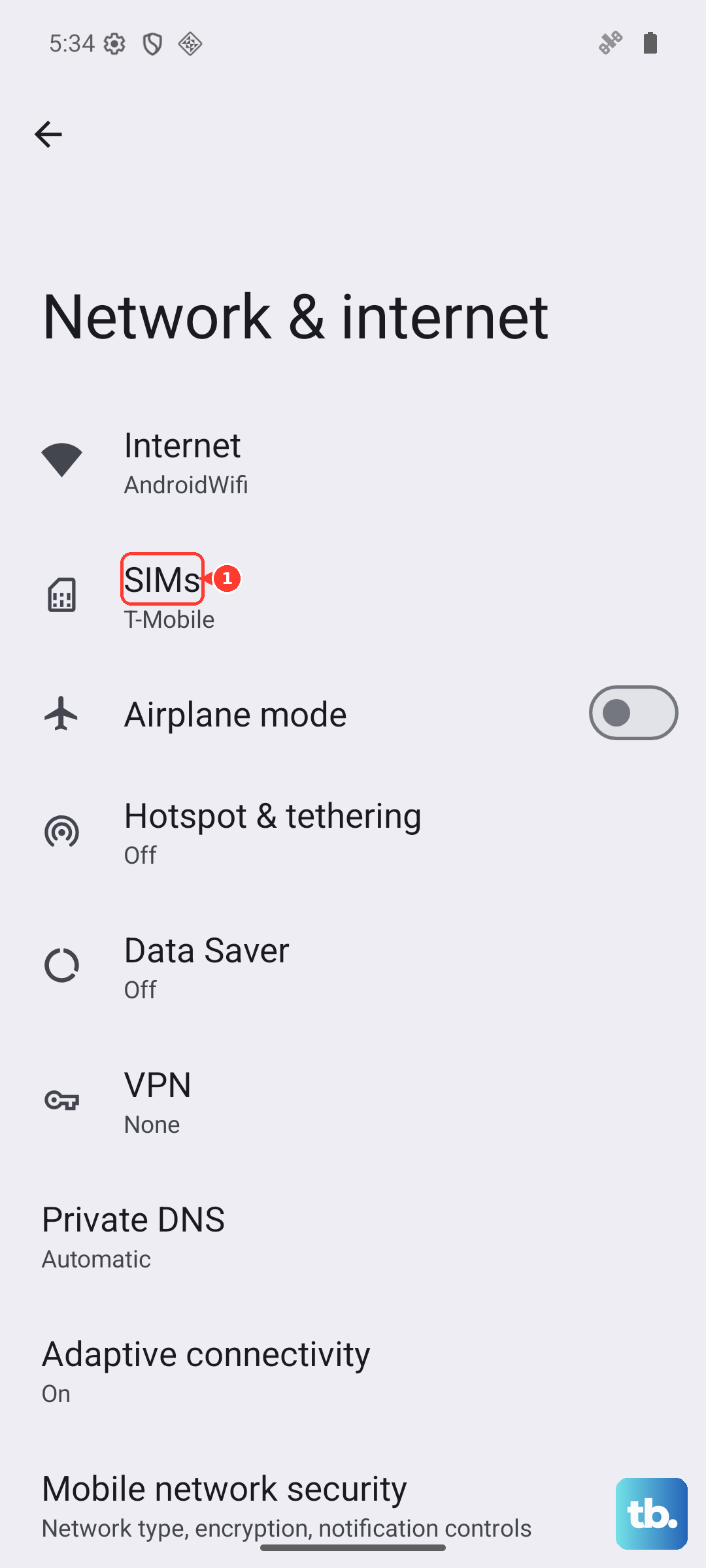
If you don't get a prompt automatically, you can try to trigger it. Go to Settings > Network & internet > SIMs and look for an "Unlock network" or similar option. On some Android versions, the prompt appears here when a foreign SIM is detected.
If You Get a "SIM Network PIN Blocked" Error
This scary message pops up if you've entered the wrong unlock code too many times. It's a security feature. Don't panic, but stop entering codes immediately. At this point, you'll need what's called a PUK (Pin Unlock Key) or Master Control Key to reset the attempt counter.
You must contact the source that gave you the original unlock code, either your carrier or the third-party service. Explain that the device is now "blocked" and request the Master Unlock Key. They can provide this secondary code. Enter it when prompted, and then you'll get another chance to input the correct Network Unlock Code.
Perform a Factory Reset (Last Resort)
In rare cases, a software glitch on the Pixel 8 can interfere with the unlock process. If you're sure you have the correct code but the phone isn't accepting it or not prompting you, a factory reset can sometimes clear the issue. This will erase all data on your phone, so make sure everything is backed up to Google Drive first.
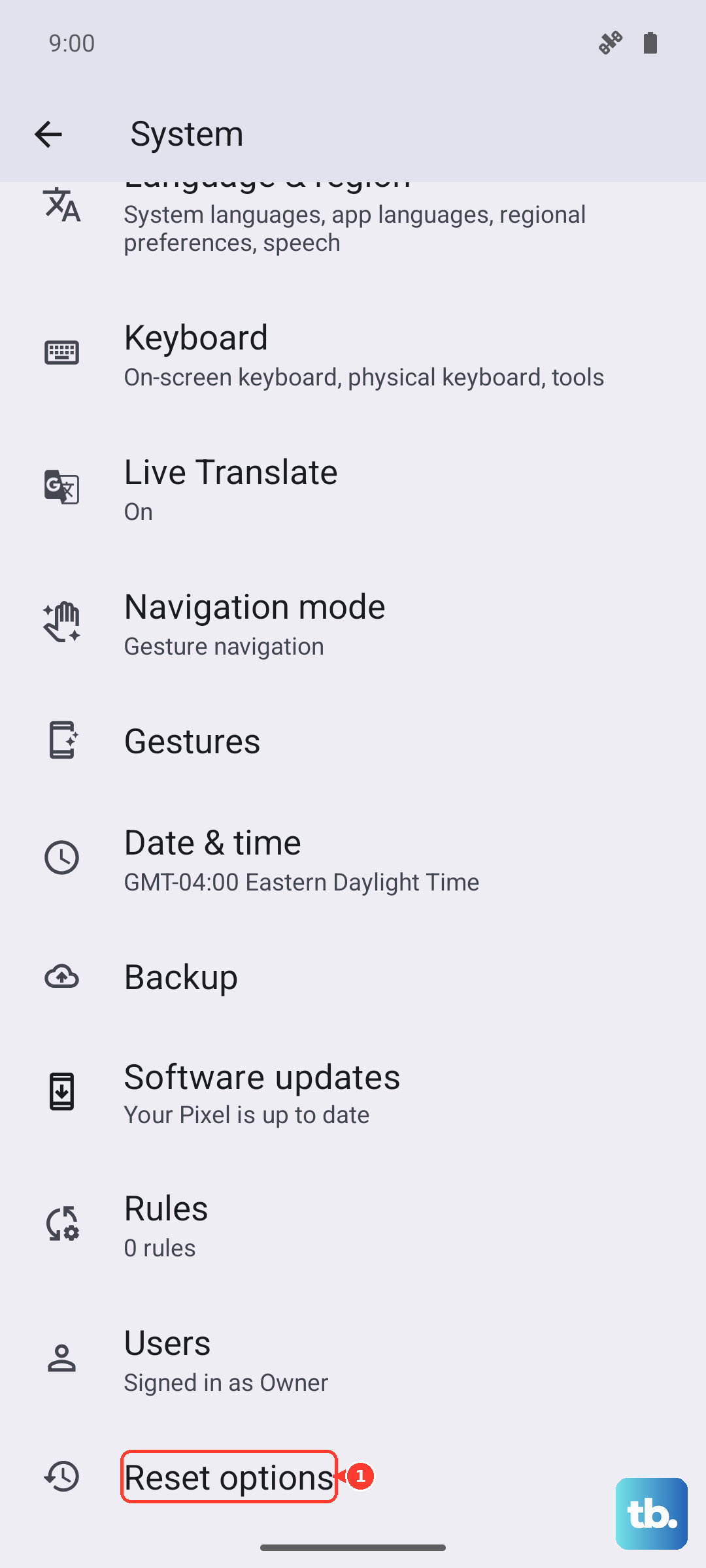
To reset, go to Settings > System > Reset options > Erase all data (factory reset). After the reset is complete, go through the initial setup until you reach the network connection step. Insert the new carrier's SIM card at this point. The unlock prompt should appear during setup, allowing you to enter the code on a clean software slate.
Check for a Software Update
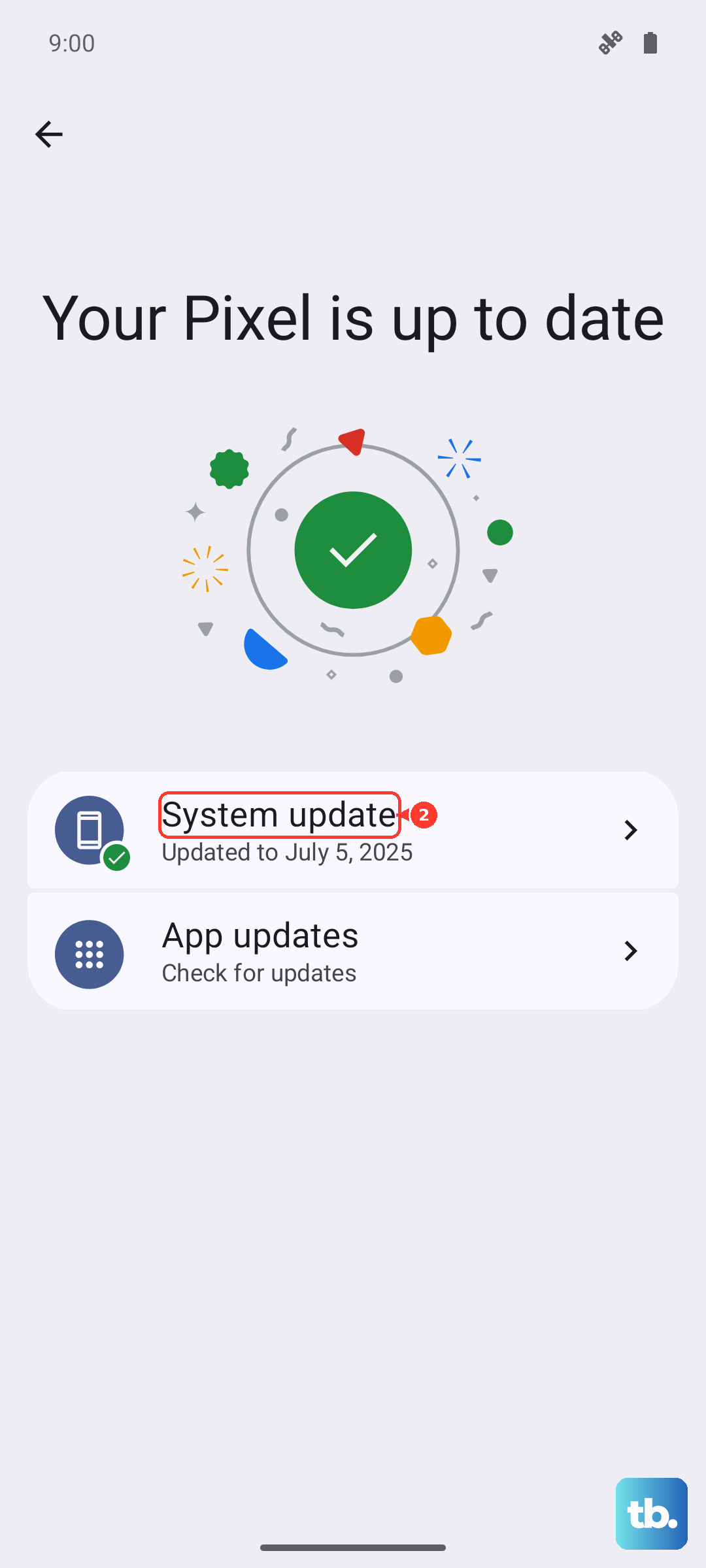
It's worth ensuring your Pixel 8 is running the latest version of Android 15. Google occasionally releases updates that can resolve baseband or modem communication issues, which might affect the unlock handshake. Go to Settings > System > System update and check for updates.
Install any available updates and restart your phone. After the update, try the unlock process again with the new SIM card. A simple update has fixed persistent "SIM locked" messages for some users, as it refreshes the device's network settings.
Verify the Phone Isn't Blacklisted
If no code seems to work and the carrier denies your request, there's a chance the device is blacklisted. This happens if the phone was reported lost, stolen, or associated with unpaid bills. A blacklisted phone will often remain network-locked regardless of the code entered.
You can check your Pixel 8's IMEI status for free on various carrier and third-party websites. If it comes back as blacklisted, your only recourse is to contact the original owner or the carrier that blacklisted it to resolve the issue. Unlocking services typically cannot bypass a blacklist.
Contact Google Support
For Pixel 8 devices purchased directly from the Google Store and not through a carrier, they are usually sold unlocked. If you find yours is locked, it could be a mistake or a policy issue with the retailer. You can contact Google's Pixel support team through the phone's Settings app or their website.
Provide them with your IMEI and proof of purchase. They can check the device's status in their database and advise if it should be unlocked or if there's a different issue at play. While they won't provide carrier unlock codes, they can offer guidance specific to your Pixel's configuration.