
When your Google Pixel 8 sends every call directly to voicemail, it can feel like you're suddenly disconnected from the world. This is a surprisingly common hiccup that can stem from a simple toggle you accidentally enabled or a deeper software glitch. I've found that with Pixel phones, the fix is often just a few taps away in the settings.
Let's jump straight into the most likely culprit and work our way through the solutions.
Check Your Focus and Do Not Disturb Modes
Your Pixel 8 has several modes designed to minimize interruptions, and they can sometimes be too effective. Swipe down from the top of your screen twice to open the full Quick Settings panel. Look for icons like a crescent moon or a star inside a circle, these represent Do Not Disturb and Focus modes.
Tap any that are highlighted to turn them off. For a deeper check, go to Settings > Sound & vibration > Do Not Disturb. Make sure it's toggled off and review the "Schedules" and "People" sections to ensure calls aren't being silenced by a rule you set earlier.
Disable Call Forwarding
Call forwarding is a classic reason for the straight-to-voicemail problem. On your Pixel 8, open the standard Phone app and tap the three-dot menu in the top right corner. Select Settings > Calling accounts, then tap your carrier (like T-Mobile or Verizon).
Look for an option labeled "Call forwarding." Tap it and you should see settings for different scenarios like "Always forward" or "When busy." Make sure all of these are set to "Turn off" or that the forwarding number is blank. Sometimes a carrier update or a mis-tap can enable this without you realizing.
Review Call Blocking and Spam Settings
Google's spam protection is great, but it can be overzealous. In the same Phone app settings menu, look for Spam and Call Screen. Here, you can see if "See caller & spam ID" is filtering calls too aggressively.
More importantly, go back to the main Phone settings and select Blocked numbers. See if any important numbers have accidentally ended up on this list. You can also check if "Block calls from unidentified callers" is enabled, which would send all private numbers straight to voicemail.
Perform a Network Settings Reset
This is a powerful step that clears out any corrupted network configuration data. It will erase your saved Wi-Fi passwords and Bluetooth pairings, so be prepared to re-enter those.
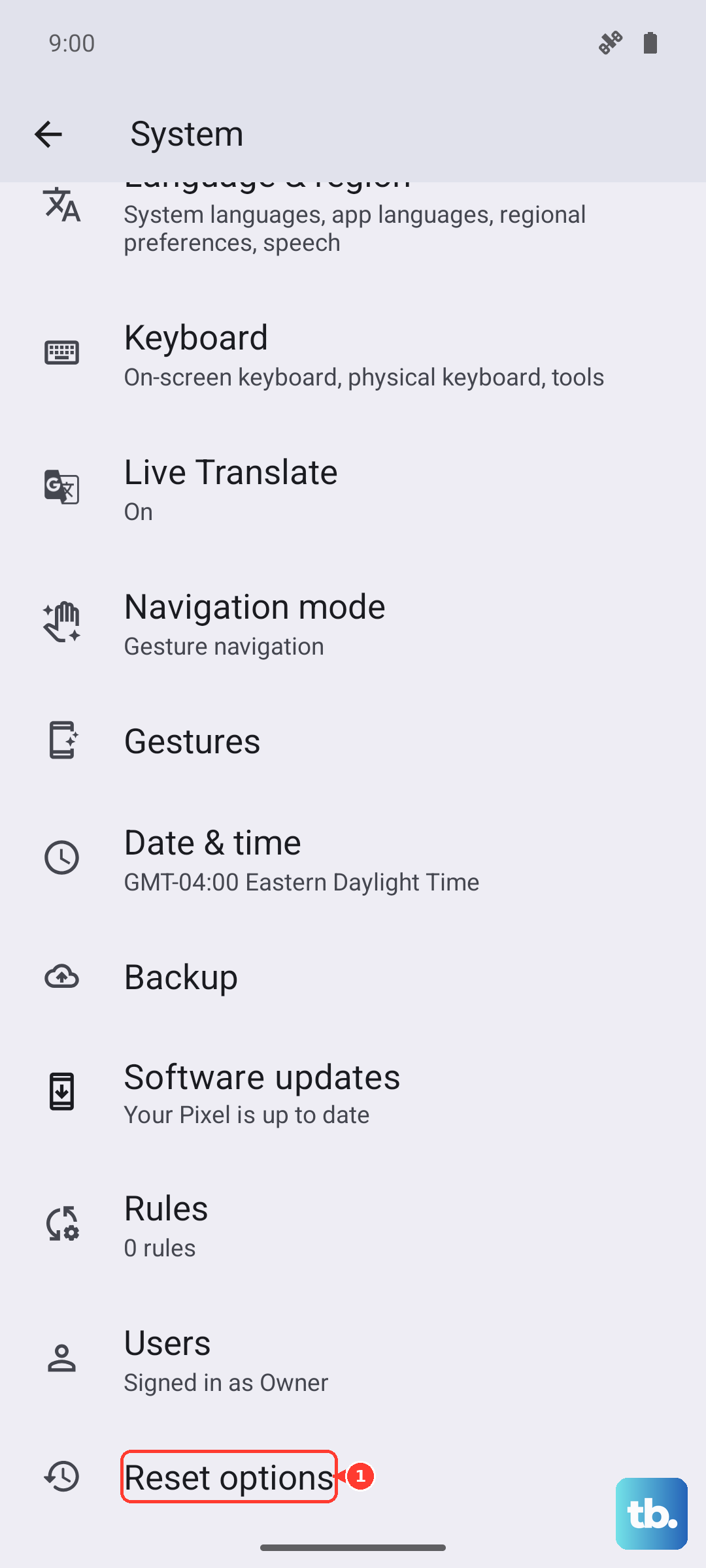
To do this, go to Settings > System > Reset options. Tap on Reset Wi-Fi, mobile & Bluetooth and confirm. After your Pixel 8 reboots, it will reconnect to your mobile network with a fresh configuration, which often resolves persistent calling issues.
Check for a Carrier Services Update
This is a Pixel-specific tip that many people overlook. The Carrier Services app handles the communication between your phone and your mobile network. If it's out of date or buggy, call handling can fail.
Open the Google Play Store, tap your profile icon, and go to Manage apps & device > Manage. Tap "Updates available" and look for "Carrier Services." If you see it, update it. You can also search for it directly in the Play Store to check its version.
Reinsert Your SIM Card
A loose or dirty SIM card can cause intermittent network registration problems, leading to missed calls. Grab the SIM ejector tool that came with your Pixel 8 (or a small paperclip) and gently pop out the SIM tray.
Remove the SIM card, give the gold contacts a gentle wipe with a soft, dry cloth, and carefully re-seat it in the tray. Push the tray back in until it clicks. This physical reset can sometimes re-establish a clean connection with your carrier's network.
Clear the Phone App's Cache and Data
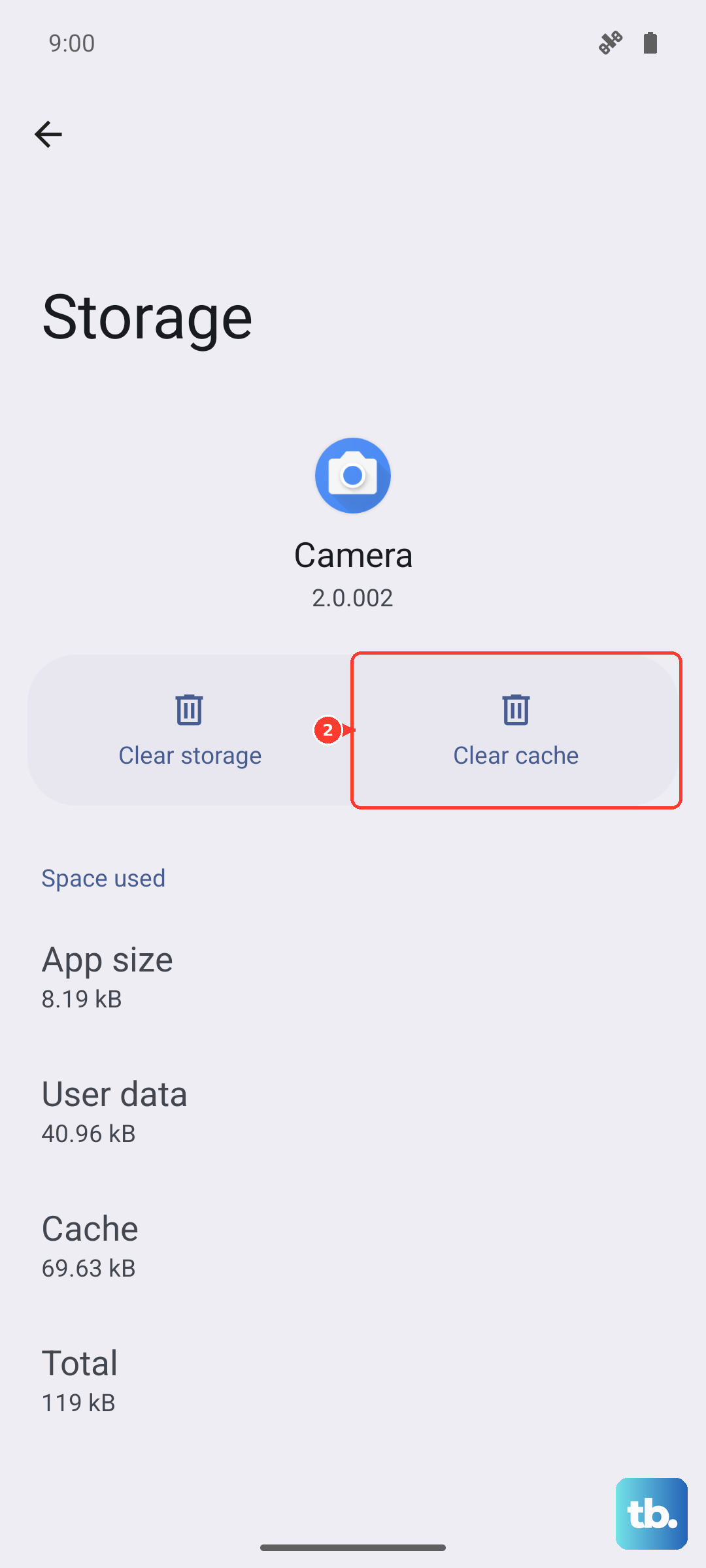
The Phone app itself can develop glitches. Clearing its temporary data forces it to start fresh. Go to Settings > Apps > See all apps and find "Phone" in the list.
Tap on it, then select Storage & cache. Tap "Clear cache" first and test your calls. If the problem persists, go back and tap "Clear storage" or "Manage space," then "Clear all data." Don't worry, this won't delete your contacts or call history, but it will reset the app's preferences.
Ensure Your Software is Up to Date
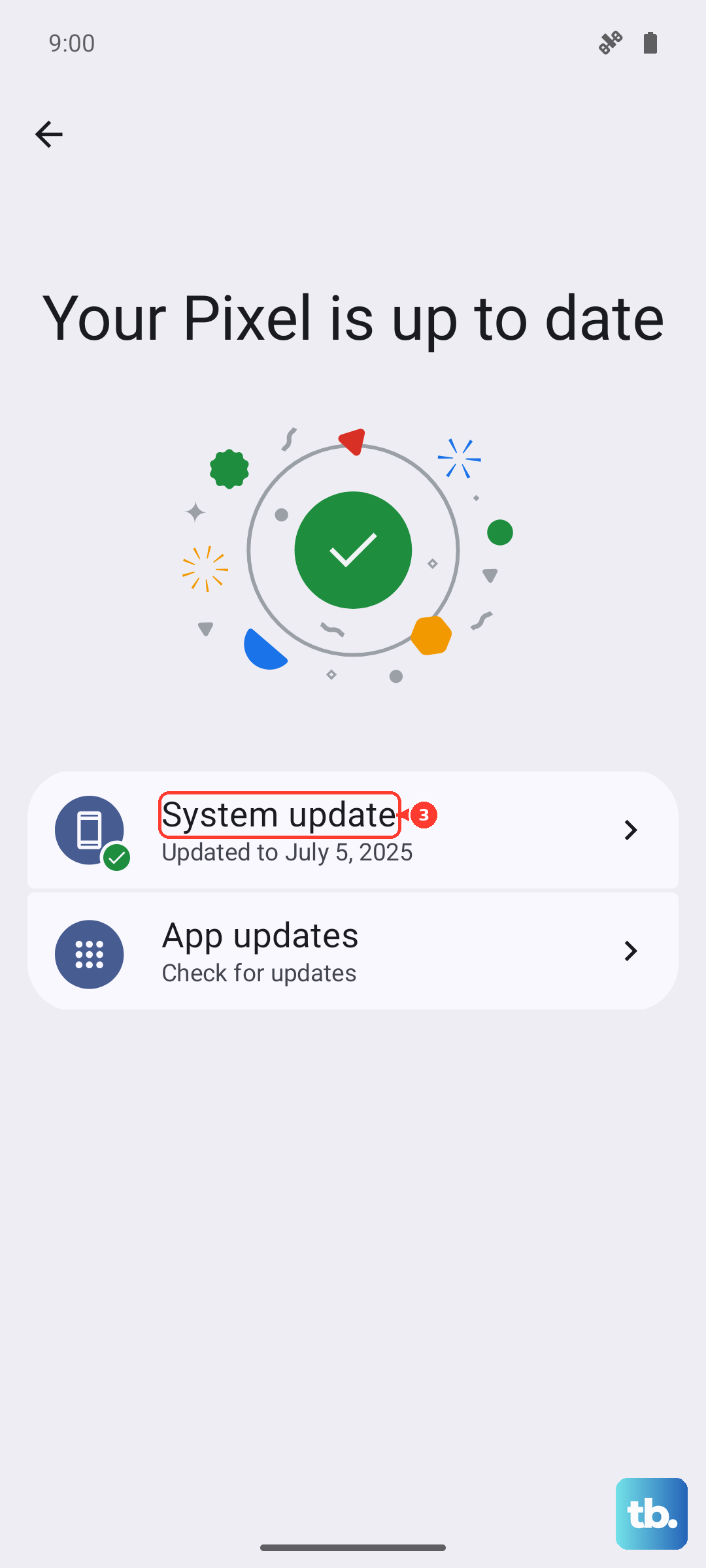
Google frequently releases updates that fix bugs, including network and telephony issues. Make sure your Pixel 8 is running the latest version of Android.
Navigate to Settings > System > System update. Tap "Check for update." If an update is available, install it. It's best to do this while connected to Wi-Fi and with your phone plugged into its 27W charger, as these updates can take a few minutes.
Try Safe Mode to Rule Out App Interference
A third-party app you installed could be interfering with the phone's calling functions. Booting into Safe Mode temporarily disables all downloaded apps.
Press and hold the power button on the screen until the power menu appears. Then, press and hold the "Power off" option on your screen. A prompt to reboot to Safe Mode will appear, tap "OK." Once in Safe Mode (you'll see "Safe mode" in the bottom corner), try making a test call. If it works, a recently installed app is likely the culprit, and you can start uninstalling apps one by one to find the offender.
Contact Your Carrier
If you've tried everything above, the issue might be on your carrier's end. There could be a network outage in your area, a problem with your specific account, or a provisioning error.
Call your carrier's customer support from another phone. Ask them to check your line for any call barring features, to reprovision your network connection, and to verify there are no outages. They can also check if your SIM card needs to be replaced, which they can often do for free at a local store.