
That "No SIM card" message on your Pixel 8 is a real roadblock, cutting you off from calls and data. It's usually a simple glitch you can fix yourself, often in just a few minutes.
I'd start with the most common fix, which is a force restart. Just press and hold the Power button for a full 30 seconds until you see the Google logo appear. This clears out any temporary software hiccups that might be confusing the phone's modem.
Check the Physical SIM Card and Tray
First, power your Pixel 8 off completely. Grab the SIM ejector tool that came in the box and pop open the tray on the bottom edge of the phone.
Carefully remove the SIM card and look at the gold contacts. If you see any dust, lint, or corrosion, gently clean them with a dry, soft cloth. Blow any debris out of the SIM tray slot as well.
When reinserting, make sure the card is seated correctly in the tray and that the tray itself goes back in smoothly. A slightly misaligned SIM is a common culprit for this error.
Toggle Airplane Mode and Check SIM Status
Swipe down twice from the top of your screen to open the full Quick Settings panel. Tap the Airplane Mode icon to turn it on, wait about ten seconds, and then tap it again to turn it off.
This forces your phone's radio to reconnect to the network from scratch. Next, go to Settings > Network & internet > SIMs.
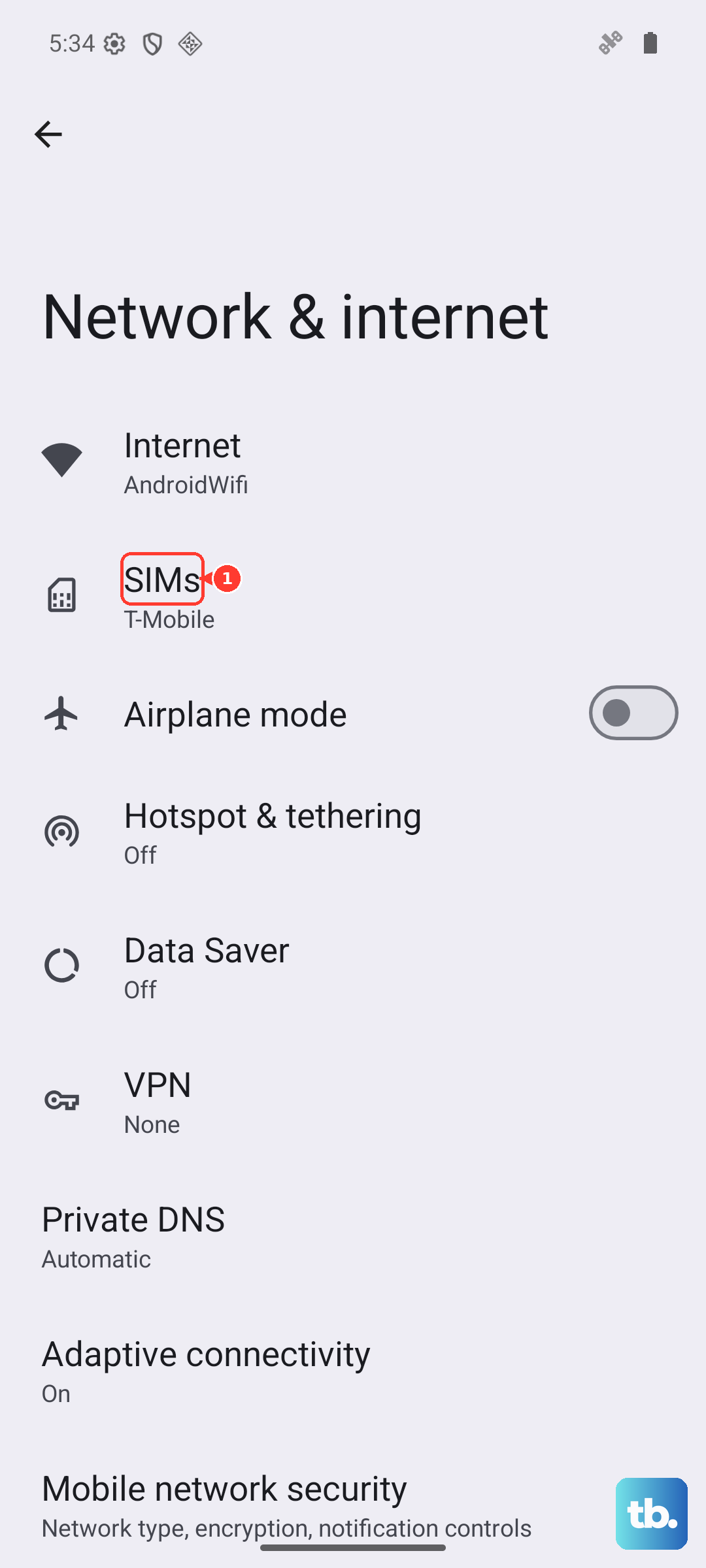
Make sure your SIM is toggled on here. You can also tap on it to see more details and confirm it's being recognized by the system.
Install Any Available System Updates
Google frequently releases updates that fix bugs, including ones related to network connectivity. It's worth checking if you're running the latest software.
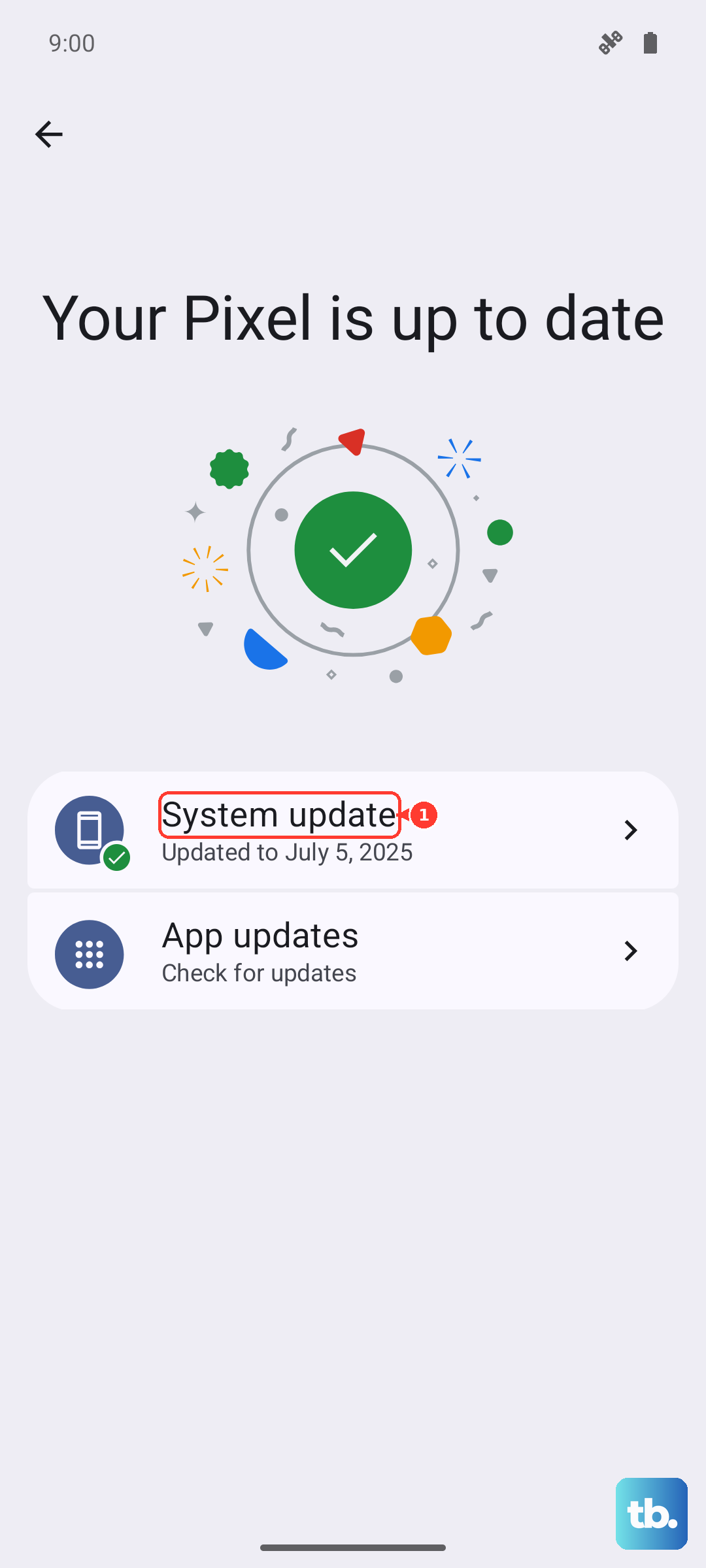
Head to Settings > System > System update. Tap "Check for update" and install anything that's available. After the update finishes, do that 30-second force restart again to make sure everything loads cleanly.
Reset Your Network Settings
If a basic restart didn't help, the next step is to reset all network configurations. This will erase saved Wi-Fi networks, Bluetooth pairings, and cellular settings, but it won't touch your personal files or apps.
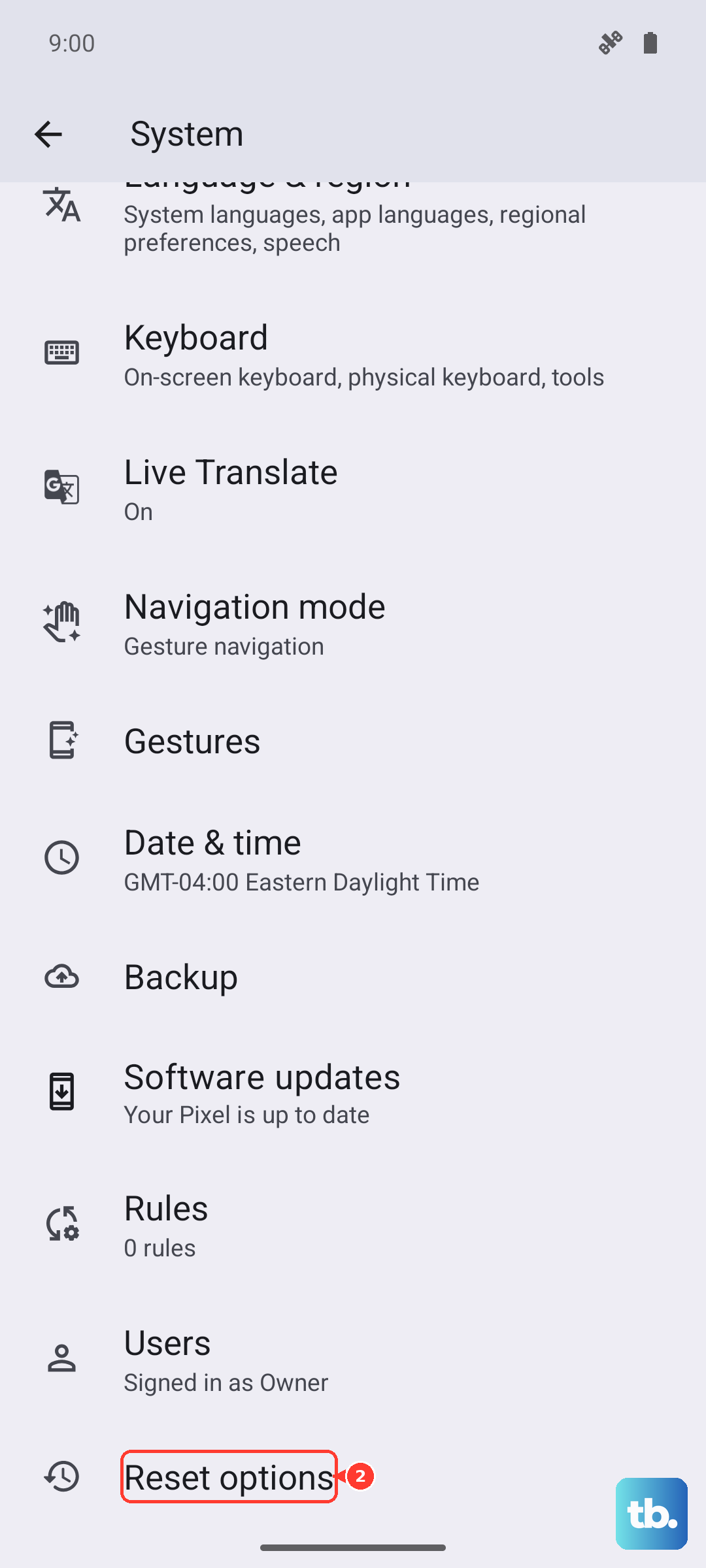
Go to Settings > System > Reset options. Tap on "Reset Wi-Fi, mobile & Bluetooth" and confirm. Your phone will reboot, and you'll need to reconnect to Wi-Fi and re-pair Bluetooth devices afterward.
Try a Different Network Mode
Sometimes forcing the phone to use a specific type of network can kickstart the connection. Go back to Settings > Network & internet > SIMs and tap on your active SIM.
Look for "Preferred network type" or a similar option. Try changing it from "5G" to "LTE" for a moment. If it connects, you can switch it back to 5G to see if it holds.
Reset Your APN to Default
Incorrect Access Point Name (APN) settings will prevent data from working and can sometimes cause broader SIM recognition issues. To fix this, navigate to Settings > Network & internet > SIMs > Access Point Names.
Tap the three-dot menu in the top right and select "Reset to default." Your Pixel should automatically pull the correct settings from your carrier. If you had to manually enter APN details before, you may need to re-add them after this step.
Test the SIM in Another Phone
This is the best way to figure out if the problem is with your Pixel 8 or the SIM card itself. Power down another compatible phone, insert your Pixel's SIM card, and turn it on.
If the other phone also shows "No SIM," then the issue is almost certainly with the SIM card. You'll need to contact your carrier's support to get a replacement SIM sent to you.
Consider Switching to an eSIM
The Google Pixel 8 fully supports eSIM technology. If your physical SIM card seems faulty or the tray is having issues, moving to a digital eSIM can be a permanent solution.
Contact your carrier's customer support and ask if they support eSIM activation for the Pixel 8. They can usually guide you through scanning a QR code in your phone's settings to provision the new digital SIM, often without needing to visit a store.
Check for Carrier Settings Updates
Carriers occasionally push small configuration updates that help your phone work better on their network. While these often install automatically, it doesn't hurt to check.
After confirming you have the latest Android system update, restart your phone. Sometimes these carrier updates apply in the background after a reboot. You can also try removing and reinserting the SIM card to trigger the phone to fetch the latest carrier profile.
Perform a Factory Reset
This is a last resort for persistent software issues. A factory reset will erase everything on your phone, so you must back up your photos, files, and app data first using Google One or your preferred method.
Once backed up, go to Settings > System > Reset options > Erase all data (factory reset). Follow the prompts to reset the phone. After it restarts, set it up as new initially to see if the SIM is detected before restoring your backup.