
Seeing that "No Service" or "X" icon in the corner of your Google Pixel 8 is incredibly frustrating. It means your phone can't find a cellular network for calls, texts, or mobile data. The good news is this is usually a temporary glitch you can fix yourself.
I'd start with the simplest solution first, which often works. Pull down the Quick Settings panel from the top of your screen twice and tap the airplane icon to turn on Airplane Mode. Wait about 10 seconds, then tap it again to turn it off. This forces your phone's modem to restart and search for a signal from scratch.
Restart Your Pixel 8
If toggling Airplane Mode didn't help, a full restart is the next logical step. This clears out any temporary software bugs that might be blocking the cellular radio. Just press and hold the Power button and Volume Up button together until the power menu appears, then tap "Restart."
For a more thorough refresh, you can perform a force restart. Press and hold the Power button for about 30 seconds, and don't let go when you see the Google logo. Keep holding until the screen goes black and the phone fully reboots. This can resolve deeper system hiccups.
Check Your SIM Card
A loose, dirty, or faulty SIM card is a very common culprit for signal problems. You'll need the SIM ejector tool that came in the Pixel 8's box. Gently push it into the small hole on the left side of the phone to pop out the SIM tray.
Carefully remove the SIM card and inspect the gold contacts. If you see any dust or debris, gently wipe them with a soft, dry cloth. Blow into the SIM tray slot as well to clear it out. Then, reinsert the SIM card, making sure it's seated firmly in the tray, and push the tray back into the phone until it clicks.
Update Your Carrier Services and Android
Outdated software can cause conflicts with your mobile network. Google and your carrier regularly release updates to fix these bugs. First, open the Google Play Store, tap your profile icon, and go to Manage apps & device > Updates available.
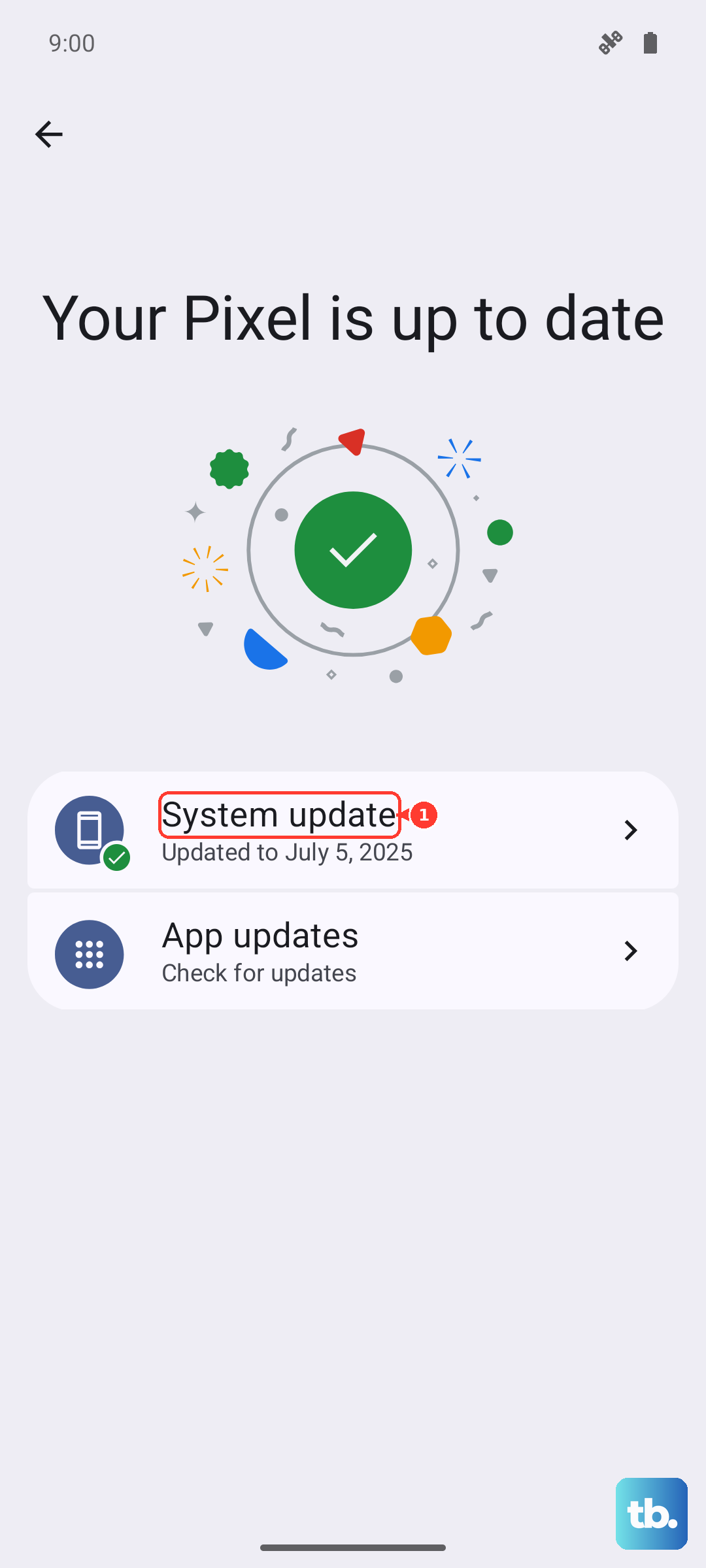
Look for an app called "Carrier Services" and update it. This app is crucial for network connectivity. Next, check for a full system update by going to Settings > System > System update. Download and install any available updates, as they often include important radio firmware fixes.
Reset Your Network Settings
This is a powerful step that resets all Wi-Fi, mobile data, and Bluetooth connections back to factory defaults. It won't delete your personal files like photos or messages, but you will need to re-enter Wi-Fi passwords and re-pair Bluetooth devices.
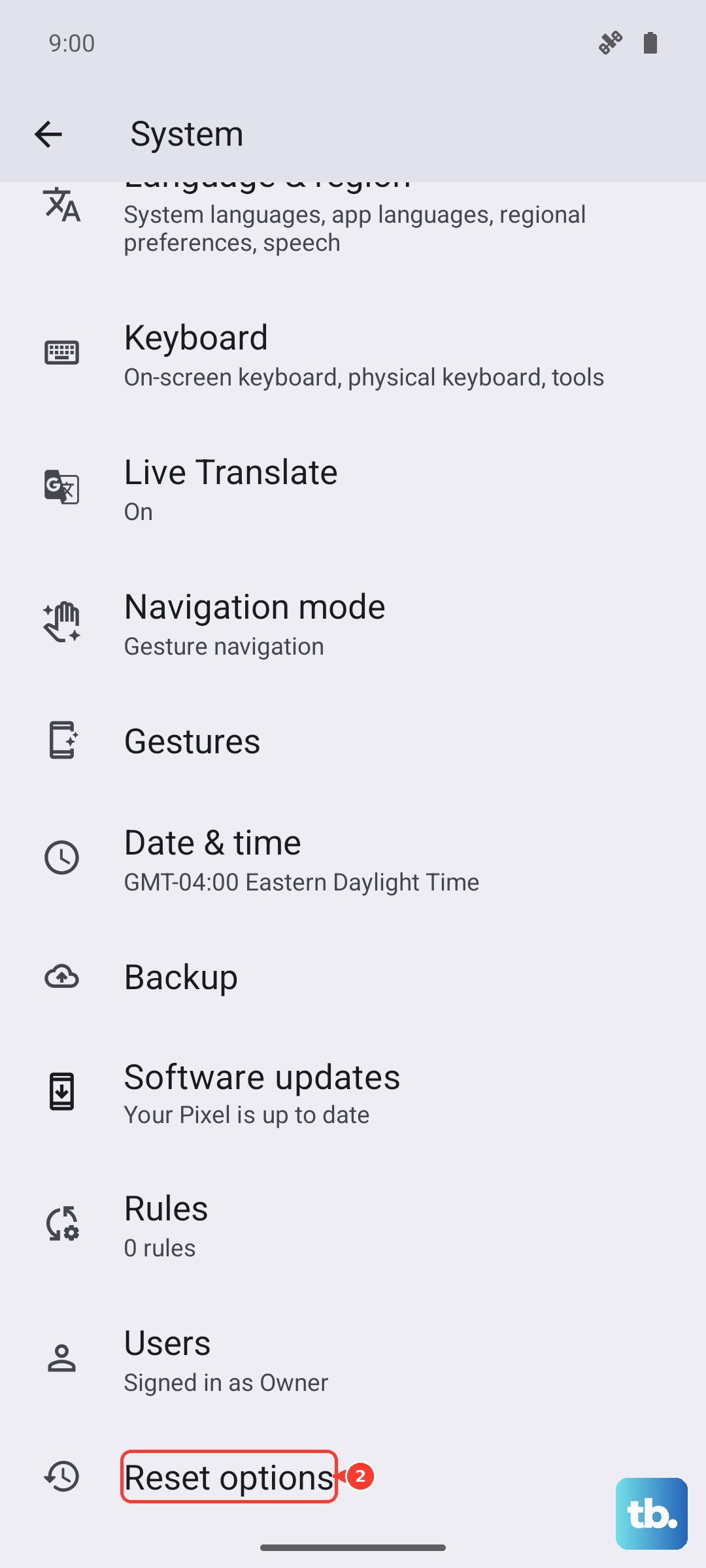
To do this, go to Settings > System > Reset options. Tap on Reset Wi-Fi, mobile & Bluetooth and confirm. After your phone restarts, try reconnecting to your mobile network.
Manually Select Your Network Operator
Sometimes your Pixel 8 might be trying to latch onto a weak or incorrect tower. You can force it to search for and connect to your specific carrier. Go to Settings > Network & internet > Internet.
Tap the settings gear icon next to your carrier's name. Then, tap on Network operators. Turn off the "Choose automatically" toggle. Your phone will scan for a moment, then display a list. Select your carrier's name from the list to force a connection.
Verify Your APN Settings
The Access Point Name (APN) is like the address your phone uses to connect to your carrier's data network. If these settings are wrong, you might get calls and texts but no mobile data. The settings are usually configured automatically, but they can get corrupted.
Go to Settings > Network & internet > Internet and tap the gear icon by your carrier. Tap on Access Point Names. If the settings look blank or incorrect, tap the three-dot menu in the top right and select Reset to default. If problems persist, you may need to get the exact APN details from your carrier's support website and enter them manually here.
Use the Phone Information Menu
Android has a hidden diagnostic menu that lets you directly control the cellular radio. Open your Phone app and dial *#*#4636#*#*. This will open the Testing menu. Tap on Phone information.
In this menu, you'll see a "Run Ping Test" button and a dropdown menu for "Set preferred network type." First, run the ping test to see if there's basic communication. For the network type, selecting "NR/LTE/WCDMA/GSM" is a good catch-all. You can also try tapping Turn off radio, then Turn on radio to cycle it.
Check for Physical or Environmental Issues
Consider where you are. Are you in a basement, a concrete building, or a remote area? Physical barriers can completely block signal. Try moving near a window or going outside. Also, check if your case has any metal components that could be interfering with the antennas.
It's also worth checking if there's a wider service outage. You can visit your carrier's website or social media account, or use a friend's phone on a different network to see if they have service in the same location.
Test with a Different SIM Card
This step helps you figure out if the problem is with your phone or your SIM/account. If you have a friend or family member with the same carrier, ask if you can briefly put their SIM card in your Pixel 8. If their SIM gets service, then the issue is likely with your specific SIM card or your account.
In that case, you should contact your carrier's support. They can check your account status for any blocks and can send you a replacement SIM card, which often resolves persistent "No Service" issues.