
If your Google Pixel 8 is refusing to send pictures, videos, or group texts, it's a frustrating roadblock. MMS issues are usually tied to your data connection or a setting that's gotten out of sync. Let's get your messages flowing again.
Start With Mobile Data and a Restart
MMS can't send over Wi-Fi alone, it needs mobile data. Swipe down twice from the top of your screen and make sure the cellular data icon is active. If you have a strong signal but messages still fail, a simple reboot can clear temporary glitches. Just press and hold the Power button and tap Restart.
For more stubborn freezes, a force restart often helps. Press and hold the Power button for about 30 seconds until the phone vibrates and the Google logo appears.
Verify Your Messages App Settings
Open the Google Messages app, tap your profile picture in the top right, and go to Messages settings > Advanced. Here, make sure "Auto-download MMS" is enabled. Also, double-check that "Send as SMS/MMS" is turned on, this allows a failed RCS message to fall back to standard MMS.
If you're using RCS chats (Chat features), try temporarily turning it off. Go to Messages settings > RCS chats and toggle off "Enable chat features." Send an MMS to test, as RCS can sometimes interfere with standard multimedia messaging.
Clear the App's Cache and Data
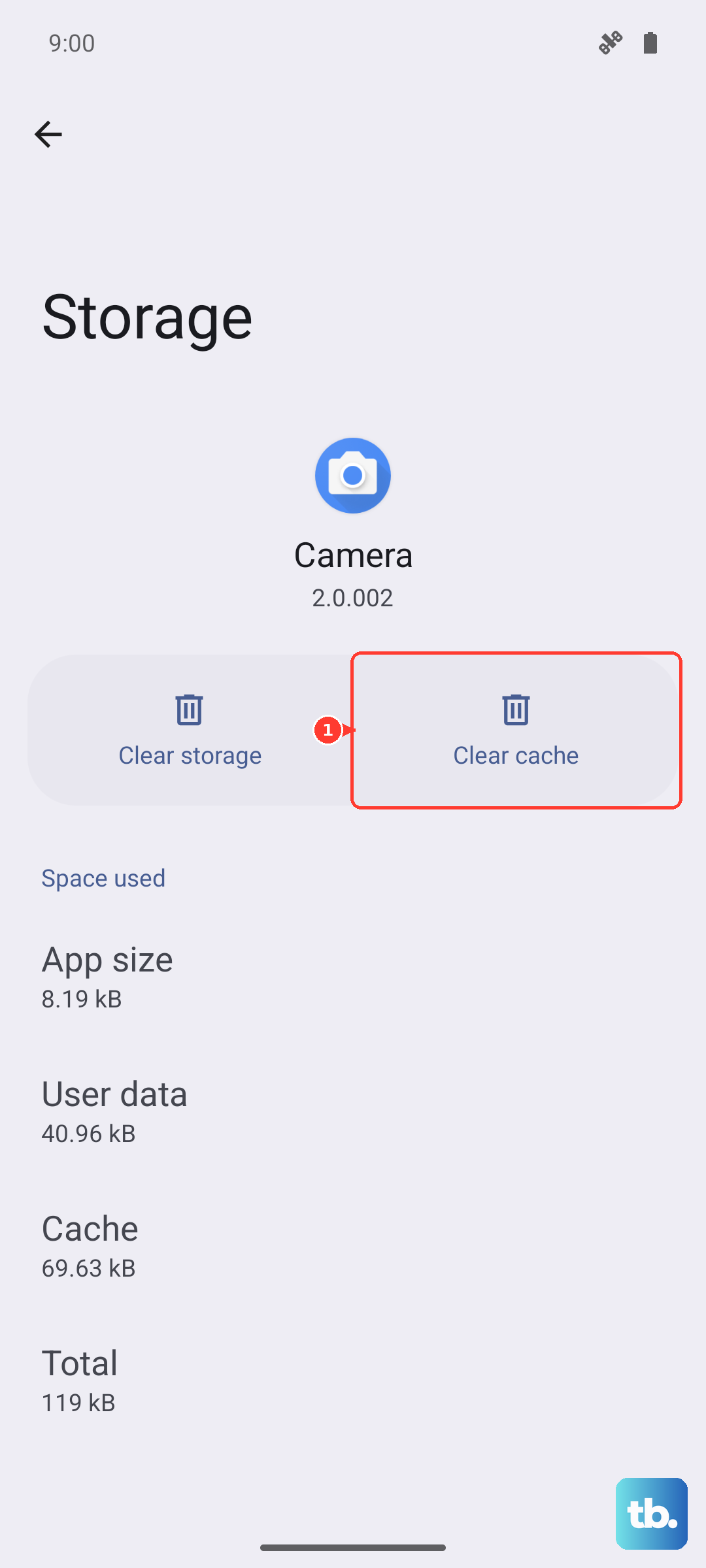
Corrupted temporary files in the Messages app can cause send failures. Go to your phone's Settings > Apps > See all apps. Find and select Messages.
Tap Storage & cache and then Clear cache. This is safe and won't delete your messages. If the problem persists, you can tap Clear storage or Manage space > Clear all data. Be warned, this will erase your message history within the app, so it's a last resort for the app itself.
Check Your APN Configuration
Incorrect Access Point Name (APN) settings are a classic culprit. These tell your phone how to connect to your carrier's MMS gateway. Go to Settings > Network & internet > Internet. Tap the gear icon next to your carrier's name.
Scroll down and tap Access Point Names. Your Pixel should have the correct APN pre-loaded, but it's worth checking. If you see multiple APNs, select the one that matches your carrier. Do not edit these unless you have the exact settings from your provider.
If things look off, the simplest fix is to reset the APN to default. Tap the three-dot menu in the top right and select Reset to default.
Update Your Pixel's Software
Google frequently releases updates that fix connectivity bugs. Make sure you're running the latest version of Android. Go to Settings > System > System update and tap Check for update.
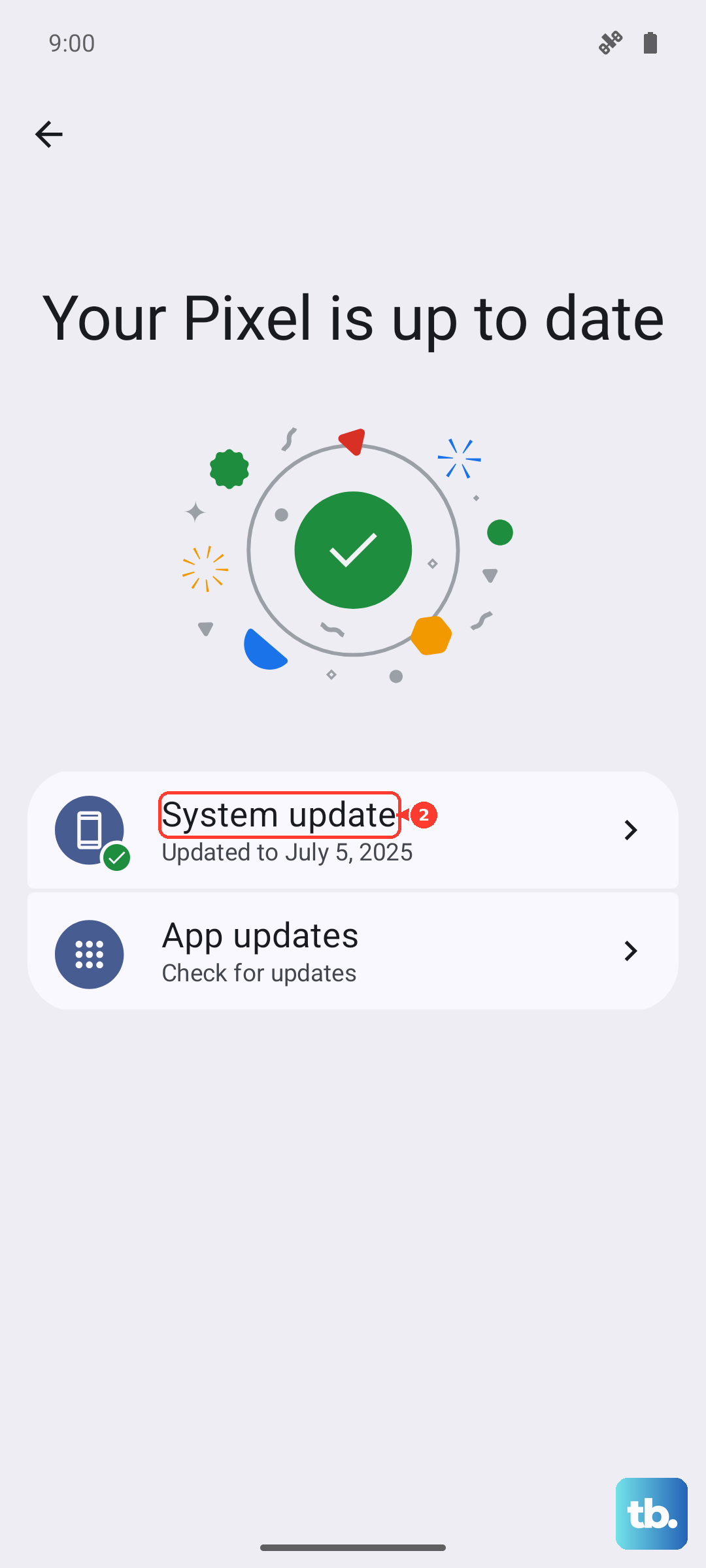
Install any available update and restart your phone. I've seen several Pixel updates specifically address messaging and network stability issues.
Reset Your Network Settings
This will wipe all your network connections back to factory defaults, which can resolve deeper configuration problems. You'll lose saved Wi-Fi networks, paired Bluetooth devices, and custom mobile network settings.
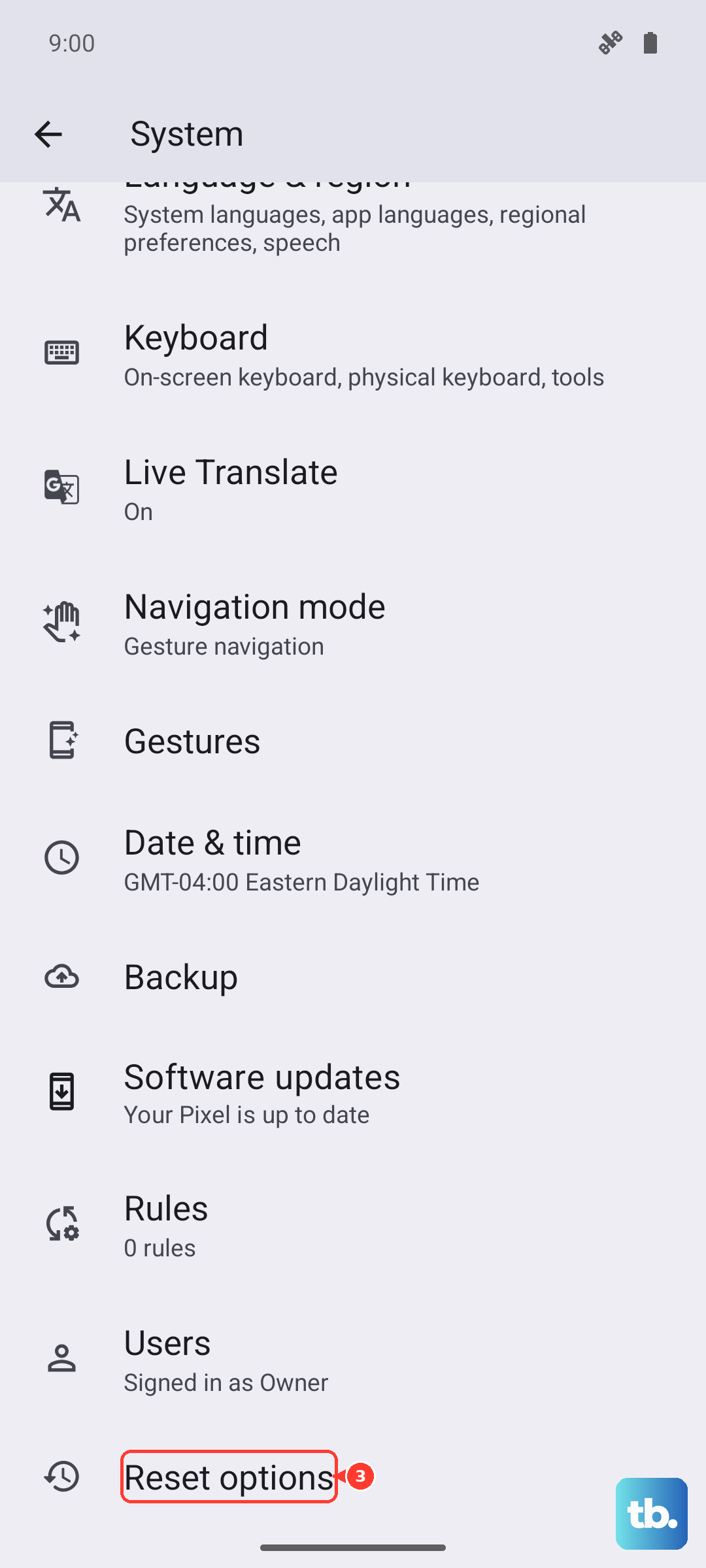
To do this, navigate to Settings > System > Reset options. Tap Reset Wi-Fi, mobile & Bluetooth and confirm. After the phone restarts, you'll need to reconnect to Wi-Fi and re-pair Bluetooth accessories, but your MMS issues may be resolved.
Review Your Data Saver and VPN
Features designed to restrict background data can block MMS. Go to Settings > Network & internet > Data Saver. If it's on, tap Unrestricted data and make sure the Messages app is allowed.
Similarly, if you're using a VPN, try disabling it temporarily. Some VPNs can interfere with the local network path your carrier uses for MMS delivery.
Ensure You Have Enough Storage
Your Pixel 8 needs a bit of free space to process and send multimedia messages. Open Settings > Storage to see how much space is available. If you're critically low, try deleting some old downloads or clearing app caches to free up a few hundred megabytes.
Try a Different Messaging App
This is a great way to figure out if the problem is with the Google Messages app itself or a deeper system/network issue. Download another popular app like Textra or Signal from the Play Store, set it as your default, and grant it permissions.
If MMS sends successfully from the new app, the issue is likely with Google Messages' data or settings. If it still fails, the problem is almost certainly with your network configuration or carrier.
Contact Your Carrier
If you've tried everything here, it's time to call your mobile provider. There might be an outage in your area, a provisioning issue on your account, or your SIM card could be faulty. They can check your line and often push updated network settings directly to your phone.
Ask them specifically to verify that MMS is enabled on your plan and to confirm the MMS proxy and port settings for your APN. Sometimes, they can reset something on their end that instantly fixes the problem.