
Blurry photos on your Google Pixel 8 can be incredibly frustrating, especially when you know the camera is capable of amazing shots. The blur might be constant, appear only in certain lighting, or affect just one of the lenses. I'd start by checking a few simple things before assuming there's a hardware problem.
Clean the Camera Lenses
This is the absolute first thing to try. Use a soft, lint-free microfiber cloth to gently wipe the camera lenses on the back of your Pixel 8. Fingerprints, dust, and smudges are the most common cause of a hazy or blurry look in photos. Avoid using your shirt or rough paper towels, as they can scratch the delicate lens coating over time.
Remove Your Phone Case
Some phone cases, even well-known brands, can have a camera cutout that's slightly misaligned or too deep. This can cause the edge of the case to intrude into the camera's field of view, creating a soft blur around the edges of your photos. Take the case off and snap a quick test picture to see if the clarity improves.
Tap to Focus and Hold for Lock
Open the Camera app and tap directly on your subject on the screen. You'll see a focus ring appear. If the camera is focusing on the background instead of your subject, this forces it to adjust. For more control, press and hold on the spot you tapped. This locks the focus and exposure (AF/AE Lock), which is great for keeping a moving subject sharp.
Switch Between Camera Lenses
Your Pixel 8 has multiple lenses. In the Camera app, tap the zoom icons (like 0.5x, 1x, 2x) to switch between the ultrawide, main, and telephoto cameras. If only one lens produces blurry images, the issue is isolated to that specific sensor. The other lens might just need a good cleaning, which is a common fix.
Force Close and Reopen the Camera App
Swipe up from the bottom of your screen and hold to enter the app overview. Find the Camera app and swipe it all the way up to close it. Then, reopen it from your home screen. A temporary software glitch in the app can sometimes cause the autofocus or image processing to malfunction, resulting in soft photos.
Restart Your Pixel 8
Press and hold the Power button for about 30 seconds until you feel a vibration and see the Google logo. This force restart clears out any stuck system processes that could be interfering with the camera's performance. It's a simple reset for the entire software stack, including the camera drivers.
Check for Software Updates
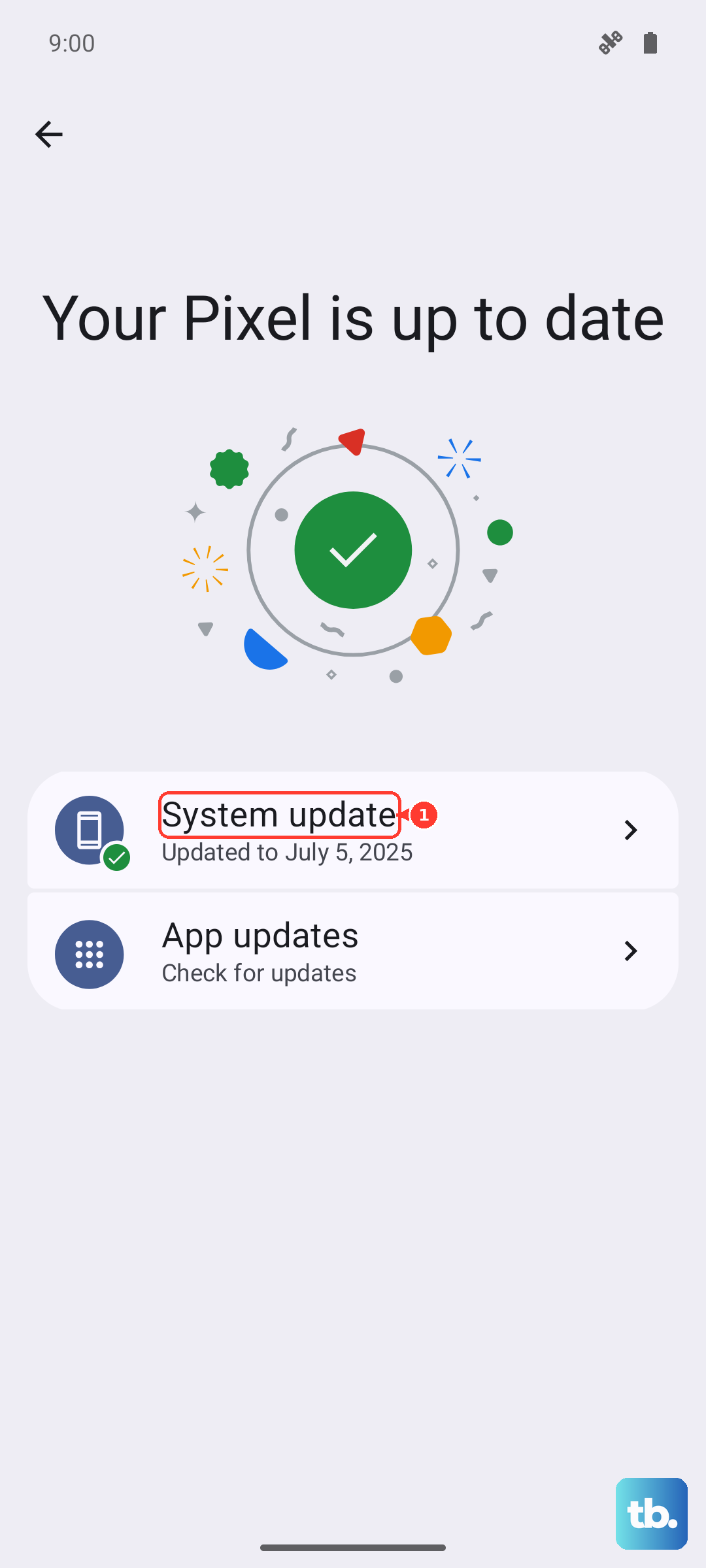
Go to Settings > System > System update and tap "Check for update." Google frequently releases updates that include camera improvements, bug fixes, and enhancements to image processing. A known issue causing blur in specific scenarios might already have a patch waiting for you.
Disable Adaptive Battery Temporarily
In some cases, battery optimization features can interfere with camera performance. Go to Settings > Battery > Adaptive Battery and turn it off. Take a few test photos, then restart your phone. If the blur is gone, you can turn Adaptive Battery back on. It's a rare issue, but I've seen it affect camera responsiveness.
Clear the Camera App's Cache
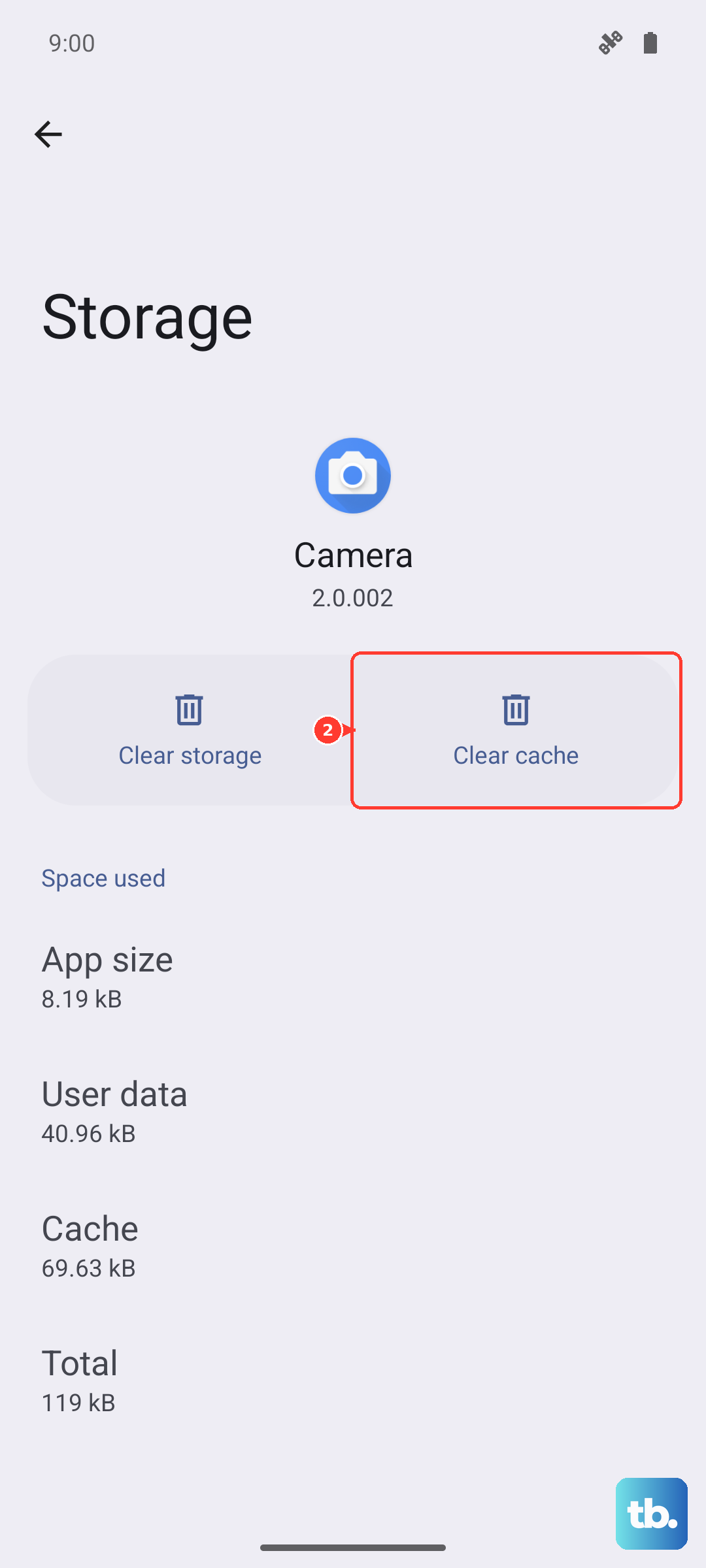
Go to Settings > Apps > See all apps. Find and tap on "Camera." Select Storage & cache and then tap "Clear cache." This deletes temporary data that might have become corrupted. Don't select "Clear storage" or "Clear data," as that will reset all your camera settings to default.
Check for Lens Flare or Light Sources
The Pixel 8's camera is susceptible to lens flare from bright lights just outside the frame, which can wash out your photo and reduce contrast, making it look blurry. Use your hand to shade the top of the lens from the sun or bright indoor lights. Repositioning yourself slightly can often make a huge difference.
Ensure Macro Mode Isn't Struggling
When you get very close to a subject, the Pixel may automatically engage a macro focus. If you're at an awkward distance where it's switching between standard and macro focus, the image can blur. Try taking a small step back to give the camera a clearer focusing distance, or use the 2x zoom to get a closer shot from farther away.