
If your Google Pixel 8 is refusing to connect to your headphones, car, or speaker, it can be incredibly frustrating. I've found that Bluetooth issues on the Pixel 8 are usually a quick software hiccup, not a sign of a broken phone. Let's walk through the fixes that actually work, starting with the simplest one you can try right now.
Pull down your notification shade and tap the Bluetooth icon to turn it off. Wait about ten seconds, then tap it again to turn it back on. This quick toggle can often clear up a temporary glitch and get your devices talking again. If that doesn't do it, don't worry, we have plenty of other steps to try.
Check the Simple Things First
Before we dive deeper, let's rule out the easy stuff. Make sure both your Pixel 8 and the device you're trying to connect to have enough battery, ideally above 20%. Keep them within a few feet of each other during the pairing process.
Double-check that the other device is actually in pairing mode. This sounds obvious, but it's a common oversight. The manual for your headphones or speaker will tell you how to do this, usually involving holding a button until a light flashes.
Finally, see if your Pixel 8 can connect to a different Bluetooth device. If it can, the problem is likely with the original accessory. If it can't connect to anything, then the issue is with your phone, and we can focus our troubleshooting there.
Forget and Re-Pair the Device
This is one of the most effective fixes for a stubborn Bluetooth connection. You'll remove the device from your phone's memory and set it up again like it's brand new. Go to Settings > Connected devices > Previously connected devices.
Tap the settings icon next to the problematic device and select Forget. Confirm your choice. Now, put that device back into pairing mode and search for it again on your Pixel 8. This fresh start resolves a huge number of pairing and stability issues.
Restart Your Pixel 8 and the Accessory
A classic restart fixes more problems than you'd think. It clears out temporary system glitches that can interfere with Bluetooth. On Pixel 8, press and hold the Power and Volume Up buttons together for a few seconds, then tap Restart.
While your phone is rebooting, go ahead and power cycle the Bluetooth accessory too. Turn it completely off, wait a moment, and turn it back on. Once both devices are fresh, attempt the connection again.
Clear the Bluetooth System Cache
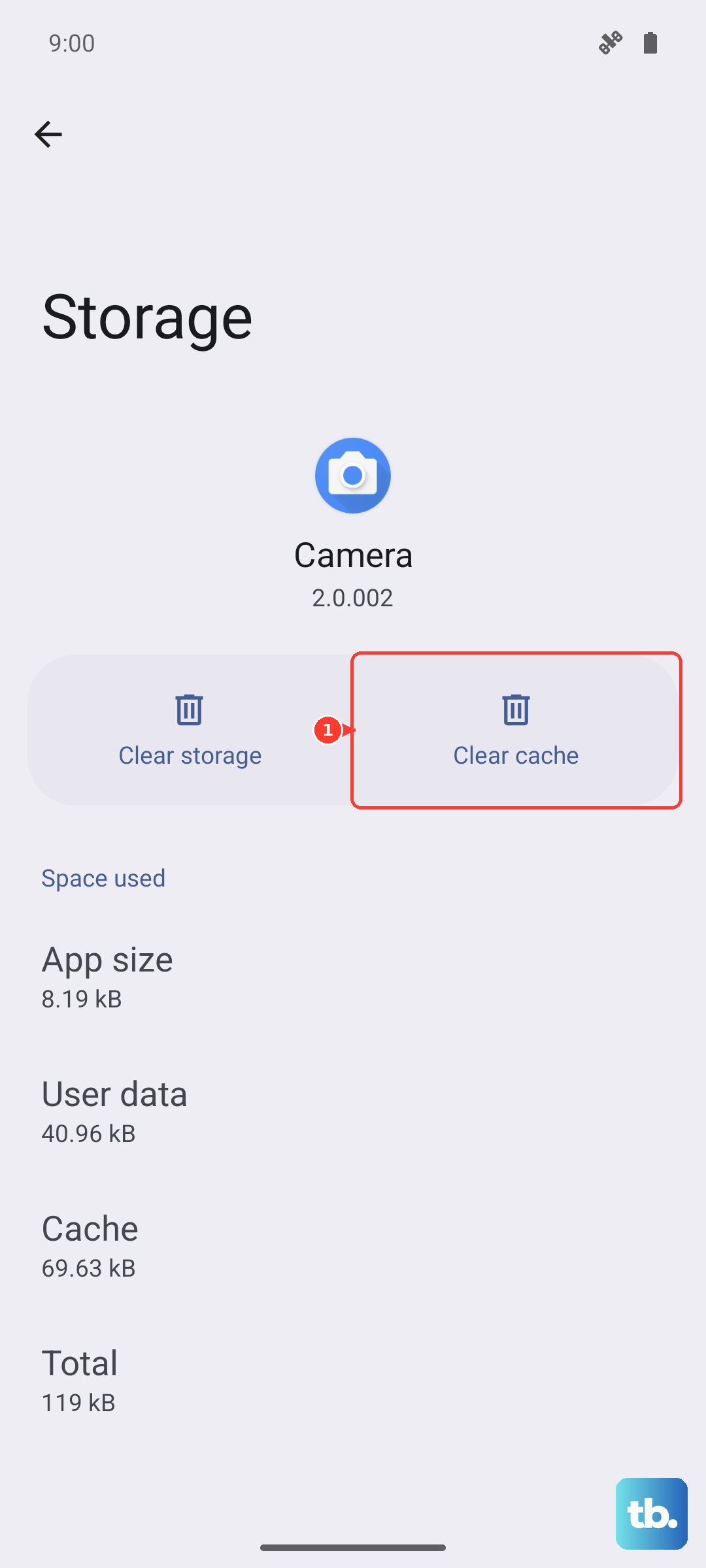
Android stores temporary data to help apps run faster, but this cache can sometimes become corrupted. Clearing it is safe and won't delete your paired devices. Go to Settings > Apps > See all apps.
Tap the three-dot menu in the top right and select Show system. Scroll down and find Bluetooth in the list, then tap on it. Select Storage & cache and tap Clear cache. After doing this, restart your phone and test Bluetooth again.
Check for a Software Update
Google frequently releases updates that fix bugs, including Bluetooth connectivity problems. Making sure your Pixel 8 is running the latest software is crucial. Head to Settings > System > System update.
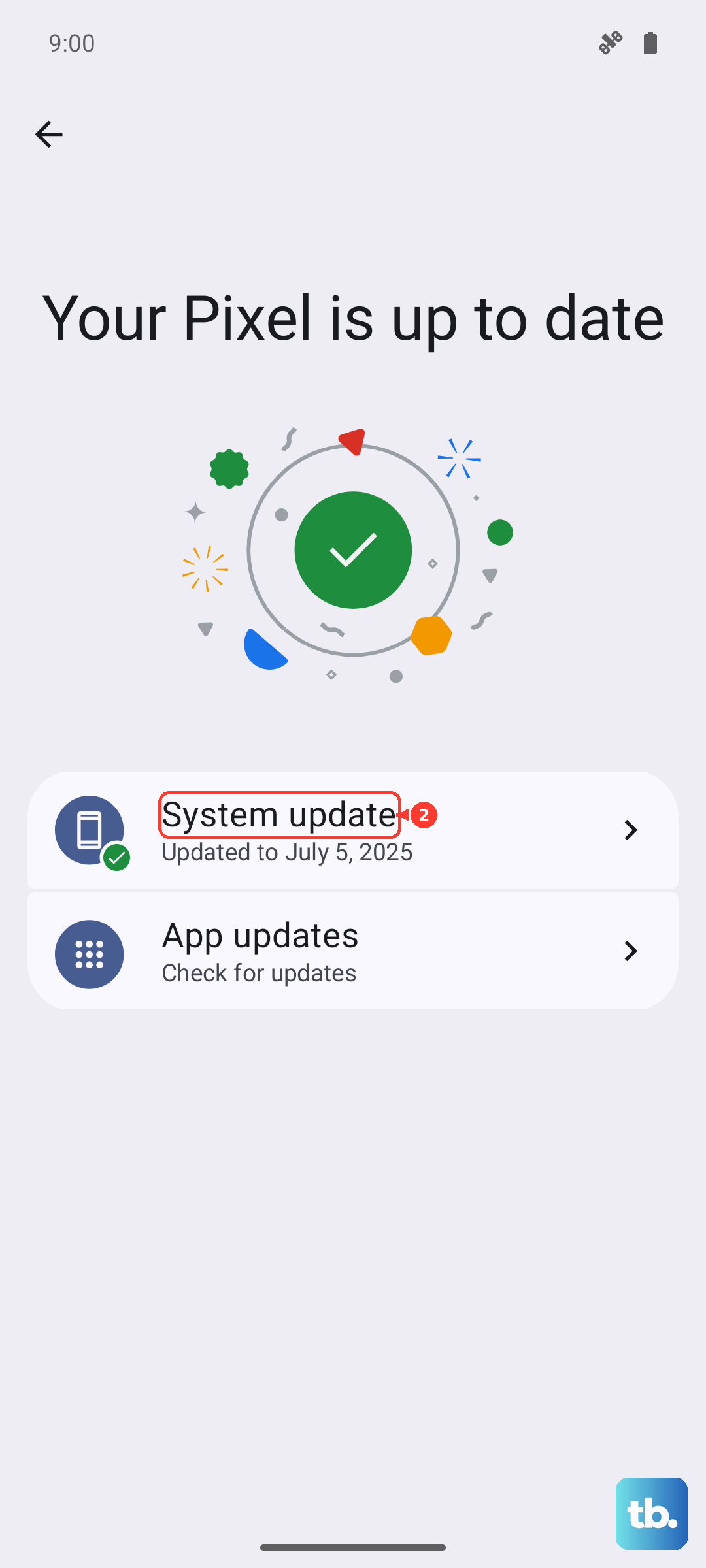
Tap Check for update. If an update is available, install it. It's a good idea to connect to Wi-Fi and plug your phone in before starting the update. Also, check if your Bluetooth device has a companion app that might offer a firmware update for the accessory itself.
Reset Your Network Settings
This step resets saved Wi-Fi networks and Bluetooth pairings to their defaults. You'll need to re-enter Wi-Fi passwords and re-pair Bluetooth devices afterward. Go to Settings > System > Reset options.
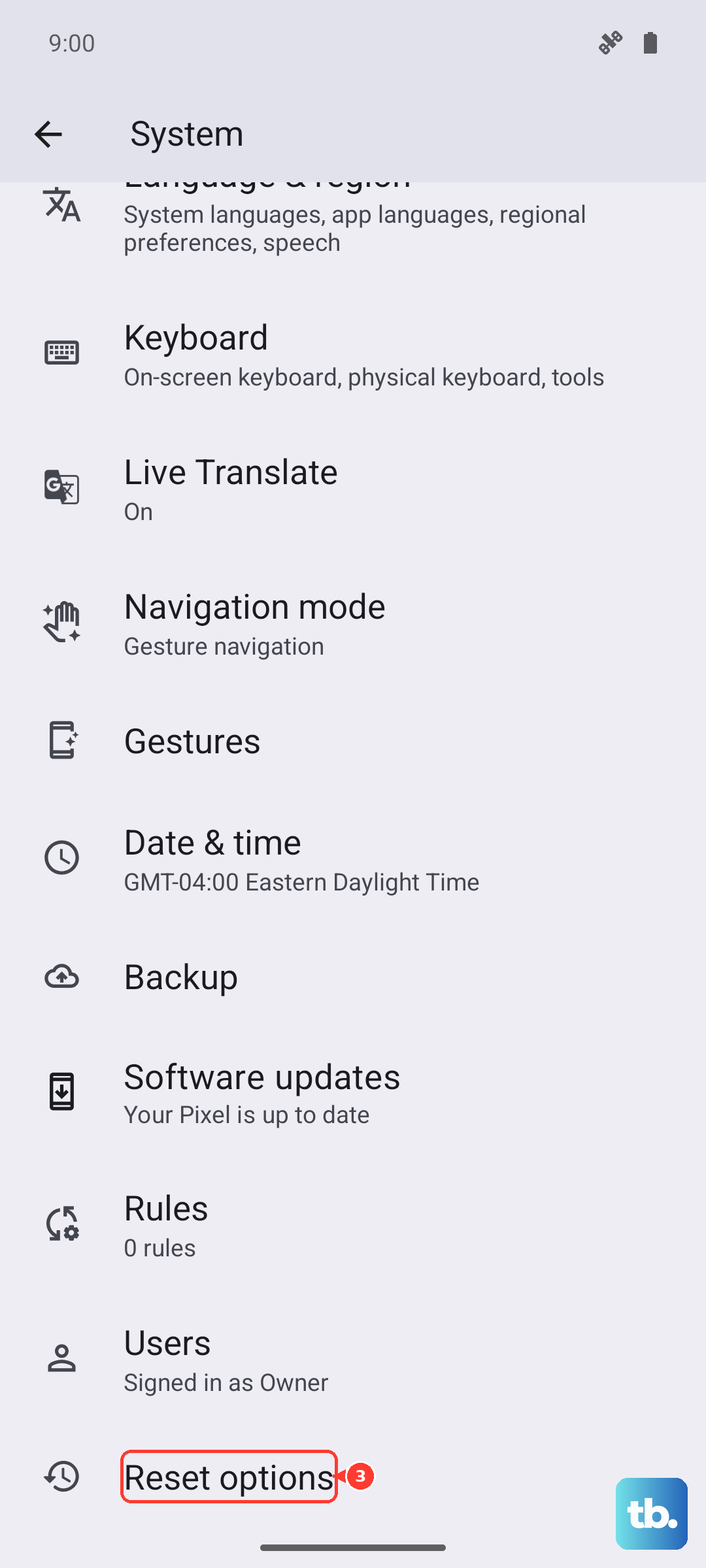
Tap Reset Bluetooth & Wi-Fi and confirm. This is a very effective step for clearing out wireless configuration errors that simpler resets can't fix. Mobile network settings are handled separately, so use that only if cellular data is also acting up.
Boot Into Safe Mode
Safe Mode temporarily disables all apps you've downloaded. If Bluetooth works perfectly in Safe Mode, it means a third-party app is causing the conflict. To enter Safe Mode, press and hold the Power button and Volume Up button together until the power menu appears.
Then, press and hold the Power off option on your screen. You'll see a prompt to reboot to Safe Mode. Tap it. If Bluetooth works now, restart your phone normally and start uninstalling recently downloaded apps one by one, testing Bluetooth after each one, to find the culprit.
Address Specific Connection Scenarios
Car systems can be particularly finicky. If your Pixel 8 won't connect to your car, delete your phone from the car's infotainment system and delete the car from your Pixel's Bluetooth list. Then, with the car running, try the pairing process from scratch.
For wireless earbuds or headphones, make sure they're fully charged and that you've followed the manufacturer's specific reset procedure, which often involves holding buttons for an extended period. This clears the earbuds' own memory, which can help.
If your Bluetooth turns on but won't find any devices, ensure the accessory is in pairing mode and that you haven't accidentally enabled airplane mode on your Pixel. Also, try moving away from other wireless signals like crowded Wi-Fi routers, as they can cause interference.