
A black screen on your Google Pixel 8 can be a real scare, but it's often a temporary software hiccup rather than a hardware failure. The phone might be on and running with just the display frozen, or a deep crash has stalled everything. Let's walk through the steps to get your screen back.
Force Restart Your Pixel 8
This is almost always the first and best step. Simply press and hold the Power button for about 30 seconds. Keep holding it even if the screen stays dark. You should feel a vibration and then see the Google logo appear as the phone reboots. This command works at a system level, bypassing any unresponsive software.
Charge Your Phone Properly
A fully depleted battery will show nothing. Plug your Pixel 8 into a wall outlet using a known-good USB-C cable and a power adapter that supports at least 18W for a decent charge. I'd give it a solid 20-30 minutes before trying to turn it on again. If you don't see a charging indicator or battery icon after that time, try a different cable and charger block to rule out a faulty accessory.
There's a known bug where some Pixel 8 phones stop charging at 80%. If your battery was very low, it might be stuck in this state. Also, if the phone gets too warm during fast charging, it can pause charging altogether for safety, which might look like a dead device.
Check for Display Damage
Take a close look at the screen under good light. Look for any new cracks, deep scratches, or discolored spots. If the phone still vibrates for notifications, makes sounds, or responds to the "Hey Google" hotword, then the device is on but the display hardware is likely damaged. In that case, a screen replacement is needed.
Adjust the Screen Brightness Blindly
It's possible the brightness was accidentally turned all the way down. You can try asking Google Assistant to help. Say "Hey Google, set brightness to maximum." If the phone is on, this should work. Alternatively, try swiping down from the top of the screen twice to pull down the Quick Settings panel, then swipe right across the screen where the brightness slider should be.
Boot into Safe Mode
If a recently installed app is causing a system crash, booting into Safe Mode can tell you. First, force restart the phone as described above. As soon as you see the Google logo appear during the reboot, press and hold the Volume Down button. Keep holding it until the animation finishes and you see "Safe mode" in the bottom corner. If the screen works in Safe Mode, you know a third-party app is the culprit.
Check for Software Updates
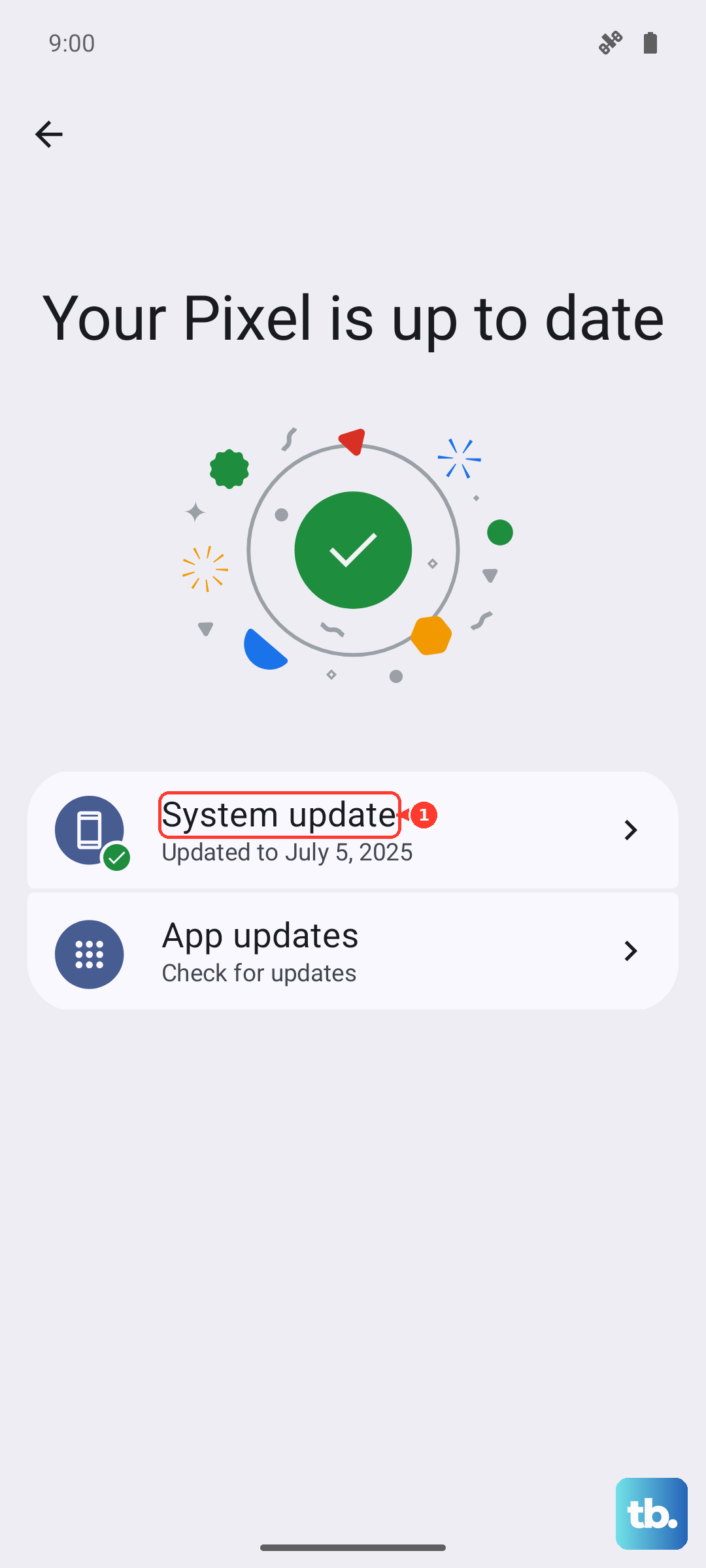
Google has released several firmware updates addressing various bugs, including some related to power management and display. If you can get the screen on, immediately go to Settings > System > System update to check for and install any available updates. Keeping the OS current is one of the best ways to prevent these kinds of glitches.
Inspect the USB-C Port
This is a common issue. Grab a flashlight and look inside the charging port on your phone. Look for packed-in lint, dust, or any debris that might be preventing the cable from seating fully. Gently clean it out with a dry, soft-bristled toothpick or a can of compressed air. A poor connection here can prevent charging and make the phone appear dead.
Use Android Flash Tool (Web)
If the phone is completely unresponsive but your computer still recognizes it, you can try a reflash. This is more advanced. On a computer, visit the Android Flash Tool website. Put your Pixel 8 into bootloader mode by turning it off, then holding Volume Down while you plug in the USB-C cable to your computer. The site will guide you through reinstalling the device software, which can fix deeper corruption.
Review Adaptive Charging Settings
Your Pixel 8 has a feature called Adaptive Charging that learns your routine and slows charging to 80% overnight to preserve battery health. If you plugged in at an unusual time, it might be holding at 80% and the screen could be off. You can check or disable this by going to Settings > Battery > Adaptive charging once you regain access.