When your Google Pixel 8 gets stuck trying to download an app, it can feel like your phone is suddenly broken. You tap install, and it just sits there, spinning forever. I've seen this happen a few times, and it's almost always something simple you can fix yourself.
Let's go through the most reliable ways to get your Pixel 8 downloading apps again, starting with the quickest solutions.
Check Your Internet Connection First
This is the most common culprit. Whether you're on Wi-Fi or mobile data, a weak or unstable connection will stop downloads in their tracks. Pull down the notification shade on your Pixel 8 and make sure you're properly connected.
If you're on Wi-Fi, try turning it off and using your mobile data for a moment to see if the download starts. Some public Wi-Fi networks block the ports the Play Store needs.
Restart Your Pixel 8
A simple restart clears out temporary glitches in the system. Just press and hold the power button, then tap 'Restart' on the screen. If the download issue just started today, this often fixes it right away.
For a more thorough reset, you can try a force restart. Press and hold the Power button for about 30 seconds until the phone vibrates and the Google logo appears. This is different from a normal restart and can clear deeper system hiccups.
Clear the Google Play Store Cache
The Play Store stores temporary data to run faster, but this cache can get corrupted. Clearing it is a safe first step that won't delete your apps or account.
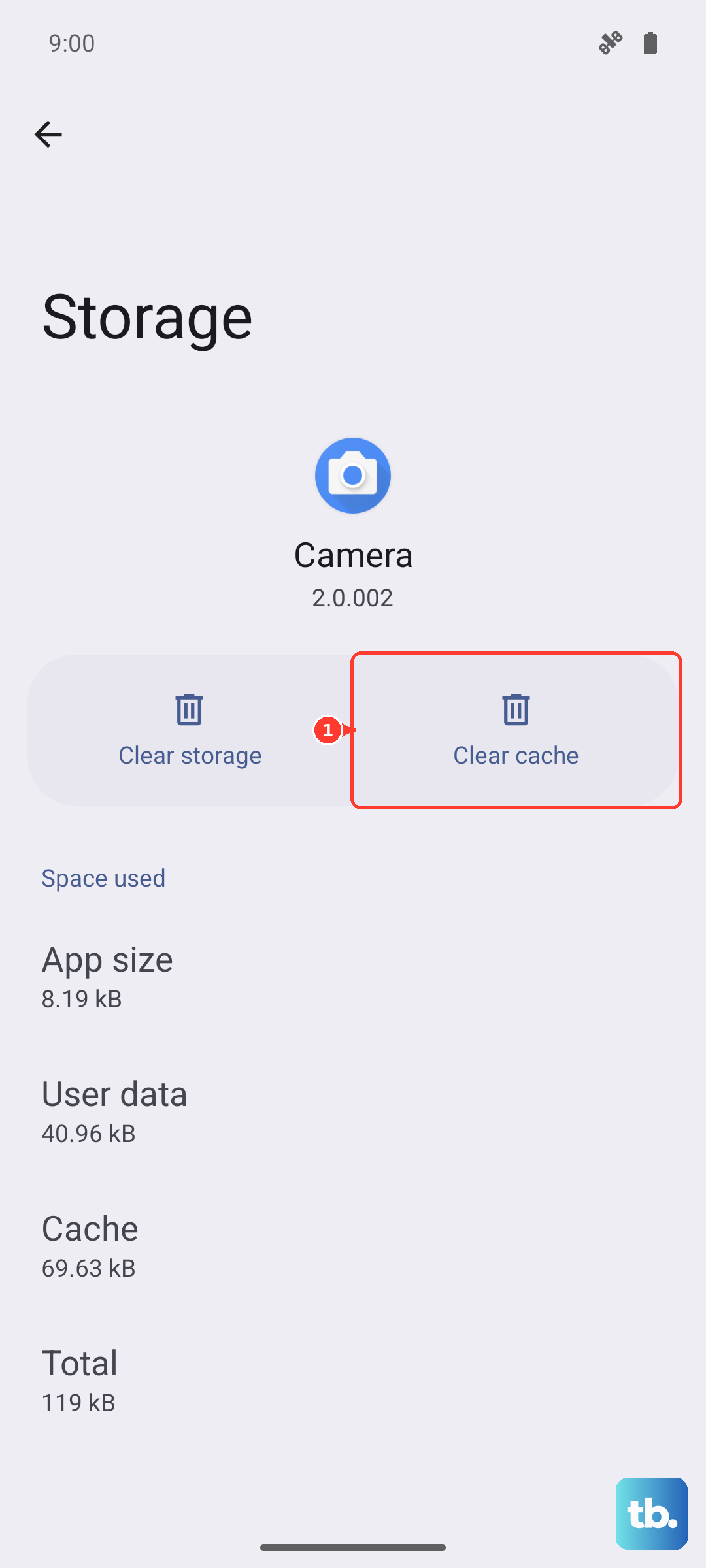
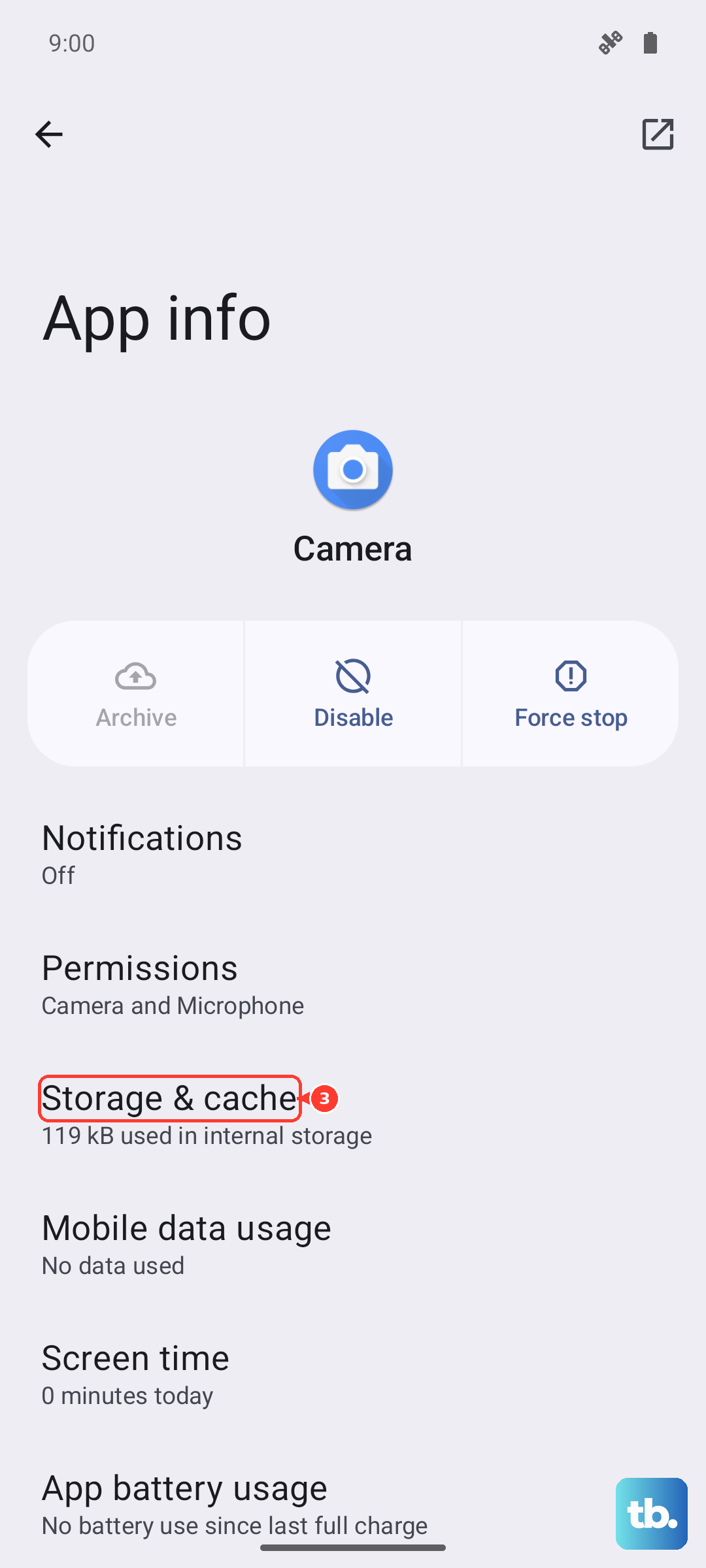
Go to Settings > Apps > See all apps. Find and tap 'Google Play Store'. Tap Storage & cache, then hit 'Clear cache'. Try your download again. If it's still stuck, you can come back here and tap 'Clear storage' (this will reset the Play Store's settings but not your installed apps).
Update Google Play Store and Services
An outdated version of the Play Store itself can cause download problems. Open the Play Store, tap your profile icon in the top right, and go to Settings > About > Play Store version.
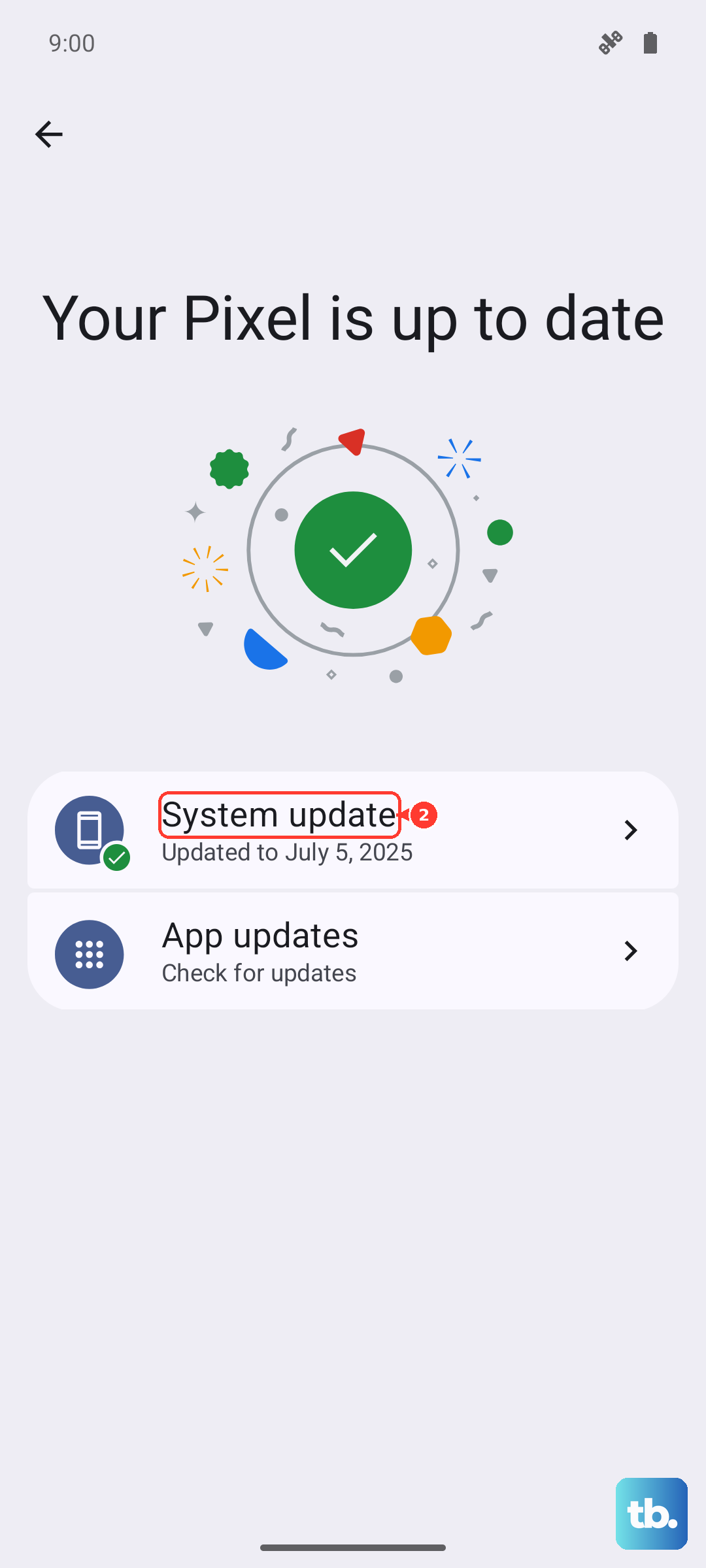
It will check for updates. If one is available, install it. Also, make sure your phone's system is up to date by going to Settings > System > System update. Google frequently releases fixes for bugs that can affect downloads.
Check Download Manager on Your Pixel
Android has a background service called Download Manager that handles all downloads. If it's disabled or stuck, nothing will download. Go to Settings > Apps > See all apps.
Tap the three-dot menu and select 'Show system'. Now search for 'Download Manager'. If it's disabled, tap 'Enable'. If it's enabled, tap it, then go to Storage & cache and clear its cache and data.
Remove and Re-add Your Google Account
Sometimes the sync between your phone and your Google account gets out of whack. Removing and re-adding it can refresh the connection. Go to Settings > Passwords & accounts.
Tap your Google account, then tap 'Remove account'. Confirm, then go back and tap 'Add account' to sign back in. You won't lose any data stored in your account, but you may need to re-enter passwords for some apps.
Check App Permissions for Play Services
Google Play Services needs certain permissions to function. Go to Settings > Apps > See all apps and find 'Google Play Services'. Tap it, then go to Permissions.
Make sure 'Storage' permission is allowed. Also, go back and tap 'Modify system settings' to ensure it has that permission enabled as well.
Free Up Storage Space on Your Pixel 8
If your phone's internal storage is completely full, it can't download anything new. Go to Settings > Storage to see how much space you have left.
You can use the 'Free up space' tool there, or manually delete old downloads, clear app caches, or offload photos and videos to Google Photos. Aim to have at least 1GB free for app downloads to proceed smoothly.
Disable Any Active VPNs
If you're using a VPN app, it can sometimes interfere with the connection to Google's servers. Try temporarily disabling your VPN from its app or the quick settings panel.
Once the VPN is off, try the download again. If it works, you know the VPN was the issue, and you may need to adjust its settings or try a different server location.
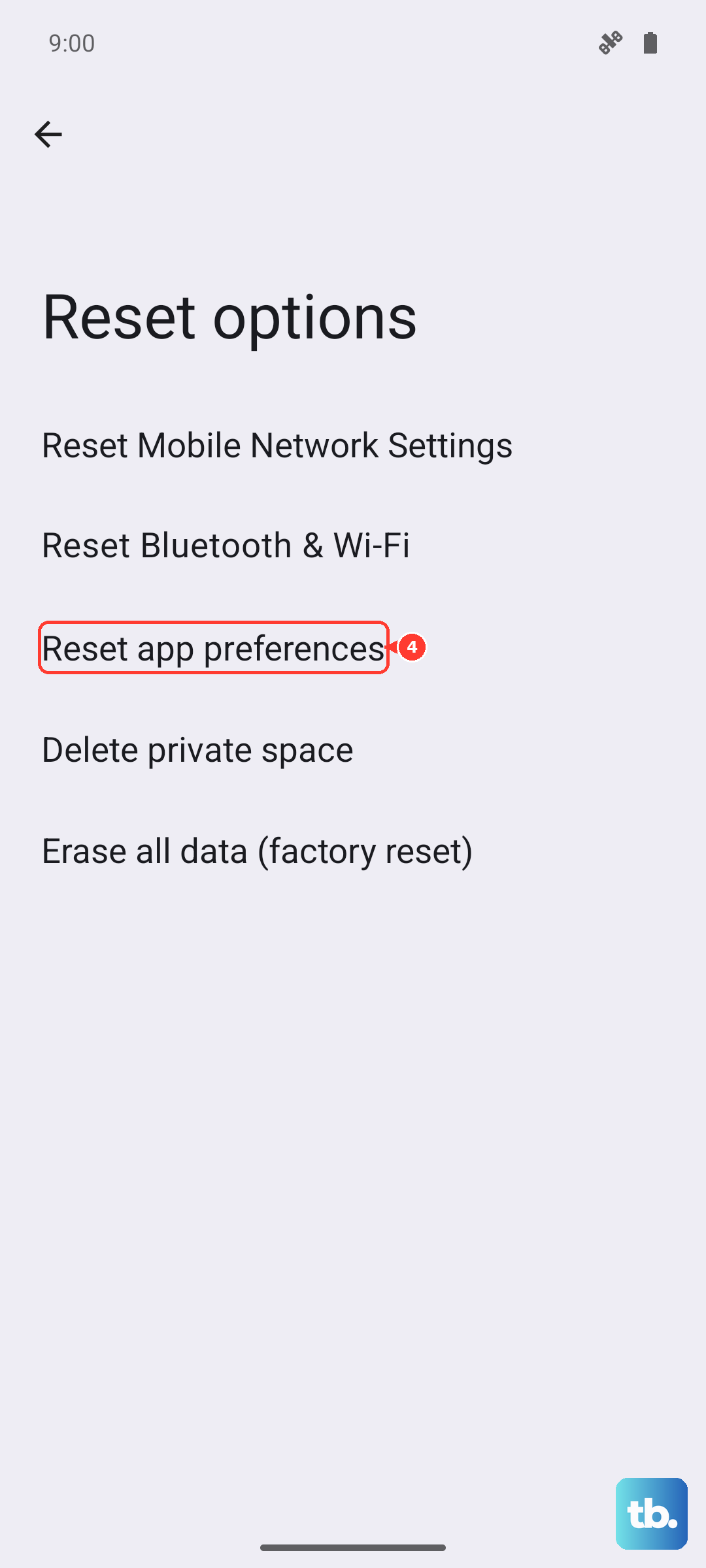
Reset All App Preferences (Non-Destructive)
This is a useful last step before considering a factory reset. It resets permissions, background restrictions, and default apps without deleting any of your personal data.
Go to Settings > System > Reset options. Tap 'Reset app preferences' and confirm. After your phone restarts, you'll need to re-grant permissions to apps as you use them, but your downloads should start working.