
When your Google Pixel 10a touchscreen stops responding, it can stop you in your tracks. You can't unlock the phone, swipe through notifications, or tap on anything.
Start with a free online touch test to confirm where the screen actually responds. Knowing whether the fault is one region or the whole panel changes which steps below matter.
Most of the time, this is a software glitch that you can fix in a few minutes. Let's work through the solutions that actually solve this problem.
I'll start with the quickest fix first, then move on to the more involved steps if that doesn't do the trick.
Force Restart the Phone
A stuck touchscreen doesn't mean the phone itself is frozen. Press and hold the Power button for about 30 seconds, or for up to 60 seconds until the device restarts.
This forces a hardware-level reboot that can clear up whatever was blocking the touch input. It's the single most effective fix for sudden touchscreen issues.
Once the phone restarts, test the screen by swiping through your home screens and opening a couple of apps. If it's working again, you're all set.
Is It a Screen Protector Problem?
Screen protectors are a common culprit for touchscreen issues on the Pixel 10a. Check if your protector has any bubbles, cracks, or lifting edges that might be interfering with touch sensitivity.
Temporarily remove the screen protector and test the touchscreen. If it starts working properly, you've found the issue. Some cheaper protectors are just too thick for the Pixel 10a's touch sensor to read accurately.
If you need a new one, look for protectors specifically designed for the Pixel 10a. Generic ones don't always have the right adhesive pattern for Google's in-display sensors.
Boot Into Safe Mode
A third-party app can sometimes hijack the touch system and stop it from responding. Safe mode disables all downloaded apps, so you can tell if an app is to blame.
Press and hold the Power button and Volume Up button together until the power menu appears. Then press and hold the Power off option until you see the Safe mode prompt. Tap OK to restart in safe mode.
If the touchscreen works fine in safe mode, a recently installed app is causing the conflict. Start uninstalling apps you added around the time the issue started, particularly any launchers, keyboard apps, or accessibility tools.
Clean the Screen and Check for Damage
Dirt, oil, or moisture on the screen can confuse the touch sensor. Wipe the screen down with a soft, slightly damp microfiber cloth. Avoid using harsh cleaners or paper towels.
Also check for any visible cracks or damage. Even tiny hairline fractures can disrupt the touch digitizer. If you see damage, the screen itself may need to be repaired or replaced.
The Pixel 10a uses an AMOLED panel, and the touch layer is bonded directly to it. Physical damage almost always means a hardware repair is needed.
Check for System Updates
Google regularly pushes software updates through the Android 16 release cycle, and some of these specifically address touchscreen responsiveness. Go to Settings > System > Software update and check if an update is available.
If there is one, download and install it over Wi-Fi. The phone will restart during the update process, and the touchscreen may be fixed by the time it boots back up.
I've seen several Pixel models get touchscreen patches in monthly security updates, so this is worth checking even if you think your software is up to date.
Calibrate the Touchscreen
Android 16 includes a hidden touchscreen calibration tool that you can access through the developer options. First, go to Settings > About phone and tap the Build number seven times to enable developer options.
Open Settings > System > Developer options and look for the touchscreen calibration settings. Follow the on-screen instructions to recalibrate the digitizer. This fixed intermittent issues for some Pixel 10a users.
If you don't see a calibration option in developer options, you can also try the Pixel Troubleshooting app. Open the Phone app and dial *#*#3424#*#* to access the diagnostic menu. Run the touch test to check if all areas of the screen register touches.
Factory Reset
If nothing else has worked, a factory reset often clears deeper software issues that affect the touchscreen. This will erase everything on your phone, so back up your photos, contacts, and files first.
Go to Settings > System > Reset options > Erase all data (factory reset). The phone will restart and go through the initial setup process. Skip restoring from a backup initially and test the touchscreen first.
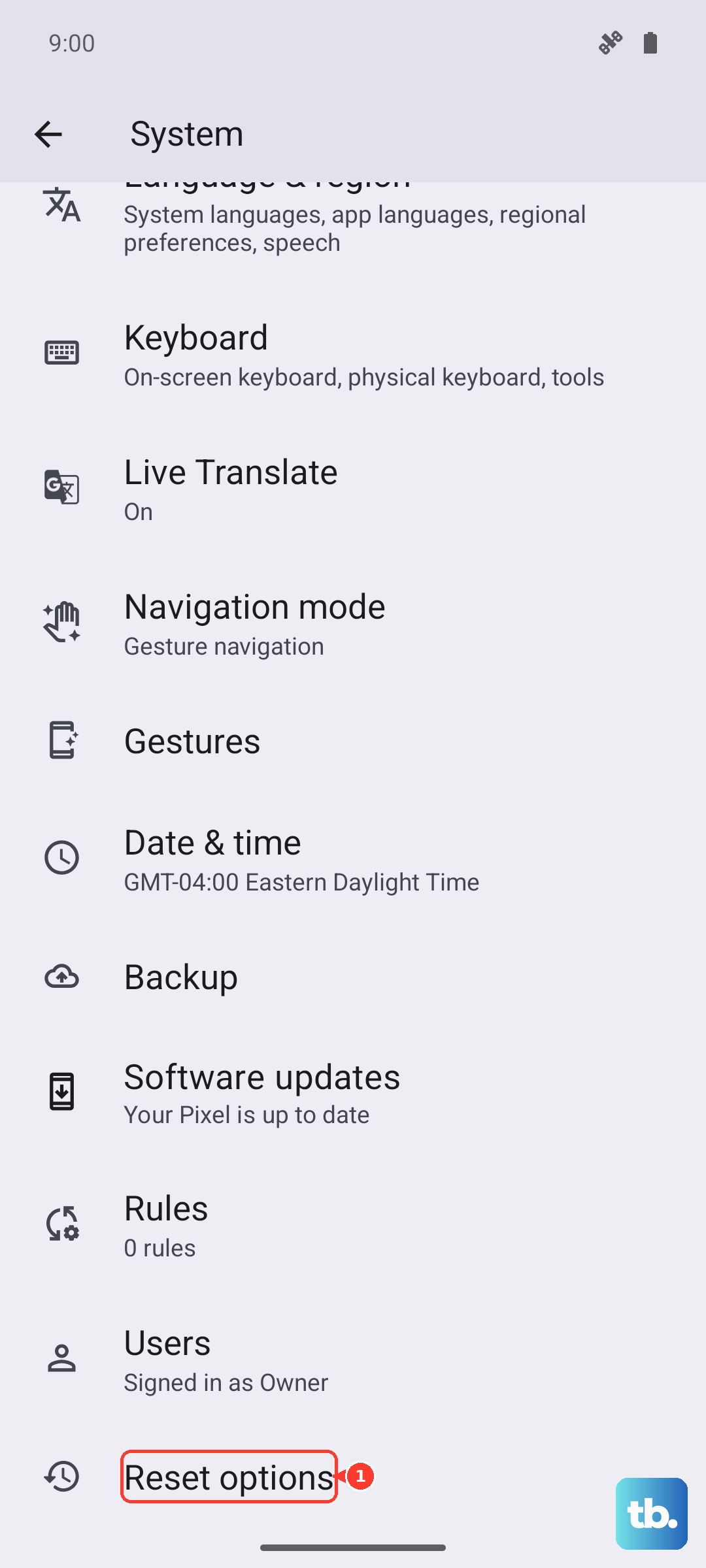
If the touchscreen works on a clean system, the problem was in your software configuration. You can then restore your data carefully, keeping an eye out for any app that might trigger the issue again.
Hardware Limitations to Keep in Mind
If your Pixel 10a touchscreen still isn't responding, especially after dropping it or exposing it to liquid, it's likely a hardware issue. The touch digitizer sits directly beneath the glass, and physical trauma can damage it permanently.
Water damage is another possibility. The Pixel 10a has some water resistance, but that degrades over time. Check the SIM tray for any visible moisture damage indicators.
At this point, your best option is to contact Google or visit an authorized repair center. The Pixel 10a's display assembly is fused together, so fixing it requires replacing the entire screen unit.