
That "No SIM card detected" message on your Google Pixel 10a basically kills all cellular functionality. No calls, no texts, no mobile data. The good news is most of the time this is a minor glitch you can fix in a few minutes without any tools.
Let's work through the fixes that are most likely to work, starting with the simplest ones.
Force Restart Your Pixel 10a
This is the first thing to try. Press and hold the Power button for 30 seconds straight. The phone will vibrate and restart on its own. If that doesn't do it, press and hold Power + Volume Down together for 10-15 seconds until you see the Google logo. This refreshes all the phone's radios and often wakes up the SIM reader.
Toggle Airplane Mode
Swipe down twice from the top of the screen to open the full Quick Settings panel. Tap the Airplane mode icon to turn it on. Wait about 10 seconds, then tap it again to turn it off. This forces the phone to re-register with your carrier's network, which can clear up SIM detection hiccups.
Check the Physical SIM Card
If the software refreshes don't help, it's time to look at the hardware. Power off your Pixel 10a completely. Use the SIM eject tool that came in the box (or a paperclip) to pop out the SIM tray located on the left edge of the phone. Take a close look at the gold contacts on the SIM card. Any smudges, dust, or minor corrosion can cause a "No SIM" error. Gently wipe the contacts with a clean microfiber cloth. Check the tray itself for any bends or damage. Reinsert everything carefully, making sure the card sits flush in the tray before pushing it in.
If you have another phone handy, pop your SIM into that device. If it works there, the problem is likely with your Pixel 10a. If it also shows "No SIM" on the other phone, the card itself is probably damaged and you'll need a replacement from your carrier.
Make Sure the SIM Is Enabled in Settings
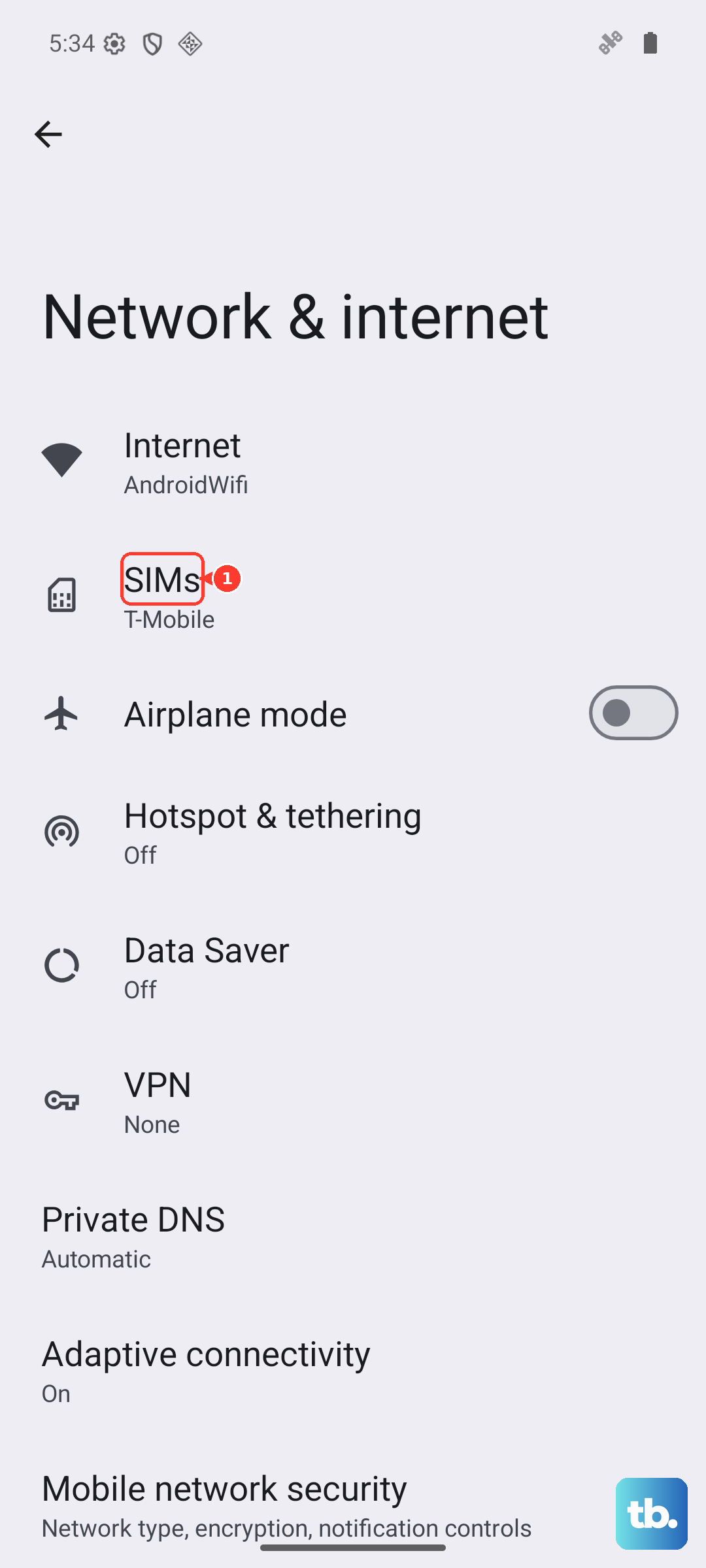
Go to Settings > Network & Internet > SIMs. You should see your carrier listed there with a toggle switch. Make sure it's turned on. If you have multiple eSIM profiles along with your physical SIM, check that the correct one is active. Android 16 organizes this differently than older versions, so look for the section that lists all your active SIMs.
Update Your Pixel's Software
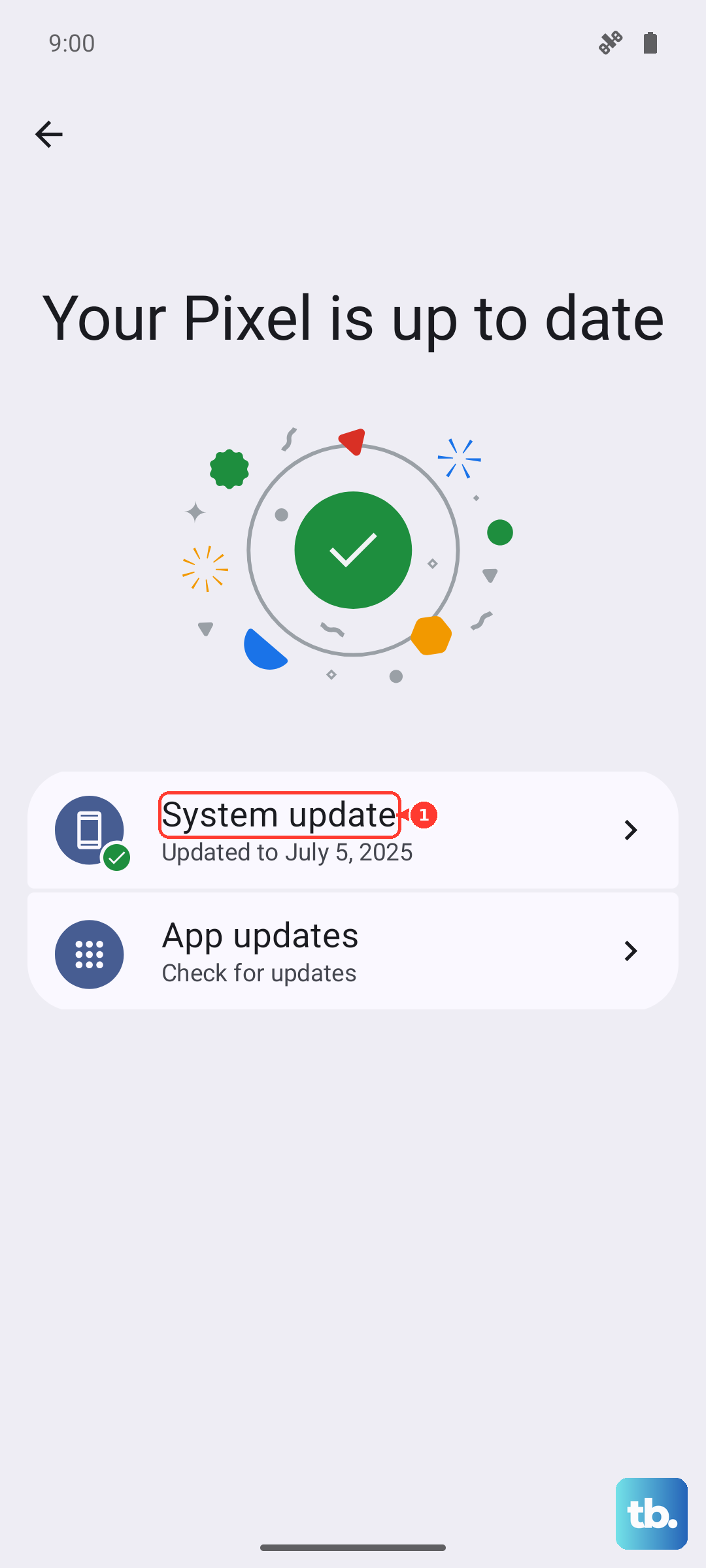
Google pushes monthly security updates and feature drops for the Pixel 10a. Sometimes a bug in the radio firmware gets patched in one of these updates. Go to Settings > System > System update. If an update is available, download and install it. Your phone will restart during the process. Once it's back up, check if the SIM error is gone.
Reset Network Settings
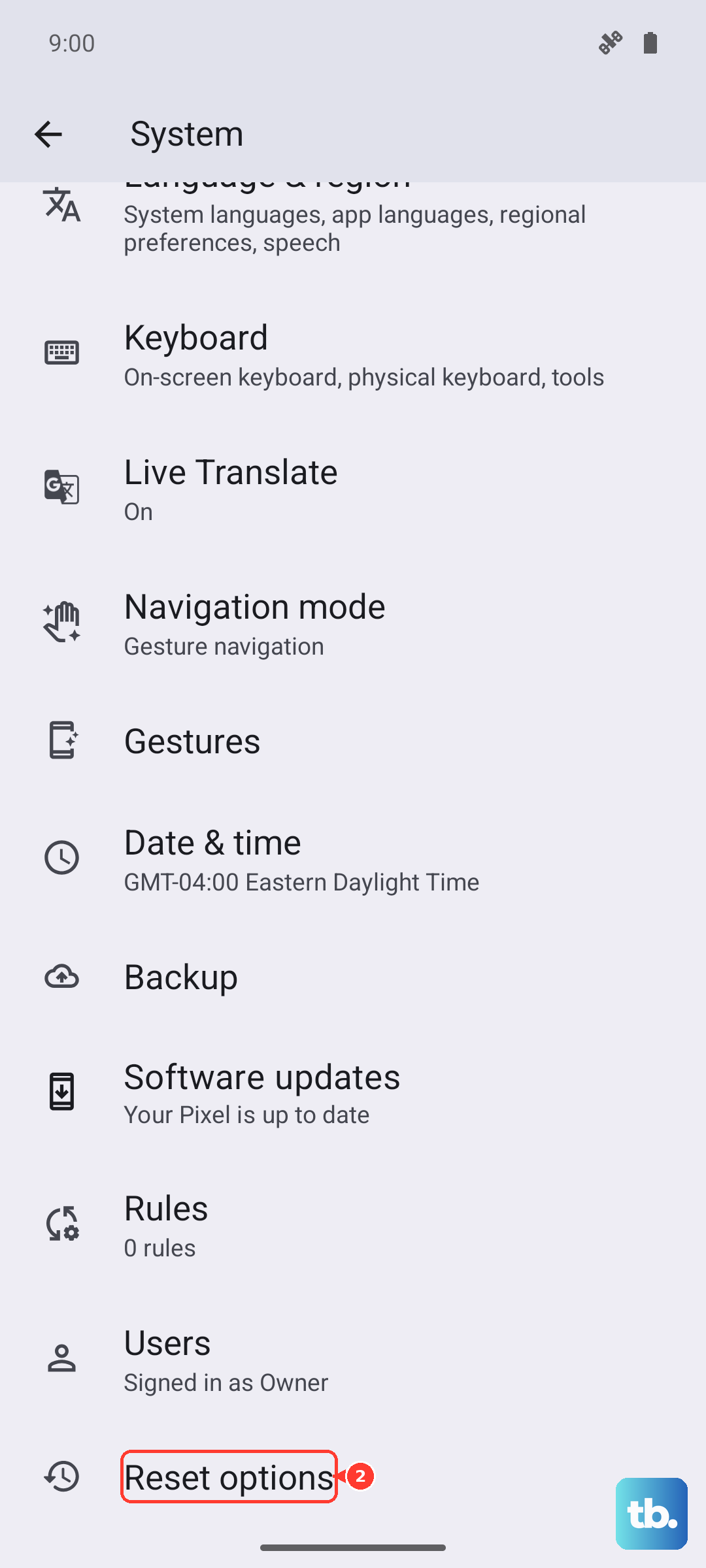
This clears out any corrupted network configurations without touching your photos, apps, or accounts. Head to Settings > System > Reset options > Reset Wi-Fi, mobile & Bluetooth. Confirm the reset. Your phone will reboot, and you'll need to reconnect to saved Wi-Fi networks afterward, but the SIM issue often clears up after this step.
Clear SIM App Cache
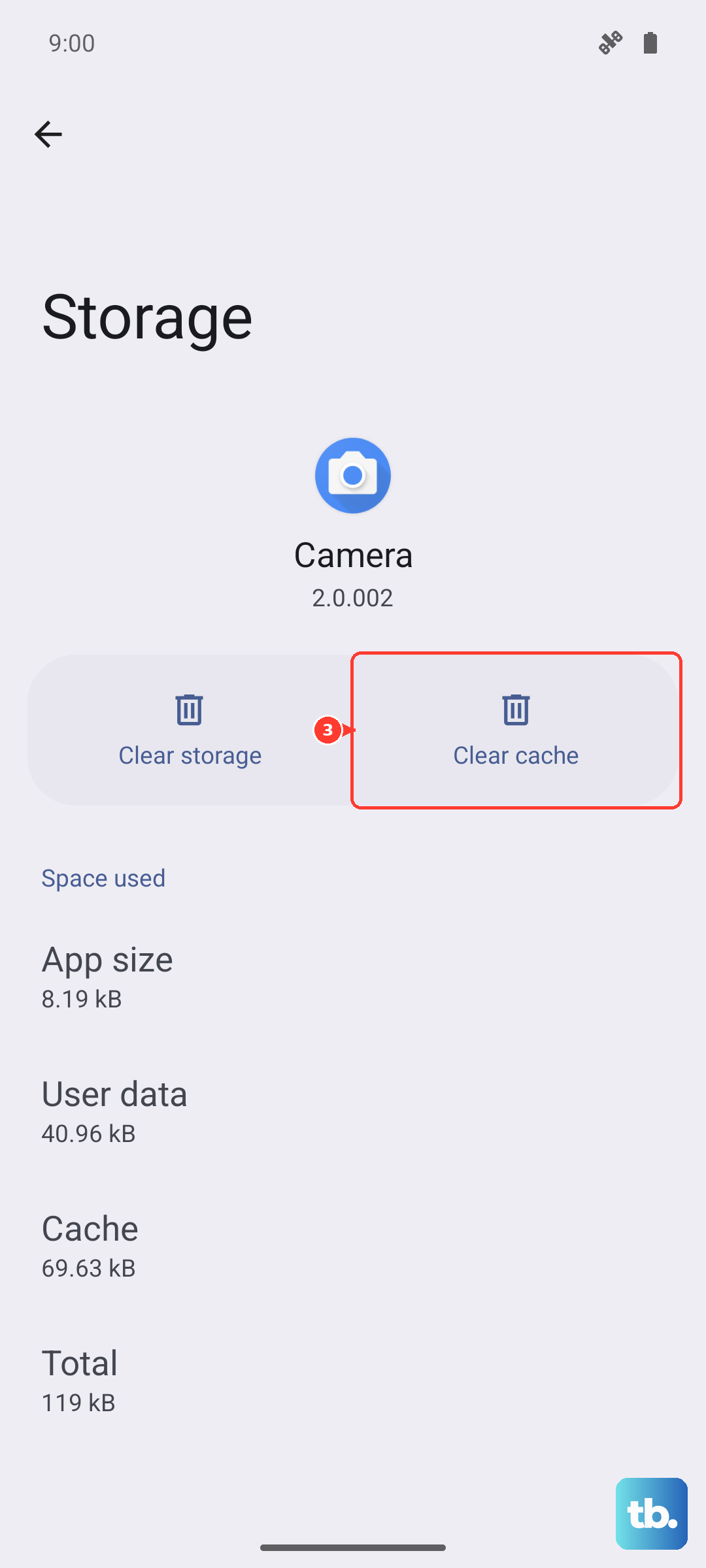
There are a couple of system apps that manage SIM functions. Clearing their cache can resolve weird detection errors. Go to Settings > Apps > See all apps. Tap the three dots in the corner and select Show system. Scroll down and find SIM Card Manager. Tap Storage & cache, then hit Clear cache. Do the same for SIM Toolkit if you see it. Restart your phone afterward.
Change Network Mode
Sometimes the phone gets stuck on a network type it can't connect to. Go to Settings > Network & Internet > Mobile network. Tap Preferred network type and select 5G/LTE/3G/2G (the auto option). If you're in an area with spotty 5G coverage, try switching to just LTE temporarily to see if the SIM registers. Leave it on that setting for about 30 seconds before switching back to the auto mode.
Reset APN Settings
Your Access Point Name settings tell the phone how to connect to your carrier's data network. If these get corrupted, the phone may fail to fully register the SIM. Go to Settings > Network & Internet > Mobile network > Access Point Names. Tap the three dots and select Reset to default. If your carrier requires custom APN settings, you'll need to re-enter them after the reset. You can usually find the correct APN details on your carrier's support page.
Manually Select Your Network
Automatic network selection doesn't always work perfectly. Go to Settings > Network & Internet > Mobile network > Network operators. Tap Search now. Wait for the list to populate with available carriers, then tap your carrier's name. The phone will try to register manually. If you get an error, wait 30 seconds and try again. This forces the phone to negotiate directly with your carrier's towers.
Switch to eSIM as a Workaround
The Pixel 10a supports eSIM, and this can be a practical way around a finicky physical SIM reader. If you've tried all the steps above and your physical SIM still won't register, contact your carrier about converting your line to an eSIM profile. They'll send you a QR code or activation code. Go to Settings > Network & Internet > SIMs > Add eSIM and follow the prompts. Many people have permanently solved "No SIM" errors by making the switch.
Factory Reset (The Nuclear Option)
If nothing else has worked and the SIM is confirmed working in another phone, a factory reset might clear out whatever deep software issue is causing the problem. This wipes everything, so back up your photos, messages, and files first. Go to Settings > System > Reset options > Erase all data (factory reset). After the phone restarts and you go through the setup process, check if the SIM is recognized.