
MMS not sending on your Pixel 10a is usually a data connection or settings issue. Multimedia messages need mobile data or a strong Wi-Fi connection, so let's start there.
Make Sure Mobile Data Is On
Open your notification shade and check that mobile data is toggled on. If you see the icon but messages still fail, swipe down again and tap the data icon to cycle it off and back on.
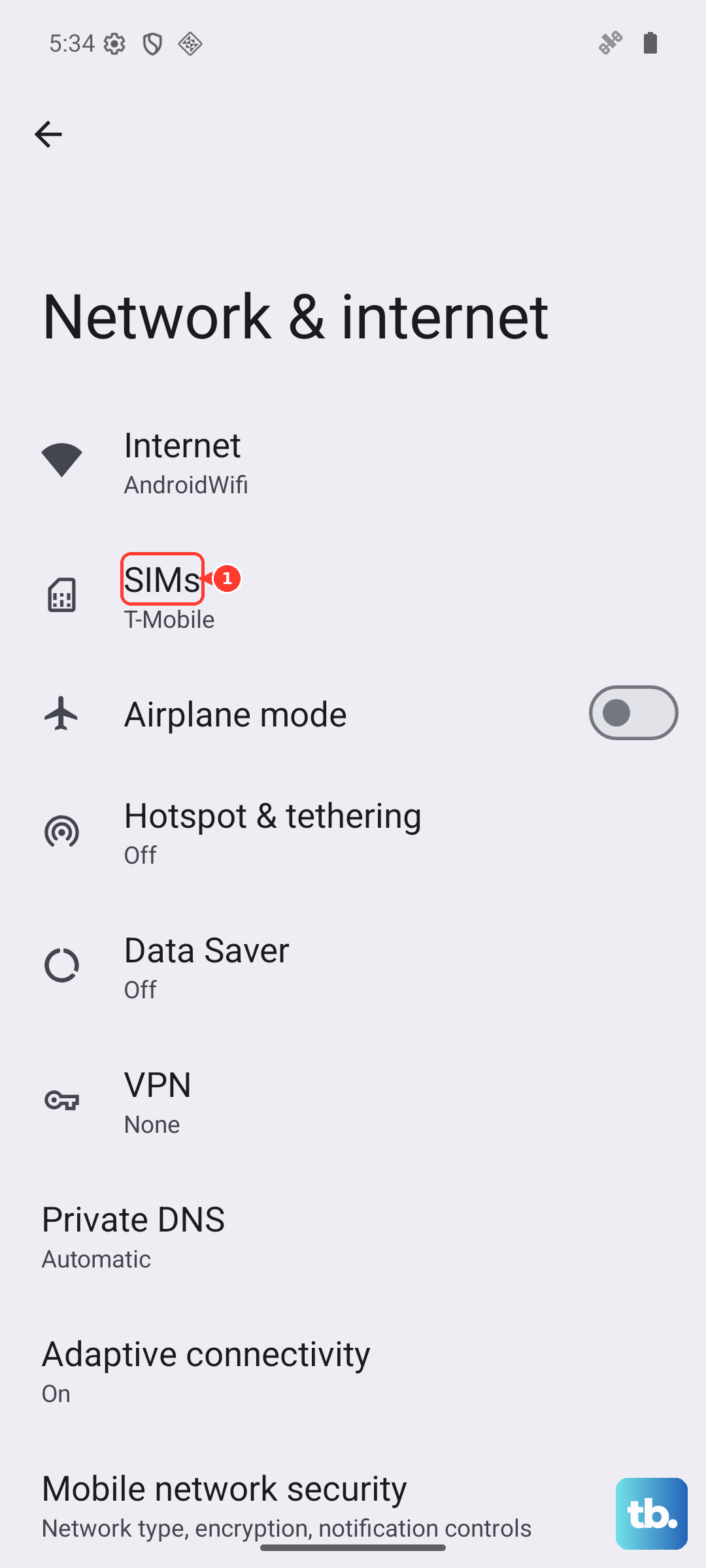
Go to Settings > Network & internet > SIMs and confirm mobile data is enabled for your primary SIM. If you're on Wi-Fi, try turning it off temporarily. Some Wi-Fi networks block MMS traffic, and your Pixel 10a might not switch to mobile data for MMS automatically.
Check Your Signal and Airplane Mode
A weak cellular signal can prevent MMS from going through. If you're in a spotty area, move closer to a window or step outside. Give it a minute to reconnect.
If your signal looks fine but MMS still won't send, toggle Airplane Mode on for about 10 seconds, then turn it off. This forces your Pixel 10a to re-register with the network and can clear up temporary connection hiccups.
Verify MMS Settings in Google Messages
Since your Pixel 10a comes with Google Messages as the default texting app, the MMS settings are in there. Open the app, tap your profile picture in the top right, and go to Messages settings > Advanced. Make sure Auto-download MMS is turned on. While you're there, enable Auto-download MMS while roaming if you travel.
If you've switched to a third-party messaging app, check its settings for a similar MMS auto-retrieve option.
Clear the Messages App Cache
Corrupted temporary data in Google Messages can stop MMS from working. Go to Settings > Apps > Messages > Storage & cache. Tap Clear cache, this won't delete any conversations. Try sending an MMS again.
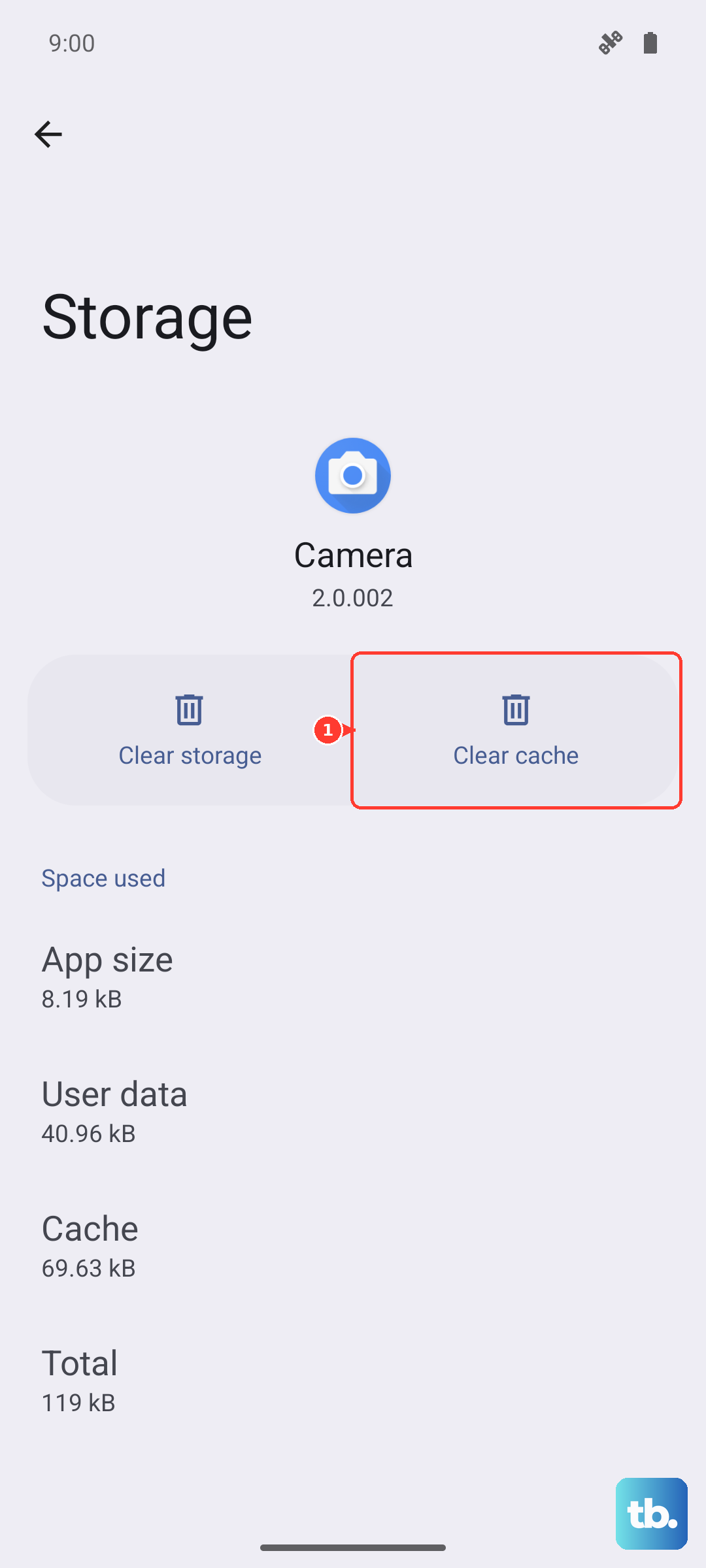
If that doesn't help, you can tap Clear storage or Manage space > Clear all data. This will wipe your message history, so back up anything important first. It's a pain, but it often resolves persistent MMS glitches.
Check the System IMS Service
Google Messages relies on a system-level service for MMS delivery. Go to Settings > Apps > See all apps. Tap the three-dot menu and select Show system. Look for IMS Service or Carrier Services. Tap it and go to Storage & cache. Clear the cache first. If Clear storage is available, you can use it, this resets the service's settings but won't touch your personal data.
Verify Your APN Settings
Your Access Point Name (APN) tells your Pixel 10a how to connect to your carrier's MMS servers. If these are wrong, MMS won't work. Go to Settings > Network & internet > SIMs > tap your carrier name > Access Point Names.
Compare what's there with your carrier's official APN settings. Pay special attention to the MMSC, MMS proxy, and MMS port fields. If anything looks off, tap the APN and edit it. You can usually find the correct values on your carrier's support page or by calling them.
Force Restart Your Pixel 10a
If you haven't restarted recently, do a proper force restart. Press and hold the Power button for 30 seconds, or press and hold Power + Volume Down for 10-15 seconds until the device restarts. This is different from a normal restart, it clears out deeper software glitches that can affect MMS.
Update Your Phone and Carrier Services
Outdated software can cause MMS to fail. Go to Settings > System > Software update and install anything available. Your Pixel 10a runs Android 16, and monthly updates sometimes include carrier-specific MMS fixes.
Also check for updates to Carrier Services and Google Messages in the Play Store. These apps handle the behind-the-scenes messaging infrastructure, and outdated versions are a common culprit.
Reset Network Settings
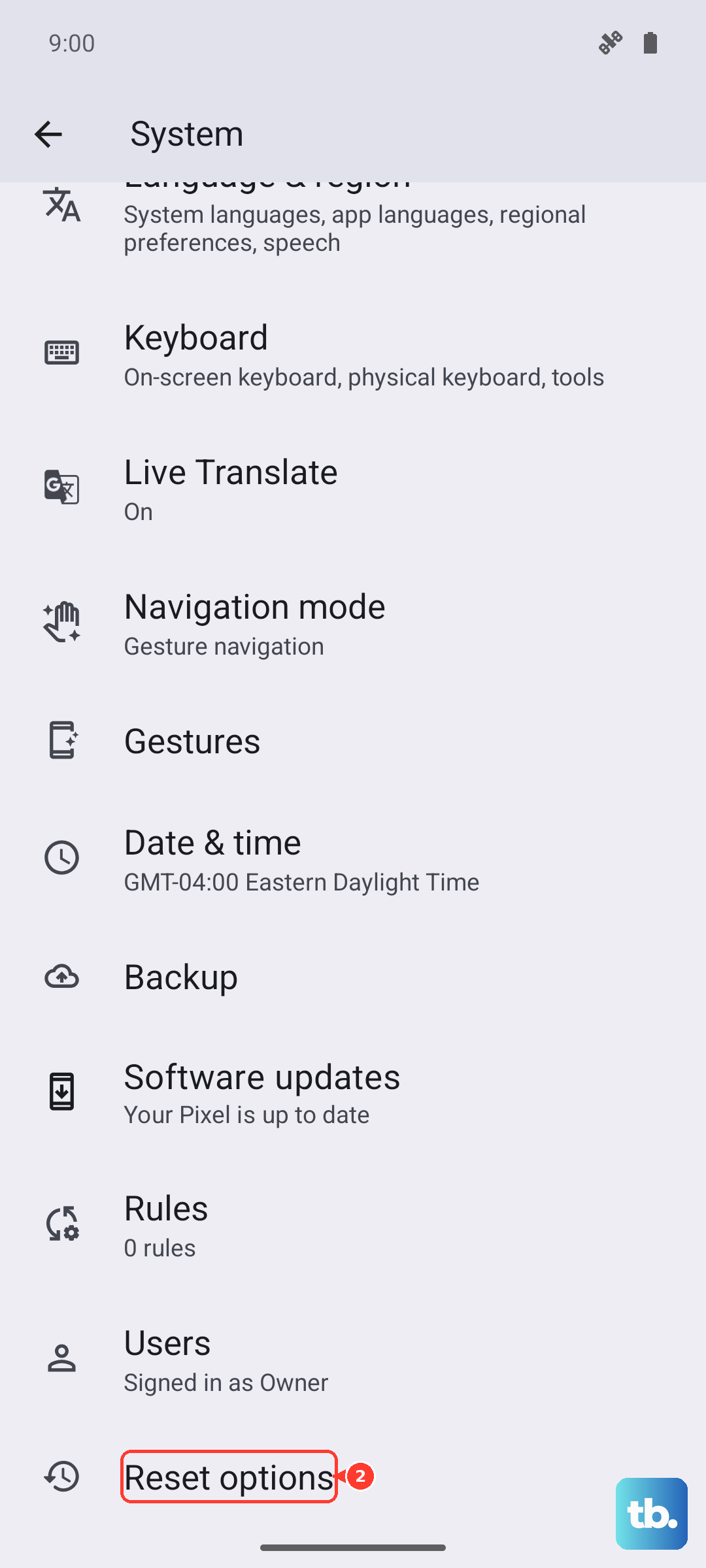
If you've tried everything above, a network settings reset can clear up persistent connectivity problems. Go to Settings > System > Reset options > Reset Wi-Fi, mobile & Bluetooth. Confirm the reset. Your Pixel 10a will forget saved Wi-Fi networks and Bluetooth devices, so you'll need to set those up again, but MMS often starts working right after.
Free Up Storage Space
Your phone needs some free space to download and process MMS attachments. Go to Settings > Storage and check how much is available. If you're under 500MB or so, clear out old downloads, unused apps, or large media files from your Messages app. Delete long group threads with lots of photos, they take up more space than you'd think.
Contact Your Carrier
Sometimes the issue is on your carrier's end. MMS provisioning can get turned off accidentally, or there might be an outage. Give them a call and ask them to verify that MMS is enabled on your line and that your APN settings are correct. They can also refresh your connection from their side, which often resolves things without any changes to your phone.