
When your Google Pixel 10a fingerprint scanner stops working, it usually comes down to a few common culprits. The optical sensor under the display needs a clear view of your finger, and anything that blocks or distorts that view will cause problems. Here's how to get it working again.
Clean off the sensor area
This one sounds obvious, but it's the reason more than half of fingerprint issues disappear. The optical sensor lives under the glass, so smudges, oil, or screen protector residue can interfere with how clearly it sees your fingerprint.
Take a soft microfiber cloth and wipe down the lower third of the screen where the fingerprint icon appears. If you've got visible smudges, dampen the cloth slightly with water (not enough to drip) and wipe again. Dry it off completely and test the scanner.
Check your screen protector
The Pixel 10a uses an optical under-display sensor, which reads your fingerprint through a bright light. Thick tempered glass screen protectors can scatter that light and confuse the reader. If you've recently installed a new protector and the scanner stopped working, that's almost certainly why.
Pop the screen protector off temporarily and try registering a fingerprint without it. If everything works, you'll need a protector labeled specifically as compatible with optical fingerprint sensors. I've seen the thin film-style protectors work better than glass on the 10a.
Re-register your fingerprints
Sometimes the stored fingerprint data gets corrupted or incomplete. Deleting your existing prints and starting fresh is one of the fastest fixes. Head to Settings > Security & privacy > Device unlock > Fingerprint Unlock and enter your PIN.
Tap on each registered fingerprint and select Remove. Then tap Add fingerprint and follow the prompts. When you're placing your finger on the sensor, rotate it slightly to capture the edges. Register the same finger twice if you want better reliability.
Keep your finger flat and centered on the sensor area. The Pixel 10a's optical sensor works best when the entire fingerprint pad makes contact.
Is your software up to date?
Google pushes regular Android 16 updates that include fingerprint sensor improvements. If you've been ignoring system updates, the scanner might be running on buggy firmware. Go to Settings > System > System update and check if anything's available.
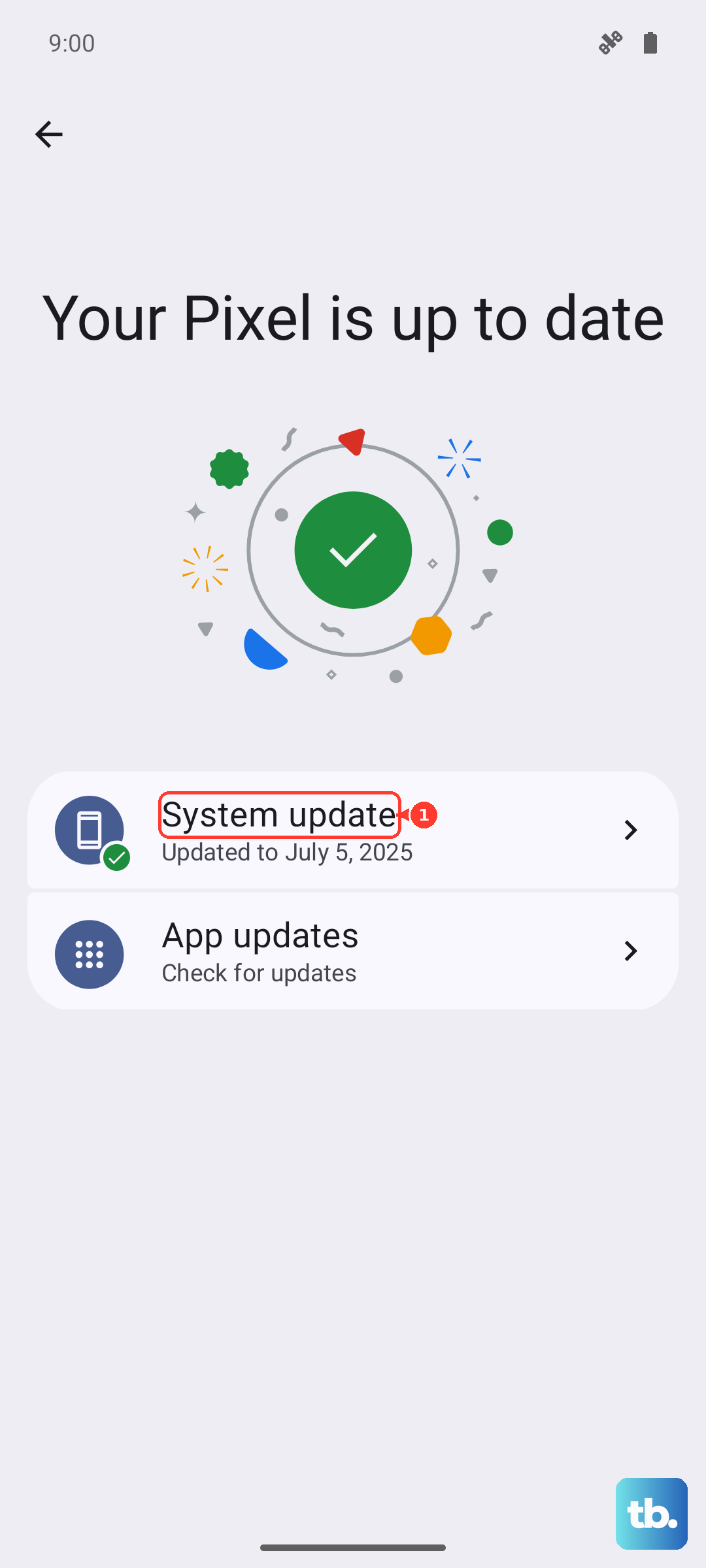
Install any pending updates and restart the phone before testing the sensor again. The Pixel 10a also gets Feature Drops that sometimes tweak the biometric software, so keep an eye out for those quarterly updates.
Force restart when the sensor stops responding
If the fingerprint scanner doesn't even light up when you touch the screen, a simple restart might not cut it. Force restart the Pixel 10a by pressing and holding the Power button for 30 seconds straight. Alternatively, press and hold Power + Volume Down together for 10 to 15 seconds until you see the Google logo.
This clears out any temporary software lockups without erasing your data. Once the phone boots back up, the fingerprint option should reappear.
Clear the system cache
The Pixel 10a runs Android 16, which has a system cache that can accumulate corrupted files over time. Clearing it helps with random biometric glitches. Since the Pixel boot menu doesn't have a standard "wipe cache partition" option like some other brands, you'll use a different approach.
Go to Settings > Storage and tap Free up space. Look for cached data and clear it. If you want a deeper clean, enable Developer Options by going to Settings > About phone and tapping Build number seven times. Then visit Settings > System > Developer options and tap Running services to see what's hanging around.
A full system cache wipe can also be done from recovery mode if you prefer the manual route, but the storage menu method is enough for most sensor issues.
Your finger might be the issue
Dry skin, wet fingers, cuts, or calluses can all throw off an optical sensor. The Pixel 10a's sensor shines a light through your skin to read the ridges, and anything that changes your fingerprint pattern will cause rejections. Lotions and hand sanitizer residue are common culprits too.
Wash and dry your hands thoroughly before unlocking the phone. If your skin is chronically dry, try adding a little hand lotion and waiting a minute for it to absorb before registering your fingerprints. Also register your index finger on the opposite hand as a backup in case the primary finger gets injured.
Wireless charging interference
The Pixel 10a supports Qi wireless charging at up to 10 watts. While this is convenient, some users have reported that the electromagnetic field from the charging pad can temporarily interfere with the fingerprint sensor. If you're having trouble unlocking the phone while it sits on a wireless charger, lift it off and try again.
This isn't a hardware defect, just a quirk of how the sensor and charging coil interact when they're in close proximity. The issue usually goes away within a few seconds of removing the phone from the pad.
If wired charging is giving you trouble meanwhile, the Pixel 10a's USB-C port is known for trapping lint and pocket debris. Gently clean it out with a wooden toothpick or compressed air, and try a 45W USB-C PPS charger for the fastest results.
Register multiple fingerprints
This is more of a long-term strategy than a fix, but it saves headaches. Open Settings > Security & privacy > Device unlock > Fingerprint Unlock and add your thumbs and index fingers from both hands. You can store up to five fingerprints on the Pixel 10a.
If one finger gets sweaty, injured, or just stops working reliably, you've got backups ready to go. I always register my right thumb twice from slightly different angles - it's the one I use the most and the redundancy helps.
Disable and re-enable fingerprint unlock
If the scanner works intermittently, toggling the feature off and back on can reset whatever's stuck. Go to Settings > Security & privacy > Device unlock > Fingerprint Unlock and enter your PIN. Toggle Fingerprint unlock off, wait a few seconds, then toggle it back on.
Test the scanner immediately after re-enabling. This trick often fixes cases where the sensor stops responding after the phone has been in your pocket for a while.