
When your Google Pixel 10a stops sending or receiving emails, it's a problem that needs solving fast. Whether you use Gmail, Outlook, or another app, most email hiccups are pretty straightforward to fix.
Start by checking your basics. Make sure your Pixel 10a has an active internet connection. Also confirm you're using the right email address and password. If those are fine, move on to these fixes.
Check your sync settings
Your email app needs the right sync settings to fetch new messages. If you're not seeing emails arrive, this is often the culprit.
Open the Gmail app and tap your profile picture. Go to Settings and select your account. Make sure Sync is turned on. You can also adjust the sync period for how far back you want messages downloaded.
For third-party email apps, check their settings for a similar sync or fetch option. The Gmail app on Android 16 syncs automatically when set correctly.
Try switching networks
Sometimes your Wi-Fi network is the issue. Pull down the notification shade twice to open the quick settings panel. Tap the Wi-Fi icon to disconnect, then wait a few seconds. Email should start flowing over your cellular data.
If cellular isn't working either, toggle Airplane Mode on and off. This resets all your radios. Wait about 30 seconds with Airplane Mode enabled, then turn it off and test your email.
Restart the email app
A quick app restart can clear up temporary glitches. Open the recent apps overview, find the Gmail app (or your email app), and swipe it away. Wait a couple of seconds, then reopen the app.
If that doesn't help, force stop the app instead. Go to Settings > Apps > See all apps > Gmail, then tap Force stop. Relaunch the app and see if emails start syncing.
Check battery optimization
Android 16's battery optimization can interfere with background email sync. If your Pixel 10a isn't checking for new messages regularly, the battery settings might be preventing it.
Go to Settings > Apps > See all apps > Gmail. Tap Battery, then select Unrestricted. This lets the app sync in the background without being restricted. For other email apps, do the same.
Verify your email credentials
If you changed your email password recently, your Pixel 10a might still be using the old one. Try logging into your email account in a browser to confirm your credentials work.
If you can't log in, reset your password through your email provider. Then update the password in the Gmail app or your email app's account settings.
Enable mobile data for the app
If you're on cellular data and emails aren't coming in, check the app's data permission. Go to Settings > Apps > See all apps > Gmail > Mobile data & Wi-Fi. Make sure both Background data and Unrestricted data usage are turned on.
Do the same for any other email app you use.
Set date and time automatically
Incorrect date and time can break email synchronization. Go to Settings > System > Date & time and make sure Use network-provided time is turned on. This keeps your Pixel 10a's clock synced with cellular towers.
If it's already on, toggle it off and back on to refresh the sync.
Check for service outages
Sometimes the problem isn't your phone. Your email provider might be having a service outage. Quick check: try visiting Gmail or your provider's website on another device. If you can't log in there either, the issue is on their end.
You can also check sites like Downdetector for known outages.
Disable any VPN
VPNs can interfere with email connections. Go to Settings > Network & internet > VPN and turn off any active VPN connections. Try accessing your email without the VPN enabled.
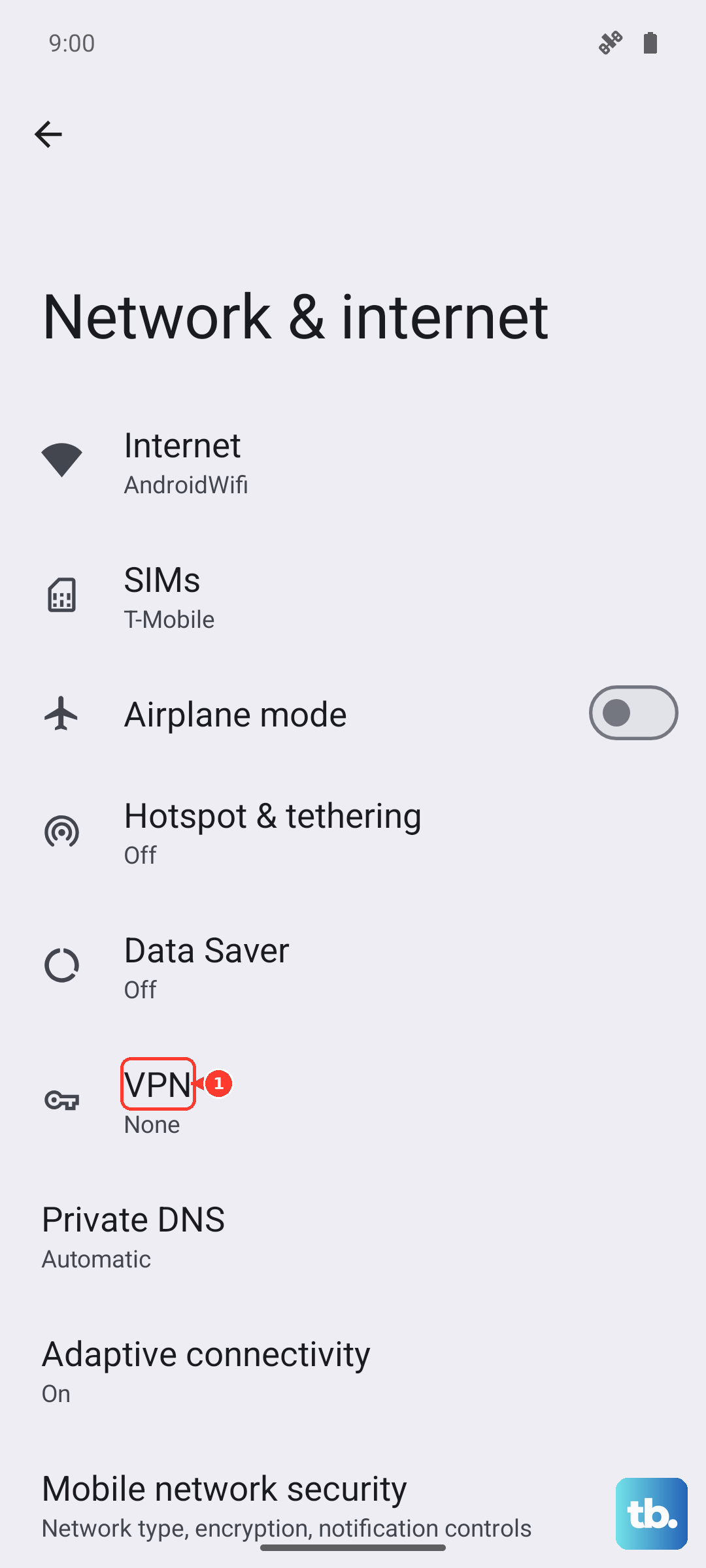
If emails start working, the VPN was the problem. Keep it off when you need to check messages, or switch to a different VPN server.
Update the email app
An outdated email app can cause sync issues. Open the Google Play Store, tap your profile icon, and go to Manage apps & device. Tap Updates available and find Gmail or your email app. Update it if there's a pending update.
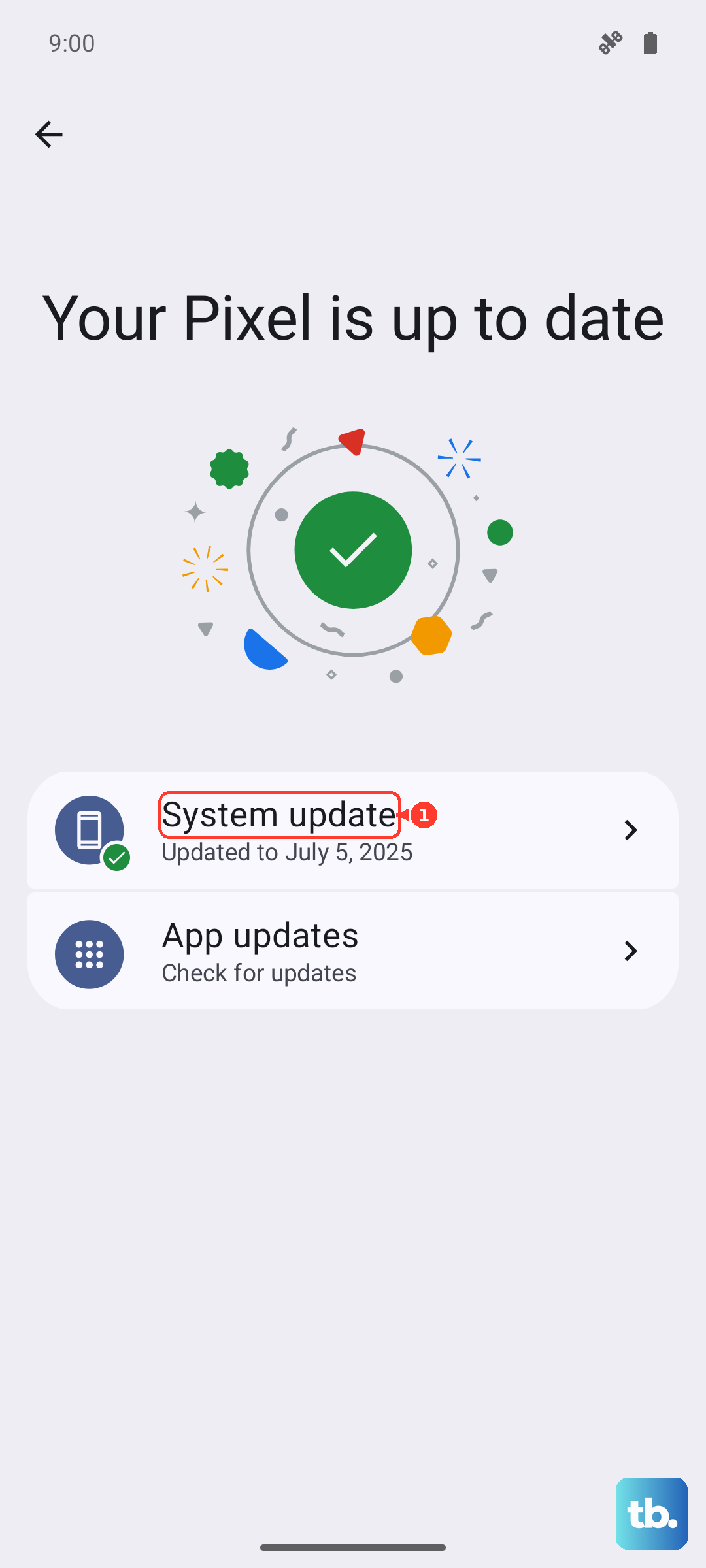
While you're there, check for system updates too. Go to Settings > System > System update and install any available Android 16 updates.
Delete and re-add your account
If nothing else has worked, removing and re-adding your email account often does the trick. Go to Settings > Accounts > Gmail (or your email provider). Tap the account and select Remove account. Confirm the removal.
Then add it back: Settings > Accounts > Add account and follow the prompts. This forces the phone to re-authenticate and refresh all sync settings.
Check notification settings
If emails are arriving but you're not getting notified, check the notification settings. Go to Settings > Notifications > App notifications > Gmail. Make sure Allow notification is on and the notification category is set correctly. You might also need to enable notification tone and lock screen display.
For third-party email apps, the same steps apply.
Restart your Pixel 10a
A proper restart can clear up many software glitches. Press and hold the Power button for 30 seconds, or press Power + Volume Down for 10 15 seconds until the device restarts.
This is also helpful if your Pixel 10a feels sluggish. After the restart, test your email.
Reset app preferences
If you've disabled system apps or permissions, it can affect email functionality. Go to Settings > System > Reset options > Reset app preferences. This resets all preferences including disabled apps and restricted permissions for all apps. It won't delete any data, just resets to defaults.
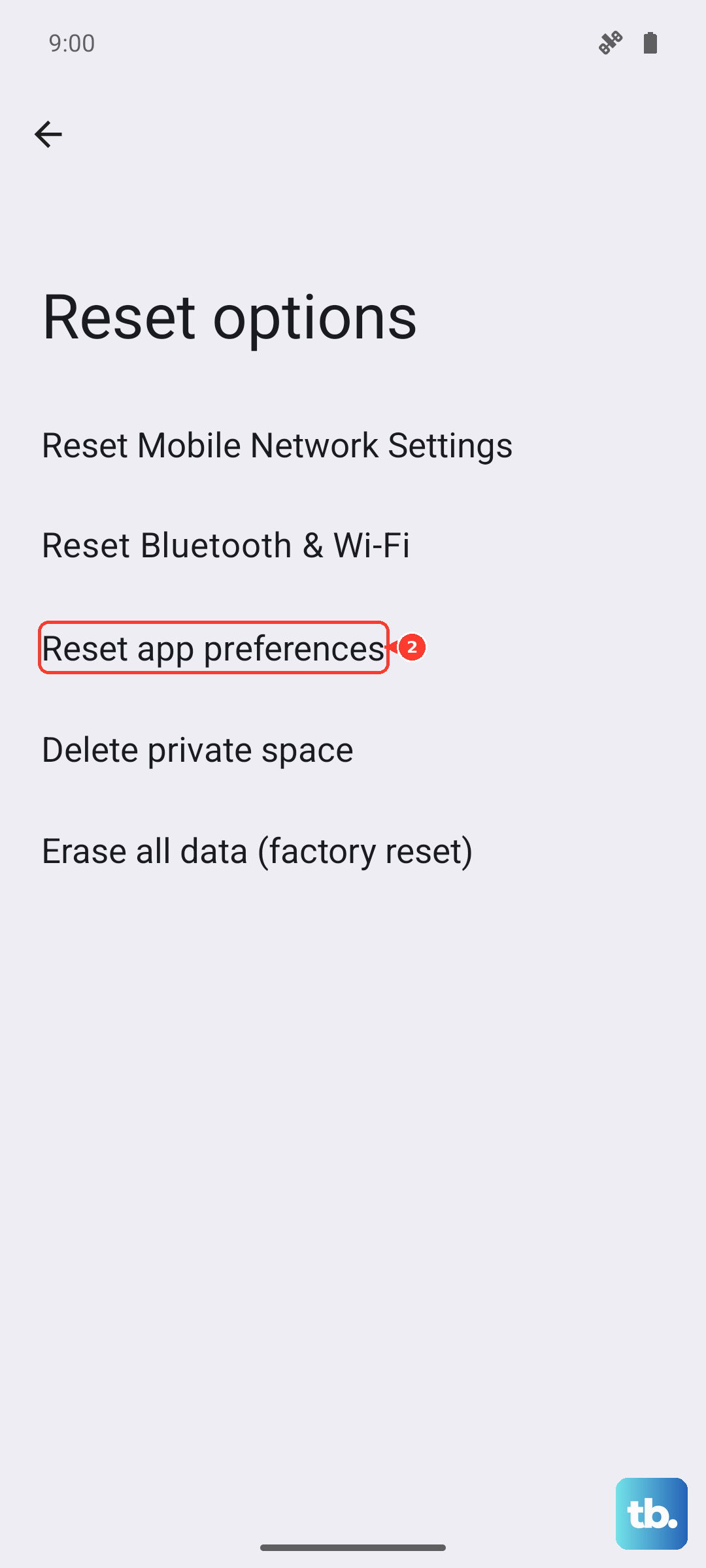
You'll need to re-enable any permissions you previously denied, but it's a clean way to fix deep configuration issues.
Start with the simplest fixes like checking your network and syncing, then work through the list. Most email problems on the Pixel 10a resolve with one of these steps.