You went to install the latest software on your Google Pixel 10 and the update simply will not go through. Maybe the download keeps stalling, the screen froze partway, or Settings insists you are already up to date when you know a newer build is out there. The good news is that your Pixel 10 is built to receive over-the-air Android updates, and most failures come down to a few easy conditions like power, storage, or a stuck download.
Your Pixel 10 ships running Android 16 and is backed by Google's commitment to 7 years of OS, security, and Pixel Drop updates from its US Google Store availability on August 28, 2025. That means checking for and installing system updates is fully supported on this exact model. The fixes below are ordered from the easiest and safest to the official last-resort options, so work through them in order and stop as soon as your update goes through.
Start With Power, Wi-Fi, and a Fresh Check for the Update
Most update failures are simply a paused or blocked download, and the cause is almost always a weak connection or low battery. According to the official guidance, your Pixel needs two things before it will update reliably. Connect to Wi-Fi, and charge the device to at least 75 percent. Meet both conditions before you do anything else.
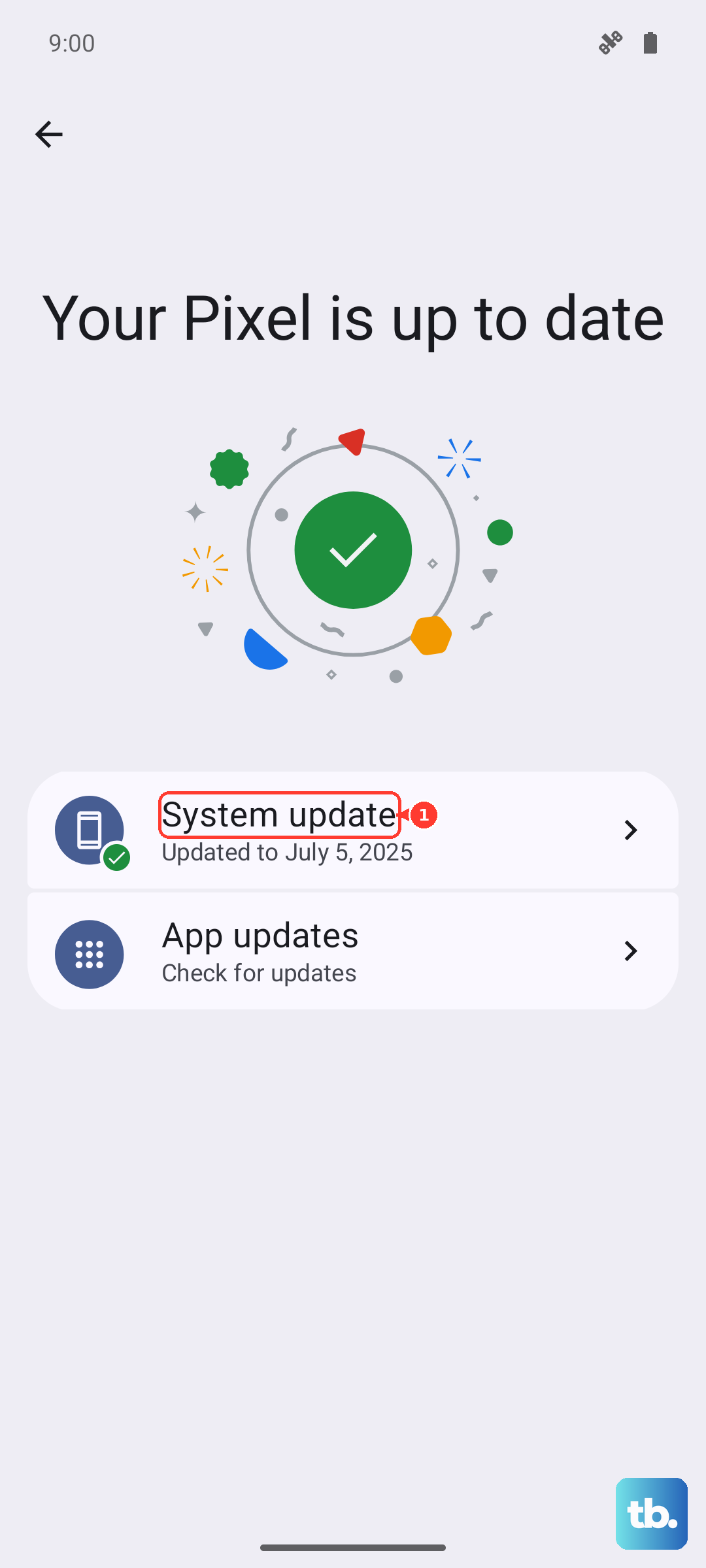
Once you are on a stable Wi-Fi network and the battery is above 75 percent, open Settings > System > Software updates and follow the on-screen instructions to download and install. Keep one thing in mind. Pixel updates roll out gradually and may take a few weeks to reach your device, so an update might not be available yet even when your phone is perfectly healthy.
- 1.Connect to a reliable Wi-Fi network.
- 2.Charge the phone to at least 75 percent.
- 3.Open Settings > System > Software updates.
- 4.Follow the on-screen instructions to download and install.
Restart Your Pixel and Try the Update Again
A normal restart clears the temporary glitches that can quietly stall a download. It is the single most effective quick fix, and it costs you nothing. On Pixel 6 and later, which includes the Pixel 10, press and hold the Power button and Volume up button for a few seconds, then tap Restart.
After the phone reboots, head back to Settings > System > Software updates and retry. Remember that any update you already downloaded becomes active the next time you restart your device, so a restart can also be the final step that actually applies a pending update.
Force a Restart When the Screen Is Frozen Mid-Update
If the screen is unresponsive or stuck while the update is running, a normal restart will not work, so you need a force restart instead. Press and hold the Power button for up to 60 seconds. Once the phone begins to reboot and the screen displays the "G" logo, release the Power button.
This sequence applies to all Pixel models. It is important to use the Power button alone here. The Power plus Volume up combination is the normal-restart gesture, not the force-restart one. Once the phone is back up, return to Settings > System > Software updates and try again.
Clear Out Storage So the Update Has Room
Updates need free space to download and install, and a nearly full phone is a common reason the process refuses to start. Open Settings > Storage to see how much space is available. Google notes that your phone can have issues when less than 10% of storage is available, so that is your target to clear.
To free up room, tap Storage > Free up space > Select files > Move files to Trash. You can also delete backed-up photos and videos in Google Photos or move large files to a computer. Once you have cleared comfortably above the 10 percent threshold, retry the update.
Update Your Apps From the Play Store
Out-of-date apps can cause crashes and instability that interfere with the device while it tries to update. Bringing everything current is a quick, low-risk step that often clears up the underlying friction. Open the Google Play Store, then tap the profile icon at the top right.
From there, choose Manage apps & devices, and under "Updates available" update all your apps. With the apps refreshed, go back and retry the system update through Settings > System > Software updates.
Stop a Misbehaving App or Test in Safe Mode
A single faulty app can interfere with updating, and the trick is figuring out whether one is the culprit. First, if you suspect a specific app, force stop it via Settings > Apps > See all apps > tap the app > Force stop > OK. That closes the app cleanly so it stops running in the background.
To test whether any downloaded app is the cause, start Safe mode. On Pixel 6 and later, including the Pixel 10, press and hold the Power and Volume Up buttons for a few seconds, then tap and hold either Power off or Restart, then tap OK. You will see "Safe mode" appear at the bottom of the screen.
If the update works in Safe mode, a downloaded app is to blame. Exit Safe mode by pressing and holding the Power button and Volume up button for a few seconds, then tap Restart. Back in normal mode, remove recently installed apps one at a time until the update succeeds.
Confirm Your Pixel 10 Is Still Within Its Update Window
Before you assume something is broken, verify that your device is eligible for the update you are expecting. Google commits to 7 years of OS, security, and Pixel Drop updates for the Pixel 10, counted from when it first became available on the Google Store in the US on August 28, 2025. As long as you are inside that window, your phone is meant to keep receiving every update Google sends.
If your phone reports that it is up to date, the most likely explanation is simply that a newer update has not reached your device yet. Rollouts are gradual, so a healthy Pixel 10 can correctly show no update is pending while one is still working its way out to more devices.
Factory Reset as a Last Resort
If the phone still will not update after everything above, a factory reset is the next step, but treat it seriously. Google warns that a factory reset erases all your data from your phone. Before you begin, back up to your Google Account, charge the phone to at least 70%, and connect to Wi-Fi or a mobile network. The reset can take up to an hour, and you will need to sign back into your Google Account afterward.
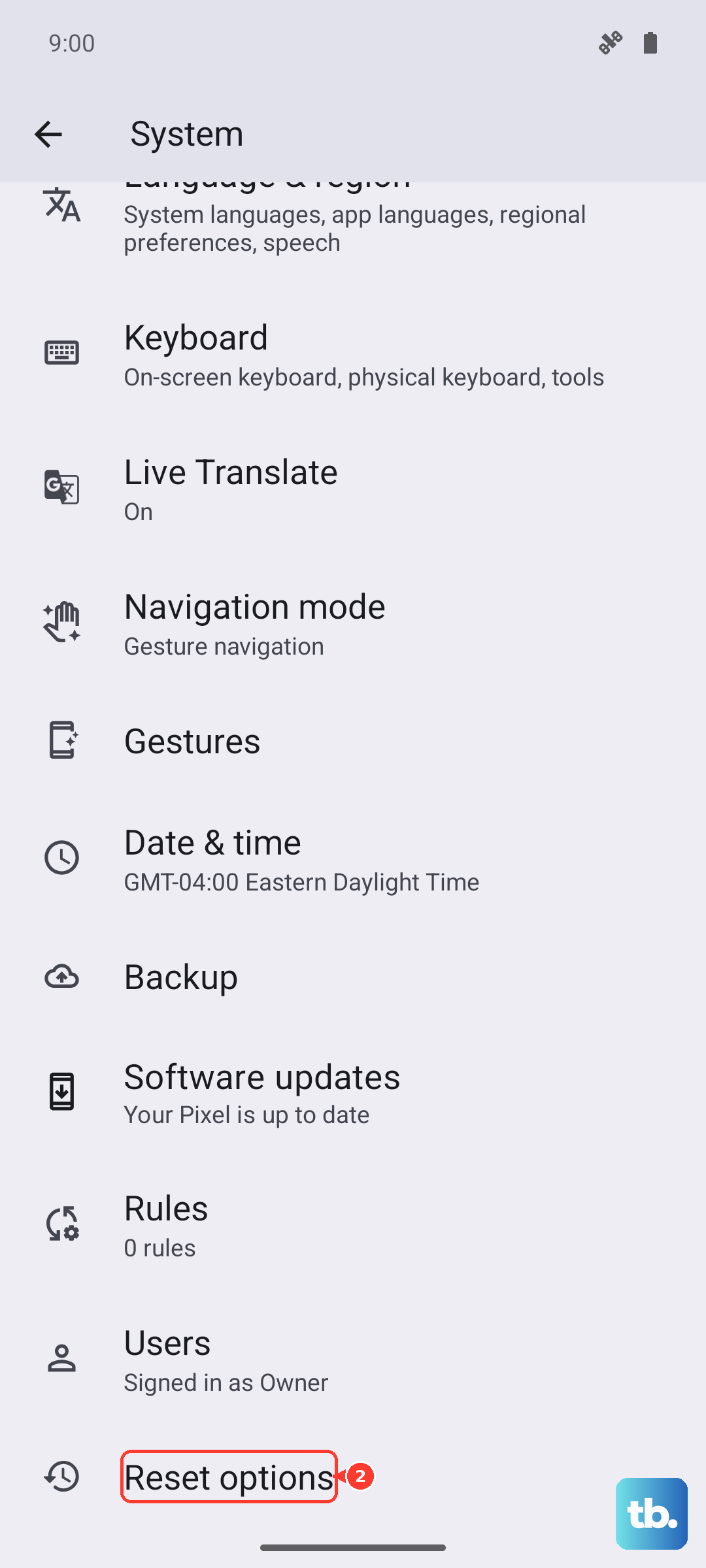
When you are backed up and ready, go to Settings > System > Reset options > Erase all data (factory reset) > Erase all data. Enter your PIN if prompted, then tap Erase all data again to confirm.
- 1.Back up to your Google Account.
- 2.Charge to at least 70 percent and connect to Wi-Fi or a mobile network.
- 3.Go to Settings > System > Reset options > Erase all data (factory reset) > Erase all data.
- 4.Enter your PIN if prompted, then tap Erase all data.
Recover With Advanced Tools or Reach Out to Pixel Support
If your Pixel 10 is so stuck that you cannot reach Settings at all, Google still offers an official recovery path for a device that will not boot or update normally. These advanced recovery steps reinstall the system software and, like a factory reset, will erase the data on your phone, so use them only when the on-screen options are completely out of reach.
If your phone still cannot update or recover after working through these steps, the right move is to contact Google Pixel support for further help. For a phone you cannot recover yourself, Google directs owners to reach out to its support team directly.
Frequently Asked Questions
Where do I check for an update on the Pixel 10?
Open Settings > System > Software updates, then follow the on-screen instructions to download and install. Make sure you are connected to Wi-Fi and charged to at least 75 percent first, since those are the stated pre-update requirements.
Why does my Pixel 10 say it is up to date when a new update was announced?
Pixel updates roll out gradually and may take a few weeks to reach your device. If your phone shows it is up to date, a newer update most likely has not reached you yet, so check again in a few days.
How long will my Pixel 10 keep getting updates?
Google commits to 7 years of OS, security, and Pixel Drop updates for the Pixel 10, starting from when it first became available on the Google Store in the US on August 28, 2025.
What is the correct way to force restart a frozen Pixel 10?
Press and hold the Power button for up to 60 seconds. Once the phone begins to reboot and the screen displays the "G" logo, release the Power button. Note that this is the Power button alone, not a Power plus Volume up combination.
Will I lose my data if I factory reset to fix the update?
Yes. A factory reset erases all your data from your phone, so back up to your Google Account first. Also charge to at least 70 percent and connect to Wi-Fi or a mobile network, and expect the reset to take up to an hour before you sign back in.











