
When your Google Pixel 10 won't send photos, it's usually a quick fix. The most common culprit is a simple setting or a temporary app glitch. Let's start with the fastest solution that works for most people.
Check Your Mobile Data and MMS Settings
Open the Messages app and tap the three-dot menu in the top right corner. Go to Settings > Chat features and make sure "Enable chat features" is toggled on if you're using RCS. For standard MMS, go back to Settings > Advanced and ensure "Auto-download MMS" is enabled.
Next, pull down your notification shade and tap the internet tile. Make sure Mobile data is turned on. If you're trying to send a large photo, it might fail over a weak cellular connection, so switching to Wi-Fi can help.
Force Close and Reopen Your Messaging App
This clears out any temporary software hiccups. Swipe up from the bottom of your screen and hold to enter the recent apps view. Find the Messages app and swipe it all the way up to close it.
Wait a few seconds, then tap the Messages icon to reopen it. Try sending the photo again. I'd start with this one, as it resolves a lot of transient issues without changing any settings.
Verify Your Network Connection
A poor signal is a frequent cause of failed sends. Look at the signal bars or icon in the top right of your screen. If you only have one or two bars, try moving to a different location.
If you're on Wi-Fi, try turning it off to force the message to send over cellular data, or vice versa. Sometimes a network gets congested. You can also try toggling Airplane mode on for 10 seconds and then off again to reset the radio connection.
Check for Android and Carrier Services Updates
Outdated software can cause conflicts with messaging. Go to Settings > System > System update to check for the latest Android version.
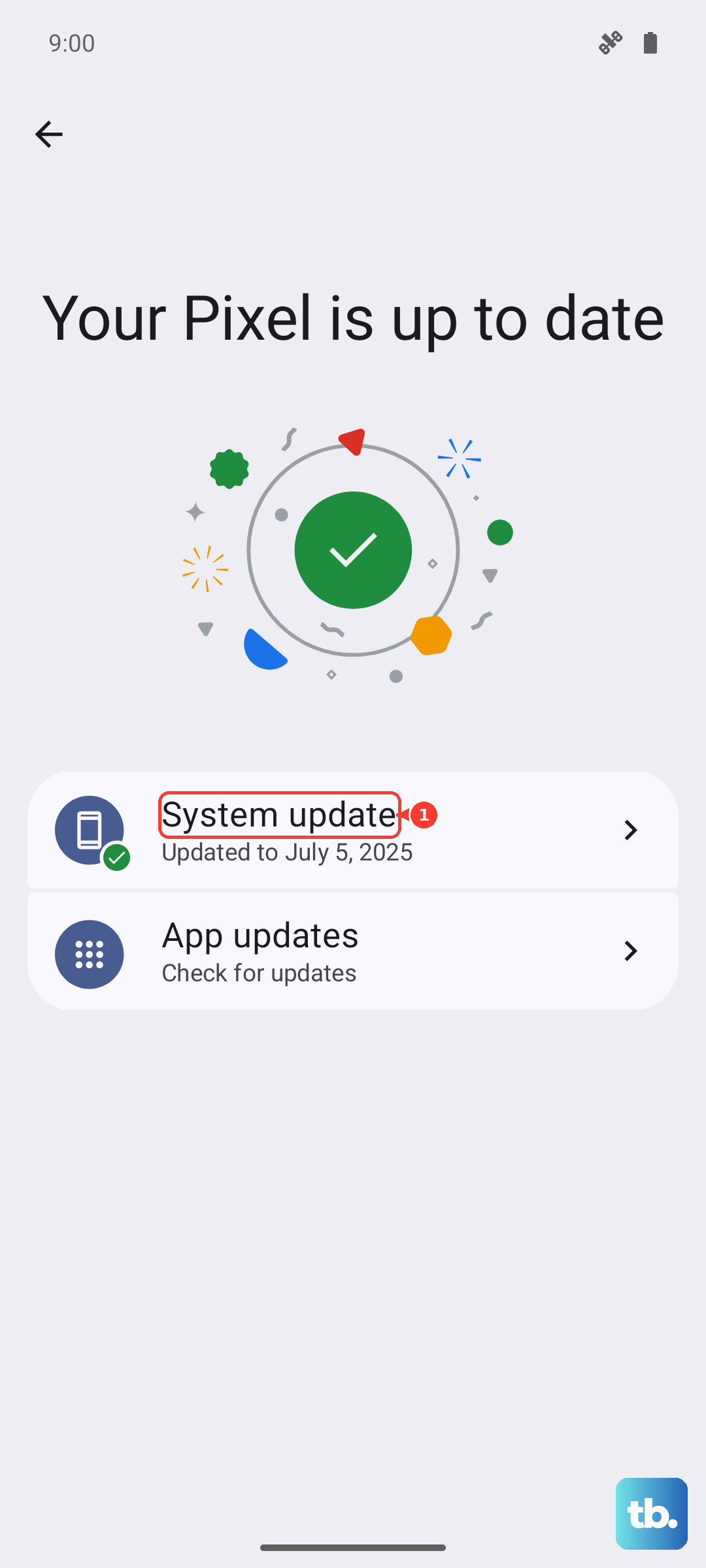
Also, open the Google Play Store, tap your profile icon, and go to Manage apps & device > Manage. Find "Carrier Services" in the list and see if an update is available. These background updates are crucial for MMS and RCS to function properly.
Clear the Cache for Your Messages App
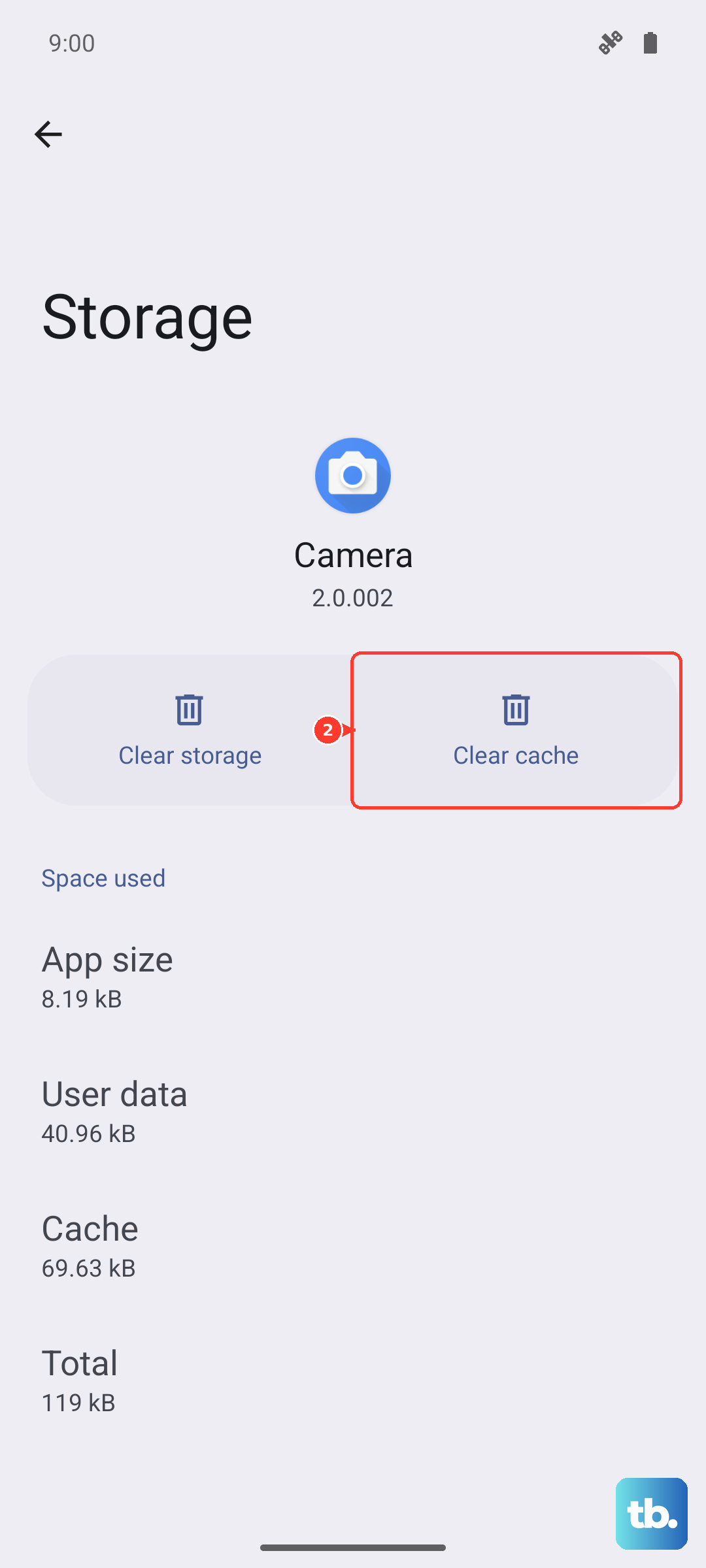
Corrupted cache data can stop photos from sending. Go to Settings > Apps > See all apps. Find and tap on "Messages."
Select Storage & cache and then tap Clear cache. This doesn't delete your messages, just temporary files. After clearing, restart your Pixel 10 and try sending the photo again.
Disable Data Saver or Adaptive Connectivity
Battery-saving features can restrict background data. Pull down the notification shade twice and tap the gear icon. Go to Network & internet > Data Saver and make sure it's turned off.
Also check Network & internet > Adaptive connectivity. While designed to save battery, it can sometimes delay or block data needed for sending multimedia messages.
Reset Your Network Settings
This will erase all saved Wi-Fi networks, Bluetooth pairings, and cellular settings. Go to Settings > System > Reset options.
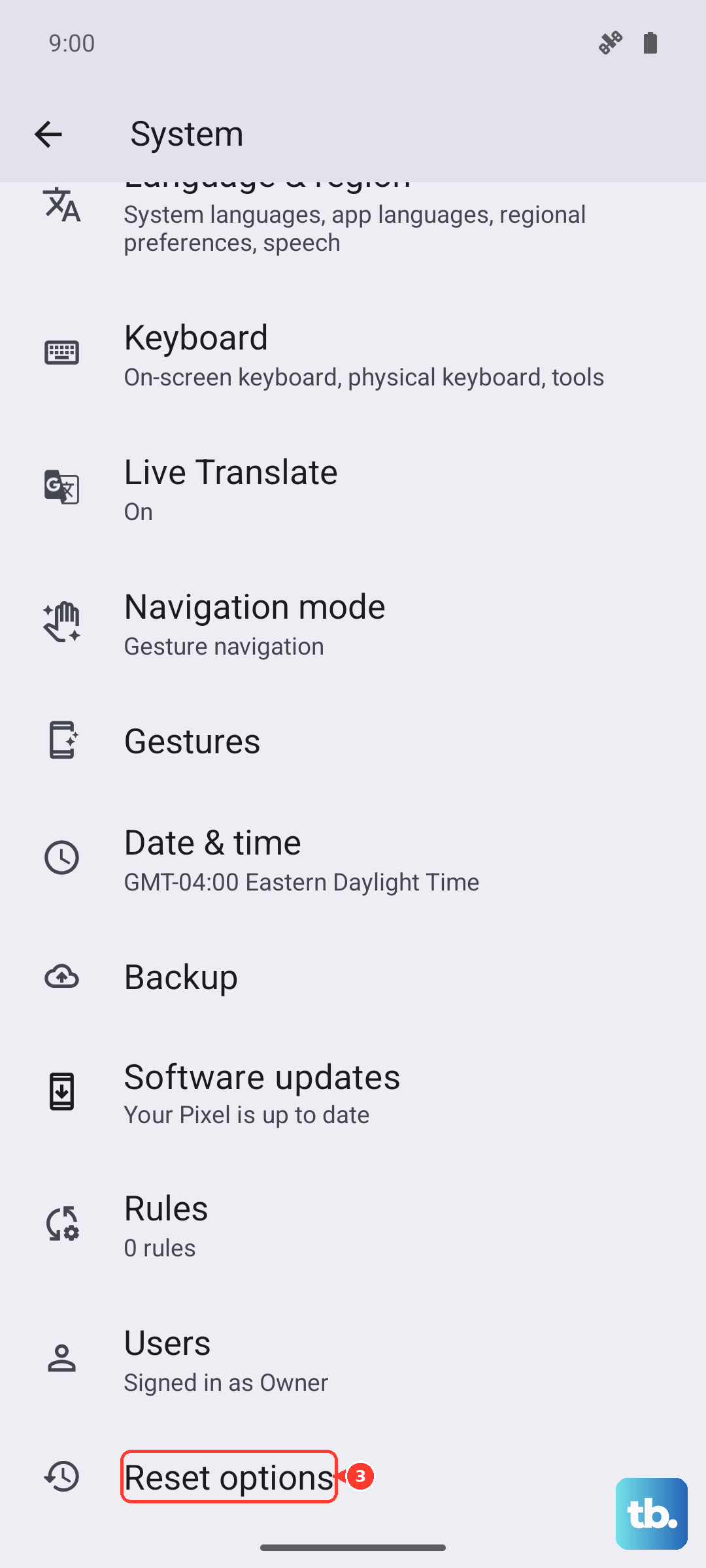
Tap Reset Wi-Fi, mobile & Bluetooth and confirm. Your Pixel 10 will restart. Afterward, you'll need to reconnect to your Wi-Fi and re-pair Bluetooth devices, but this often resolves persistent network-related sending issues.
Try a Different Messaging App
This helps determine if the problem is with the Google Messages app itself. Download an alternative like Signal or WhatsApp from the Play Store and try sending a photo through it.
If the photo sends successfully in another app, the issue is isolated to your Messages app. You can then try uninstalling its updates via the app info page in Settings, or continue using the alternative app.
Ensure Date and Time Are Set Correctly
Incorrect system time can interfere with message authentication. Open Settings > System > Date & time.
Make sure "Use network-provided time" and "Use network-provided time zone" are both enabled. If they're already on, try turning them off, manually setting the correct time and zone, and then turning the automatic options back on.
Perform a Force Restart on Your Pixel 10
If the phone is acting sluggish or unresponsive, a force restart can help. Press and hold the Power button and the Volume Up button at the same time for about 10 seconds.
Release the buttons when you see the Google logo appear on the screen. This is a deeper reset than a standard power off and can clear more stubborn software glitches preventing your photos from going through.