
When your Google Pixel 10 stops charging on its wireless pad, it's almost always a simple fix. The problem is usually with the charger itself, the phone's positioning, or a minor software hiccup. I'd start by checking the basics before assuming there's a hardware problem.
Center Your Pixel on the Charger
Wireless charging needs the coils inside your phone and the pad to line up perfectly. Place your Pixel 10 dead center on the charging surface. You should see a charging animation or hear a tone almost immediately. Being off by even a small amount can break the connection, so take a second to make sure it's positioned right.
Since the Pixel 10 supports the newer Qi2 standard, it has magnets for better alignment. If you're using a Qi2 charger, you should feel it snap into the correct spot. If you're using an older Qi charger, you'll need to be more precise with your placement.
Take the Case Off
A bulky case is one of the most common blockers. Pop your phone out of its case and try charging it bare. If it works, your case is the culprit. Thick protective cases, wallets with cards inside, or any case with a metal plate or ring can disrupt the charging signal.
Most slim silicone or plastic cases are fine, but if yours has any extra features like a kickstand or card holder, it might be too thick. You'll need to find a case that's specifically rated for wireless charging compatibility.
Inspect Your Wireless Charger
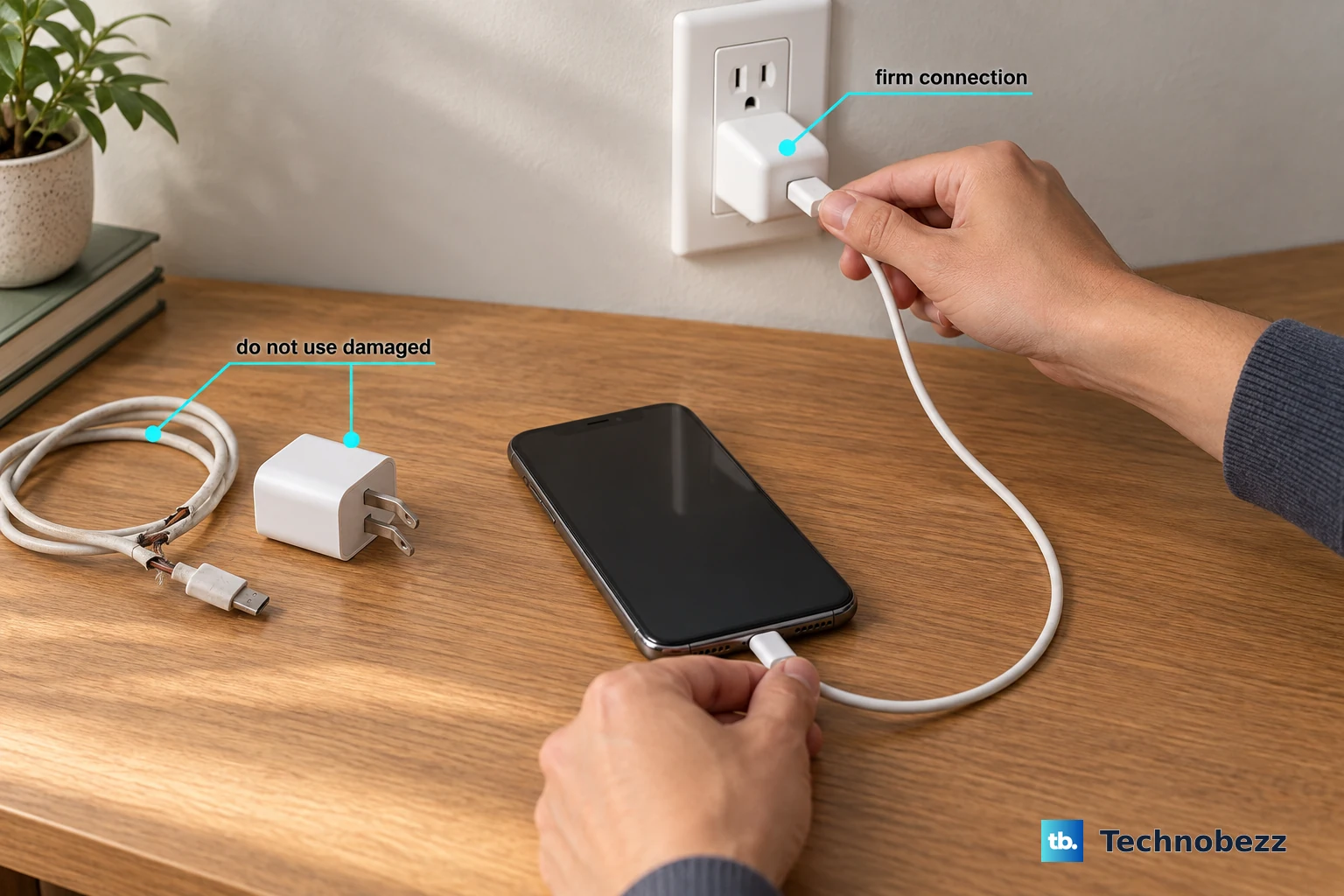
First, make sure the charger is actually getting power. Check that it's plugged into the wall and that any indicator light is on. Try a different power outlet to rule out a bad socket. The power adapter matters a lot here.
Your wireless charger needs a strong enough power source to work. For the Pixel 10's 15W Qi2 wireless charging, you should be using the official Google 30W USB-C adapter or one of similar quality. A weak or underpowered adapter can cause the charger to fail or charge incredibly slowly.
Restart Your Pixel 10
A quick reboot can clear out temporary software bugs that might be stopping the phone from recognizing the charger. To force restart your Pixel 10, press and hold the Power button for up to 60 seconds.
Let go when you see the Google logo appear on the screen. Once the phone boots back up, place it on the charging pad again. This simple step fixes a surprising number of glitches.
Clean the Phone and Charger
Dust and lint love to collect on the back of your phone and the surface of the charging pad. Take a soft, dry cloth and wipe down the entire back of your Pixel 10, paying special attention to the center area. Give the charging pad a good wipe too.
A little bit of grime can create just enough of a gap to weaken or kill the charging connection. It's a simple thing to overlook, but it makes a big difference.
Check for a Software Update
Google releases updates that often include fixes for hardware communication issues. Open Settings and tap on System. From there, select Software update to check for and install any available updates for Android 16.
Keeping your phone updated ensures you have the latest stability patches, which can resolve charging bugs introduced in earlier software versions.
Let Your Phone Cool Down
Wireless charging generates more heat than wired charging. If your Pixel 10 gets too hot, it will automatically stop charging to protect the battery's long-term health. This can happen if you're using the phone while it's on the charger, if the room is very warm, or if the charger itself is poorly ventilated.
If the back of the phone feels unusually warm to the touch, take it off the charger and let it cool down for a few minutes. Then try charging again, and avoid using it heavily while it's on the pad.
Reset Your Network & App Preferences
This is a deeper reset that can sometimes clear system conflicts affecting hardware like the charging coil. Go to Settings > System > Reset options. Here, you can tap Reset Wi-Fi, mobile & Bluetooth and Reset app preferences.
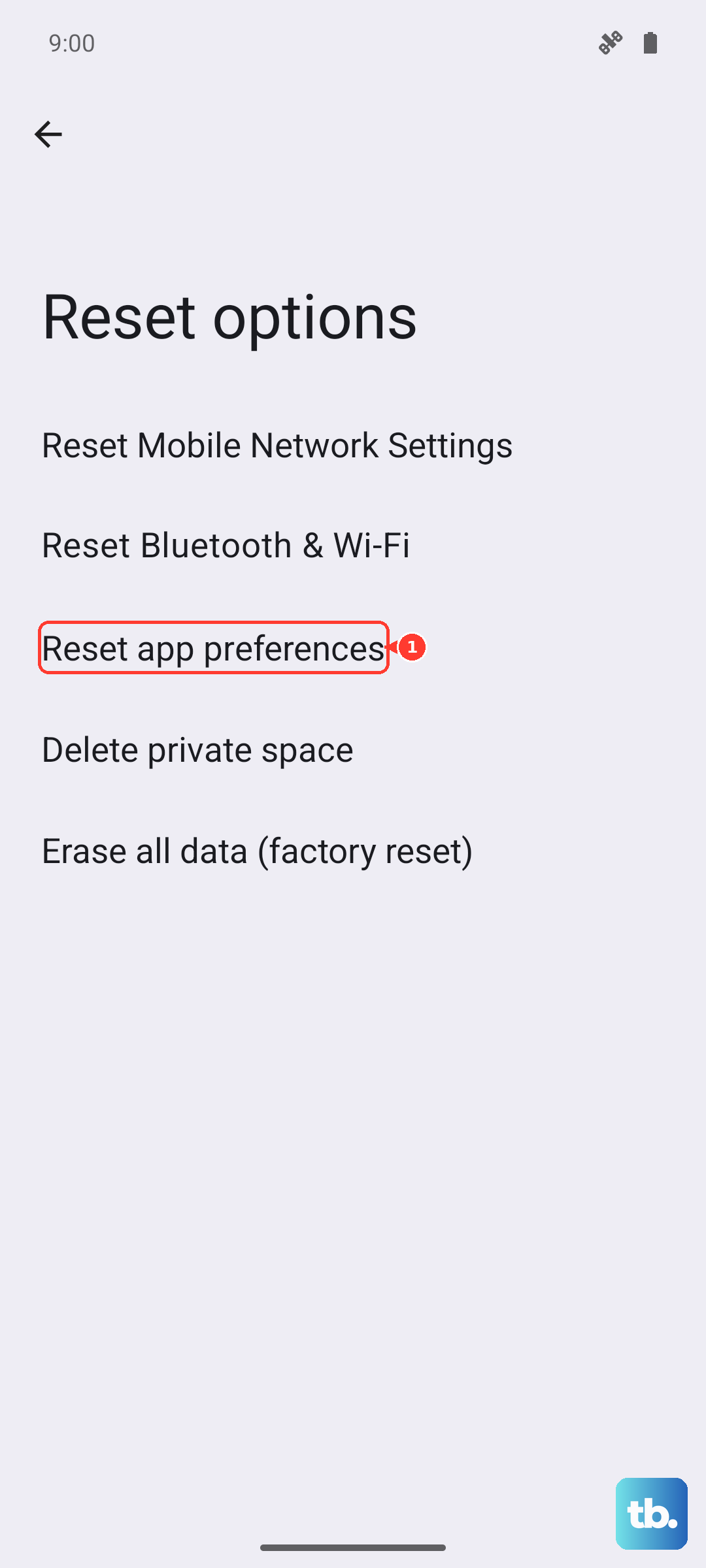
This won't delete any of your personal data, photos, or apps. It just resets system connectivity settings and app permissions to their defaults, which can eliminate a sneaky software cause.
Test With a Different Charger
This is the best way to figure out where the problem lies. If you can, try charging your Pixel 10 on a different wireless pad. If it works on another charger, then your original charging pad is faulty. If your phone still won't charge on any wireless charger, the issue is likely with the phone itself.
For the best results with the Pixel 10, use a charger that supports the Qi2 standard. It will be faster and more reliable thanks to the magnetic alignment. An older Qi charger will still work, but it might be more finicky about placement.