
You're staring at your Google Pixel 10, and it just won't join your Wi-Fi network. That spinning icon is getting old fast. This is a frustratingly common hiccup, but the good news is it's almost always something you can fix yourself in a few minutes.
Toggle Wi-Fi and Restart Your Pixel
Let's start with the simplest fix that works more often than you'd think. Swipe down from the top of your screen to open the Quick Settings panel. Tap the Wi-Fi icon to turn it off, wait about five seconds, and then tap it again to turn it back on. This forces your Pixel 10 to drop the old connection attempt and start fresh.
If that doesn't do the trick, give your phone a full restart. On your Pixel 10, press and hold the Power button and Volume Up button together for a few seconds, then tap Restart on the menu that appears (if the screen is frozen, hold just the Power button for up to 60 seconds until the phone reboots). This clears out any temporary software glitches that might be blocking the connection.
Use Airplane Mode to Reset Radios
This is a classic trick for a reason. Turning on Airplane mode shuts down all wireless communications, Wi-Fi, cellular, and Bluetooth. After about 15 seconds, turn it off again. This forces every radio in your phone to reinitialize and can often knock loose whatever was stuck.
Forget the Network and Rejoin
Your phone might be holding onto old or corrupted information for that network. To clear it out, go to Settings > Network & internet > Internet. Tap the settings icon next to your Wi-Fi network's name and select Forget.
Now, go back to the list of available networks, tap on yours, and enter the password again. This is especially important if you've recently changed your Wi-Fi password or gotten a new router.
Double-Check the Network Details
It sounds too simple, but it's worth verifying. Make sure you're selecting the correct network name from the list, especially if you have a lot of nearby networks. When typing your password, remember that it's case-sensitive.
A quick typo or having caps lock on can be the entire problem. I'd also recommend checking if other devices in your home can connect to the same network, just to rule out a broader internet issue.
Turn Off Bluetooth Temporarily
Both Wi-Fi and Bluetooth can operate on the 2.4GHz radio band. On some devices, they can interfere with each other. Swipe down to your Quick Settings and tap the Bluetooth icon to turn it off.
Now try connecting to Wi-Fi again. If it works, you've found a simple conflict. You can usually turn Bluetooth back on afterward, but you now know the source if the problem returns.
Disable Adaptive Connectivity
Your Pixel 10 has a feature called Adaptive Connectivity designed to save battery. It can sometimes be a little too aggressive, switching you to mobile data when it perceives Wi-Fi as weak or unstable. This can prevent a connection from being established.
To check, go to Settings > Network & internet > Adaptive connectivity. Try turning this setting off and then attempt to connect to your Wi-Fi again.
Check for Power Restrictions
Battery-saving modes can limit background network activity to conserve power. If you have Battery Saver enabled, it might be stopping your Wi-Fi from working properly. Go to Settings > Battery and make sure Battery Saver is turned off.
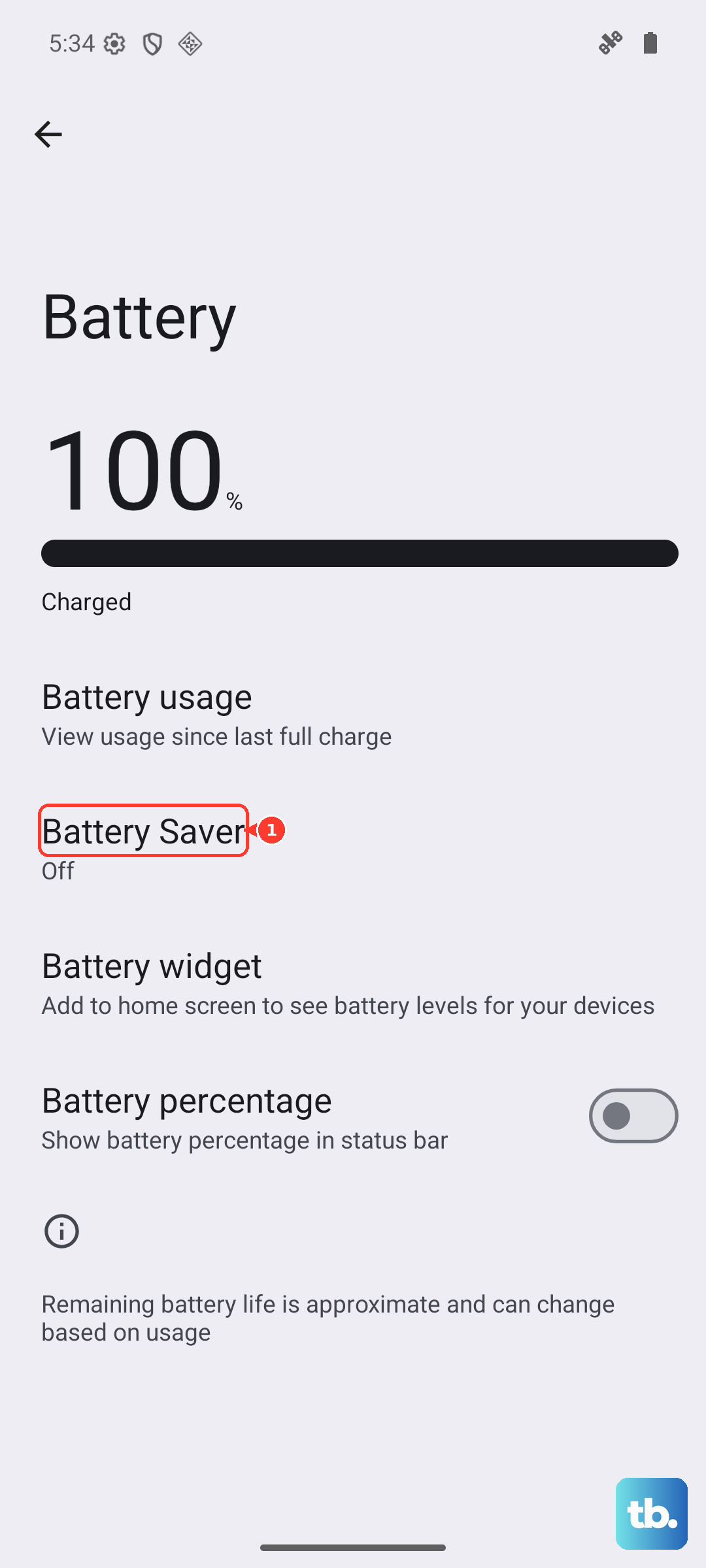
Also, check for app-specific battery restrictions. Go to Settings > Apps, select an app, then Battery, and ensure it's not set to "Restricted."
Update Your Pixel's Software
Running outdated software is a common source of connectivity bugs. Google regularly releases updates that include stability patches. Go to Settings > System > System update and tap "Check for update."
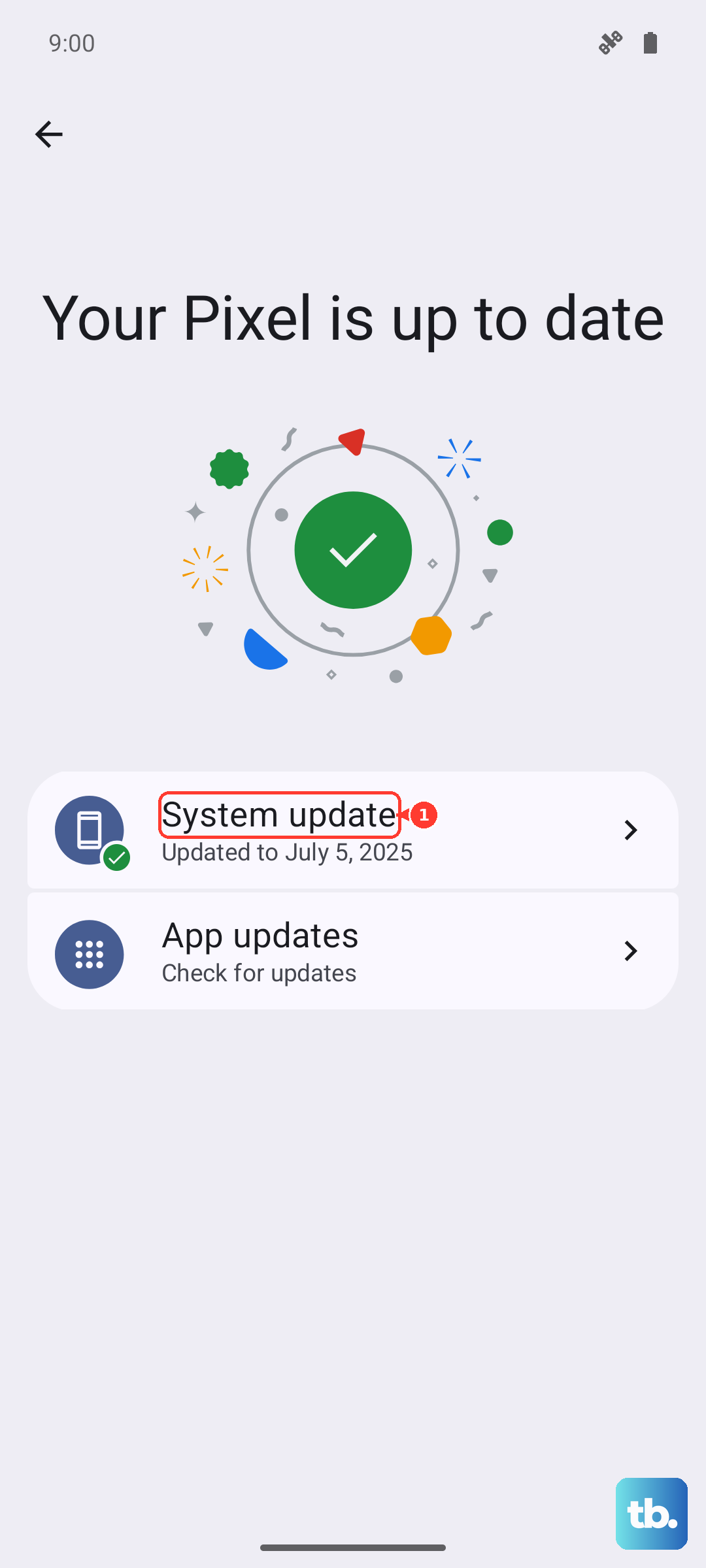
If an update is available, install it. It's a good practice to be on a stable Wi-Fi connection for this, but if you can't connect, using mobile data for the update is fine.
Verify Date and Time Settings
This one catches many people by surprise. If your phone's clock is wrong, it can fail to properly validate the security certificates used by modern Wi-Fi networks. This authentication failure will block the connection.
Head to Settings > System > Date & time. Make sure both "Set time automatically" and "Set time zone automatically" are switched on.
Reset Your Network Settings
If you've tried everything else, this is a more comprehensive step. Resetting network settings will erase all saved Wi-Fi networks, Bluetooth pairings, and cellular settings, returning them to factory defaults.
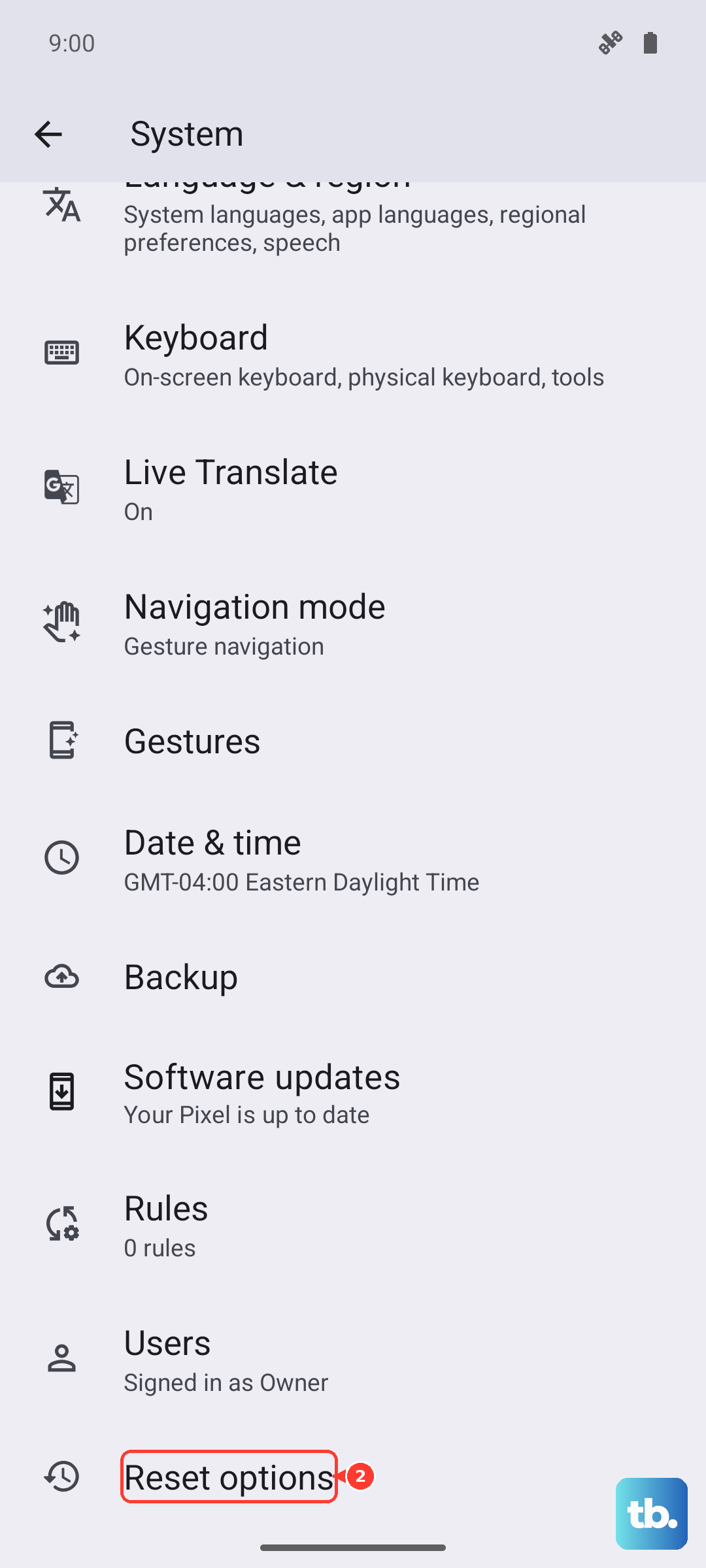
Go to Settings > System > Reset options. Tap Reset Wi-Fi, mobile & Bluetooth and confirm. After your phone reboots, you'll need to reconnect to your Wi-Fi and re-pair any Bluetooth devices.
Restart Your Router and Modem
Don't forget that the problem might not be your phone at all. Unplug your router and modem from power. Wait a full 60 seconds to let them clear their memory completely.
Plug the modem back in first and wait for all its lights to stabilize. Then plug the router back in. Once it's fully booted, try connecting your Pixel 10 again. If other devices were also having trouble, the router was likely the culprit.
Boot Into Safe Mode
A third-party app you installed could be causing interference. Apps like VPNs, ad blockers, or certain "cleaner" utilities are common suspects. Booting into Safe Mode temporarily disables all downloaded apps.
To enter Safe Mode on your Pixel 10, press and hold the Power and Volume Up buttons together. On the power menu, tap and hold "Power off" until you see the "Reboot to safe mode" prompt. Tap OK. If Wi-Fi works perfectly in Safe Mode, you'll need to find and uninstall the problematic app.











