
When your Google Pixel 10's voice assistant suddenly stops responding to "Hey Google," it can feel like you've lost a helpful companion. The issue can stem from simple settings to more complex software glitches. Here's how to get your assistant listening and talking again.
Verify Google Assistant is Enabled
First, let's make sure the assistant is actually turned on and set to listen. Open the Google app on your Pixel 10 and tap your profile picture in the top right corner. Go to Settings > Google Assistant.
In the Assistant settings, tap on "Hey Google & Voice Match." You'll see two crucial toggles here. Make sure "Hey Google" is switched on. Right below it, ensure "Voice Match" is also enabled, as this is what allows your phone to recognize your specific voice.
Retrain Your Voice Model
If the assistant activates but doesn't recognize you, or seems less accurate, retraining your voice model can help. In the same "Hey Google & Voice Match" menu, you'll find an option to "Retrain voice model" or "Teach your assistant your voice again."
Tap that option and follow the prompts. You'll be asked to say "Hey Google" and "Ok Google" a few times in a quiet room. This process helps the phone's on-device machine learning better understand your vocal patterns, especially if you've been in a noisy environment or your voice has changed slightly due to a cold.
Check for Audio Interference and Settings
Several features in Android can interfere with the microphone or the assistant's ability to respond. Start by checking if your phone is in Silent or Do Not Disturb mode. While the assistant should still work, some modes can suppress audio responses.
Also, look at any connected Bluetooth devices. If you have headphones or a speaker connected, the Pixel might be routing the microphone input through them. Try disconnecting all Bluetooth accessories and test the "Hey Google" command again using the phone's own microphones.
Review App Permissions and Battery Settings
The Google app needs the proper permissions to function. Go to your phone's main Settings > Apps > Google. Tap on "Permissions" and ensure "Microphone" is allowed. While you're there, check the battery settings for the Google app.
Some aggressive battery optimization can put the app to sleep in the background. In the Google app's settings within the Apps menu, go to Battery and set it to "Unrestricted." This ensures the listening components are always ready.
Clear the Google App Cache and Data
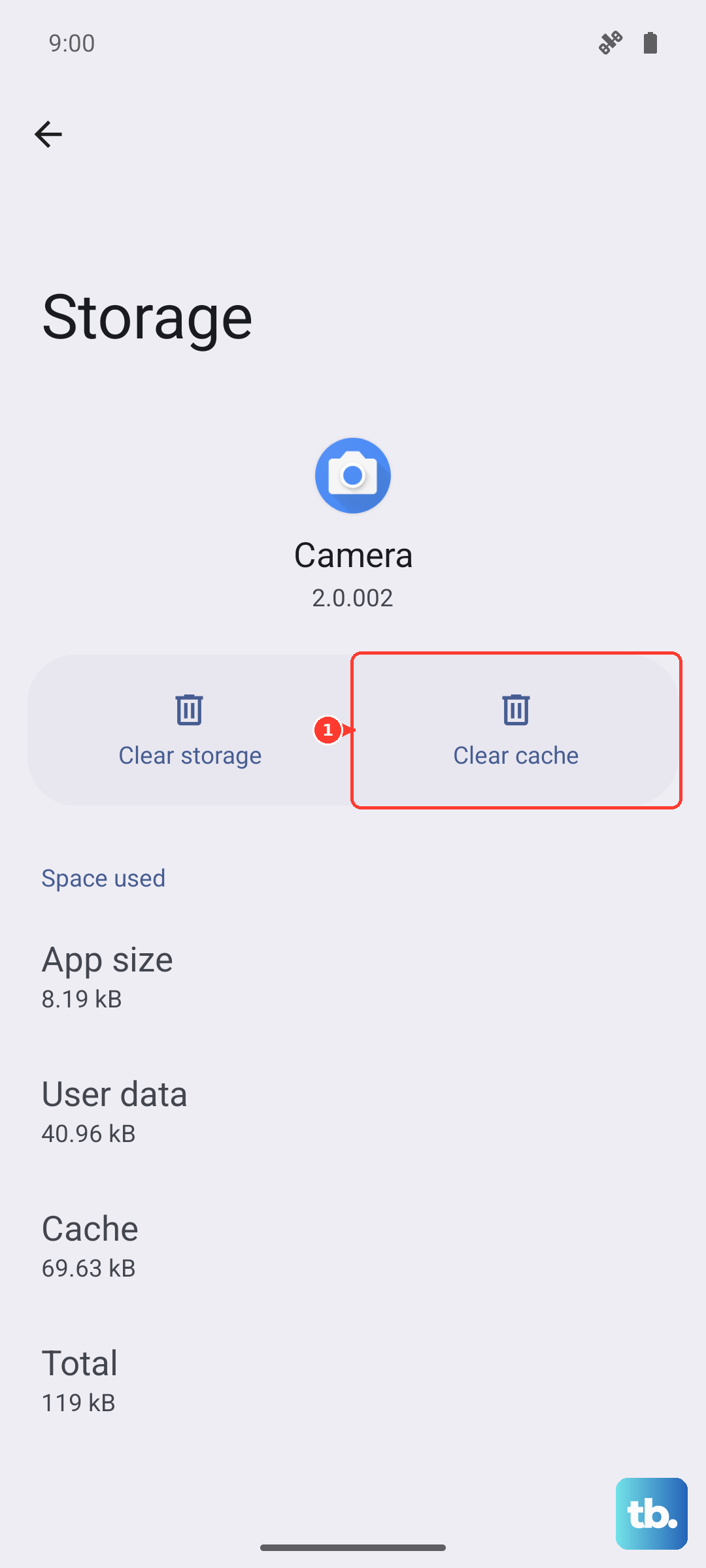
Corrupted temporary files can cause the voice assistant to malfunction. Clearing the cache is a safe first step that won't delete your personal data. Go to Settings > Apps > Google > Storage & cache.
Tap "Clear cache." If the problem persists, you can try "Clear storage" or "Manage space" > "Clear all data." Be aware this will reset the Google app to its default state, so you may need to sign back in and reconfigure some preferences.
Update Your Software
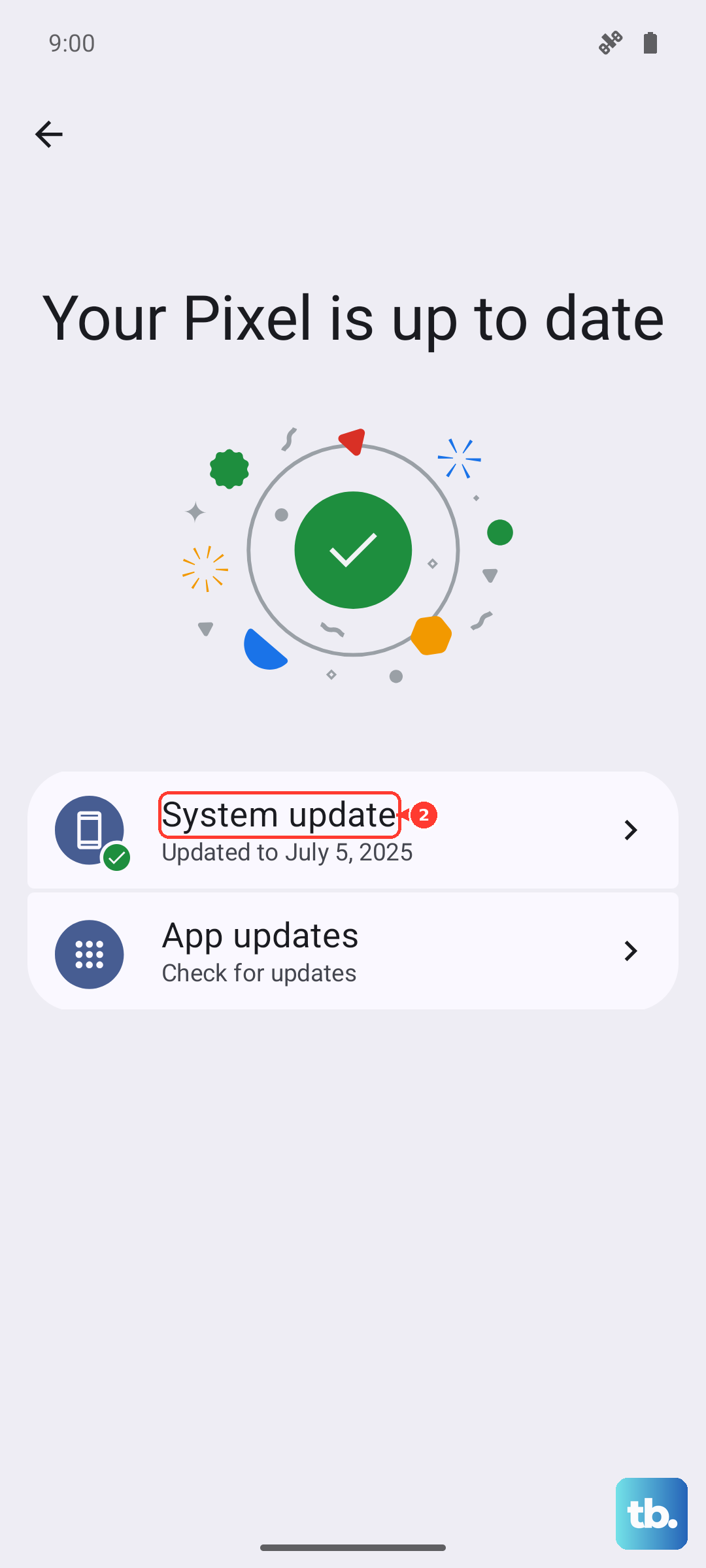
Running an outdated version of Android or the Google app can lead to bugs. Check for a system update by going to Settings > System > System update. Install any available updates for your Pixel 10.
Next, open the Google Play Store, tap your profile icon, and go to "Manage apps & device." Under updates available, see if the Google app is listed. Keeping both the OS and the core app updated is crucial for assistant features that rely on the latest AI models.
Perform a Force Restart
If the assistant is completely unresponsive, a force restart can clear out a temporary software hang. Press and hold the Power button and the Volume Up button simultaneously for about 10 seconds. Release the buttons when you see the Google logo appear on the screen.
This is different from a normal restart and can resolve deeper system processes that might be stuck. After the phone boots back up, give the "Hey Google" command a try in a quiet environment.
Check for Physical Microphone Blockages
Your Pixel 10 has several microphones for noise cancellation and clear pickup. If they're blocked, the phone can't hear you. Carefully inspect the small microphone ports, usually at the top, bottom, and sometimes near the rear camera.
Look for lint, dust, or debris. A can of compressed air or a soft, dry toothbrush can be used to gently clean the openings. Also, consider if your phone case might be covering a microphone port; try removing the case and testing the assistant.
Reset App Preferences or All Settings
If you're still having trouble, you can reset all app permissions and default apps without losing your personal data. Go to Settings > System > Reset options. Tap "Reset app preferences." This will revert all app permissions, notifications, and default app assignments back to their factory state.
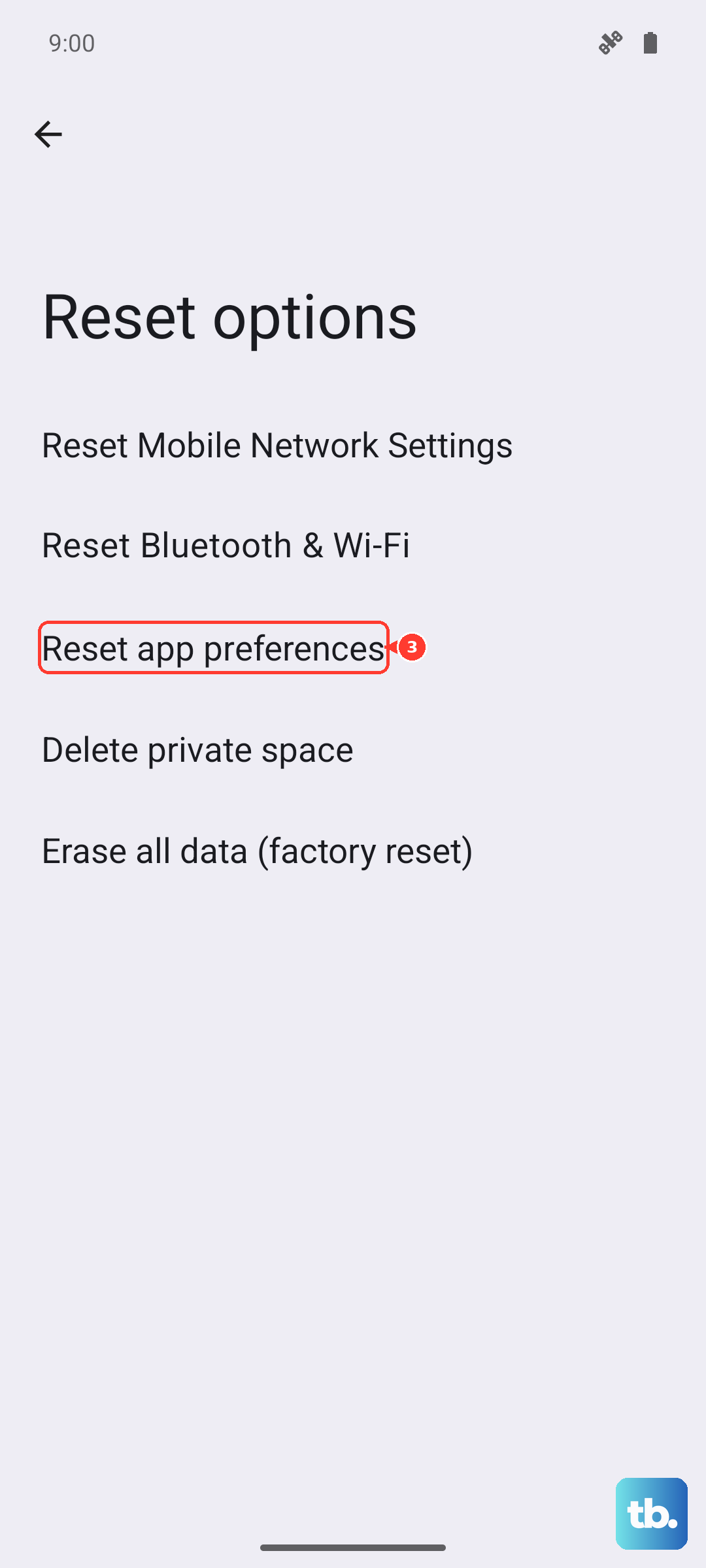
For a more comprehensive reset, you can choose "Reset all settings" from the same menu. This will erase all your network settings, Bluetooth pairings, sound preferences, and customized options, but it will leave your photos, messages, and apps intact. You'll need to set up your preferences again, but it often resolves persistent, odd software conflicts.