
You pick up your Pixel 10 Pro XL expecting a stack of notifications, and the lock screen shows nothing. Or worse, it shows a badge count that doesn't match what's actually in the app. Both scenarios are annoying, especially on a phone running Android 16 that should handle notifications flawlessly. Let's work through what's going on and get those alerts working again.
Force Restart the Phone First
Before diving into settings, try a force restart. This is different from a normal reboot and can clear up deeper software hiccups that might be blocking notifications.
Press and hold the Power button for up to 60 seconds, then release when the device begins to reboot and the G logo appears. Your Pixel 10 Pro XL should power cycle completely, and you might see notifications start rolling in right after it boots back up. I'd try this before anything else since it takes about 10 seconds and fixes a surprising range of glitches.
Check Do Not Disturb and Notification Volume
It sounds basic, but Do Not Disturb mode is the most common reason notifications go silent. Swipe down twice from the top of the screen and look for the Do Not Disturb tile. If it's highlighted, tap it to turn it off.
Also check your notification volume. Press the volume rocker and tap the gear icon that appears on the slider. Make sure the Notifications slider is turned up. Android 16 lets you set separate volumes for media, calls, alarms, and notifications, so it's possible the notification channel got lowered without you realizing it.
Check App-Level Notification Settings
Sometimes the system is fine, but specific apps have their notifications disabled. Go to Settings > Notifications > App notifications and tap on the app that's not showing alerts. Make sure "Show notifications" is toggled on.
You can also check the individual notification categories within that app. Some apps let you silence certain types of alerts while keeping others active. If you've accidentally turned off the "Messages" or "Alerts" category, notifications won't come through.
Clear the Messages App Cache
If you're seeing incorrect unread message counts or notifications that don't match reality, the Messages app cache might be corrupted. Clearing it won't delete your texts, just temporary data.
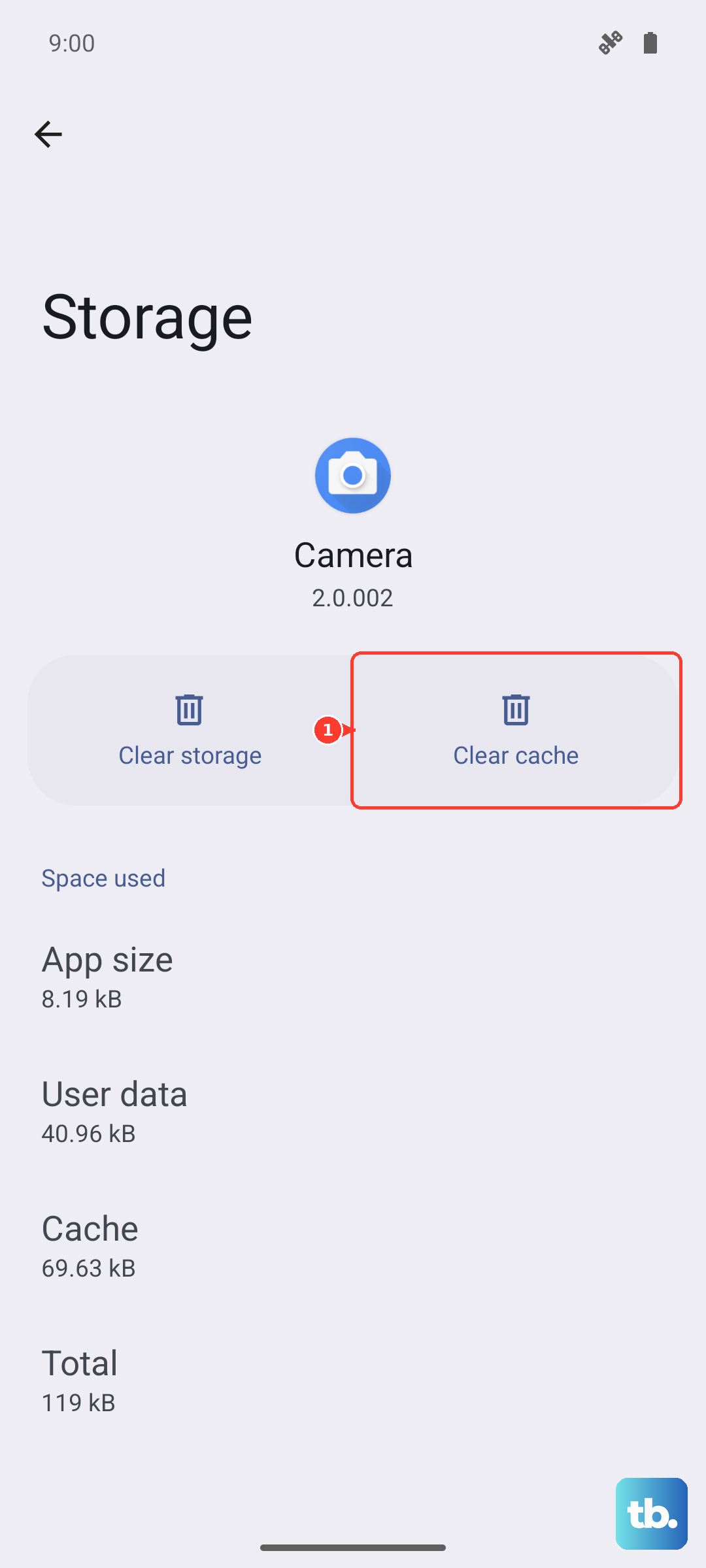
Go to Settings > Apps > Messages > Storage & cache and tap "Clear cache." Don't tap "Clear storage" unless you want to reset the app completely. After that, restart the phone and test it.
Clear the Notification System Cache
The system has its own notification service that can get bogged down. Android 16 includes a system app called "Notification" that handles all alert delivery. Clearing its cache can fix stubborn notification problems.
Head to Settings > Apps, tap the three dots in the top right, and select "Show system apps." Scroll down to find "Notification" and tap it. Go to Storage & cache and tap "Clear cache." Don't clear data here unless you want to reset all notification preferences.
Update Your Pixel to the Latest Software
Google regularly pushes updates to Android 16 that fix notification bugs. Go to Settings > System > Software update and check for any available updates. If there's one waiting, install it and reboot your phone.
Some early Pixel 10 Pro XL units shipped with a few notification-related issues that were patched in later updates. Keeping your software current is one of the easiest ways to avoid these problems.
Check Background Activity for Notification Services
Android can restrict background activity to save battery, but that can also prevent notifications from coming through. Make sure the Notification system app is allowed to run in the background.
Go to Settings > Apps, show system apps, find "Notification," and tap Battery. Make sure "Allow background activity" is enabled. On the Pixel 10 Pro XL, battery optimization is pretty aggressive by default, so this is worth checking.
Force Stop the Notification Service
If notifications are stuck, forcing the system notification service to stop and restart can help. Go to Settings > Apps, show system apps, find "Notification," and tap "Force Stop." Then restart your phone. The service will start fresh when the phone boots up.
Review App Permissions
Some apps need specific permissions to show notifications. Go to Settings > Apps, find the problematic app, and tap Permissions. Check that "Notifications" is allowed. On Android 16, you might also see a "Change system settings" permission that some messaging apps require for proper badge behavior.
If an app doesn't have the permissions it needs, it won't be able to update badges or show notification previews. Toggle the necessary permissions on and test again.
Try Developer Options: Don't Keep Activities
This one's a bit of a diagnostic trick, but it can reveal if app activities are getting stuck. First, enable Developer Options by going to Settings > About phone and tapping "Build number" seven times.
Then go to Settings > System > Developer options and toggle on "Don't keep activities." Restart your phone. This setting destroys app activities as soon as you leave them, which can clear stuck notification states. If it fixes the problem, leave it enabled or toggle it off and try the other fixes above as a permanent solution.
Reset All Settings (Without Losing Data)
If you've worked through everything and notifications still aren't showing, resetting all settings can untangle deeper configuration issues. Go to Settings > System > Reset options > Reset settings. This won't delete your photos, messages, or apps, but it will reset Wi-Fi passwords, wallpapers, and notification preferences to default.
After the reset, you'll need to set up your notification preferences again, but it often resolves persistent issues that nothing else could fix. Start with the simplest fixes first, and only move to the reset if you've exhausted the other options. Your Pixel 10 Pro XL should be buzzing and lighting up with notifications before long.