
It's frustrating when the text messages on your Google Pixel 10 Pro XL just sit there with a "Not sent" or "Sending..." status. You've got a powerful phone, but it's useless for one of its core jobs. Most of the time, the fix is something you can knock out in a minute or two.
Start With a Quick Connection Check
SMS and RCS messages rely on a solid data or cellular connection. Take a look at the signal icon in the top-right corner. If it's showing just one bar or none at all, swipe down and toggle Airplane Mode on, wait five seconds, then toggle it off. This forces your Pixel to re-register on the network and clear up any temporary connection drops.
Heat can also interfere with your modem performance on the Pixel 10 Pro XL. If your phone feels warm, remove the case to help it cool down faster. Overheating is a known issue with this model, and it can definitely mess with your signal.
Force Restart Your Pixel 10 Pro XL
Before diving into settings, a simple restart clears up most temporary software glitches. On the Pixel 10 Pro XL, press and hold the Volume up and Power buttons at the same time for about 10 seconds. The screen will go black, and the Google logo will pop up. Release the buttons and let it boot back up normally.
Is the Messages App Server Down?
If you are using Chat features (RCS), your messages route through Google's servers. It doesn't happen often, but if their service is experiencing an outage, your messages won't go through until it's resolved. You can check social media or a site like Downdetector to see if others are reporting issues. Your texts will still send as standard SMS in the meantime.
Toggle RCS Chat Features Off and On
Sometimes the RCS connection itself gets stuck or fails to activate. Open the Messages app, tap the three dots in the top right, and head to Settings > Chat features. Toggle Enable chat features off. Wait about 30 seconds, then turn it back on. You will see it connecting to the server, which usually takes under a minute.
Double Check Your Blocked Contacts
If you can send texts to everyone except one specific person, you may have accidentally blocked them. Go to Messages > three dots > Settings > Blocked contacts. If their name is on the list, tap Unblock. Your future messages to them will go through normally again.
Reset Your Network Settings
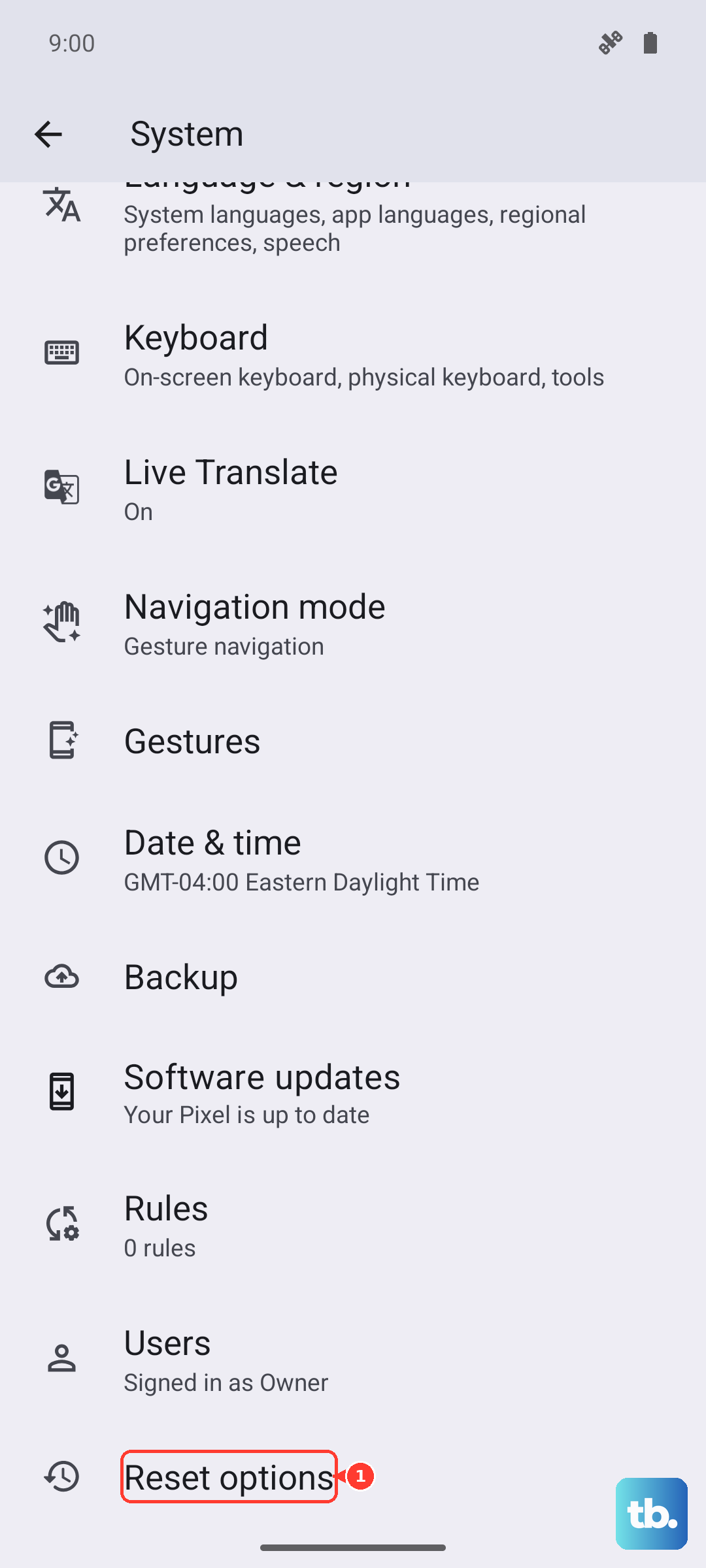
Network settings sometimes get corrupted, especially if you have been switching between Wi-Fi and mobile data a lot. Try this: open Settings > System > Reset options. Tap Reset Wi-Fi, mobile & Bluetooth. Your Pixel will reboot and rebuild those connections. You will lose saved Wi-Fi passwords, so be prepared to re-enter them.
Verify Your APN and MMS Configuration
If picture messages (MMS) are failing while standard texts work, the Access Point Names are usually the culprit. Go to Settings > Network & internet > SIMs. Tap your carrier name, then Access Point Names. Confirm the MMS proxy and port are correct for your carrier. If they look wrong, you can add a new APN with the correct settings from your carrier's support site.
Remove and Reinsert Your SIM
A loose or misread SIM card can stop all messaging. Power off your Pixel 10 Pro XL completely. Find the SIM tray on the left edge, pop it open with the tool provided in the box, remove the card, and check it for any dirt or damage. Wipe it clean, reinsert it firmly, and power the phone back on.
Install the Latest System and Carrier Updates
Outdated carrier settings or OS builds can cause compatibility issues with your network. Go to Settings > About phone > Software updates. If an Android 16 update is waiting, install it. While you are there, go back to Settings > About phone > Carrier and tap it. If an update is available, you will see a popup asking you to install it.
Confirm Your Number Is Active With Google
Sometimes the issue is on the service side of things. Open the Messages app, go to Chat features, and look for a status like "Setting up..." or "Disconnected." Try re-verifying your phone number by tapping Resend verification. If it fails repeatedly, your carrier might need to check that SMS and MMS features are properly provisioned on your account.