
You pull out your Pixel 10 Pro XL to make a call and see that dreaded "No SIM card detected" error. It's a frustrating wall between you and your entire mobile connection, but it's almost always fixable without a trip to the carrier store.
Most SIM detection problems on the Pixel 10 Pro XL trace back to one of a few things: a software glitch, a loose or dirty SIM card, or a configuration hiccup in Android 16. Let's run through the solutions that actually work.
Restart the phone first
I know it sounds basic, but a restart clears out temporary system errors more often than you'd think. Press and hold the Power and Volume up buttons together for about 10 seconds, then release when you see the Google logo and the device restarts. That's the force restart method for the Pixel 10 Pro XL, and it works even if the screen is unresponsive.
If the phone boots up normally after that, check the status bar for your carrier signal. If it's still missing, move on to the next step.
Toggle Airplane mode
This refreshes the phone's connection to the network without a full reboot. Swipe down twice from the top of the screen to open Quick Settings, tap the Airplane mode icon to turn it on, wait about 10 seconds, then tap it again to turn it off. Your Pixel will re-scan for available networks, which often resolves a misread SIM on the first try.
Check if the SIM is actually enabled
Android 16 has a SIM manager that lets you disable individual SIMs, and it's possible yours got toggled off accidentally. Open Settings, tap Network & Internet, then select SIMs. Make sure the toggle next to your carrier's SIM is switched on. If you use both a physical SIM and an eSIM, check that the right one is active for mobile data and calls.
Inspect and reseat the physical SIM card
The SIM tray on the Pixel 10 Pro XL is on the left edge, just below the volume buttons. Power the phone off completely, then use the SIM eject tool (or a paperclip) to pop the tray out. Take a close look at the gold contacts on the SIM itself, any dirt, scratches, or corrosion can prevent detection.
Wipe the contacts gently with a dry microfiber cloth. If they look stained, a tiny dab of isopropyl alcohol (90% or higher) on a cotton swab can help, just let it dry fully before reinserting. Also check the tray for bends or damage, a warped tray can misalign the SIM. Slide it back in until it clicks flush with the frame.
Test the SIM in another phone
This is the quickest way to figure out if the problem is the SIM card itself or the Pixel. Pop the SIM into any other unlocked phone and see if it gets recognized. If it doesn't, the SIM is likely damaged or deactivated, and you'll need a replacement from your carrier. If it works fine in another device, the issue is probably software or hardware-related on your Pixel 10 Pro XL.
Update the software
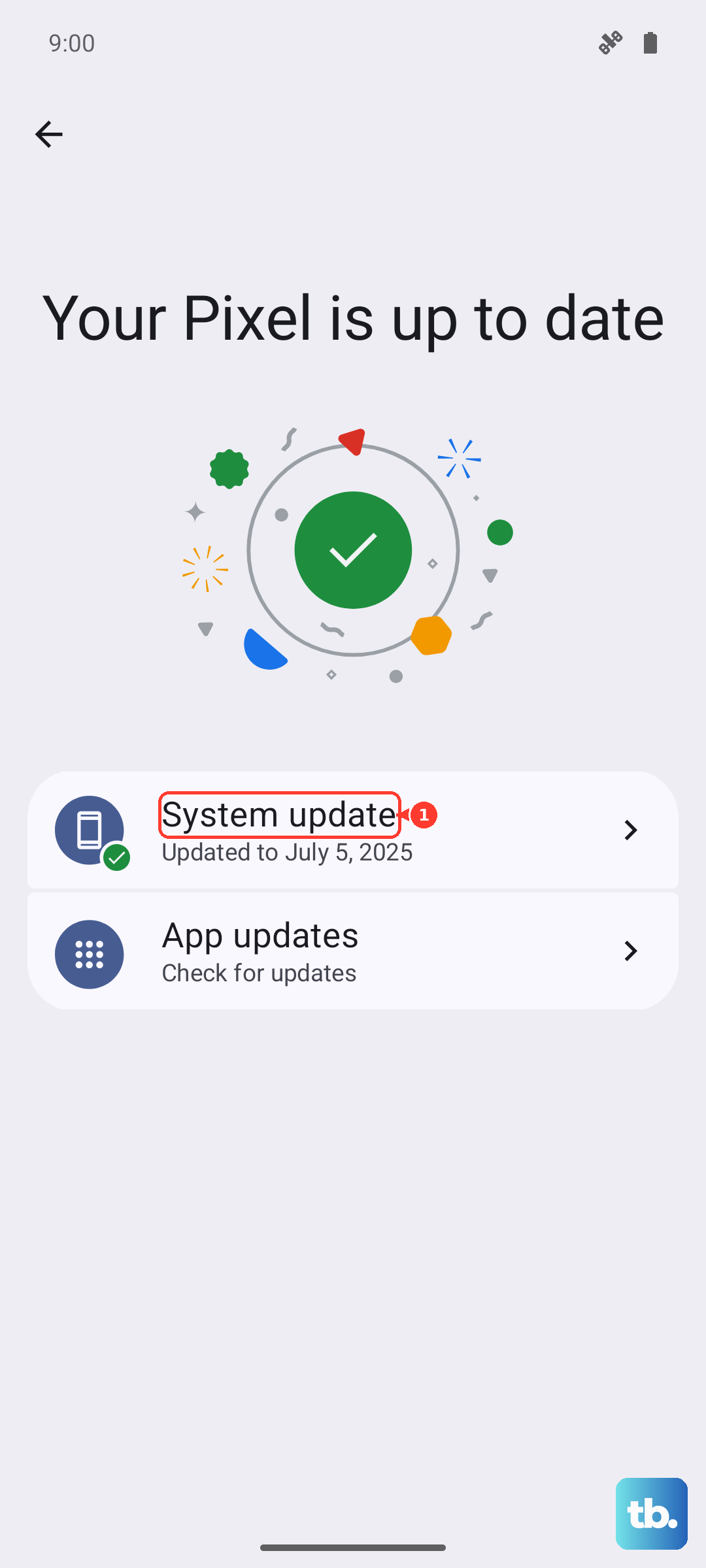
Google pushes monthly security patches and bug fixes to the Pixel 10 Pro XL, and some of those updates address modem or SIM-handling bugs. Go to Settings > System > System update and check for any pending updates. If there's one available, download and install it, then restart the phone. I've seen a single update clear up persistent "No SIM" errors that nothing else could touch.
Reset network settings
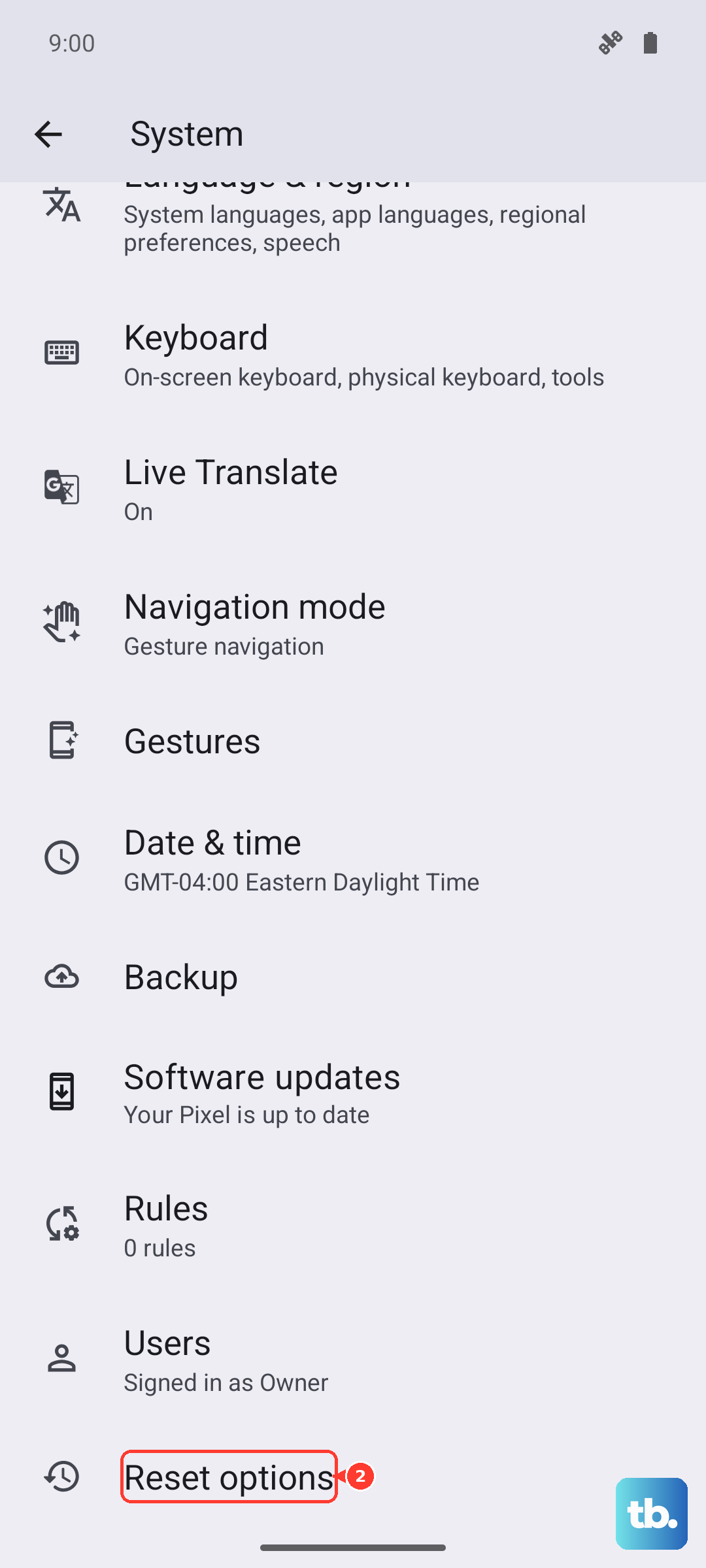
This wipes saved Wi-Fi networks, Bluetooth pairings, and mobile network configurations without deleting your photos, apps, or accounts. It's a safe middle ground before a full reset. Navigate to Settings > System > Reset options, then tap Reset Wi-Fi, mobile & Bluetooth and confirm. Your Pixel will restart, and you'll need to reconnect to Wi-Fi networks afterward, but the SIM issue often clears right up.
Clear SIM-related app cache
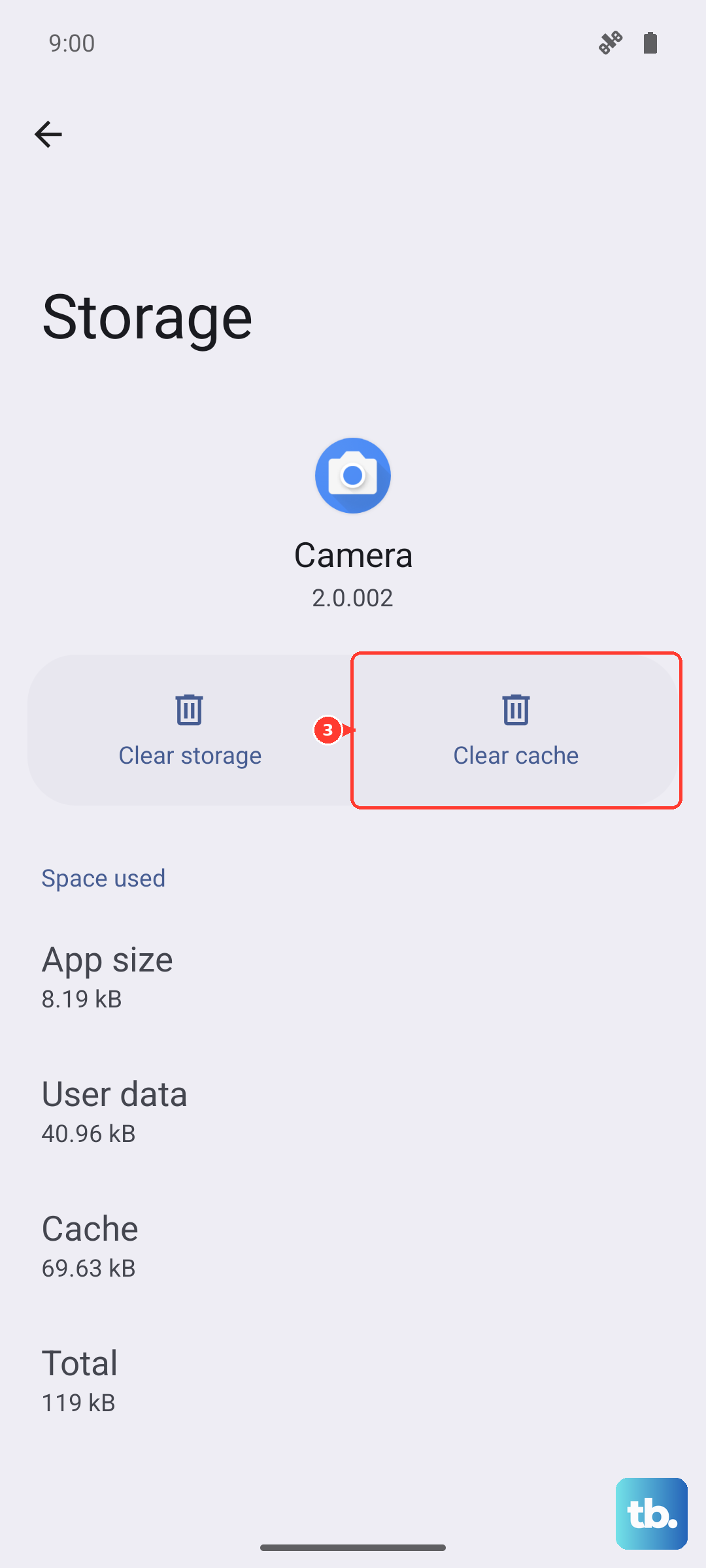
Android 16 has system apps that manage SIM functionality, and corrupted cache data can cause detection failures. Open Settings > Apps, tap See all apps, then tap the three-dot menu and select Show system. Scroll to find SIM Card manager or SIM Toolkit, tap Storage & cache, then hit Clear cache. Do the same for both apps if they're both present. A restart after this step is a good idea.
Switch network mode manually
Sometimes the Pixel 10 Pro XL gets stuck trying to connect to a network band that isn't available. Go to Settings > Network & Internet > SIMs > Preferred network type and choose an option that includes 4G, like "LTE/3G/2G (auto)". You can switch it back to "5G (auto)" after the phone picks up the network again. This forces the modem to renegotiate with the tower, which can kick a stalled SIM back to life.
If that doesn't do it, try manual network selection. In that same SIMs menu, tap Network operators and let the phone scan. Once your carrier appears in the list, tap it to connect manually. If it fails, try another carrier, then switch back to yours. This reestablishes the registration process.
Reset APN settings to default
Access Point Names control how your phone connects to your carrier's data network. If they got corrupted or changed, the SIM might appear detected but fail to register. Go to Settings > Network & Internet > SIMs > Access Point Names, tap the three-dot menu, and select Reset to default. If your carrier uses custom APN settings (common with MVNOs like Mint or Visible), you'll need to re-enter them manually after the reset.
Consider switching to eSIM
The Pixel 10 Pro XL fully supports eSIM, and moving your service from the physical SIM to a digital one can bypass a flaky SIM reader entirely. Contact your carrier and ask them to convert your line to an eSIM. They'll send you a QR code or activation code, which you can set up in Settings > Network & Internet > SIMs > Add eSIM. Many users with persistent no-SIM issues have found this to be a permanent fix.
One hardware note specific to the Pixel 10 Pro XL
Some units shipped with a defective charging port, and in a few cases, the issue also affected the SIM reader circuitry. If your phone has been overheating during charging or the charging port feels loose, there's a chance that physical damage near that area is interfering with SIM detection. Remove your phone case before charging to improve heat dissipation, and use a 30W or higher USB-C PPS charger for the fastest and safest wired charging. If the problem persists after all software steps, this could be a hardware fault that needs a repair.