
When your Google Pixel 10 Pro XL suddenly shows "No Service" at the top of the screen, it means the phone has lost its cellular connection entirely. No calls, no texts, no mobile data just a blank spot where your carrier name should be. Most of the time this is a software hiccup or a SIM issue, and you can fix it in a few minutes.
The Pixel 10 Pro XL runs Android 16, so the settings paths might look different from older Android phones. Start with the quickest fix a force restart before digging into menus.
Force Restart First
Press and hold the Volume up and Power buttons simultaneously for 10 seconds, then release when the device restarts. This isn't a regular restart it's a hard reset that completely wipes the phone's temporary memory and reinitializes the cellular radio. I've seen this clear the "No Service" error on quite a few Pixel units.
If the force restart doesn't work, let the phone sit for a minute after it boots up. The cellular modem needs a few seconds to reconnect to the network.
Check Airplane Mode and SIM
Open Settings > Network & internet and make sure Airplane Mode is turned off. It sounds obvious, but it's easy to accidentally toggle it in your pocket. Once that's confirmed, pop out the SIM tray (it'll be on the left edge of the Pixel 10 Pro XL) and inspect the SIM card. If it looks scratched or bent, try another SIM if you have one.
Reinsert the SIM firmly until it clicks, then check if the signal returns. If the phone still shows "No Service," try the SIM in another phone if it works there, the issue is with the Pixel itself.
While the SIM is out, give the charging port a quick check. A defective charging port is a known issue on some Pixel 10 Pro XL units, but that's unrelated to cellular service. However, if the phone has been overheating while charging, it's possible the heat affected internal components. Let the phone cool down completely before proceeding.
Adjust Network Mode on the Pixel 10 Pro XL
Sometimes the phone gets stuck on the wrong network mode and can't find a signal. Go to Settings > Network & internet > SIMs and tap Preferred network type. On Android 16 you'll see options like 5G, LTE, 3G, etc. Set it to 5G (default) or try LTE/4G if 5G is spotty in your area.
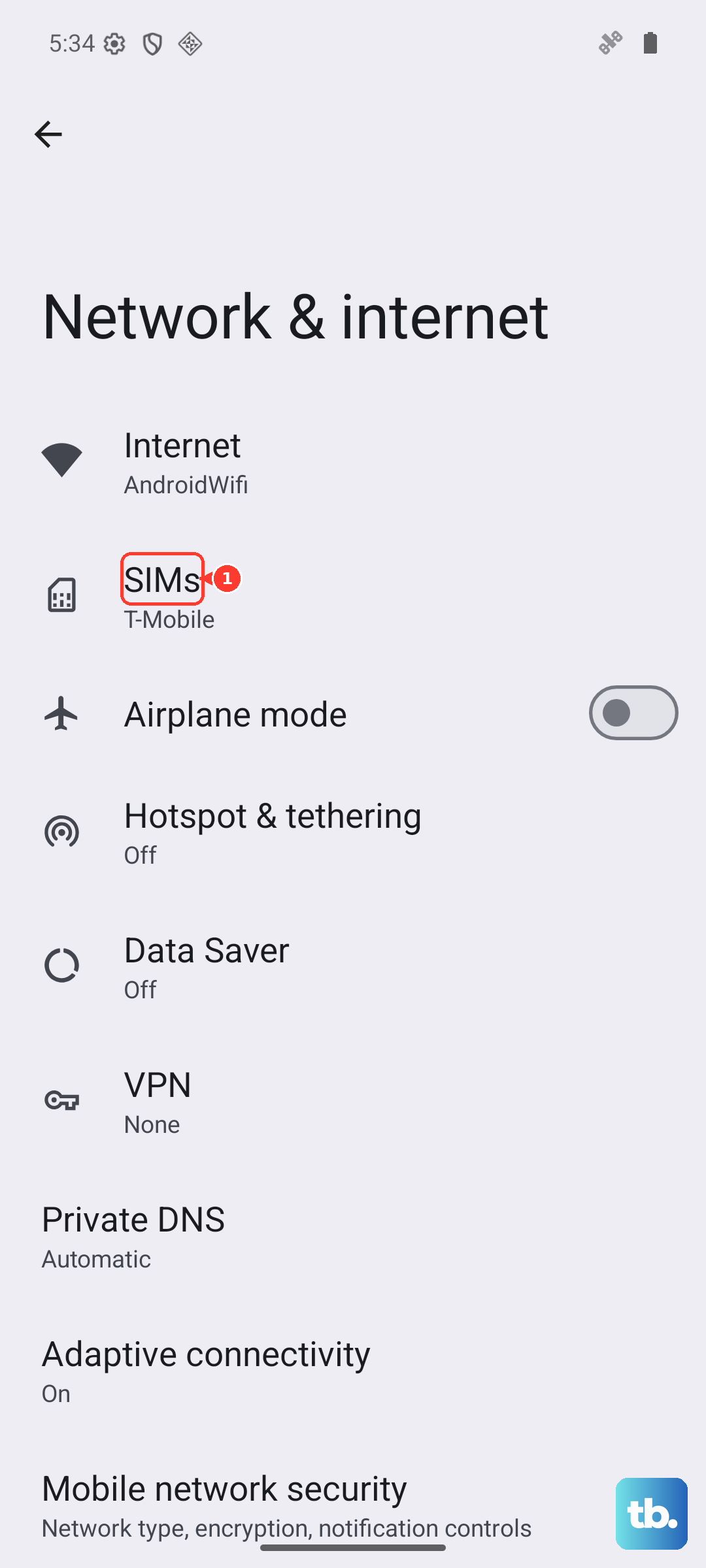
If you're traveling or in a border area, enable Data roaming under the same SIM settings. Roaming charges might apply, so check with your carrier first.
Reset Network Settings
Corrupted network configurations can cause persistent "No Service" errors without any warning. This reset will erase saved Wi-Fi networks and Bluetooth pairings, but it won't touch your photos, apps, or files.
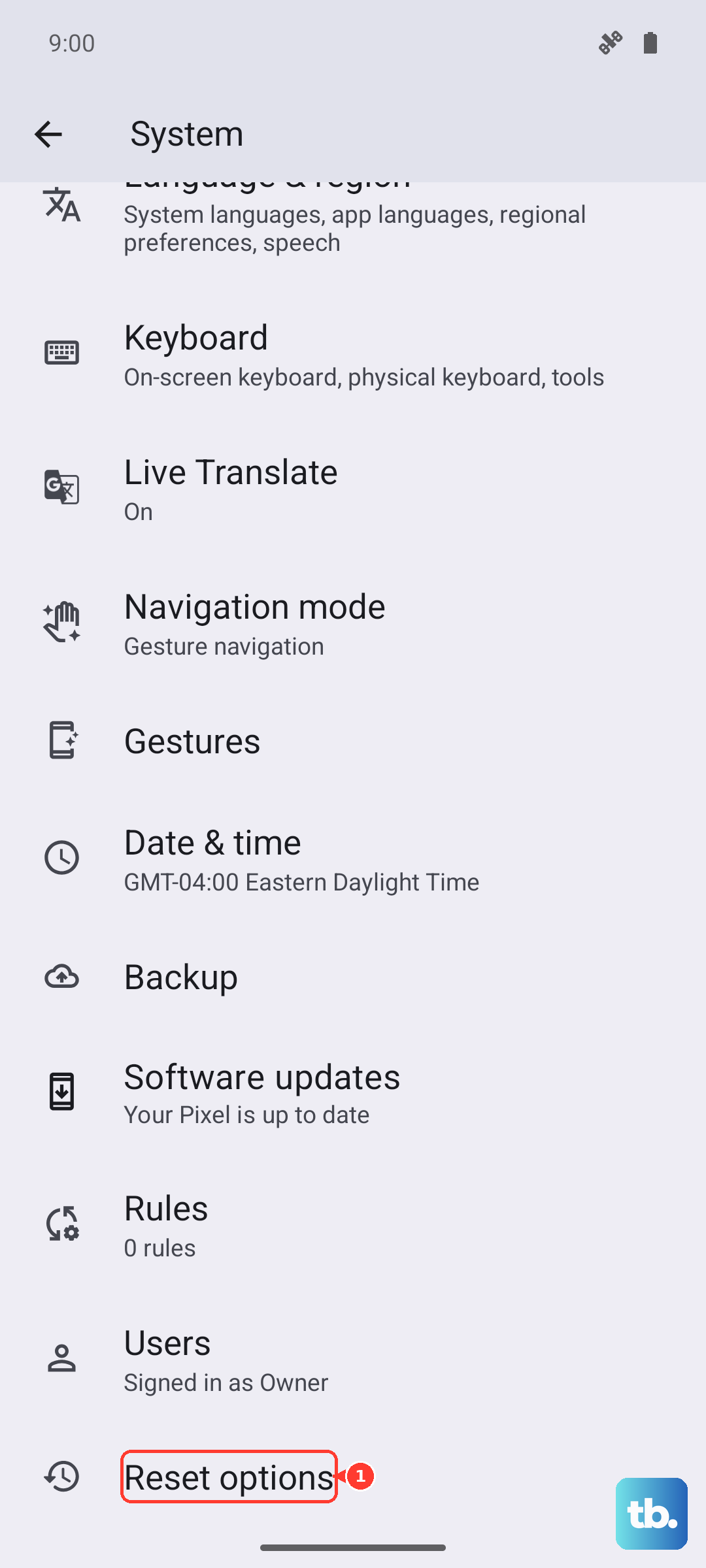
Go to Settings > System > Reset options and tap Reset Wi-Fi, mobile & Bluetooth. Confirm the action and wait for the phone to restart. After it boots, re-enter your Wi-Fi passwords and check if cellular service returns.
Update Your Pixel's Software
Google regularly pushes updates that fix cellular-related bugs. Open Settings > System > System update and tap Check for update. If a new build is available, download and install it the phone will restart during the process. Make sure you're on Wi-Fi for the download to avoid eating mobile data (which you can't use right now anyway).
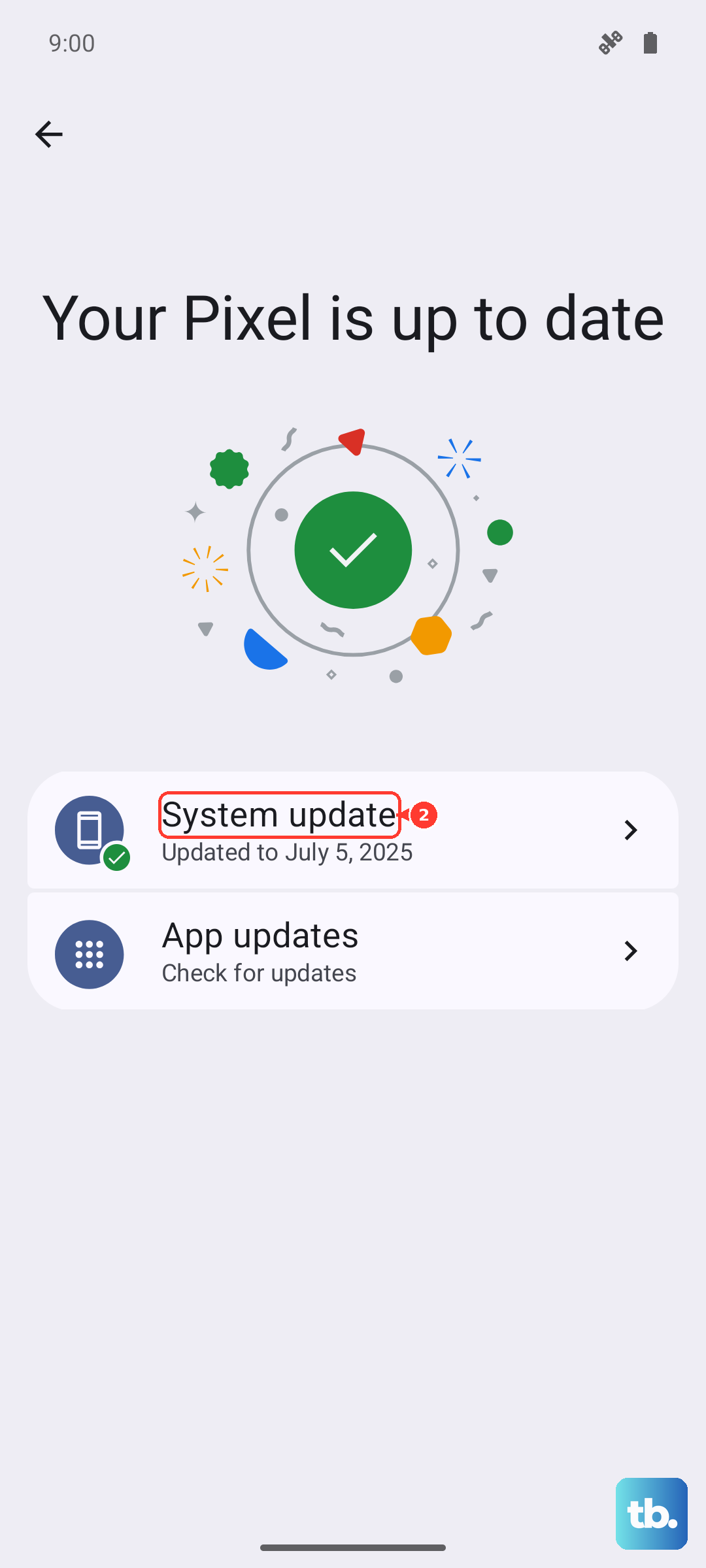
If the phone is overheating while updating, remove the case to help with heat dissipation. The Pixel 10 Pro XL is known to get warm during software updates, but if it shuts off due to heat, let it cool before trying again.
Use the Hidden Testing Menu
Android 16 still includes a hidden diagnostic menu that can force the radio to reconnect. Open your phone dialer and type *#*#4636#*#*. This brings up the Phone Information screen. Tap the three-dot menu in the top right and select Run ping test if the test fails, the radio is stuck.
From the dropdown at the top, choose GSM Auto (PRL) or LTE/UMTS auto (PRL). Then tap the Turn off radio button, wait five seconds, and tap Turn on radio. Back out of the menu and restart the phone normally.
Disable VPNs and Proxy Settings
Third-party VPN apps can interfere with cellular connectivity, even when they're only supposed to route data traffic. Go to Settings > Network & internet > VPN and delete any active VPN profiles. Also check Private DNS under the same section set it to Automatic instead of a custom provider.
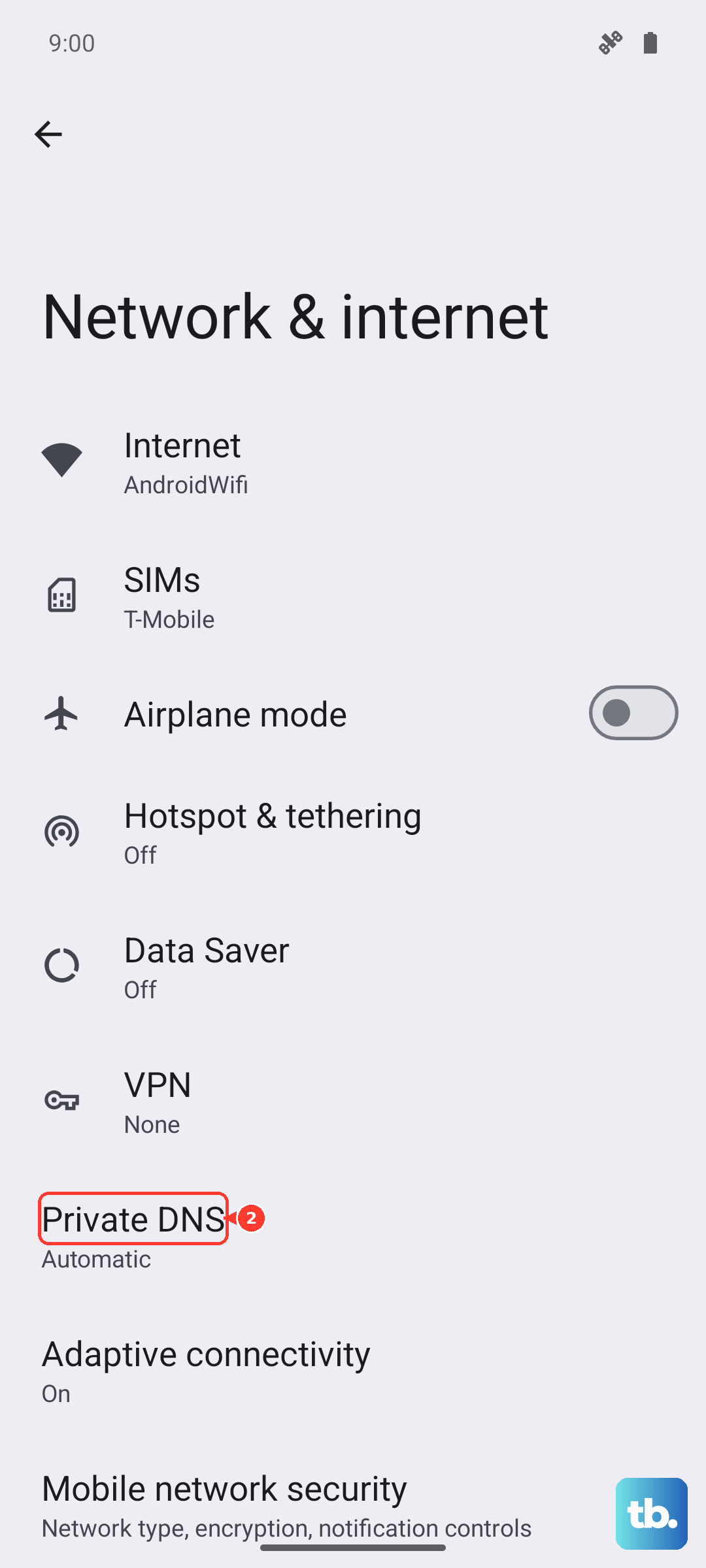
If you have a proxy configured in the Wi-Fi settings, clear it out. Proxy configurations sometimes leak into mobile network settings temporarily.
Check APN Settings Manually
Access Point Name (APN) settings tell your Pixel how to connect to your carrier's network. If they got corrupted, you'll see "No Service" even if the radio is working. Go to Settings > Network & internet > SIMs > Access Point Names and tap the three-dot menu to select Reset to default.
If that doesn't work, google your carrier's APN settings (e.g., "T-Mobile APN Pixel 10 Pro") and manually add a new APN with those exact values. Save it and select it as the active APN.
Factory Reset Last Resort
If none of the above fixed the "No Service" error, a factory reset might be necessary. This will erase everything on the phone, so back up your photos, contacts, and any important files first. Go to Settings > System > Reset options > Erase all data (factory reset) and follow the prompts.
Before you pull the trigger, double-check with your carrier whether there's an outage in your area. Sometimes the phone isn't the problem the tower is down. Try texting or calling a friend on a different carrier to see if they're having issues too.