
When your Pixel 10 Pro XL stops sending or receiving emails, it's more than an inconvenience, it can mean missed work messages or important personal updates. The good news is most email problems on Android 16 are quick to fix. I've put together 14 fixes that should get your inbox moving again, starting with the simplest ones.
Before anything else, make sure you're actually connected to the internet. Swipe down twice to open Quick Settings and check that Wi‑Fi or mobile data is on. If you're on cellular, make sure you haven't hit your data cap. Also, log into your email provider on a computer or browser to rule out a server outage or a forgotten password.
Toggle Airplane Mode
This resets your network connections in one tap. Swipe down from the top of the screen, tap the Airplane Mode icon, wait about 30 seconds, then tap it again to turn it off. It's a quick way to clear a stuck radio without a full restart.
Use the Force Restart (Known Fix for Frozen Devices)
If the Mail app is completely unresponsive or the phone feels sluggish, a force restart can clear temporary glitches. Press and hold the Volume up and Power buttons simultaneously for 10 seconds, then release when the device restarts. This won't erase any data, it's the equivalent of a hard reboot and often resolves software hiccups that affect email syncing.
Check Mail Sync and Background Data Settings
On Android 16, email apps need background data permission to fetch new messages. Go to Settings > Apps > Mail (or your third‑party app) > Mobile data & Wi‑Fi and make sure Background data is toggled on. While you're there, tap App battery usage and choose Unrestricted so Android doesn't cap its background activity. Then open the Mail app itself, go to its account settings, and verify the sync frequency is set to Auto or Push if your provider supports it.
Switch Between Wi‑Fi and Mobile Data
Sometimes the issue is the network, not the phone. If you're on Wi‑Fi, try turning it off and using mobile data for a minute. If mobile data works better, your Wi‑Fi router might need a restart or your Pixel's Wi‑Fi settings ( Settings > Network & internet > Internet ) need a refresh. Toggle Use Wi‑Fi off and back on. If you're on mobile data and emails won't load, power cycle the Pixel's radios by switching to Airplane Mode briefly as above.
Disable Any Active VPN
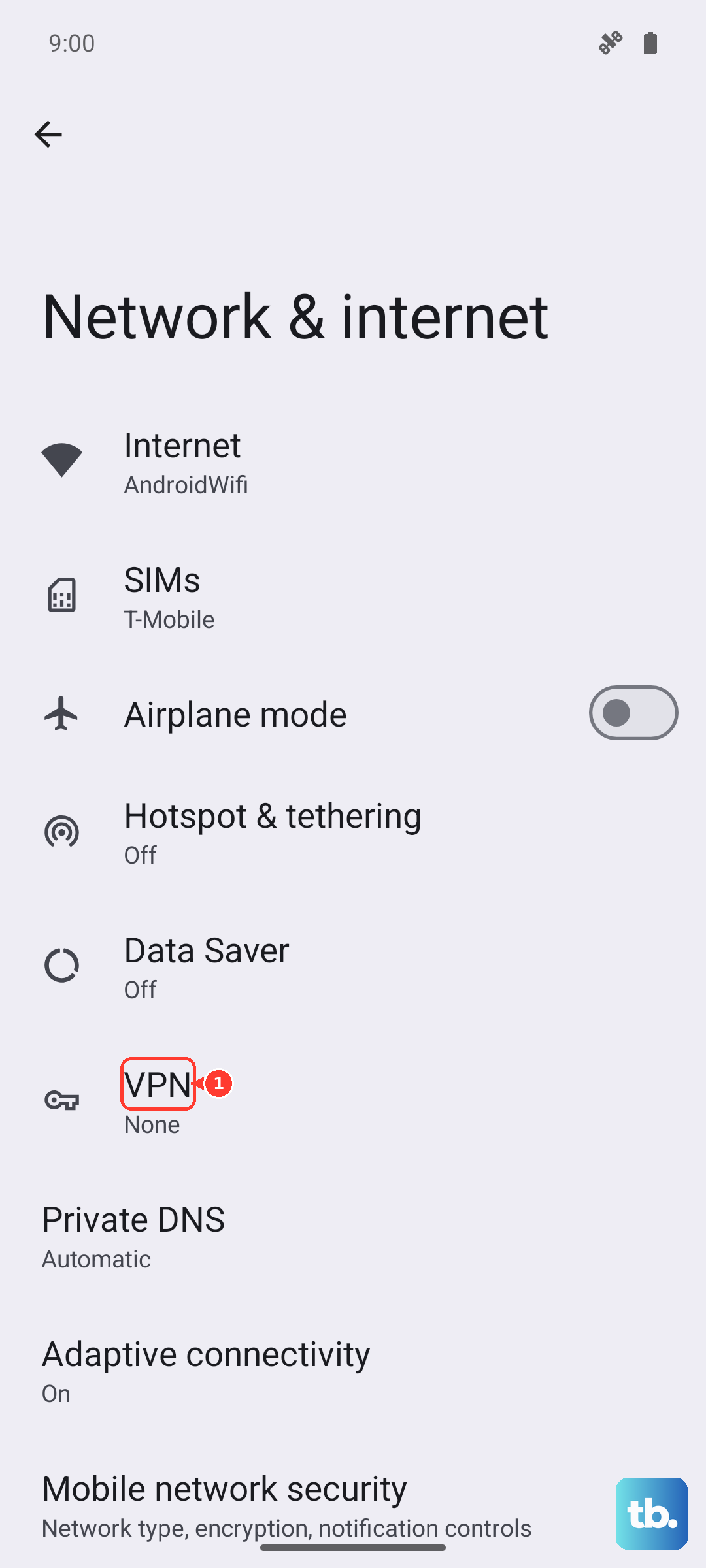
VPNs can interfere with email connections, especially if your corporate mail server has strict IP rules. Open Settings > Network & internet > VPN and turn off any active VPN. Try checking your email again. If it works, you may need to add your email provider's domains to the VPN's split‑tunnel list or contact your VPN support for guidance.
Set Date and Time to Automatic
An incorrect system clock can break the SSL/TLS handshake with email servers. Go to Settings > System > Date & time and make sure Use network‑provided time and Use network‑provided time zone are both turned on. After enabling these, wait a moment for the phone to sync, then try sending a test email.
Verify Your Email Password and Two‑Step Setup
It's easy to forget that your password changed or that your provider enabled two‑step verification. Try logging into your email account through a browser on your Pixel or another device. If you can't get in, reset the password first. If you're using an app password for Gmail or iCloud, you'll need to generate a new one from your account's security settings and update it in the Pixel's Mail app under Settings > Passwords & accounts > tap the account > Update password.
Keep the Phone Cool While Charging
This one is specific to the Pixel 10 Pro XL. The phone is known to overheat and shut off during charging, which can interrupt email sync. Remove the case before plugging in, the thin plastic traps heat. For fastest wired charging (45W), use a 30W+ USB‑C PPS charger. If you're using Qi2 wireless (25W), make sure the phone is perfectly centered on the pad, the alignment is finicky and a misaligned coil can slow charging and increase heat. A cool phone is a happy phone, and it'll stay connected to servers reliably.
Check for Service Outages
Before diving into deeper settings, check if Gmail, Outlook, or your corporate email server is having a widespread issue. Sites like Downdetector or your provider's status page will tell you quickly. Also ask your IT admin if they've recently changed security policies like requiring OAuth tokens or app‑specific passwords.
Update the Mail App and Android System
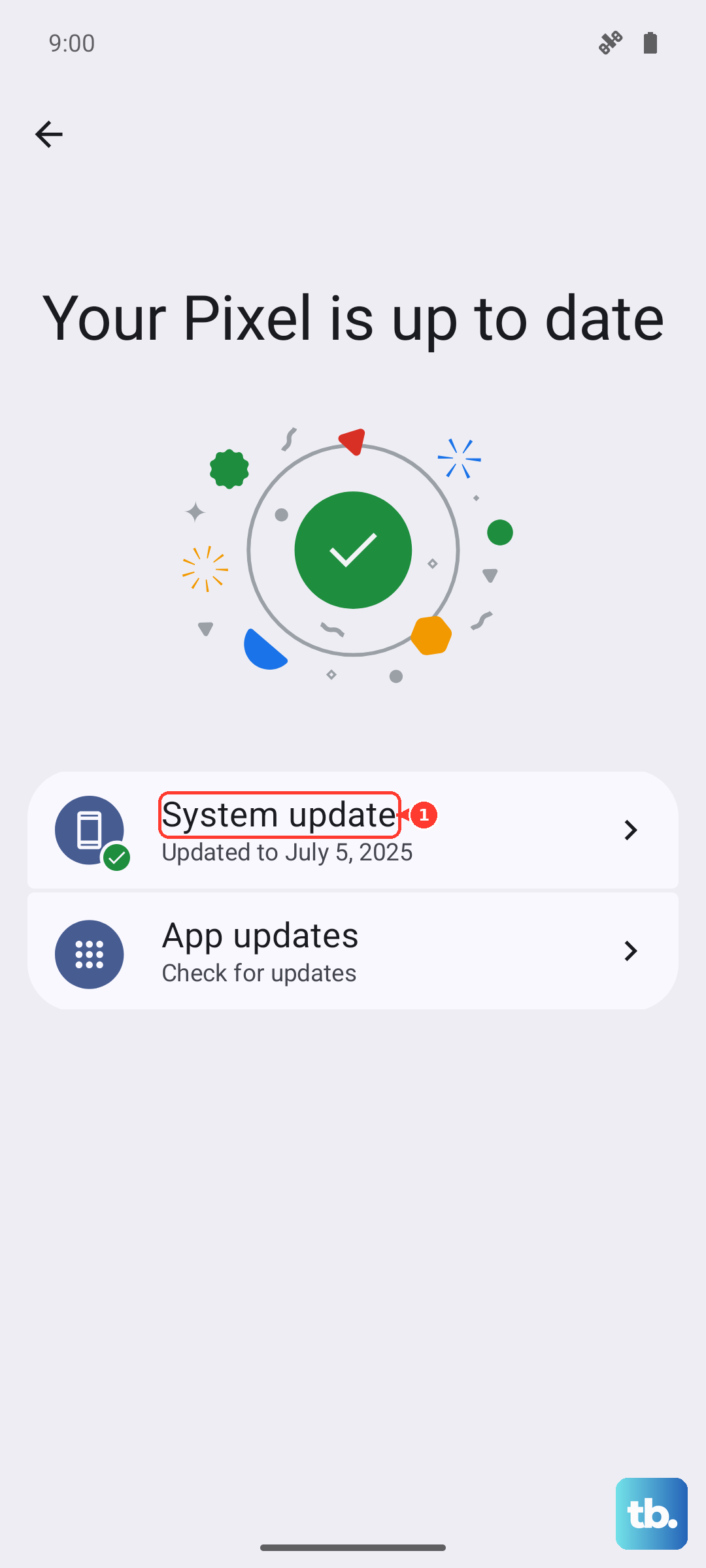
Software bugs in the mail app or the OS can cause sync failures. Open the Google Play Store, tap your profile photo, then Manage apps & device. Install any pending updates for your email app. Then go to Settings > System > System update to download any Android 16 patches. Google has rolled out fixes for several email authentication issues in recent updates.
Delete and Re‑Add Your Email Account
This often clears corrupted login tokens. Go to Settings > Passwords & accounts (or Accounts & backup in some builds). Tap the email account you're having trouble with, then tap Remove account. Confirm the removal. Now add it back: Settings > Passwords & accounts > Add account and choose your provider. Sign in again from scratch. This forces a fresh sync.
Adjust Notification Settings for the Mail App
If emails are arriving but you're not getting alerts, the issue is notification channels. Long‑press the Mail app icon, tap App info, then Notifications. Turn on Show notifications and make sure the specific channel (e.g., "Inbox" or "General") is set to Sound or Vibrate. You can also check Settings > Notifications > App settings and confirm Mail isn't blocked by Do Not Disturb.
Reset App Preferences (No Data Loss)
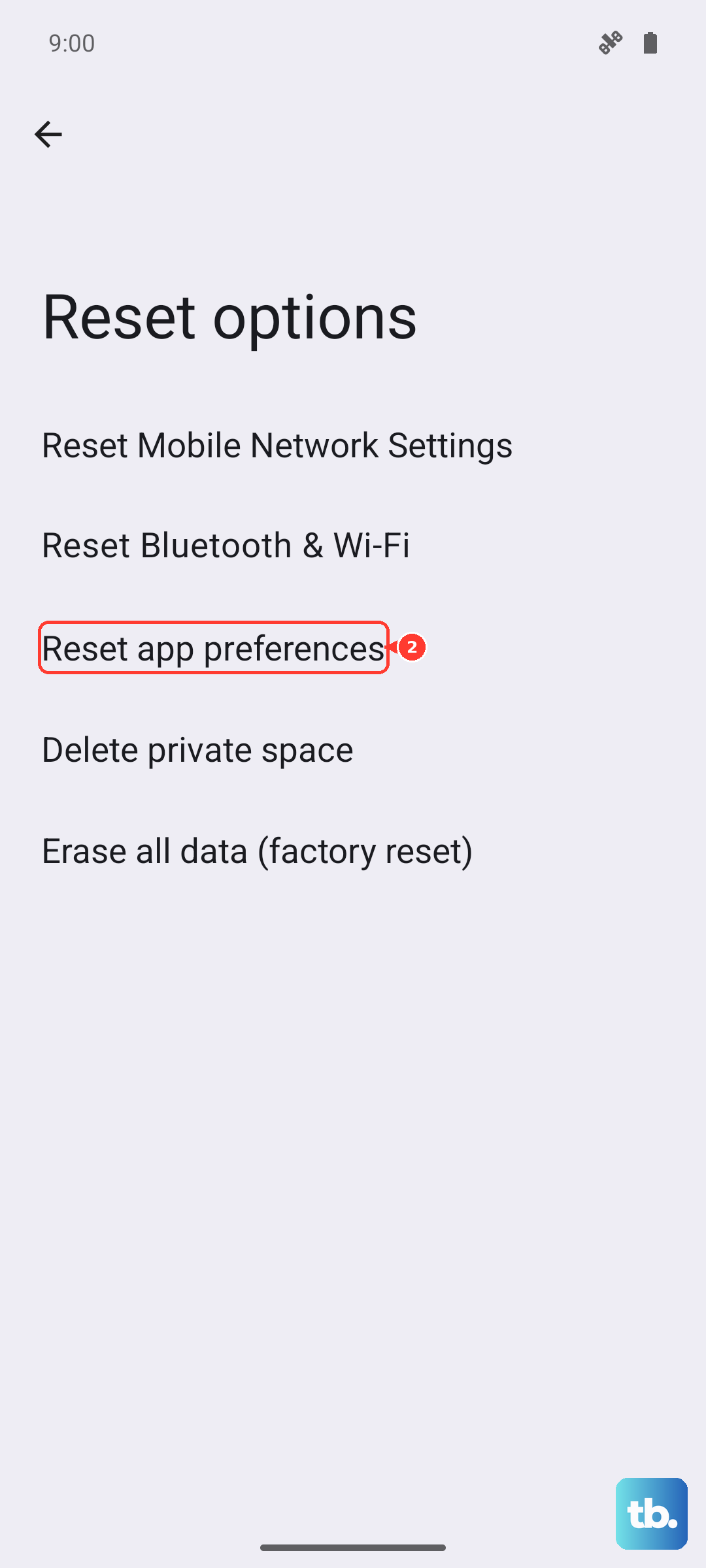
If you've accidentally disabled a system app or changed permissions that affect email sync, resetting app preferences can help. Go to Settings > System > Reset options > Reset app preferences. This won't delete any personal data, but it will reset all disabled apps, notification overrides, and default apps. You'll need to re‑allow permissions for the Mail app on first run, so tap it again and grant the usual permissions.
Most email problems on the Pixel 10 Pro XL come down to a network glitch, a stale account, or an overheating phone interrupting background sync. Start with the simplest fixes, toggling Airplane Mode or a force restart, and work through the list. Nine times out of ten, one of these will have your inbox flowing again within a few minutes.