
If your Google Pixel 10 Pro XL keeps showing "Call failed" or drops calls mid-conversation, you're not alone. This usually means the phone is struggling to connect to the cellular network. Weak signal, software glitches, or misconfigured settings are the usual culprits.
Here are 10 fixes to get your calls working again, starting with the quickest.
1. Toggle Airplane Mode
The fastest way to reset your cellular connection is to turn Airplane Mode on and off. It clears temporary network hiccups that cause call failures.
Swipe down from the top of the screen to open Quick Settings. Tap the Airplane icon to turn it on, wait about 15 seconds, then tap it again to turn it off. Try making a call right after.
2. Check Your Signal Bars
Low signal is the most common reason for dropped or failed calls. Look at the signal bars in the top-right corner. If you see only one bar or "Emergency calls only," move closer to a window or step outside. Thick walls, basements, and metal buildings can block cellular signals badly.
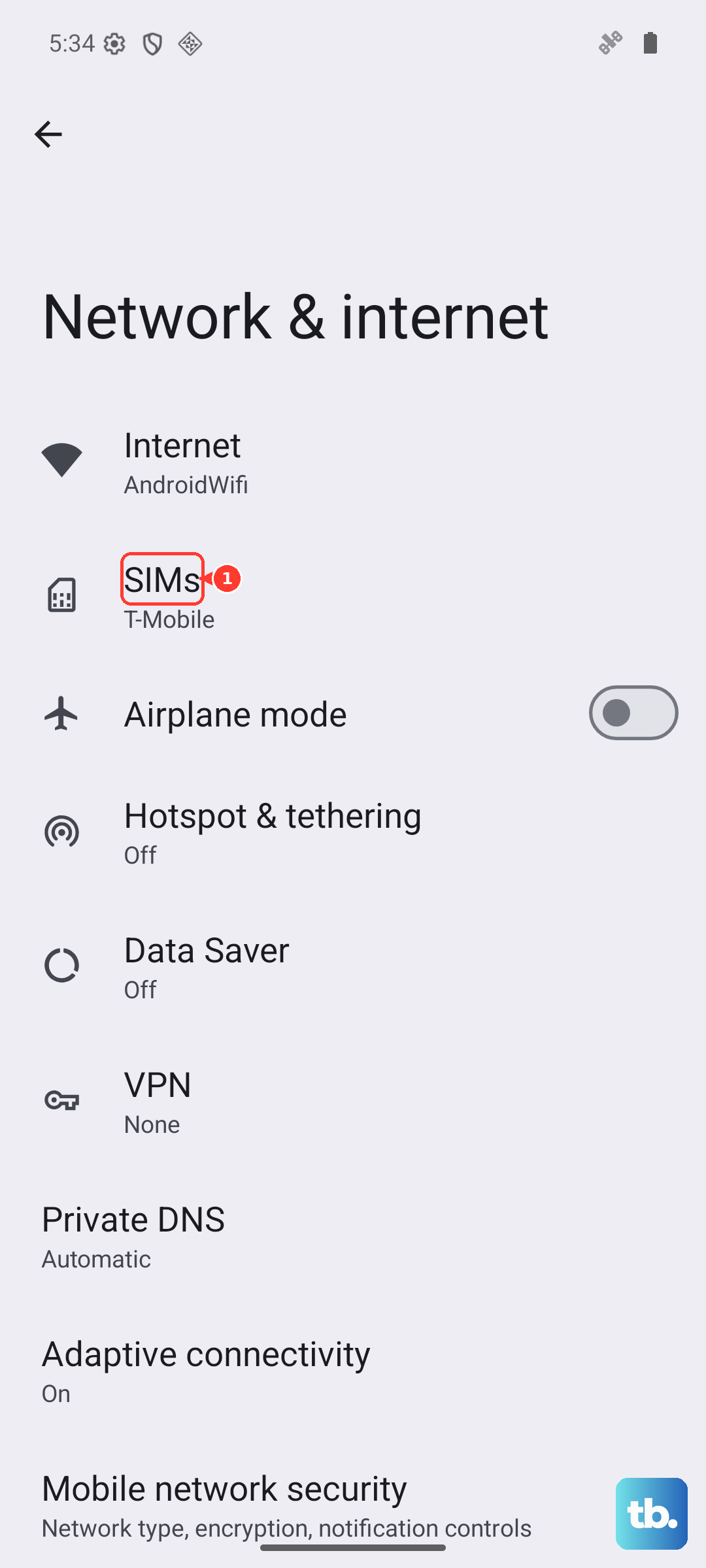
If you're in a known dead zone, try switching to Wi-Fi Calling as a workaround. Go to Settings > Network & internet > SIMs > Wi‑Fi calling and turn it on.
3. Force Restart Your Pixel 10 Pro XL
A simple restart clears many software-level bugs, including ones that affect calling. On the Pixel 10 Pro XL, press and hold the Volume up and Power buttons together for 10 seconds. Release when the device restarts. This is different from a normal reboot, it's a forced restart that helps if the phone is unresponsive or has a stuck network process.
4. Turn Off Do Not Disturb and Focus Modes
Do Not Disturb or any scheduled focus mode can block incoming calls without you realizing it. Swipe down twice to expand Quick Settings, then check if the "Do Not Disturb" icon is highlighted. Tap it to turn it off. Also go to Settings > Sounds & vibration > Do Not Disturb and make sure "Block visual interruptions for calls" isn't set to block everything.
5. Verify Date and Time Are Automatic
Incorrect date or time settings can break your connection to the carrier's network. Open Settings > System > Date & time and make sure "Use network-provided time" and "Use network-provided time zone" are both on. If they were off, turn them on and test a call.
6. Check If the Number Is Blocked
You might have accidentally blocked the person you're trying to call. Open the Phone app, tap the three-dot menu, then go to Settings > Blocked numbers. If their number appears, tap the X or remove icon next to it to unblock.
7. Inspect Your SIM Card or eSIM
If you use a physical SIM, power down your Pixel, eject the tray using a paperclip, and check the SIM. Look for scratches or dirt on the gold contacts. Wipe gently with a clean cloth and reinsert. If you use an eSIM, go to Settings > Network & internet > SIMs and confirm it's active. Tapping on the eSIM should show a "Use SIM" toggle, make sure it's enabled.
If the SIM or eSIM looks fine but calls still fail, try the SIM in another phone to see if it's a carrier issue.
8. Update Your Pixel to Android 16
Software updates often include carrier-related fixes. Open Settings > System > Software update and check for updates. If there's a pending Android 16 update (or a smaller security patch), download and install it. Make sure you're on Wi-Fi and have at least 50% battery before starting.
After the update, the phone may also pull down a carrier settings update automatically. These don't show a prompt, but they can improve network stability.
9. Reset Network Settings
This clears all saved Wi‑Fi networks, Bluetooth pairings, and cellular settings without deleting your photos, apps, or accounts. Go to Settings > System > Reset options > Reset Wi‑Fi, mobile & Bluetooth. Tap the button and confirm with your PIN or password. The phone will restart, and you'll need to reconnect to Wi‑Fi.
This step is especially useful if the problem started after you changed carriers or traveled to a new region.
10. Contact Your Carrier
If none of the above fixes worked, the issue may be on your carrier's side. Call their customer service and ask about network outages, account restrictions, or a faulty SIM. In some cases, a simple reprovisioning of your line from their end resolves call failures instantly.
Before you call, have your Pixel's IMEI ready. You can find it by dialing *#06# or in Settings > About phone > IMEI.