Your Google Pixel 10 Pro is supposed to handle updates almost invisibly, so it is frustrating when the system update screen stalls, throws an error, or simply never shows the new version you were expecting. The good news is that the Pixel 10 Pro launched with Android 16 and is backed by 7 years of OS, security, and Pixel Drop updates delivered directly from Google over the air, so a stuck update is almost always a fixable software hiccup rather than a hardware limit. Before you assume something is broken, it helps to know that updates roll out gradually, which means a new release can take a few weeks to reach your phone even after it is announced.
The fixes below are ordered from the easiest and safest to the most involved. Start at the top, retry the update after each step, and only move toward a factory reset if the simpler options do not work. Every settings path and button sequence here comes straight from Google's own support guidance for Pixel 6 and later, which includes the Pixel 10 Pro.
Confirm an update is genuinely waiting for you
Before troubleshooting anything, make sure an update is actually available and that you are not already on the latest build. Updates are released in waves, so the version a friend installed may not have reached your handset yet.
Open Settings > System > Software updates (on some Pixels this reads "System update").
Follow the on-screen instructions to let the phone check for and apply anything pending.
To see exactly what you are running, go to Settings > About phone > Android version, which shows your Android version, security update, Google Play system update, and build number.
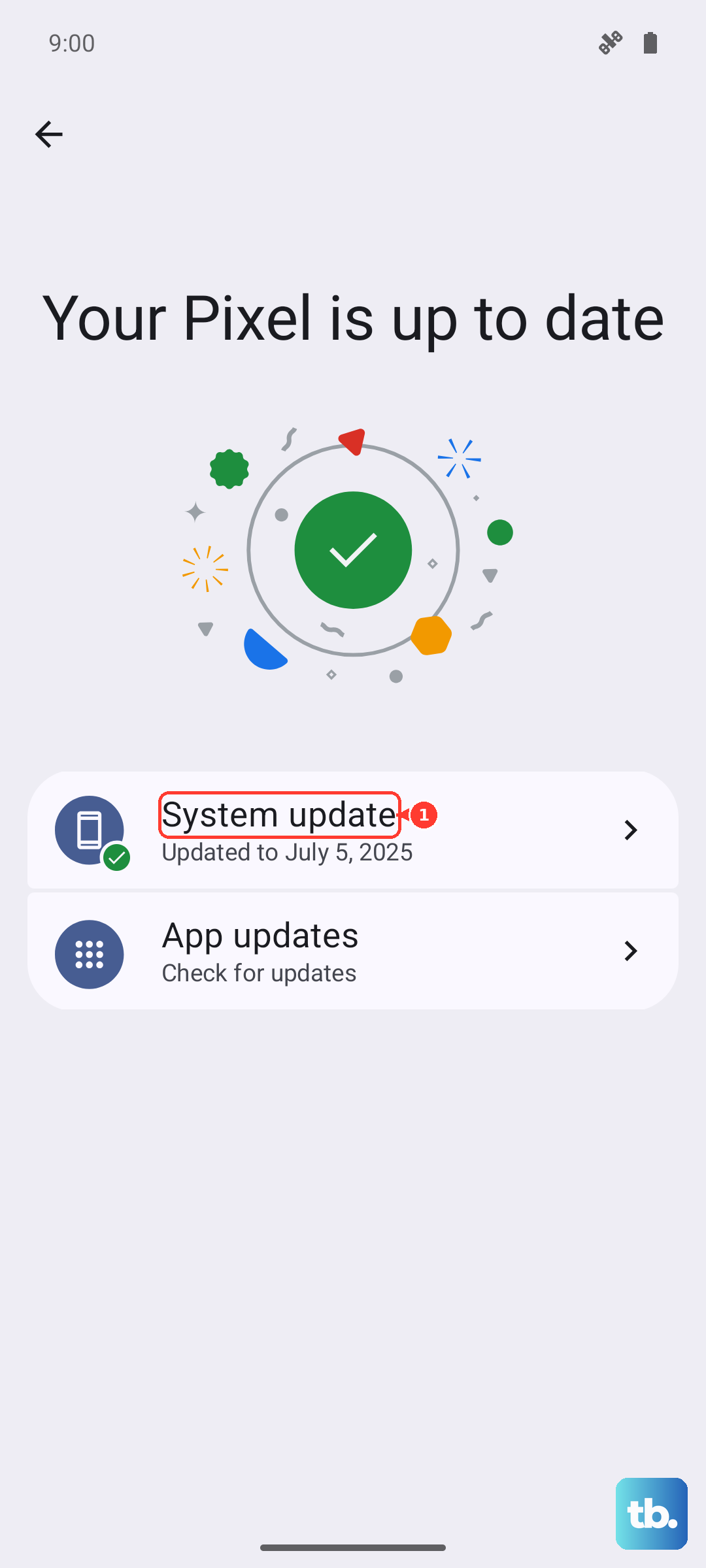
If the check comes back saying your system is up to date, the update you are waiting on may simply not have been pushed to your Pixel 10 Pro yet. In that case, patience for a few weeks is the correct answer rather than any of the fixes below.
Restart the phone to clear a temporary glitch
A plain restart clears the kind of temporary software glitches that can quietly block an update from downloading or installing. It is the lowest-risk fix on this list and resolves a surprising number of stalled updates on its own.
On the Pixel 10 Pro, press and hold the Power button and Volume up button for a few seconds.
Tap Restart.
Once the phone is back up, return to Settings > System > Software updates and try again.
Get on a stable Wi-Fi or mobile connection
System updates need an active connection to download, and a flaky signal is a common reason a download stalls partway or refuses to start. Confirm your Pixel is connected to Wi-Fi or your mobile network before you retry.
If you are on Wi-Fi, make sure the network is working for other apps too, and consider switching to a more reliable network if downloads keep failing. A solid connection matters beyond the download itself, because you also need one to finish setup and sign back in after a major update or reset. Once you are connected, retry Settings > System > Software updates.
Make room by freeing up storage
An update package needs somewhere to land, and a nearly full phone can stop it from downloading or installing. Google notes that your phone can have issues when less than 10% of storage is available, so a low-space warning is worth taking seriously here.
Go to Settings > Storage to see how much space you have available.
If you are running low, delete unused apps, old photos, and large files you no longer need.
Return to Settings > System > Software updates and try the update again.
Bring your apps up to date as well
Outdated apps can cause the kind of instability that interferes with the wider system, so updating them is a quick step that sometimes clears the path for a system update. It also rules out a misbehaving app before you spend time on heavier fixes.
Open the Google Play Store.
Tap your profile icon.
Select Manage apps & devices and update any available apps.
With your apps current, head back to Settings > System > Software updates and retry the system update.
Force a restart if the update freezes mid-install
Sometimes an update locks up and the phone stops responding to taps. A force restart is the documented way to recover a frozen Pixel without losing data, and it is different from the normal restart above.
Press and hold the Power button for up to 60 seconds.
Once the phone begins to reboot and the screen displays the "G" logo, release the Power button.
If your Pixel 10 Pro is frozen with the screen still on, holding the Power button for about 30 seconds also restarts it. After the phone comes back, re-check Settings > System > Software updates to see whether the update can now proceed.
Use safe mode to rule out a problem app
A downloaded app can interfere with the update process, and safe mode temporarily turns off all downloaded apps so you can test that theory. If the update goes through in safe mode, you have found your culprit.
Press and hold the Power and Volume Up buttons for a few seconds.
Tap and hold either Power off or Restart.
Tap OK. "Safe mode" appears at the bottom of the screen.
With only the built-in software running, try the update again. If it succeeds, exit safe mode by pressing and holding the Power button and Volume up button and then tapping Restart. Back in normal mode, uninstall recently added apps one at a time until the troublemaker is gone.
Back up and factory reset as a last resort
If none of the steps above work, a factory reset wipes the slate clean and often clears whatever was blocking the update. This is a destructive step, so treat it as a genuine last resort rather than an early fix.
Important: a factory reset erases all your data from your phone, so back up everything you care about first. Before you begin, charge the phone to at least 70% and connect to Wi-Fi or your mobile network, because you will need that connection to sign back into your Google Account afterward.
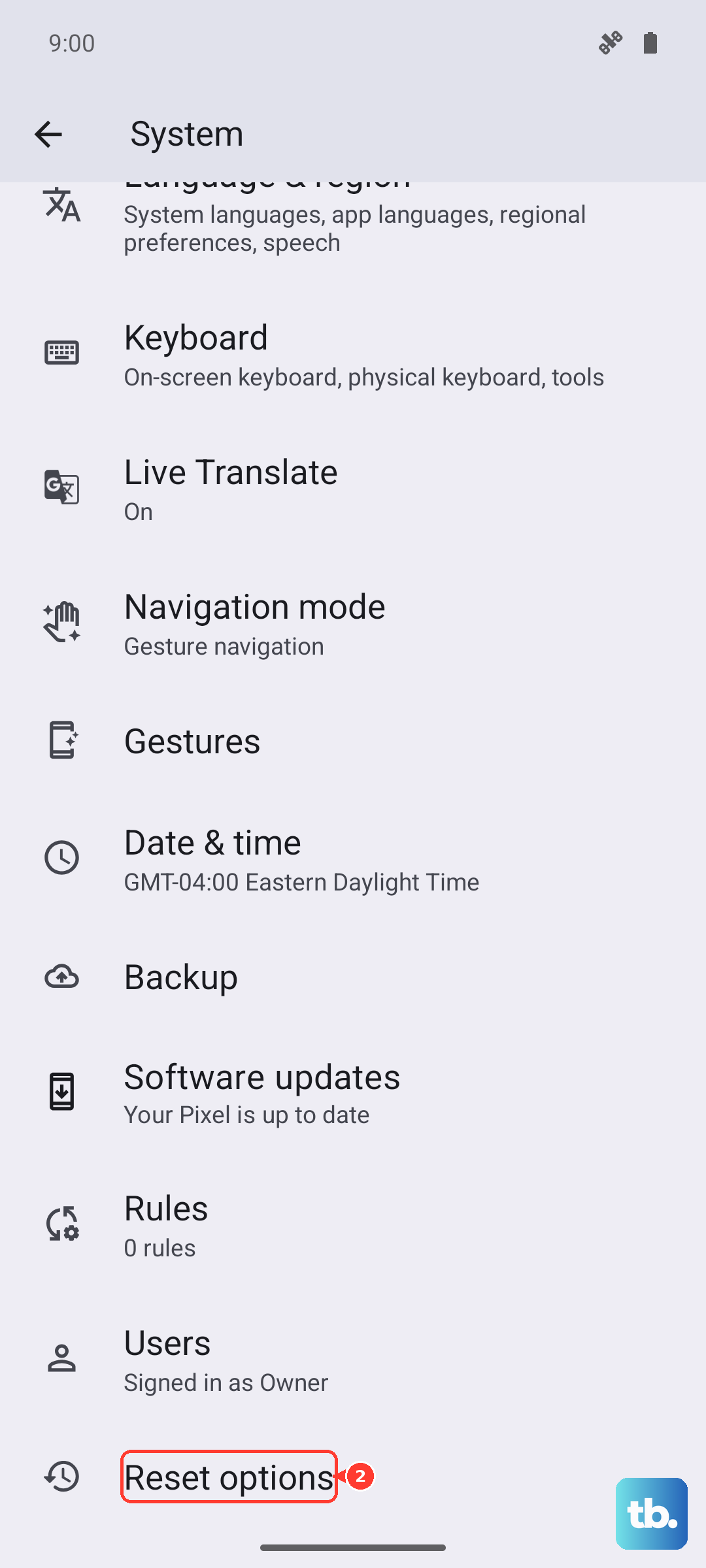
- 1.Open Settings > System > Reset options.
- 2.Tap Erase all data (factory reset).
- 3.Follow the prompts to complete the reset, then set the phone up and try the update once more.
Reach out to Google support
If the update still will not install after everything above, or your Pixel 10 Pro is stuck and cannot complete a normal reset through Settings, it is time to bring in the experts. Contact Google's official Pixel support so you can describe the exact behavior, have the phone looked at directly, and arrange a repair if one is needed.
Frequently Asked Questions
Why has my Pixel 10 Pro not received an update yet?
Updates roll out gradually, so a release can take a few weeks to reach your phone even after it is announced. Check Settings > System > Software updates periodically, and if it says your system is up to date, the new version simply may not have been pushed to your handset yet.
How do I check which Android version my Pixel 10 Pro is running?
Go to Settings > About phone > Android version. That screen shows your Android version, security update, Google Play system update, and build number, so you can confirm exactly where your software stands. The Pixel 10 Pro launched with Android 16.
Will a force restart erase my data?
No. Holding the Power button for up to 60 seconds until the "G" logo appears simply reboots a frozen phone and does not delete anything. A factory reset is the only step here that erases your data, which is why Google warns that it wipes everything and why you should back up first.
How much free storage does my Pixel 10 Pro need to update?
Google notes that your phone can have issues when less than 10% of storage is available, which can stop an update from downloading or installing. Check Settings > Storage and clear out unused apps, photos, or files if you are close to that threshold.
What if none of these steps fix the update?
If the phone is stuck and cannot reset normally, or the update still will not install after a factory reset, contact Google's official Pixel support. They can review the exact behavior and arrange a repair if the issue turns out to be hardware related.











