
When your Google Pixel 10 Pro's volume buttons stop responding, it can leave you scrambling to adjust a call or media playback. You press them, but there's no haptic feedback, no volume change, and no response. The good news is that most of the time, this is a software hiccup or a simple obstruction that you can fix yourself without a trip to the repair shop.
Before you assume the worst, work through these practical fixes. I'd start with the force restart, as it resolves a surprising number of glitches on Android devices.
Perform a Force Restart
A force restart is often the quickest way to clear out a temporary software bug that's causing the buttons to freeze. This won't delete any of your personal data or settings.
For the Pixel 10 Pro, press and hold the Power button and the Volume Up button at the same time. Keep holding them for about 10 seconds until you see the Google logo appear on the screen, then release. Once the phone boots back up, test the volume buttons immediately.
Remove Your Phone Case
It sounds too simple, but it works. Take your Pixel 10 Pro out of its case. Some cases, especially rugged or ill-fitting ones, can press against the buttons or prevent them from being fully depressed.
With the case off, press the volume rocker a few times. If it works now, you've found the culprit. You might need a different case or could try cleaning any debris from inside the case around the button cutouts.
Clean the Volume Buttons
Dust, lint, and pocket debris are common enemies of physical buttons. Over time, they can get packed into the small gaps around the button, preventing it from making proper contact.
Gently use a can of compressed air to blow around the edges of the volume rocker. For any sticky residue, you can lightly dampen the corner of a microfiber cloth with a tiny bit of isopropyl alcohol and wipe around the button. Be careful not to let any liquid seep inside the phone.
Check Your Sound Settings
While Android doesn't have a master toggle for physical button control like iOS, some settings can affect behavior. Open Settings and go to Sound & vibration.
Scroll down and look at the media volume. Try adjusting it with the on-screen slider. Also, check if "Vibrate for calls" or other haptic settings are off, as sometimes the button works but you don't feel the feedback, making it seem broken.
Test the Buttons in Safe Mode
Booting into Safe Mode temporarily disables all third-party apps. If your volume buttons work perfectly in Safe Mode, then a recently installed app is likely causing the conflict.
To enter Safe Mode, press and hold the Power button and Volume Up button together until the power menu appears. Then, press and hold the "Power off" option on your screen. A prompt will ask if you want to reboot to Safe Mode; tap "OK". Test the buttons once the phone restarts with "Safe Mode" in the corner. To exit, just restart your phone normally.
Use the On-Screen Volume Slider
While you're troubleshooting, remember you can still control volume directly. The quickest way is to press any volume button once to bring up the on-screen volume panel, then drag the slider with your finger.
You can also adjust it through Settings > Sound & vibration or by pulling down the quick settings panel twice and using the slider there. This at least keeps you functional while you sort out the physical button issue.
Try Different Apps and Audio Sources
Sometimes the problem is app-specific, not system-wide. Open the YouTube app and try to adjust volume while a video is playing. Then, try it in Spotify or Google Podcasts.
Also, test it during a phone call. If the buttons work in some apps but not others, the issue lies with the problematic app. Try updating that app or clearing its cache from Settings > Apps.
Update Android
Google frequently releases updates that squash bugs, including ones that might affect hardware input. Make sure your Pixel 10 Pro is running the latest available version of Android.
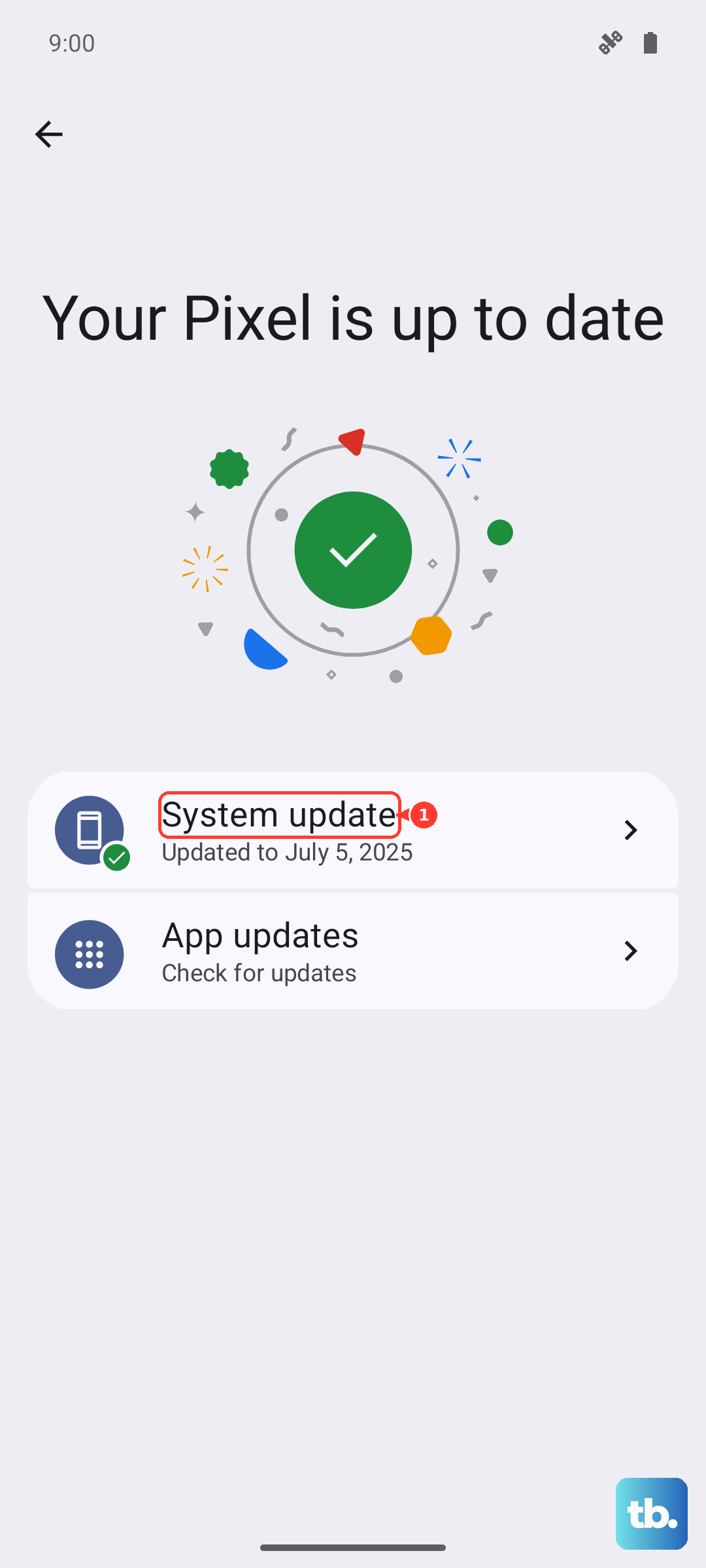
Connect to Wi-Fi, then go to Settings > System > System update. Download and install any available updates. After the phone restarts, check if the button responsiveness has returned.
Check for Accessibility Settings
Certain accessibility features can alter how buttons behave. Go to Settings > Accessibility and look through the menu.
See if features like "Volume key shortcut" or "Accessibility menu" are enabled, as they can sometimes intercept button presses. Temporarily turning these off can help you test if they're the cause.
Reset App Preferences (Soft Reset)
This is a useful middle step before a full factory reset. It resets all your app permissions, default apps, and background restrictions without deleting any personal data.
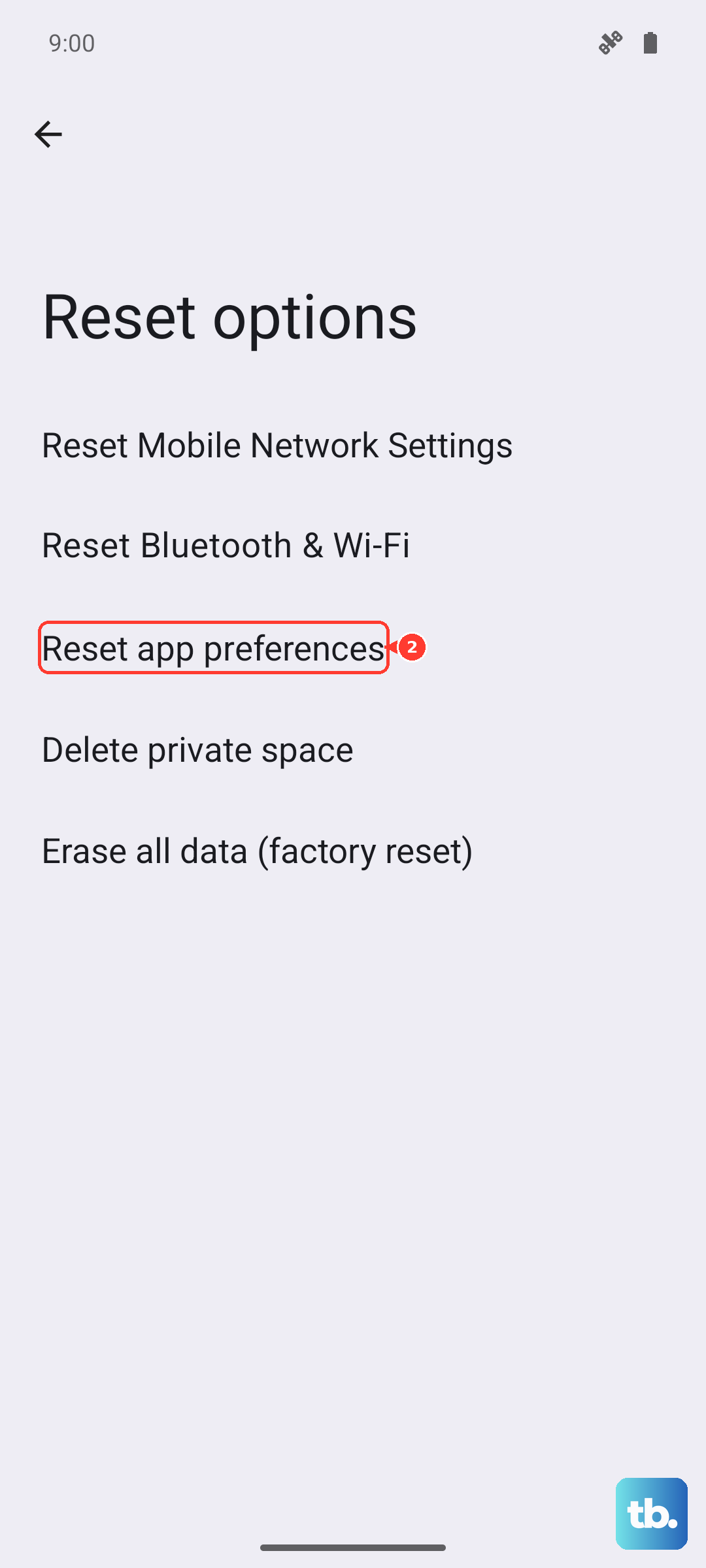
Go to Settings > System > Reset options. Tap on Reset app preferences and confirm. After the phone applies the reset, test your volume buttons again. This has cleared up weird interface issues for many users.
If you've worked through all these steps and the physical buttons are still completely dead, the issue is likely hardware-related. The button mechanism itself could be damaged or disconnected internally, which would require a professional repair. Before that, a factory reset is the final software step, but remember to back up everything important first through Google One or your preferred method.