
If your Google Pixel 10 Pro videos are stuttering, freezing, or dropping frames, it can really ruin the experience. This is a common issue on Android phones, but it's usually something you can fix yourself without too much trouble.
I'd start by checking your storage. When your phone's internal storage gets too full, especially below a few gigabytes free, the system struggles to read and write video files smoothly. This can cause dropped frames and lag during playback, even for videos stored locally.
Head to Settings > Storage to see how much space you have left. If it's looking cramped, clearing out some old downloads, cached app data, or unused apps can make a world of difference. The Pixel's Files app has a handy "Clean" tool that can suggest files to delete.
Check for App and System Updates
An outdated app or version of Android 15 can be the culprit. Google and app developers regularly push out updates that fix performance bugs, including video playback issues.
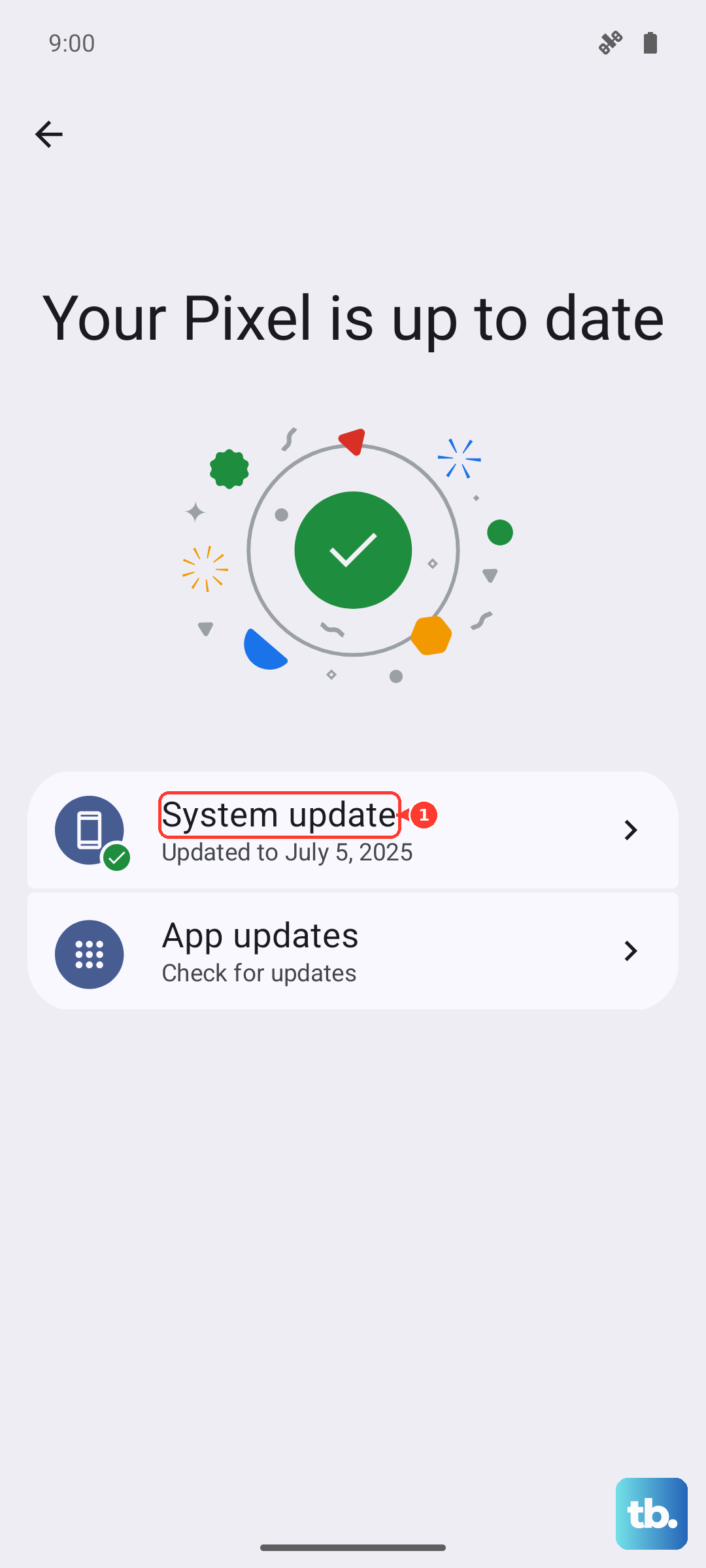
Open the Play Store, tap your profile icon, and go to Manage apps & device to update all your apps. Then, check for a system update by going to Settings > System > System update. Installing the latest software is one of the easiest potential fixes.
Restart Your Pixel 10 Pro
It sounds simple, but a restart clears out temporary system glitches and frees up RAM. Just press and hold the power button, then tap "Restart." If the screen is unresponsive, you can force a restart by pressing and holding the Power button and Volume Up button together for about 10 seconds until the Google logo appears.
Examine Your Network Connection
For streaming videos, a poor Wi-Fi or cellular data connection is the most likely cause of buffering and lag. Try switching between Wi-Fi and 5G to see if the problem follows the network.
You can also run a quick speed test. If you're on Wi-Fi, try moving closer to your router or restarting it. Sometimes, simply toggling Airplane mode on and off from the quick settings panel can refresh your mobile data connection.
Close Background Apps and Free Up RAM
Too many apps running in the background can consume system resources needed for smooth video decoding. Swipe up from the bottom and hold to enter the recent apps view, then swipe away apps you're not using.
For a deeper clean, you can check which apps are using the most memory. Go to Settings > Developer options > Memory. If you don't see Developer options, you need to enable them first by tapping Settings > About phone > Build number seven times.
Clear the App's Cache and Data
If the lag is happening in one specific app, like YouTube, Netflix, or Google Photos, its stored cache data might be corrupted. Clearing it can resolve playback issues without deleting your personal settings or accounts.
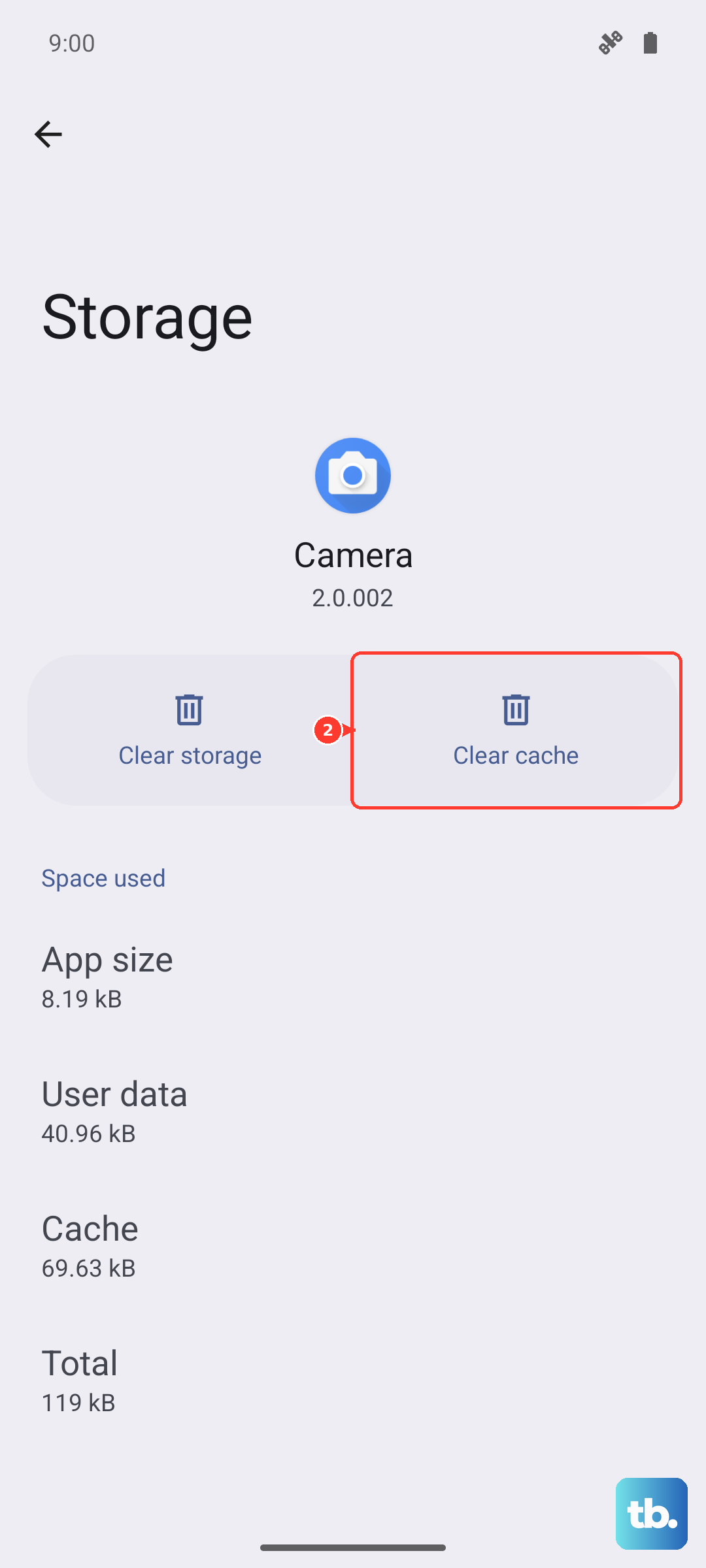
Go to Settings > Apps, select the problematic app, then tap Storage & cache. Tap "Clear cache" first. If that doesn't help, you can try "Clear storage" or "Clear data," but be aware this will reset the app to its default state and you may need to log back in.
Disable Any Experimental Features
The Pixel 10 Pro runs Android 15, which might have some pre-release or experimental flags enabled that can affect performance. It's worth checking the developer options and any labs features in your video apps.
In your main system settings, look for a "Labs" or "Experimental features" section and try disabling anything related to video playback or codecs. Also, go to Settings > System > Developer options and scroll for any graphics or media-related settings you may have changed.
Check for Overheating
Modern phones, including the Pixel 10 Pro, will throttle performance to cool down if they get too hot. This can directly cause video lag. If your phone feels warm to the touch, take it out of its case, stop charging it, and move it out of direct sunlight.
Let it cool down for a few minutes before trying to play video again. Recording or playing back high-resolution video, especially 4K or HDR content, is one of the most demanding tasks for your phone's processor.
Reset App Preferences or Network Settings
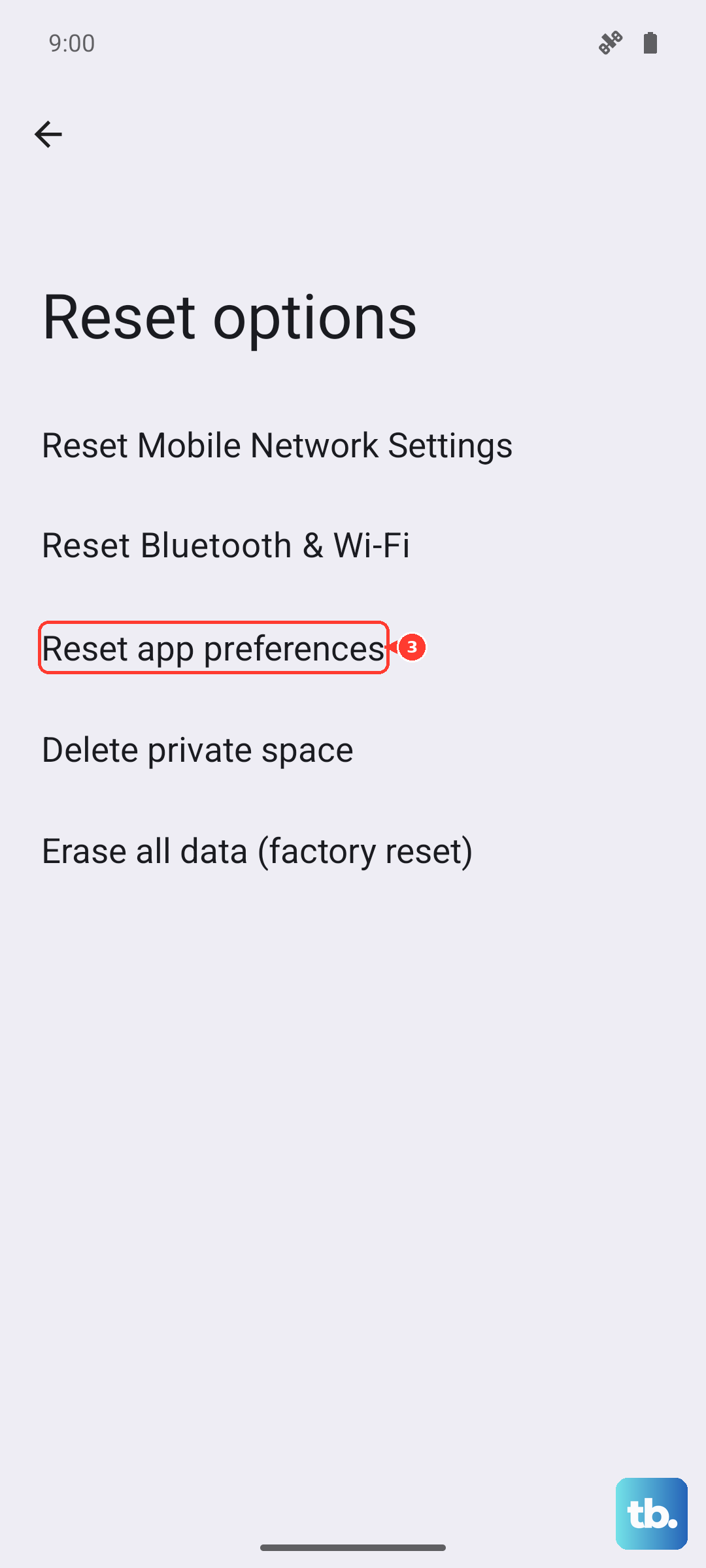
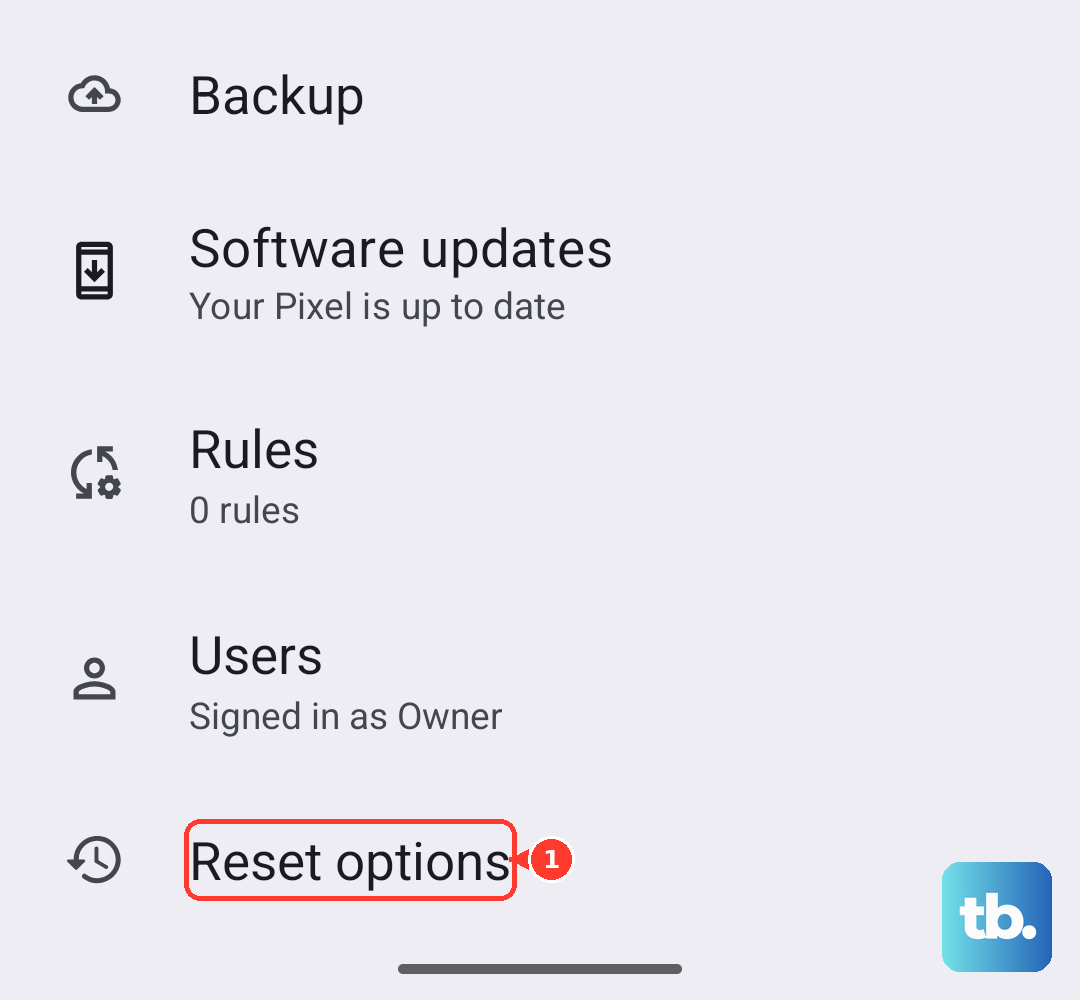
If the issue is widespread, resetting your app preferences can help. This resets permissions, background data restrictions, and default apps without deleting any app data. Go to Settings > System > Reset options > Reset app preferences.
For persistent streaming issues, resetting your network settings can clear up connection problems. This will erase all Wi-Fi passwords, Bluetooth pairings, and cellular settings. You can find this at Settings > System > Reset options > Reset Wi-Fi, mobile & Bluetooth.
Try a Different Video Player
Sometimes the issue is with the video player app itself. If a video file is lagging in Google Photos, try opening it with VLC Player from the Play Store. VLC supports a very wide range of video codecs and often plays files smoothly that other apps struggle with.
This can help you figure out if the problem is with the specific video file, the app you're using, or the phone's system as a whole. If the video plays fine in VLC, you know the issue is app-specific.
Perform a Factory Reset
If you've tried everything else and the video lag makes the phone difficult to use, a factory reset is the final step. This will erase everything on your phone, so it's crucial to back up your photos, videos, and important data first using Google One or by manually transferring files to a computer.
Once backed up, you can initiate the reset by going to Settings > System > Reset options > Erase all data (factory reset). After the phone restarts and you go through the setup again, test video playback before restoring all your apps to see if a clean install of Android 15 fixes the problem.