If your Google Pixel 10 Pro has gone silent and stopped buzzing for calls or notifications, it can be incredibly frustrating. The good news is that most vibration problems are caused by software settings or minor glitches that you can fix yourself.
Start With a Force Restart
Before you dive into settings, give your phone a fresh start. A force restart clears out temporary software bugs that can affect the haptic motor. Press and hold the Power button and Volume Up button together for about 10 seconds.
Keep holding them until you see the Google logo appear on the screen, then let go. This is often the quickest way to get your vibration working again.
Check Your Sound and Vibration Settings
Open the Settings app and go to Sound & vibration. The first thing to look for is the "Vibrate for calls" toggle. Make sure it's switched on.
If it's already on, try turning it off and back on again. This simple refresh can sometimes kick the system back into gear. While you're here, also check that your phone isn't in Silent or Do Not Disturb mode, as these can override vibration settings.
Adjust the Vibration Strength
Your Pixel 10 Pro lets you control how strong the vibrations feel. If the buzz is too weak, you might not notice it. Go to Settings > Sound & vibration > Vibration & haptics.
Here, you'll find sliders for "Ring vibration" and "Notification vibration." Slide them up to a higher intensity. I'd also recommend enabling "Touch feedback" so you get a confirmation buzz when you tap the screen or keyboard.
Review App-Specific Notification Settings
Sometimes, the issue isn't with the phone itself, but with how a specific app is configured. If your Messages app vibrates but Gmail doesn't, you need to check each app's notifications.
Go to Settings > Apps > [App Name] > Notifications. Tap on the specific notification category, like "New messages." Look for the "Vibration" option within that notification channel and make sure it's enabled.
Test Vibration in Safe Mode
If the problem persists, a third-party app you installed might be causing a conflict. Booting into Safe Mode temporarily disables all downloaded apps.
To enter Safe Mode, press and hold the Power button on the screen. When the power menu appears, long-press the "Restart" option. Your phone will reboot and show "Safe mode" in the bottom corner.
Test if vibration works now. If it does, an app you installed is the culprit. Restart your phone normally to exit Safe Mode and start uninstalling recent apps one by one to find the offender.
Update Your Android Software
Running outdated software can lead to bugs, including haptic feedback problems. Google regularly releases updates that fix these kinds of issues.
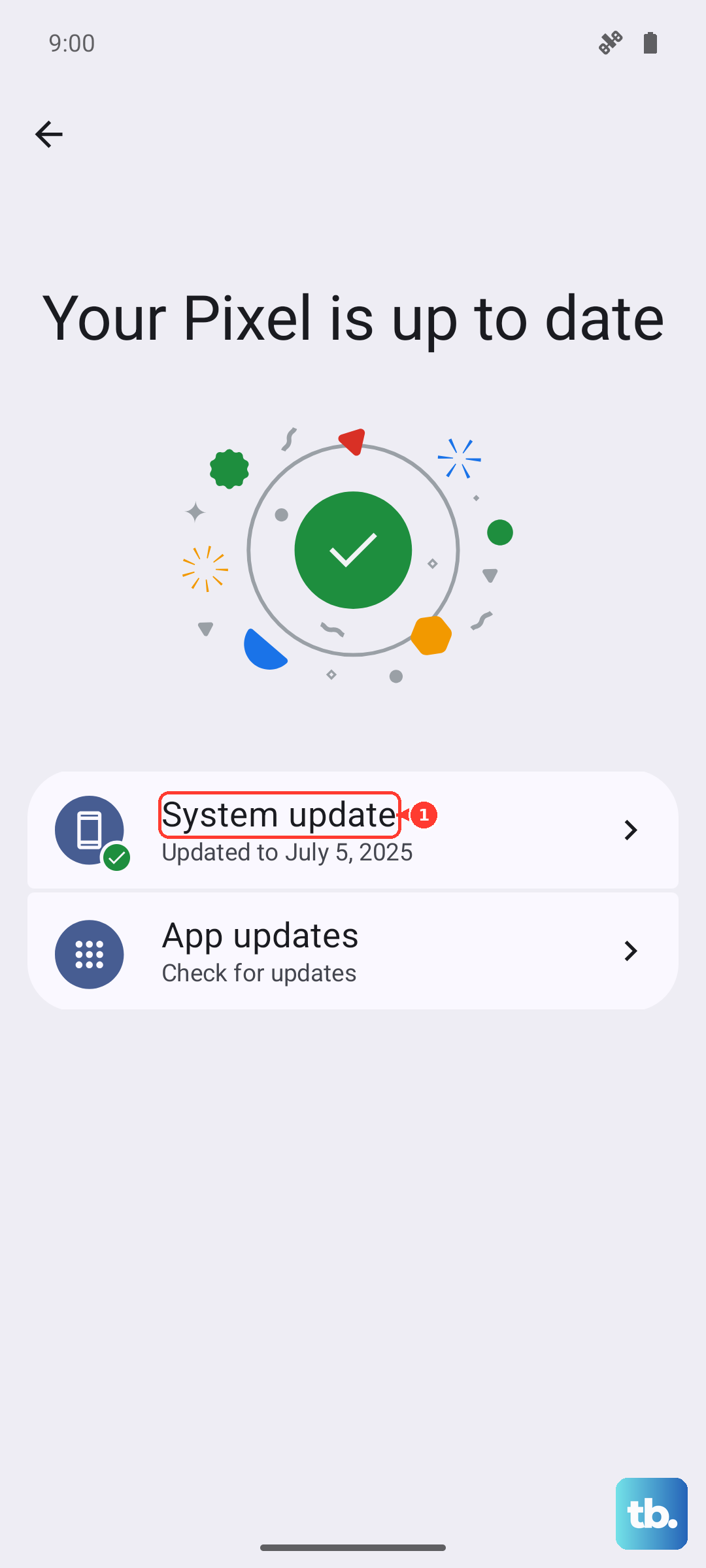
Go to Settings > System > System update. Tap "Check for update." If an update is available, download and install it. Make sure your phone is connected to Wi-Fi and has plenty of battery life first.
Check for Interference from Accessibility Settings
Certain accessibility features can modify or cancel out vibration feedback. It's worth a quick look to rule this out. Head to Settings > Accessibility.
Look at features like "Touch feedback" or any sound-to-vibration settings. If you have any vibration-related accessibility services turned on, try disabling them temporarily to see if your normal vibration returns.
Reset App Preferences
This is a useful step that resets notification settings, app permissions, and background data restrictions without deleting any of your personal data. It can clear up conflicts that stop apps from vibrating.
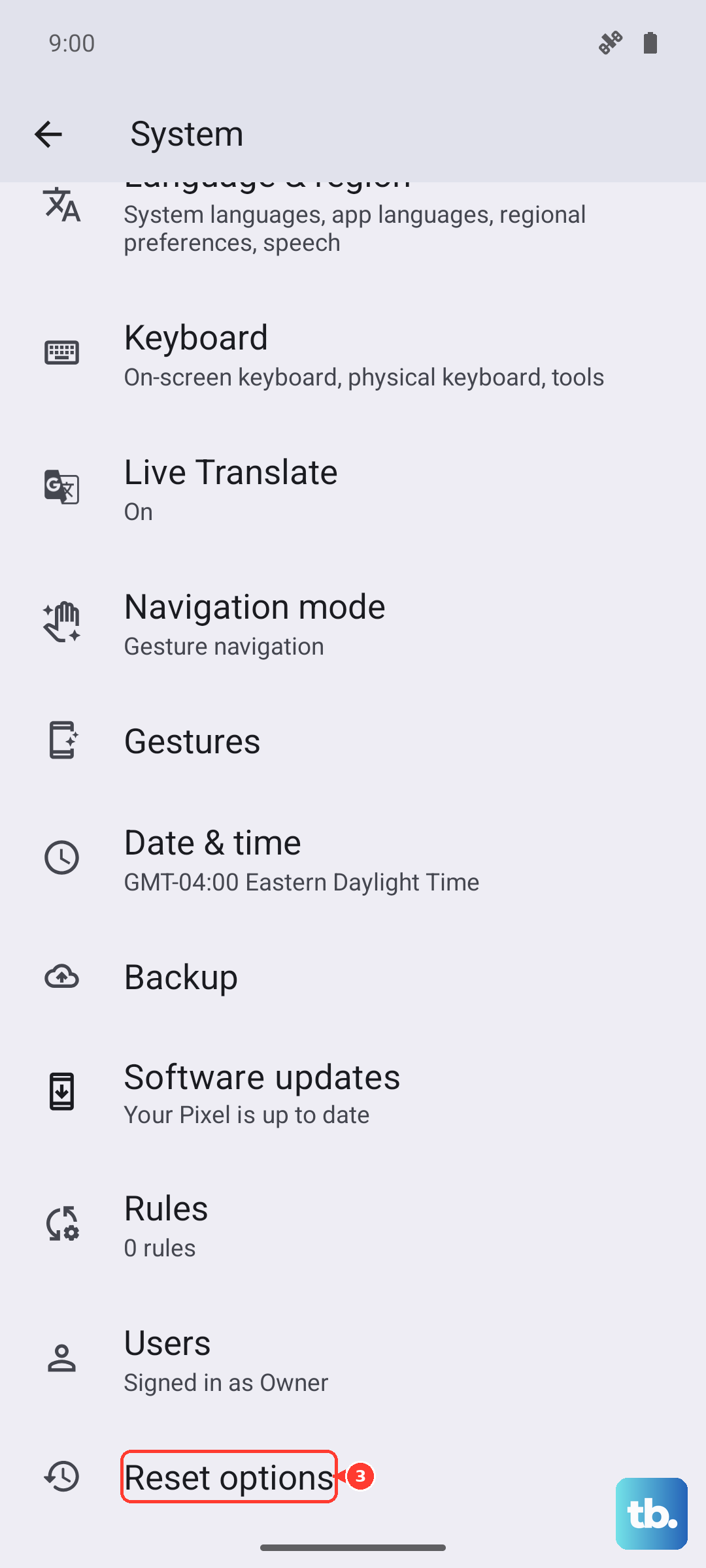
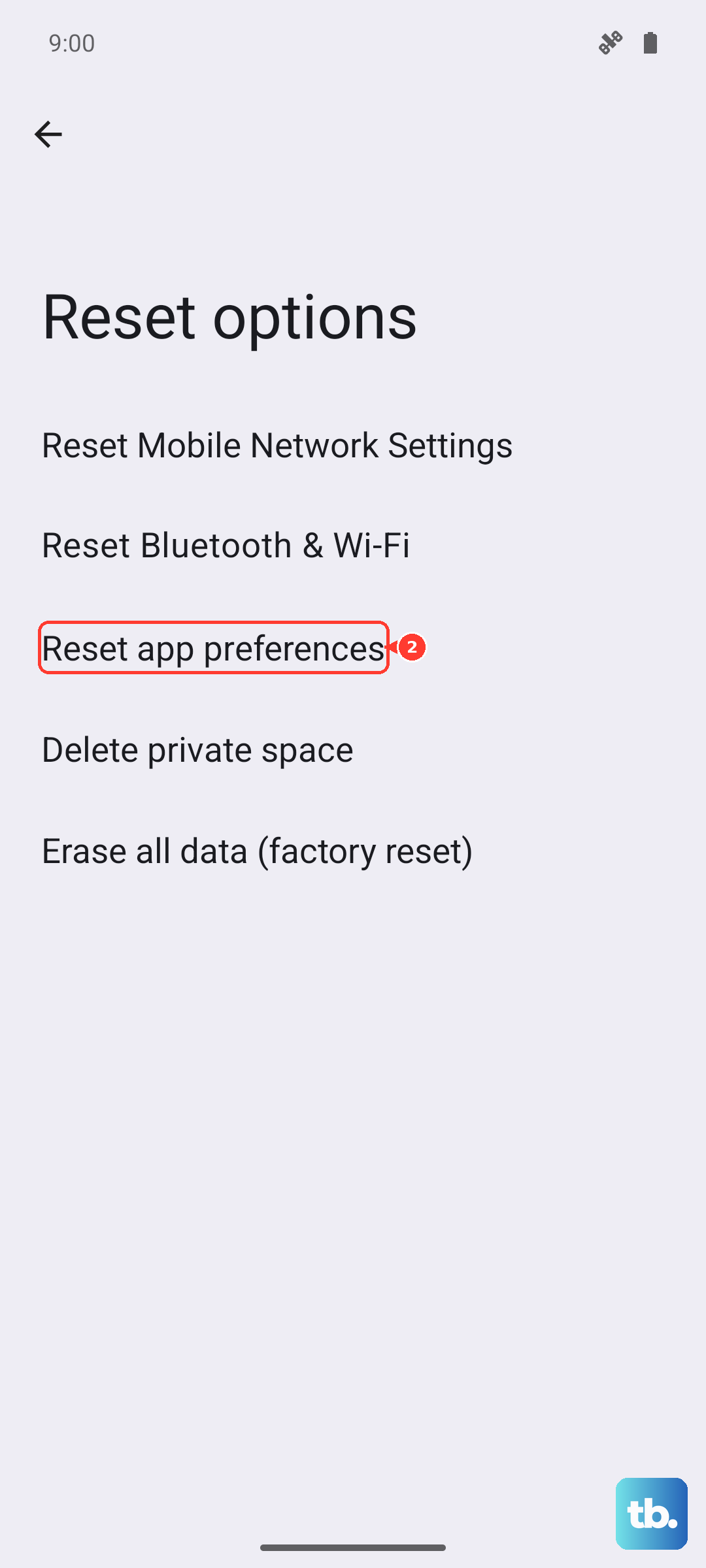
Navigate to Settings > System > Reset options. Tap "Reset app preferences" and confirm. You'll need to re-grant permissions to apps afterward, but it often resolves quirky notification behavior.
Examine Your Ringtone and Notification Sound
This might sound odd, but if your notification sound is set to "None," some notification channels might not vibrate either. Go to Settings > Sound & vibration > Phone ringtone and Default notification sound.
Make sure you have an actual sound selected. Try picking a different tone, then test if a notification comes through with a buzz.
Perform a Factory Reset (Last Resort)
If you've tried everything and your Pixel 10 Pro still won't vibrate, a factory reset is the final software step. This will erase all data on your phone, so you must back up everything important first.
Go to Settings > System > Reset options > Erase all data (factory reset). Follow the prompts to reset your phone. If the vibration motor still doesn't work after a clean install of Android, the issue is likely hardware-related.