
Slow internet on your Google Pixel 10 Pro can turn simple tasks like loading a webpage or streaming a video into a frustrating wait. The issue often comes down to network settings or software behavior that you can adjust yourself.
I'd start with the quickest fix first, which is toggling Airplane mode. Swipe down from the top of your screen twice to open the Quick Settings panel and tap the Airplane icon. Wait about 10 seconds, then tap it again to turn it off. This forces your phone to reconnect to the cellular network from scratch, which can clear up a temporary glitch.
Check and Reset Your Network Settings
If a simple reconnect didn't help, the next step is to reset your network settings. This will erase all saved Wi-Fi networks, Bluetooth pairings, and cellular preferences, returning them to factory defaults. It's a very effective way to clear out any configuration errors.
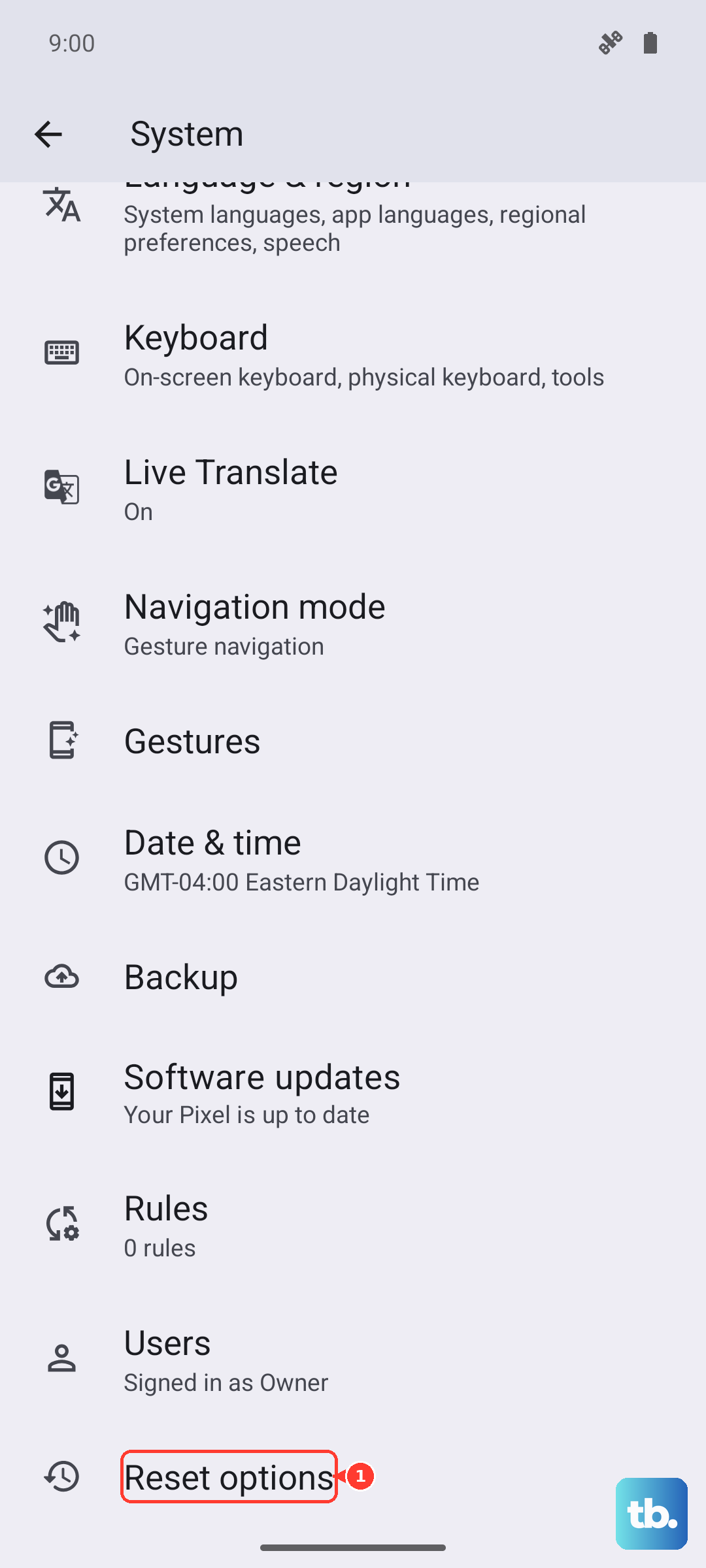
To do this, open Settings and go to System > Reset options. Tap on Reset Wi-Fi, mobile & Bluetooth and confirm your choice. Your phone will restart, and you'll need to reconnect to your Wi-Fi and re-pair any Bluetooth devices.
Manage Your Mobile Data Preferences
Your Pixel 10 Pro has several settings designed to manage data usage, but sometimes they can be a bit too aggressive. Open Settings and go to Network & internet > Internet. Tap the settings gear icon next to your carrier's name.
Here, you can check a few things. First, look at Preferred network type. Make sure it's set to "5G" to allow the fastest available connection, though you can try "LTE" if 5G coverage is spotty in your area. Also, ensure that Data roaming is turned off unless you're traveling, as it can sometimes cause connection attempts that slow things down.
Configure Adaptive Connectivity
The Pixel 10 Pro's Adaptive Connectivity feature is smart, but it can sometimes misinterpret a weak signal. This feature tries to save battery by switching between network types (like 5G and LTE) based on your usage.
You can try turning it off to see if it stabilizes your connection. Go to Settings > Network & internet > Adaptive Connectivity and toggle the switch off. Use your phone for a bit to see if your internet speed improves. You can always turn it back on later if you prefer the battery savings.
Review and Limit Background Data
Apps running in the background can consume data and bandwidth, slowing down the app you're actively trying to use. Android 16 on the Pixel 10 Pro gives you good control over this. Head to Settings > Apps and select "See all apps."
Find an app that might be data-heavy, like a social media or cloud storage app. Tap on it, then go to Mobile data & Wi-Fi. You'll see an option for Background data. You can toggle this off for specific apps to prevent them from using data when you're not directly using them.
Clear the Cache for Critical Services
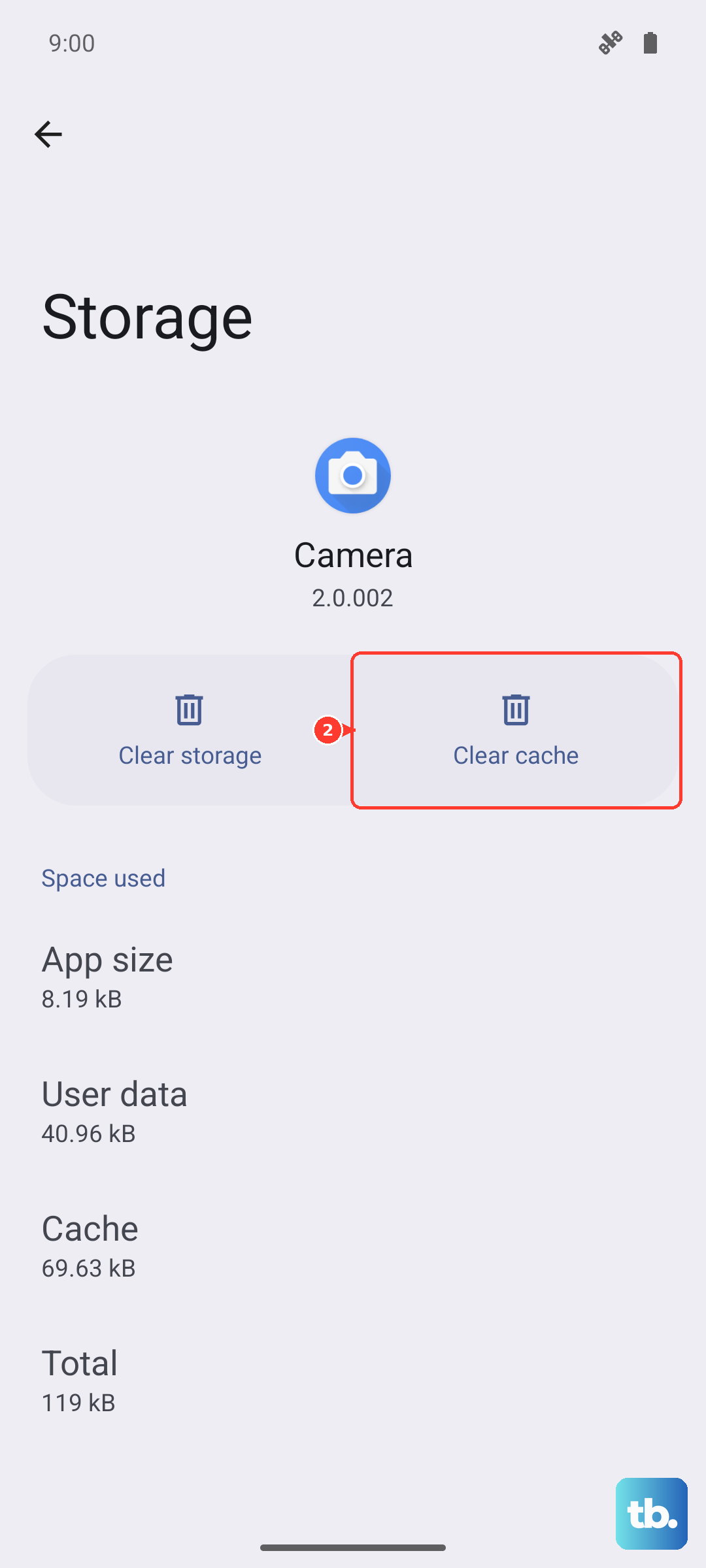
Corrupted cached data for Google Play Services or your carrier services app can interfere with network connectivity. Clearing this cache is safe and won't delete your personal data. Go to Settings > Apps > See all apps.
Tap the three-dot menu in the top right and select "Show system." Now, find and select Google Play Services. Tap Storage & cache and then Clear cache. Do the same for Carrier Services if you see it in the list. After clearing, restart your phone.
Disable Any Active VPNs
If you're using a VPN app for privacy or work, it will route all your traffic through another server, which often reduces your internet speed significantly. Try temporarily disabling your VPN to see if your connection speed returns to normal.
You can usually do this by opening the VPN app and tapping the disconnect button, or by going to Settings > Network & internet > VPN and toggling off the connection. Test your browsing speed with the VPN off to isolate it as the cause.
Perform a Software Update
Google frequently releases updates that include connectivity improvements and bug fixes. Make sure your Pixel 10 Pro is running the latest version of Android. Go to Settings > System > System update and tap "Check for update."
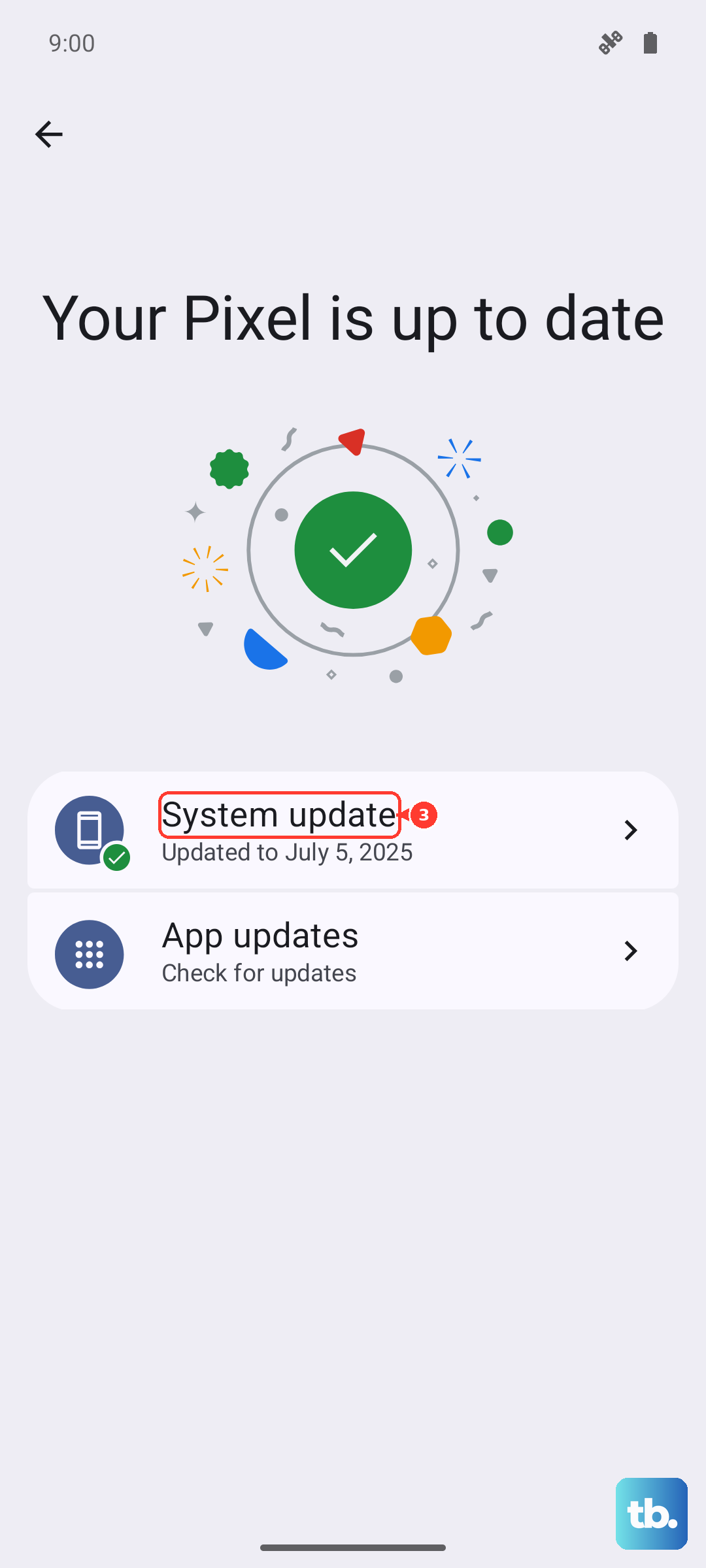
If an update is available, install it. It's a good idea to be connected to Wi-Fi and have your phone charged above 50% before starting the update process. A system restart after the update is also recommended.
Try a Different Network or Location
Sometimes the issue isn't your phone, but the network itself. Test your speed on a different Wi-Fi network, like at a coffee shop or a friend's house, to see if the problem follows your device. If you're using mobile data, try moving to a different location.
Buildings, terrain, and network congestion can all impact cellular signal strength. If your internet is only slow in one specific area, it's likely an environmental or carrier coverage issue.
Force Restart Your Pixel 10 Pro
If you haven't restarted your phone in a while, a full reboot can clear out system hiccups. Press and hold the Power button and Volume Up button together for about 10 seconds until you see the Google logo appear, then release. This force restart is more thorough than a standard shutdown and can resolve deeper software glitches affecting the modem or network stack.