
Screen flickering on your Google Pixel 10 Pro is incredibly distracting, turning a simple task into a frustrating one. You might see the display flash, pulse, or show erratic horizontal lines. This can stem from a temporary software hiccup, a problematic app, or a deeper hardware concern. Let's get it sorted.
Force Restart Your Pixel
This is almost always my first move. A force restart clears the phone's temporary memory and can stop a glitchy process causing the flicker. On your Pixel 10 Pro, press and hold the Power button and the Volume Up button together for about ten seconds. Release them when you see the Google logo appear on the screen.
Disable Adaptive Brightness
Your phone's ambient light sensor constantly adjusts brightness, and if it's getting conflicting data, it can cause the screen to flicker as it tries to compensate. Swipe down twice for the quick settings and tap the gear icon, or go straight to Settings > Display. Look for Adaptive Brightness and toggle it off. Manually set your brightness level and see if the flickering settles down.
Check for a Rogue App
A poorly coded or corrupted app can sometimes interfere with the display driver. Think about when the flickering started. Did you just install a new game or utility? Try uninstalling that app first. If you're not sure, reboot into Safe Mode. Hold the power button, then tap and hold the "Power off" option on your screen until you see the Safe Mode prompt. In Safe Mode, all third-party apps are disabled. If the flickering stops here, you know an app is the culprit.
Update Android and Apps
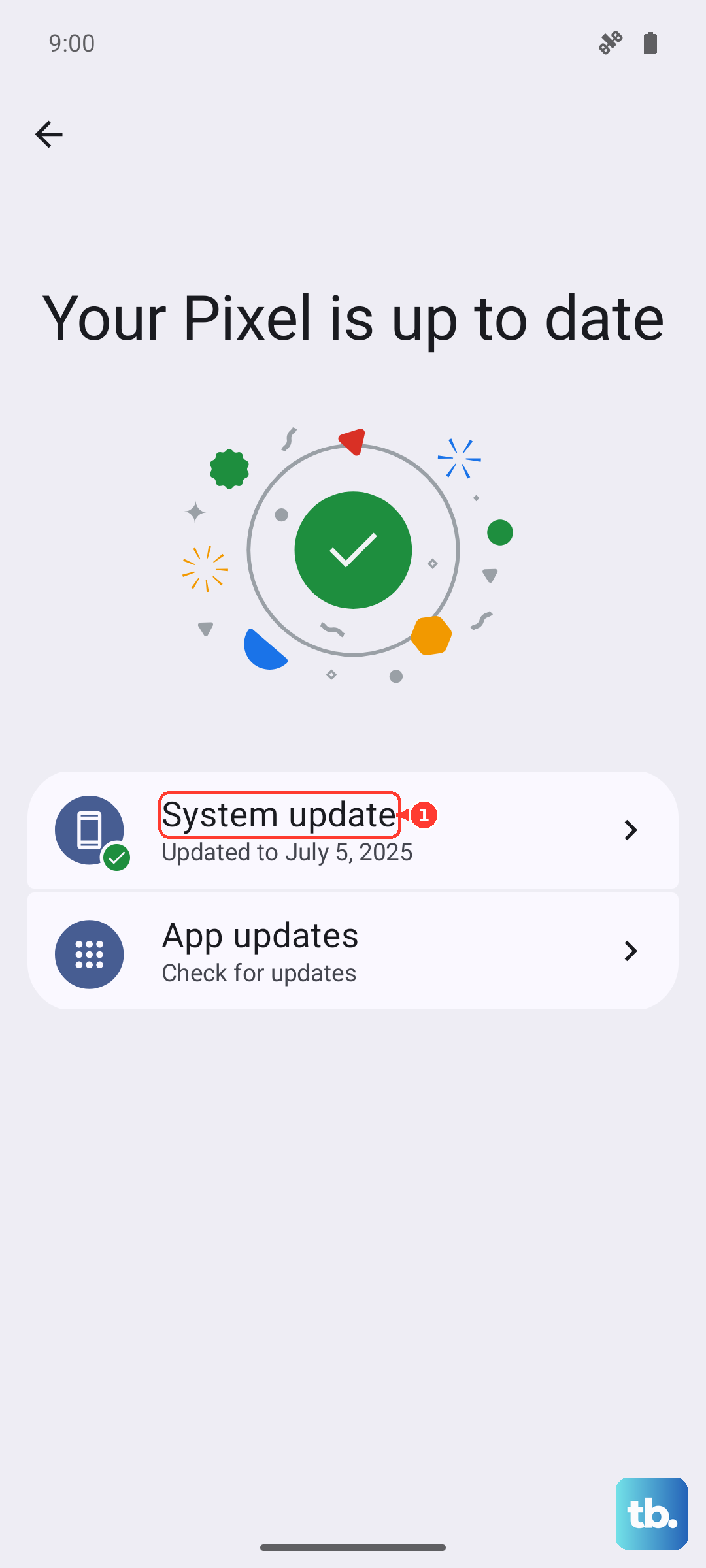
Google regularly releases system updates that fix bugs, including display issues. Go to Settings > System > System update to check for the latest Android 15 patch. While you're there, head to the Play Store, tap your profile icon, and go to Manage apps & device > Updates available. Update everything. A recent app or system update could have introduced a bug that a newer update now fixes.
Adjust or Disable Smooth Display
The Pixel 10 Pro's high refresh rate screen is fantastic, but the feature that switches between 1Hz and 120Hz can sometimes cause a visible flicker, especially in certain lighting. Go to Settings > Display and find Smooth display. Try turning this setting off to lock the refresh rate at 60Hz. If the flickering disappears, you've found the cause. Some users find that keeping it on but forcing a specific refresh rate in developer options helps.
Reset App Preferences or Display Settings
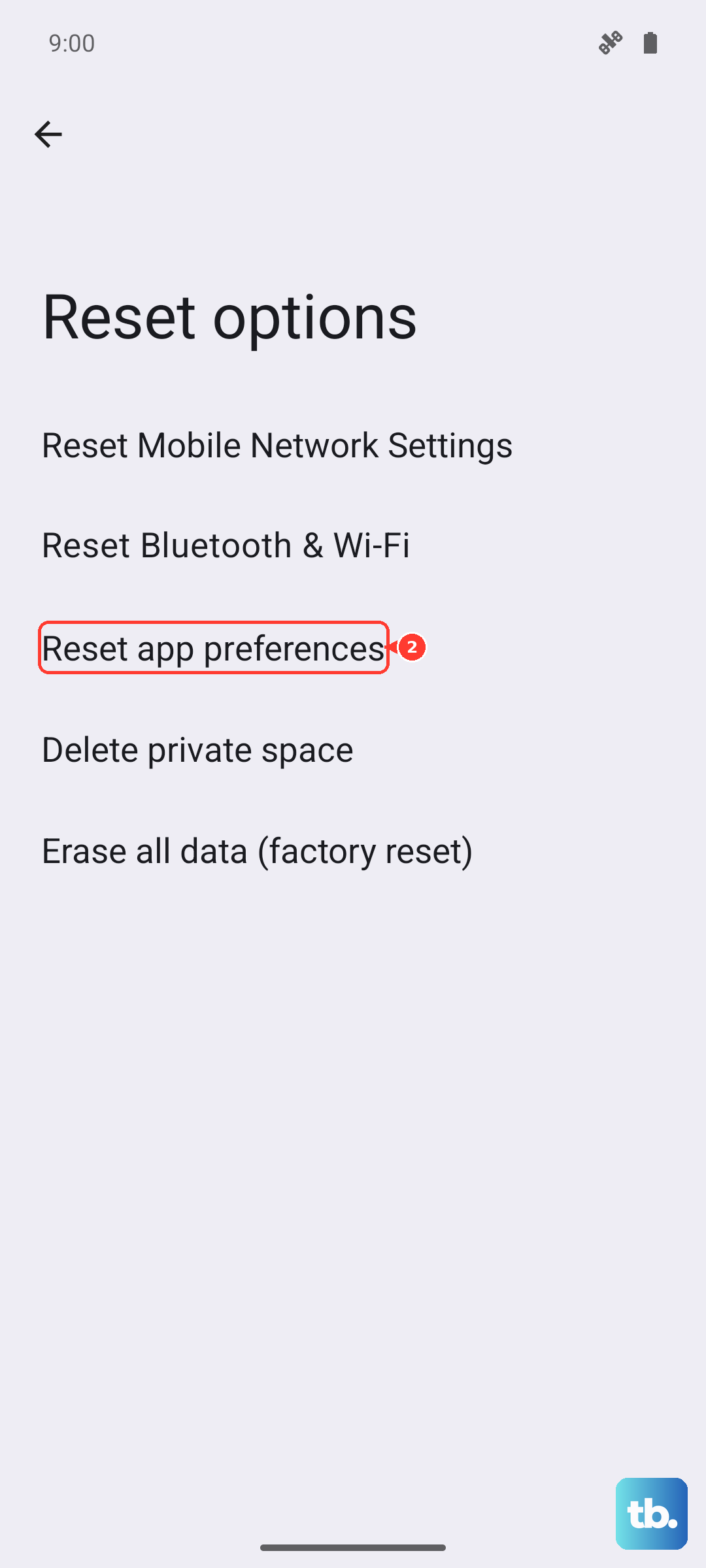
This is a less nuclear option than a full reset. Go to Settings > System > Reset options. Tap Reset app preferences. This resets permissions, notifications, and default apps without deleting any of your data. It can clear up conflicts causing display problems. If that doesn't help, you can try resetting all display settings directly from the Display menu if your version of Android 15 offers it.
Inspect for Physical Damage
If the flickering began after you dropped your phone or it sustained pressure in a bag, the issue could be physical. Look closely at the screen for any new cracks, even hairline ones. Also check for unusual spots or areas where colors look distorted. A loose internal display cable or a damaged OLED panel itself can cause persistent flickering and will require a repair.
Perform a Factory Reset
Before you take this step, ensure all your important photos, messages, and files are backed up to Google Drive. If all software fixes fail, a factory reset will tell you for sure if it's a hardware problem. Go to Settings > System > Reset options > Erase all data (factory reset). After the phone wipes itself and restarts, set it up as new temporarily. Don't restore your apps right away. If the screen is stable on a fresh system, the issue was in your software configuration. If the flickering persists immediately, it's almost certainly a hardware fault.