
You pick up your Google Pixel 10 Pro and realize you've missed several important messages or alerts. The screen stays dark and silent, even though you know notifications should be coming through. This is a common headache on Android 16, but it's usually something you can fix yourself without too much fuss.
I'd start with the simplest fix first, which often does the trick. Give your Pixel 10 Pro a quick restart by pressing and holding the Power button and Volume Up button together for about 10 seconds. Wait for the Google logo to appear, then let go. This clears out any temporary glitches in the system that might be blocking alerts.
Check Do Not Disturb and Focus Modes
It's easy to accidentally silence your phone. Swipe down from the top of your screen twice to open the full Quick Settings panel. Look for the Do Not Disturb icon (a circle with a line through it) and make sure it's turned off. Also, check if any Focus modes, like Work or Sleep, are active, as these can filter notifications.
You can dig deeper in Settings > Notifications > Do Not Disturb. Review the schedules and rules to ensure nothing is set to block alerts during your current time.
Review App-Specific Notification Settings
Android gives you fine-grained control over each app. Go to Settings > Notifications > App settings. Here, you'll see a list of all your installed apps. Tap on the app you're missing notifications from, like Messages or Gmail.
Make sure the toggle at the top is set to "On." Then, check the different "Channels" listed below. For an app like Gmail, you might have separate channels for "Primary" and "Promotions." Ensure all the important ones are enabled and set to make a sound or pop on your screen.
Ensure Background Data and Battery Optimization
Sometimes, Android's battery-saving features can be a little too aggressive. First, check background data. Go to Settings > Apps > [App Name] > Mobile data & Wi-Fi. Make sure "Allow background data usage" is enabled.
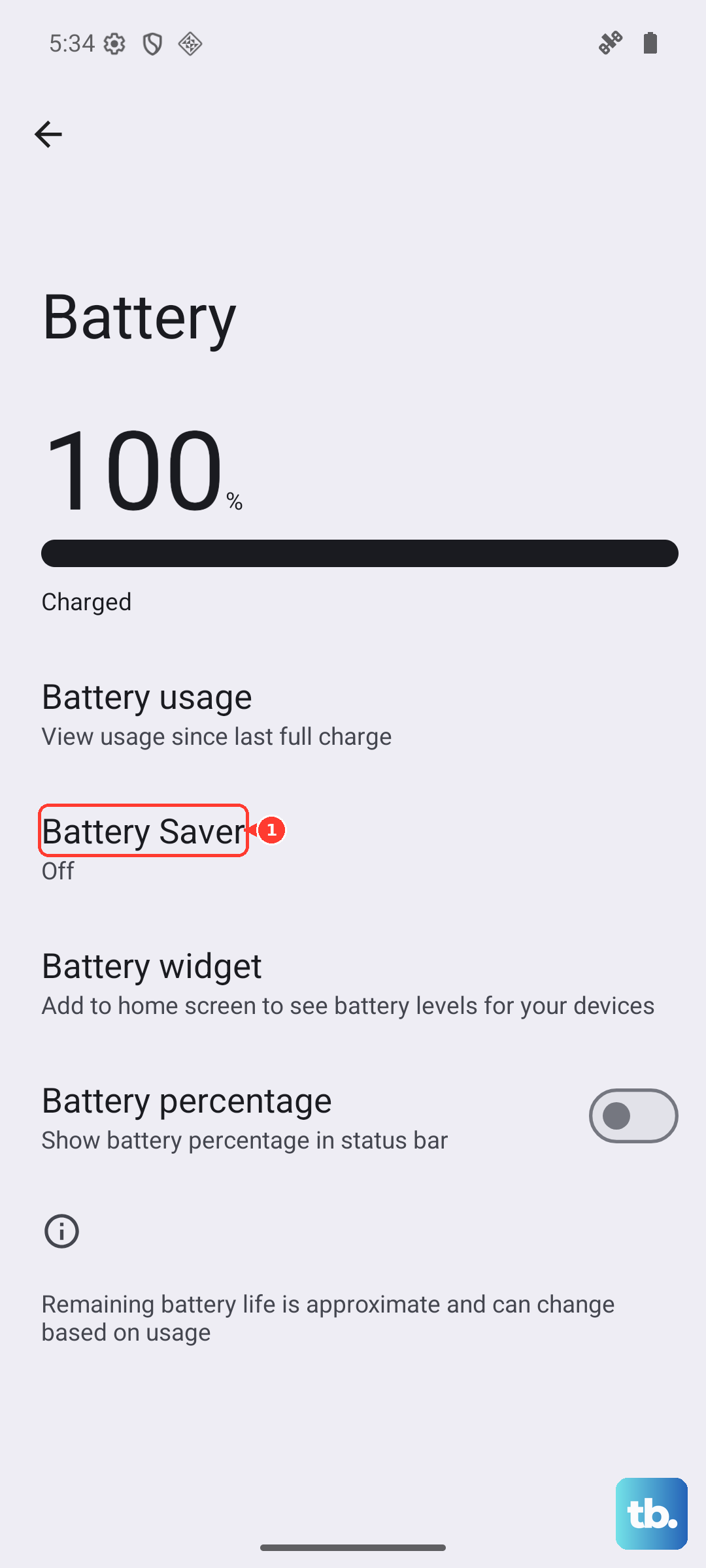
Next, look at battery optimization. Head to Settings > Battery > Battery Saver and ensure it's not currently active. Then, go to Settings > Apps > [App Name] > Battery. If the setting is "Optimized," change it to "Unrestricted." This tells your Pixel not to restrict the app's activity in the background.
Clear the Cache for the Problem App
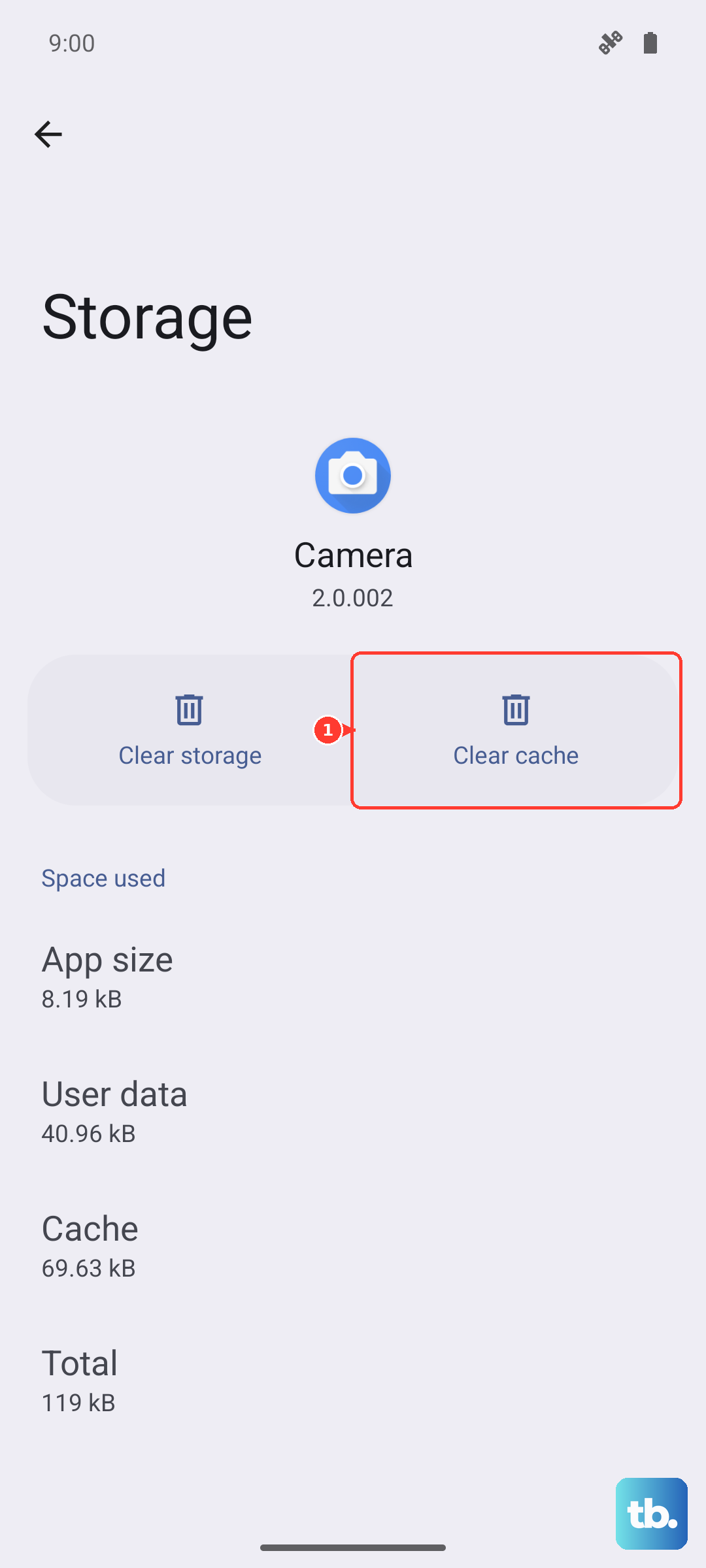
Corrupted temporary files can break notification delivery. This won't delete any of your personal data or login info. Open Settings > Apps, select the troublesome app, and tap Storage & cache.
Tap "Clear cache." After doing this, force close the app by swiping it away from the recent apps overview, then open it again. This gives it a fresh start.
Update the App and Android System
An outdated app might have a bug that breaks notifications. Open the Google Play Store, tap your profile icon, and go to "Manage apps & device." Check if there are updates available for the specific app or for all apps.
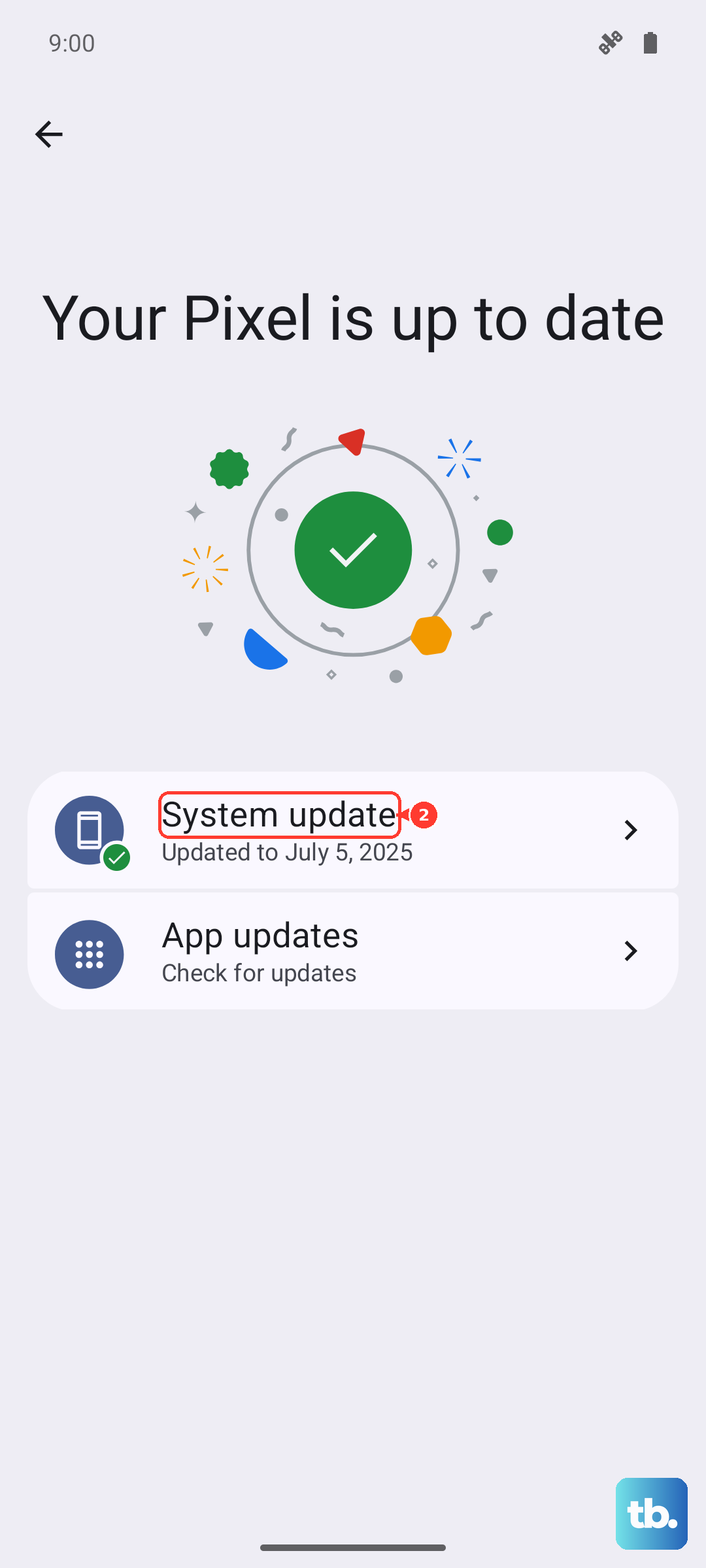
Also, check for a system update. Google frequently patches issues with Pixel devices. Go to Settings > System > System update to see if Android 16 has a newer security patch or bug fix waiting for you.
Reset App Preferences
This is a useful middle-ground fix. It resets all your permission decisions, notification settings, and background data restrictions for every app back to their defaults, but it doesn't delete any app data. You'll just need to re-allow permissions when you use apps again.
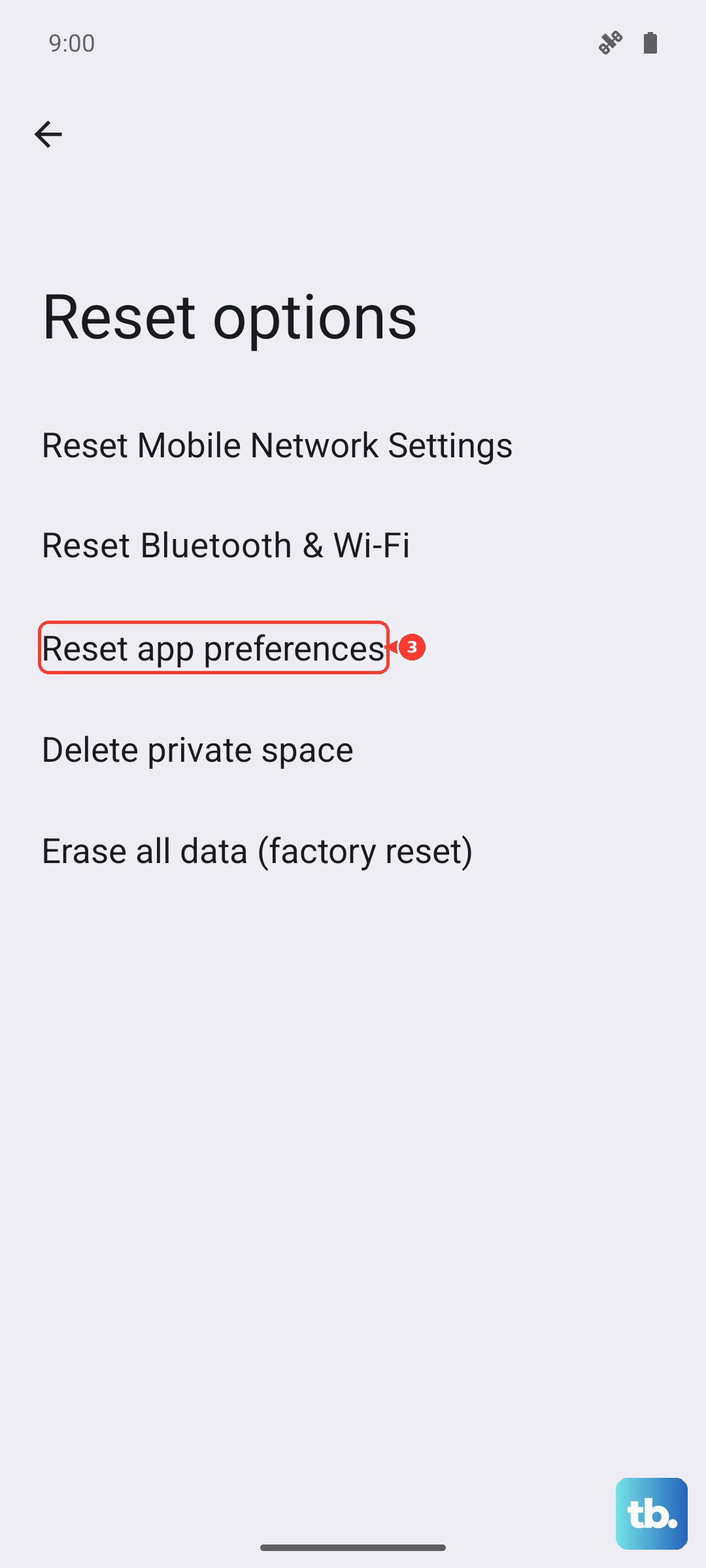
To do this, navigate to Settings > System > Reset options. Tap "Reset app preferences" and confirm. This often clears up weird, persistent notification problems.
Check for Conflicting Apps or Accessibility Settings
Sometimes, another app can interfere with the notification system. Think about any recent apps you've installed, particularly cleaner apps, battery savers, or other system tools. Try uninstalling them temporarily to see if your notifications return.
Also, certain accessibility services can sometimes cause issues. Go to Settings > Accessibility and review the list under "Downloaded services." If you have any enabled, try disabling them one by one to test.
Examine Notification History
Android 15 has a handy feature that logs all notifications, even the silent ones you never saw. This can confirm if the phone is receiving them but not displaying them. Go to Settings > Notifications > Notification history and turn it on if it isn't already.
You can then scroll through this log to see if alerts from your missing app are listed here. If they are, the issue is with how they're being presented, not with delivery.
Verify Network Connections
For apps like WhatsApp, Signal, or Slack, a stable internet connection is crucial. If you're on Wi-Fi, try toggling it off and using mobile data instead, or vice versa. You can also try forgetting and re-adding your Wi-Fi network in Settings > Network & internet > Internet.
For SMS/text messages, ensure your mobile signal is strong. A missing or incorrectly set-up APN can also break MMS (picture messages). You might need to contact your carrier for the correct APN settings.
As a Last Resort, Re-add Your Google Account
For core Google apps like Gmail, Calendar, and Drive, notifications are tied to your Google account. Sometimes, this connection gets out of sync. Go to Settings > Passwords & accounts and tap on your Google account.
Tap "Remove account." Don't worry, this won't delete anything from Google's servers. After removing it, restart your Pixel 10 Pro, then go back and add the account again. This can re-establish a clean sync for notifications.