
That "No SIM card" or "Emergency calls only" message on your Pixel 10 Pro is a real roadblock. It usually means your phone can't read the SIM card, which cuts you off from calls, texts, and mobile data. The good news is you can almost always fix this yourself in a few minutes.
I'd start with the simplest thing first: a force restart. This clears out any temporary software glitches that might be blocking the SIM. Press and hold the Power button and the Volume Up button together for about 10 seconds, until you see the Google logo appear on the screen.
While you're at it, quickly check Airplane Mode. Swipe down twice from the top of your screen to open the full Quick Settings panel and tap the Airplane icon to turn it on. Wait five seconds, then tap it again to turn it off. This forces your phone's modem to reconnect to the network from scratch.
Check Your SIM Card and Tray
If a restart didn't help, the next step is a physical inspection. Power your Pixel 10 Pro off completely first. Then, find the SIM ejector tool that came in the box (a small paperclip works in a pinch) and gently push it into the tiny hole on the SIM tray, usually on the bottom edge of the phone.
Carefully pull the tray out and take a close look at the SIM card. You're checking the gold contacts for any scratches, discoloration, or dirt. Gently wipe the contacts with a clean, dry microfiber cloth. Also, peek inside the SIM slot on the phone for any obvious lint or debris.
When you reinsert the tray, make absolutely sure the SIM card is seated correctly in its cutout and the tray is oriented the right way. It should slide in smoothly without force. A misaligned SIM is a very common cause of detection issues.
Verify SIM Status in Settings
Sometimes the SIM is physically fine but the software has it turned off. On your Pixel 10 Pro, open the Settings app and tap on Network & internet. Then, select SIMs at the top of the menu.
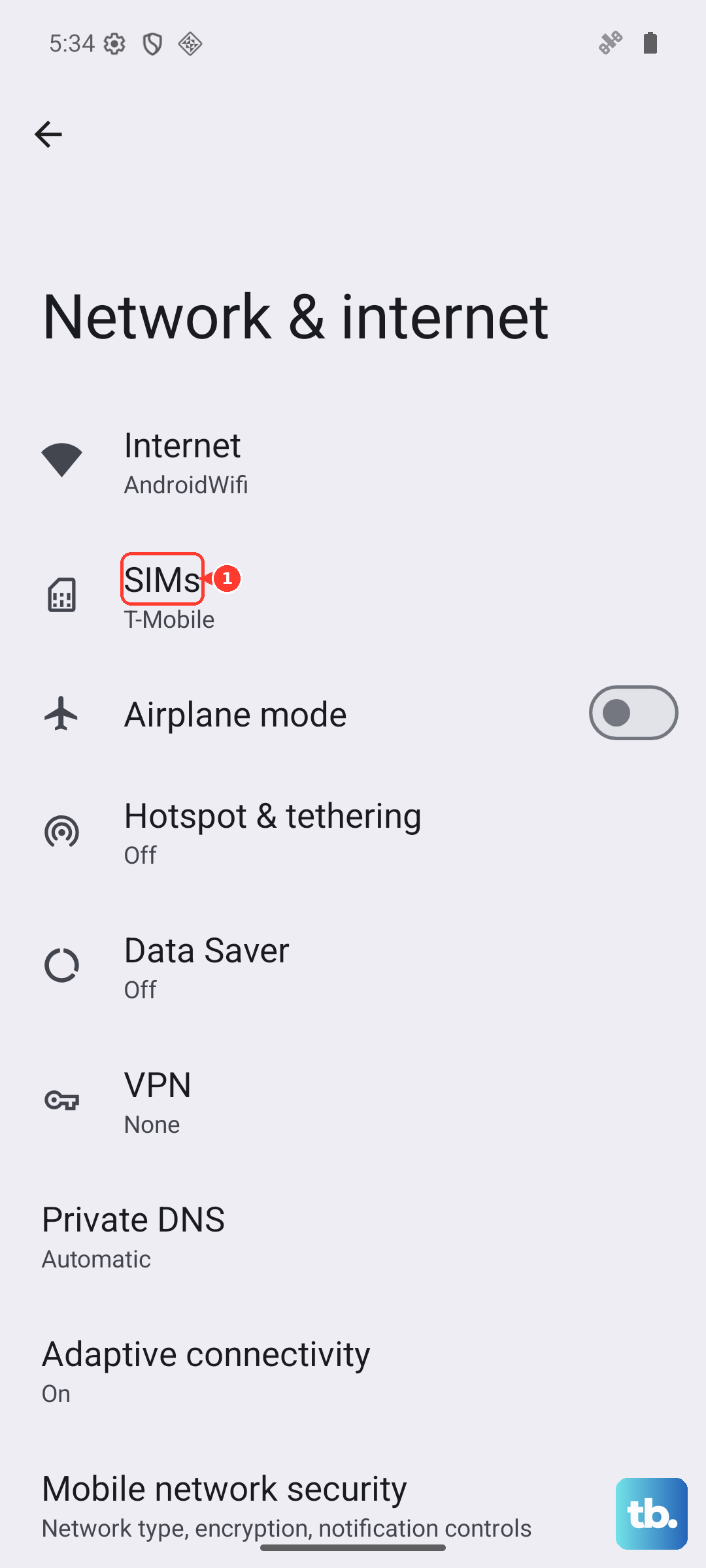
Here, you should see your SIM listed. Make sure the toggle next to it is switched on. If you have an eSIM configured as well, you can also check its status from this same menu to rule out any configuration conflicts.
Update Your Pixel's Software
Software bugs in Android 15 can sometimes interfere with the modem or SIM management services. It's always worth checking for a system update, as Google frequently patches these kinds of connectivity issues.
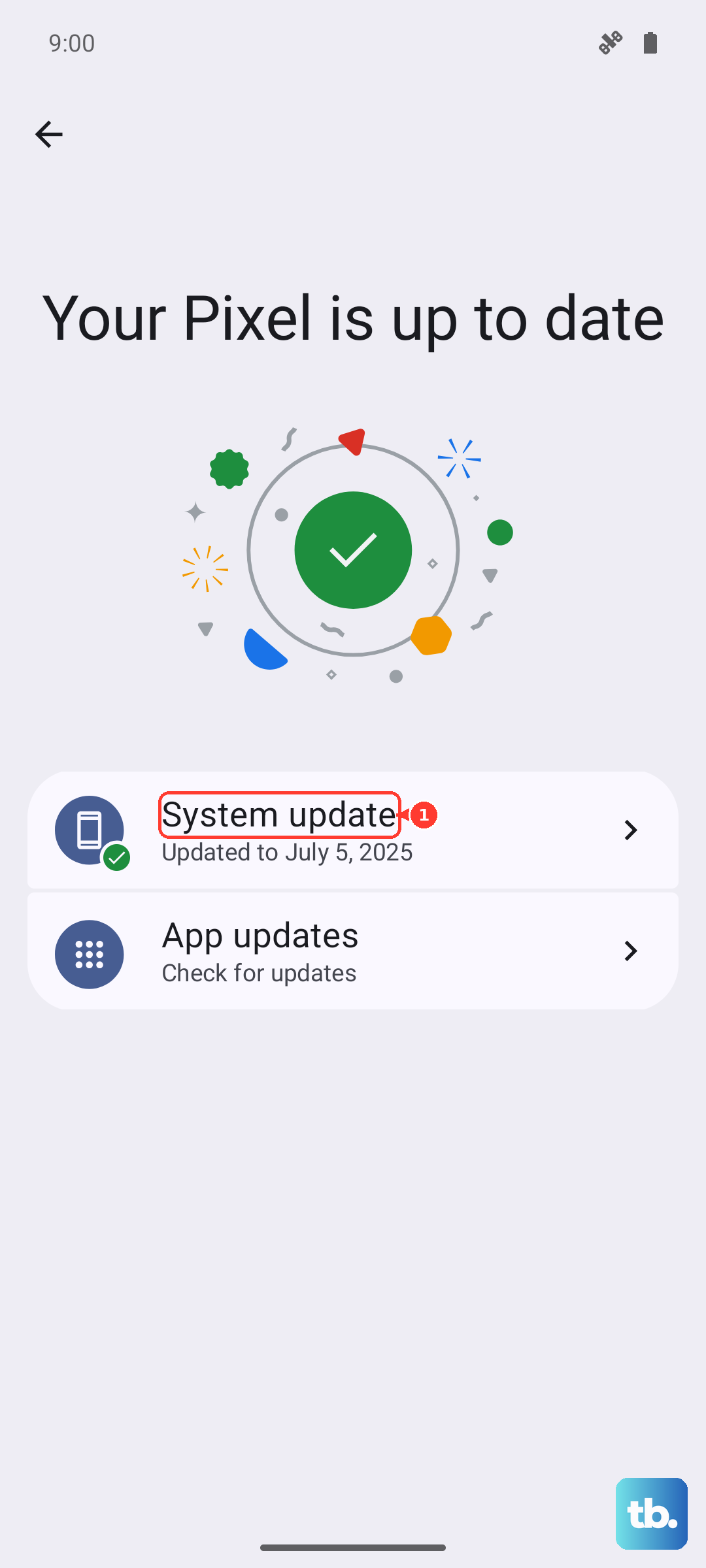
Go to Settings > System > System update. Tap "Check for update." If an update is available, download and install it. Your phone will restart as part of this process, which itself can help clear the problem.
Reset Your Network Settings
This is a very effective step for persistent network and SIM problems. It will reset all Wi-Fi, mobile data, and Bluetooth connections to their factory defaults, but it won't touch your personal files, photos, or apps.
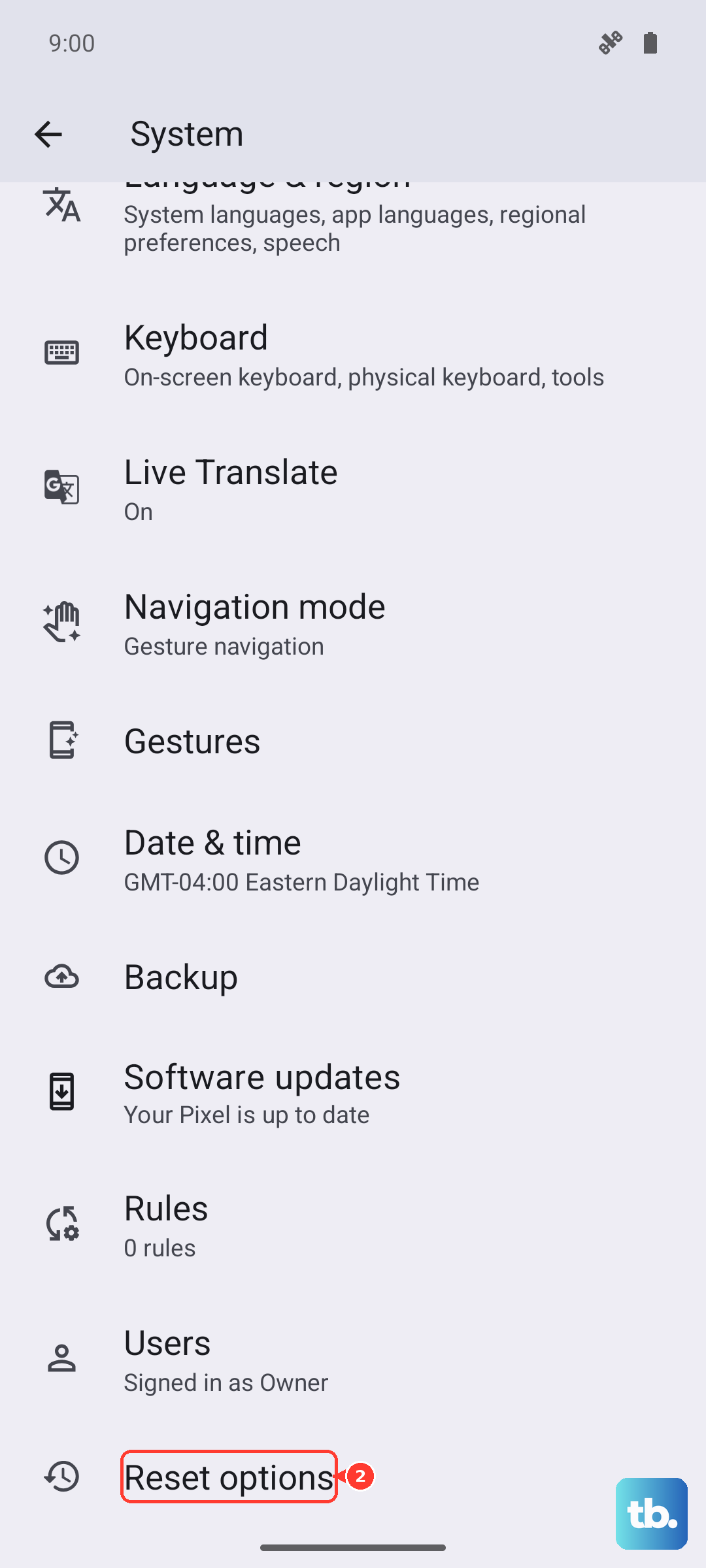
To do this, navigate to Settings > System > Reset options. Tap on "Reset Wi-Fi, mobile & Bluetooth." You'll need to confirm your choice, and the phone will restart shortly after. You'll then have to reconnect to your Wi-Fi networks and re-pair Bluetooth devices.
Configure Your Access Point Name (APN)
Incorrect APN settings will prevent your phone from connecting to your carrier's mobile data network, which can sometimes manifest as a SIM issue. The Pixel usually configures this automatically, but it's worth verifying.
Go to Settings > Network & internet > SIMs. Tap on the SIM that's having trouble, then select Access Point Names at the bottom. You should see a list, usually with one entry for your carrier pre-configured.
If the list is empty or the settings look wrong, you'll need to get the correct APN details from your carrier's website or support team and enter them manually by tapping the + icon. After saving, make sure to select the new APN profile.
Try Manual Network Selection
Your Pixel usually finds and connects to your carrier's network automatically. If that process is failing, you can try choosing the network yourself. Go back to Settings > Network & internet > SIMs and tap on your SIM.
Look for an option called "Automatically select network" and turn it off. Your phone will search for available networks. After a moment, a list will appear. Select your carrier's name from the list. If it connects, you can turn automatic selection back on later.
Clear the Connectivity Services Cache
Corrupted data in the system services that handle your SIM can cause problems. You can clear their cache without losing any important information. Open Settings and go to Apps > See all apps.
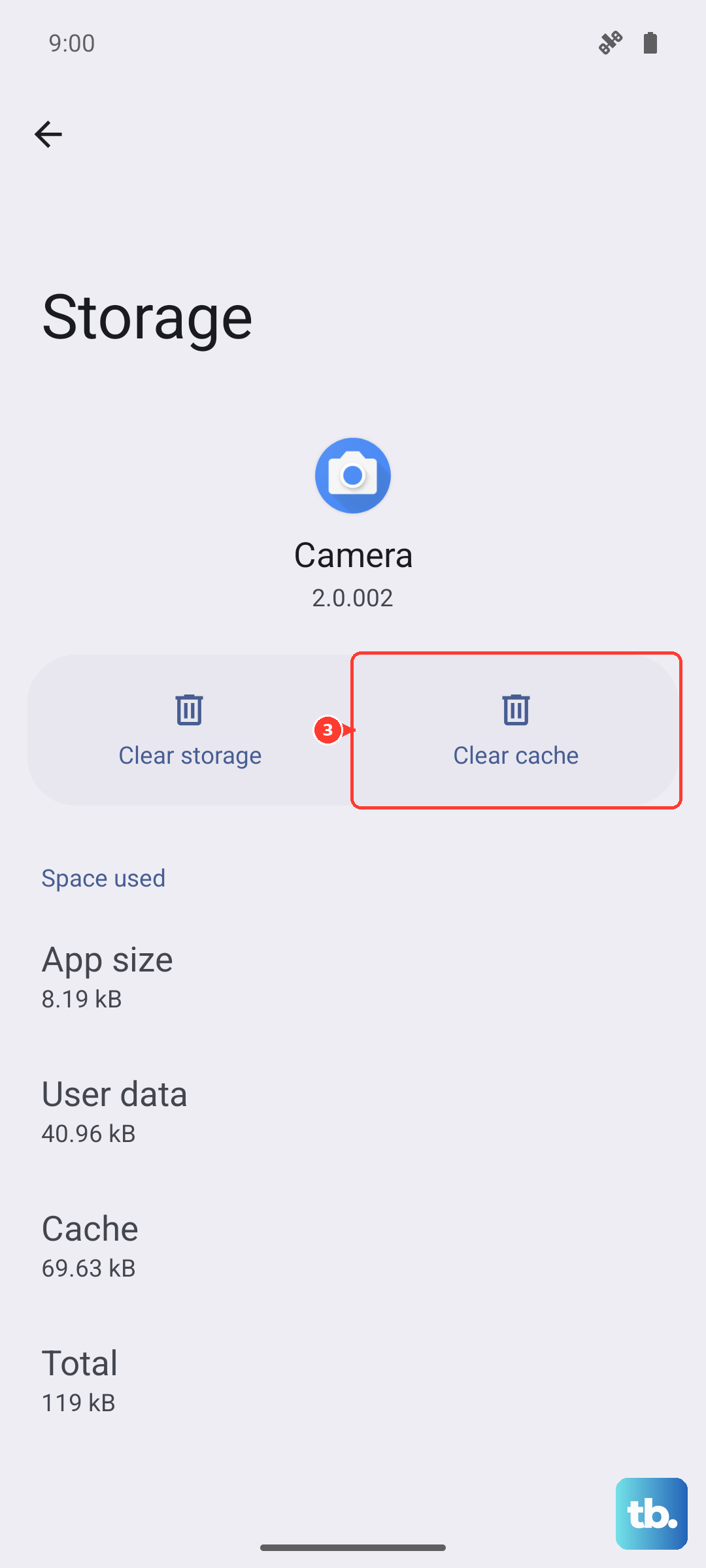
Tap the three-dot menu in the top right and select "Show system." Now, scroll down and find an app called "Connectivity Services" or "Carrier Services." Tap on it, then select Storage & cache. Finally, tap "Clear cache." Do not select "Clear storage" or "Clear data."
Test with an eSIM
The Pixel 10 Pro supports eSIM, which is a digital SIM profile. If you've been troubleshooting a physical SIM without success, this is a great way to check if the problem is with the SIM card itself or the phone's hardware.
Contact your carrier's support and ask if they can help you convert your physical line to an eSIM, even temporarily. If the eSIM activates and works perfectly, it strongly points to a problem with your physical SIM card or the tray. If the eSIM also fails to work, the issue is likely with the phone's internal hardware.
Check for Carrier-Specific Updates
Some carriers push minor software updates or configuration files that are separate from the main Android system updates. These can be critical for network compatibility. To check, go to Settings > Security & privacy > Updates.
Look for an option labeled "Carrier settings update" or "Google Play system update." If an update is available, install it and restart your phone. These small updates often resolve mysterious network and SIM recognition problems.