
Seeing that empty signal bar icon on your Google Pixel 10 Pro is a real headache. It means your phone can't find a cellular network for calls, texts, or mobile data. The good news is, this is almost always something you can fix yourself without a trip to the store.
I'd start with the simplest fix first. Grab your phone and perform a force restart. Press and hold the Power button and the Volume Up button together for about ten seconds. Keep holding until you see the Google logo appear on the screen, then let go.
This clears out any temporary software glitches in Android 15 that might be blocking the cellular radio. It's the equivalent of pulling the plug and plugging it back in, and it solves a surprising number of issues.
Check Your Immediate Surroundings and Settings
Before we dig deeper, let's rule out the easy stuff. First, pull down the Quick Settings panel from the top of your screen twice. Look for the Airplane Mode icon and make absolutely sure it's turned off. It's easy to tap by accident.
Next, think about your location. Are you in a basement, a large concrete building, or a remote area? Physical barriers can block signal. Try moving near a window or stepping outside to see if bars reappear.
Also, check if you have any active data limits or if your mobile plan has run out for the billing cycle. You can usually check this in your carrier's app or by dialing a specific code they provide.
Reinsert Your SIM Card
A loose or dirty SIM card is a classic culprit for no service. The Pixel 10 Pro's SIM tray is on the left side of the frame. You'll need the SIM eject tool that came in the box or a small, unwound paperclip.
Gently push the tool into the tiny hole to pop the tray out. Carefully remove the SIM card, give the gold contacts a quick wipe with a soft, dry cloth, and then reseat it firmly in the tray. Push the tray back into the phone until it clicks.
Wait a minute for the phone to search for networks again. This simple physical reset can re-establish the connection between the SIM and your phone's internal reader.
Reset Your Network Settings
If the quick fixes didn't work, the next step is to reset your network settings. This will wipe all saved Wi-Fi networks, Bluetooth pairings, and cellular configurations, but it won't touch your personal photos, messages, or apps.
Go to Settings > System > Reset options. Tap on Reset Wi-Fi, mobile & Bluetooth. Confirm your choice and enter your PIN if prompted. Your phone will reboot.
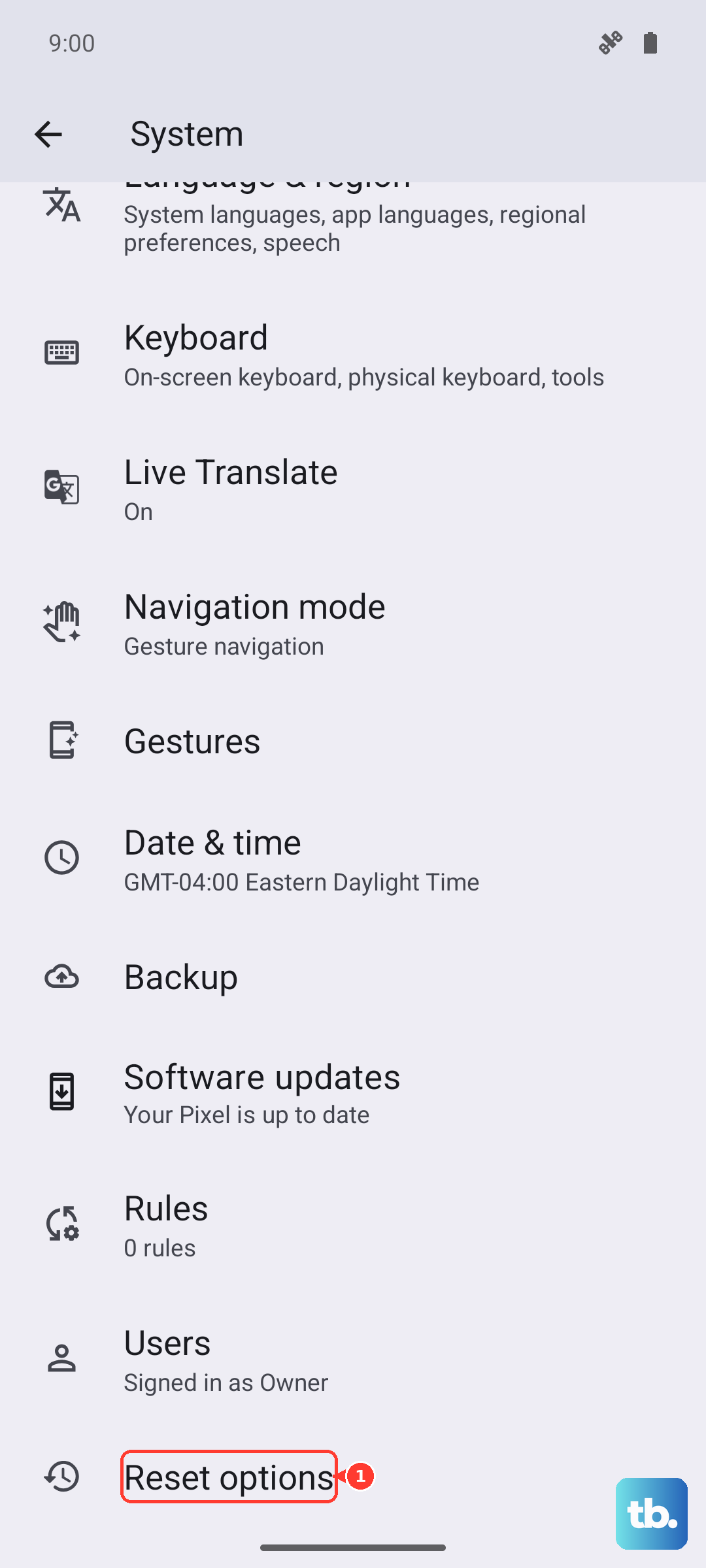
After it restarts, you'll need to reconnect to Wi-Fi and re-pair Bluetooth devices, but this often clears up persistent cellular connection bugs.
Manually Select Your Network Operator
Sometimes your phone gets stuck trying to connect to a weak or unavailable network tower. You can force it to search for and lock onto your proper carrier.
Open Settings > Network & internet > SIMs. Tap on your active SIM and then select Carrier. Turn off the switch for "Automatically select network."
Your phone will scan for all available networks in your area. When the list appears, choose your carrier's name from it. Wait a moment, then turn "Automatically select network" back on. This manual nudge can re-sync your phone with the strongest local tower.
Verify Your APN Settings
The Access Point Name (APN) is the gateway your phone uses to connect to your carrier's mobile data network. If these settings are wrong or corrupted, you'll have no data and sometimes no service at all.
Navigate to Settings > Network & internet > SIMs > Access Point Names. You should see a list, likely with one entry for your carrier. Tap the three-dot menu in the top right and select Reset to default.
If that doesn't work, you may need to enter the settings manually. Your carrier's website has the exact APN details you need. Just search for "[Your Carrier] APN settings Pixel."
Use the Phone Information Menu
Android has a hidden diagnostic menu that lets you see the raw status of your cellular radio. Open your Phone app and dial *#*#4636#*#*. This will open the Testing menu.
Tap on Phone information. You'll see a lot of technical data. First, look for "Mobile radio power" and ensure it says "On." If it's off, there's a deeper software issue. You can also try tapping the Run Ping Test button to see if the radio is responding.
Near the top, there's a dropdown menu for "Set preferred network type." Make sure it's set to a modern standard like "NR/LTE/WCDMA" or "LTE/WCDMA." Don't change this unless you know what you're doing, but verifying it can help.
Check for Software Updates
Google frequently releases updates for Pixel phones that include bug fixes for connectivity issues. It's always worth checking if you're running the latest available version of Android.
Go to Settings > System > System update. Tap "Check for update." If an update is available, download and install it. Make sure your phone is connected to Wi-Fi and has at least a 50% charge before starting.
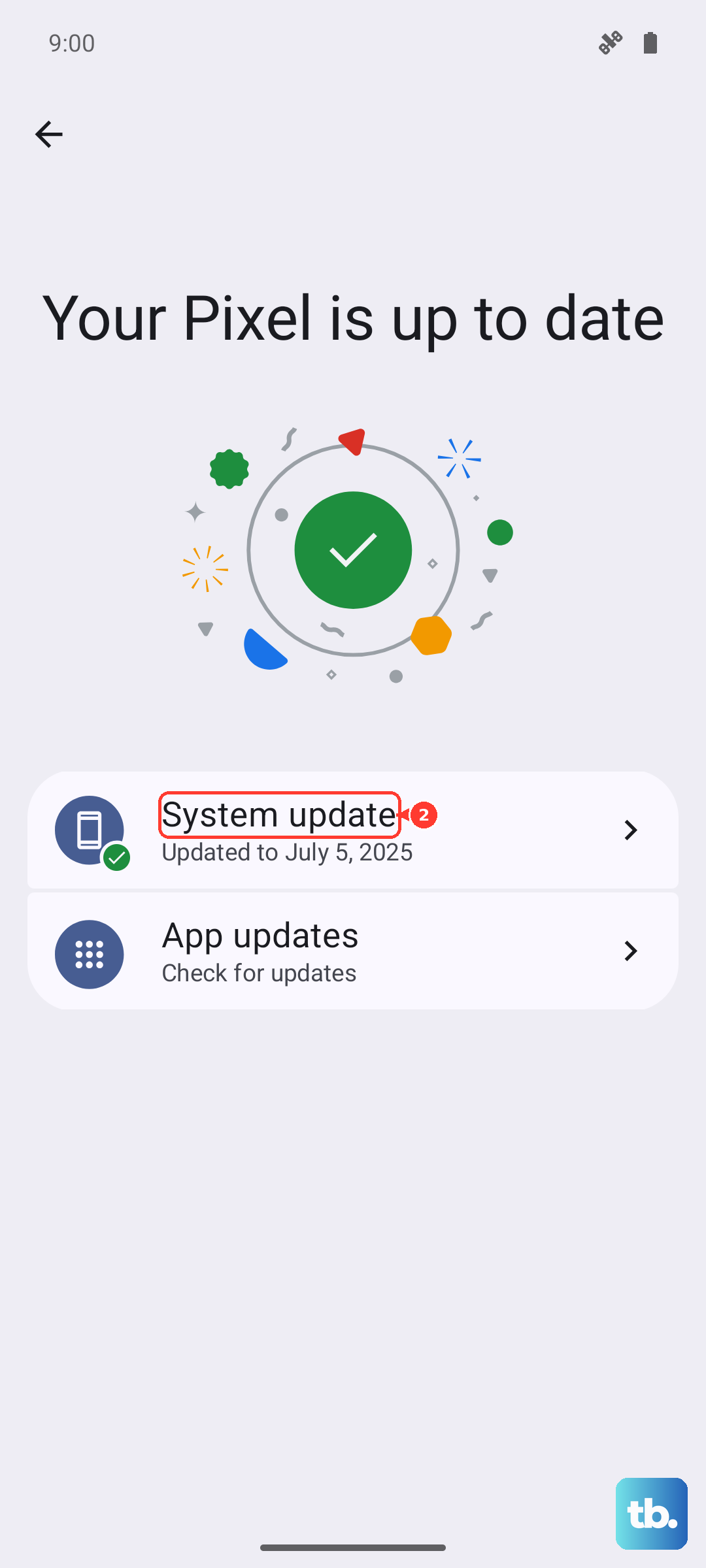
After the update installs and your phone restarts, give it a few minutes to re-register on the cellular network. System updates often contain crucial patches for the modem firmware that handles all cellular communication.
Disable Any VPN or Ad-Blocking Apps
Third-party apps that route or filter your internet traffic can sometimes interfere with basic cellular registration. If you use a VPN, a DNS changer, or a system-wide ad blocker, try temporarily disabling it.
For VPNs, you can usually just open the VPN app and tap "Disconnect." For other types of network-filtering apps, you might need to go into Settings > Apps, find the app, and force stop it.
Restart your phone after disabling these apps to see if service returns. This helps determine if a well-meaning app is the root cause of the problem.
Test with a Different SIM Card
This step helps isolate whether the problem is with your phone or with your SIM card and account. If you can, borrow a SIM card from a friend or family member who uses a different carrier.
Insert their working SIM into your Pixel 10 Pro. If you immediately get service bars with their SIM, then the issue is with your original SIM card or your carrier account. You'll need to contact your carrier's support.
If you still get no service with a known-good SIM from another network, the issue is likely within the phone itself, possibly with the internal antenna or modem hardware.