
If your Google Pixel 10 Pro is refusing to send pictures or group texts, it's a frustrating roadblock. MMS issues on Android 15 can usually be traced back to your data connection, a setting that's out of whack, or a temporary app glitch. Let's walk through the most effective ways to get your multimedia messages flowing again.
Start With a Quick Restart
Before diving into settings, give your Pixel a fresh start. Press and hold the Power and Volume Up buttons together for about 10 seconds until you see the Google logo. This simple reboot can clear out minor software hiccups that might be blocking MMS.
Confirm Your Mobile Data is On and Strong
MMS doesn't travel over Wi-Fi or standard SMS, it requires an active mobile data connection. Swipe down twice from the top of your screen to open the Quick Settings panel and make sure the mobile data icon is lit up. Also, check your signal strength in the status bar, as a weak connection can cause sends to fail.
If you're connected to Wi-Fi, try turning it off temporarily to force the message to use your cellular data. Some Wi-Fi networks, especially public ones, can interfere with MMS traffic.
Verify MMS Settings in Google Messages
Open the Google Messages app, tap your profile picture in the top right, and go to Messages settings > Advanced. Here, ensure "Auto-download MMS" is enabled. If you're traveling, you might also want to toggle on "Auto-download MMS when roaming," but be mindful of potential data charges.
Check Your Access Point Name (APN)
Incorrect APN settings are a classic culprit. These tell your phone exactly how to connect to your carrier's multimedia service. Go to Settings > Network & internet > Mobile network > Advanced > Access Point Names.
You should see an APN list for your carrier. If anything looks off or you only see a generic entry, you may need the correct details. A quick web search for "[Your Carrier] APN settings 2026" or a call to their support will get you the right configuration to enter.
Clear the Messages App Cache
Corrupted temporary files can cause all sorts of app misbehavior. Go to Settings > Apps > See all apps. Find and tap on "Messages," then select Storage & cache. Tap "Clear cache." This is safe and won't delete your conversations.
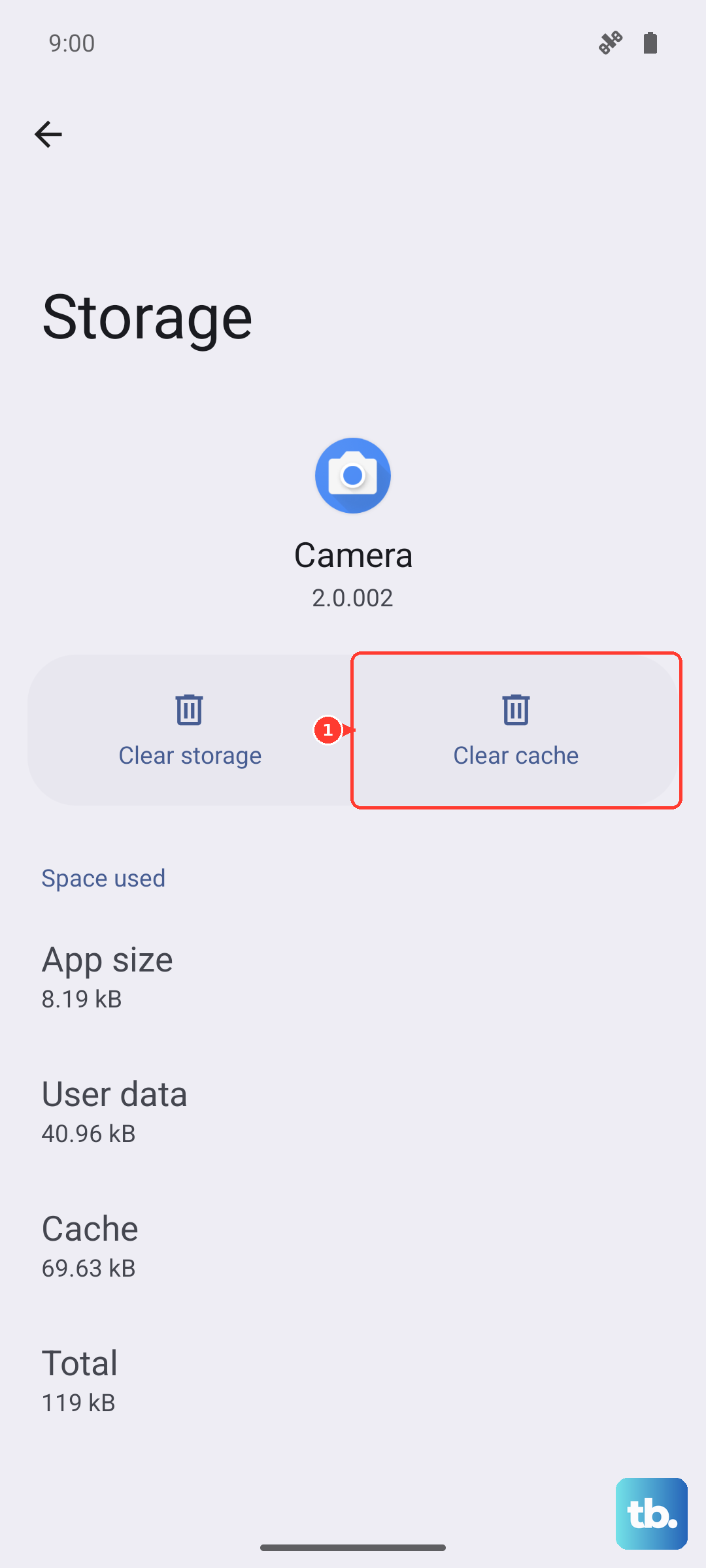
If the problem persists, you can try "Clear storage" or "Clear data." Be warned, this will erase your message history within the app, so only do this if you're okay with that loss or have your chats backed up.
Look for a System Update
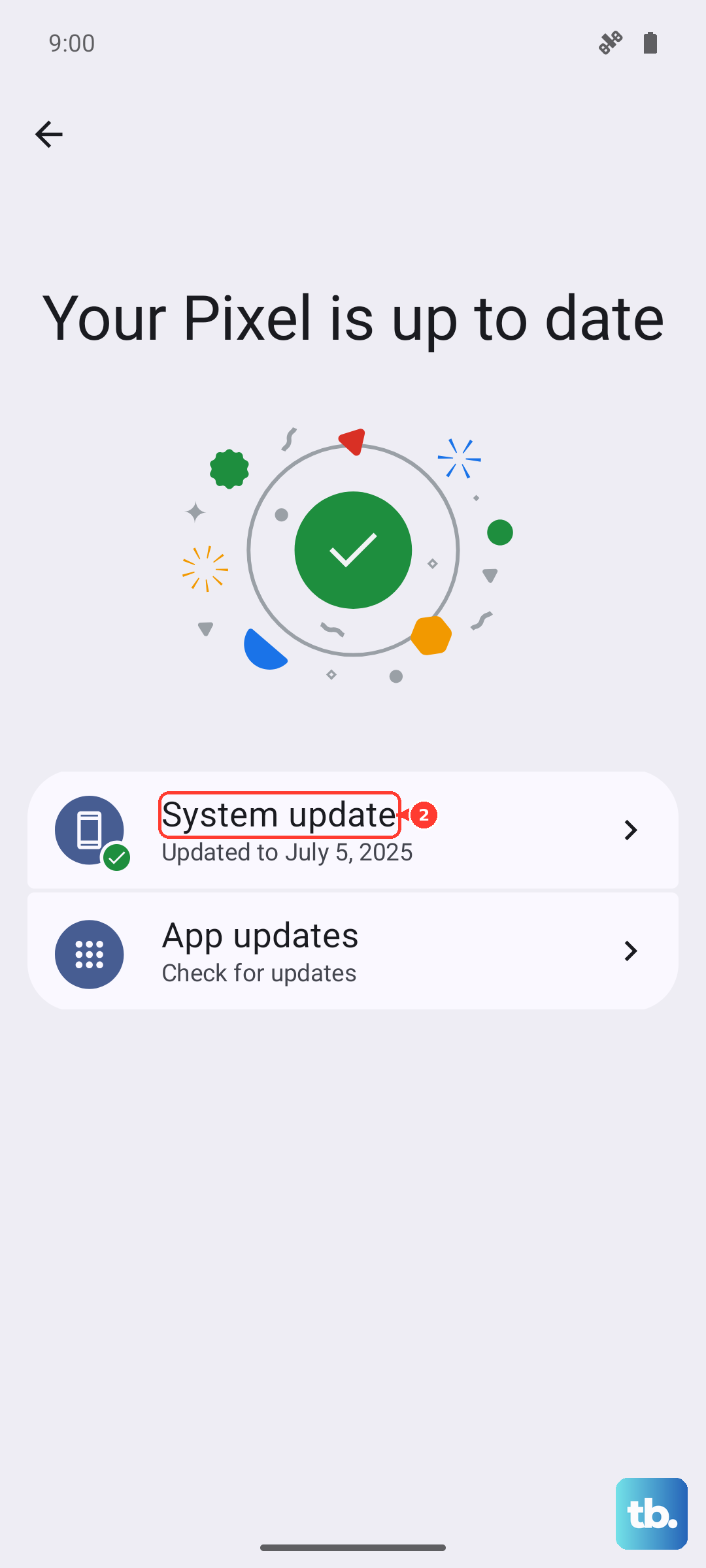
Google frequently pushes updates that fix bugs, including ones related to connectivity and messaging. Head to Settings > System > System update and tap "Check for update." If one is available, install it and restart your phone to see if it resolves the MMS issue.
Reset Your Network Settings
This is a more thorough step that resets all network-related configurations back to factory defaults. You'll lose saved Wi-Fi networks, paired Bluetooth devices, and custom APN settings. Go to Settings > System > Reset options > Reset Wi-Fi, mobile & Bluetooth.
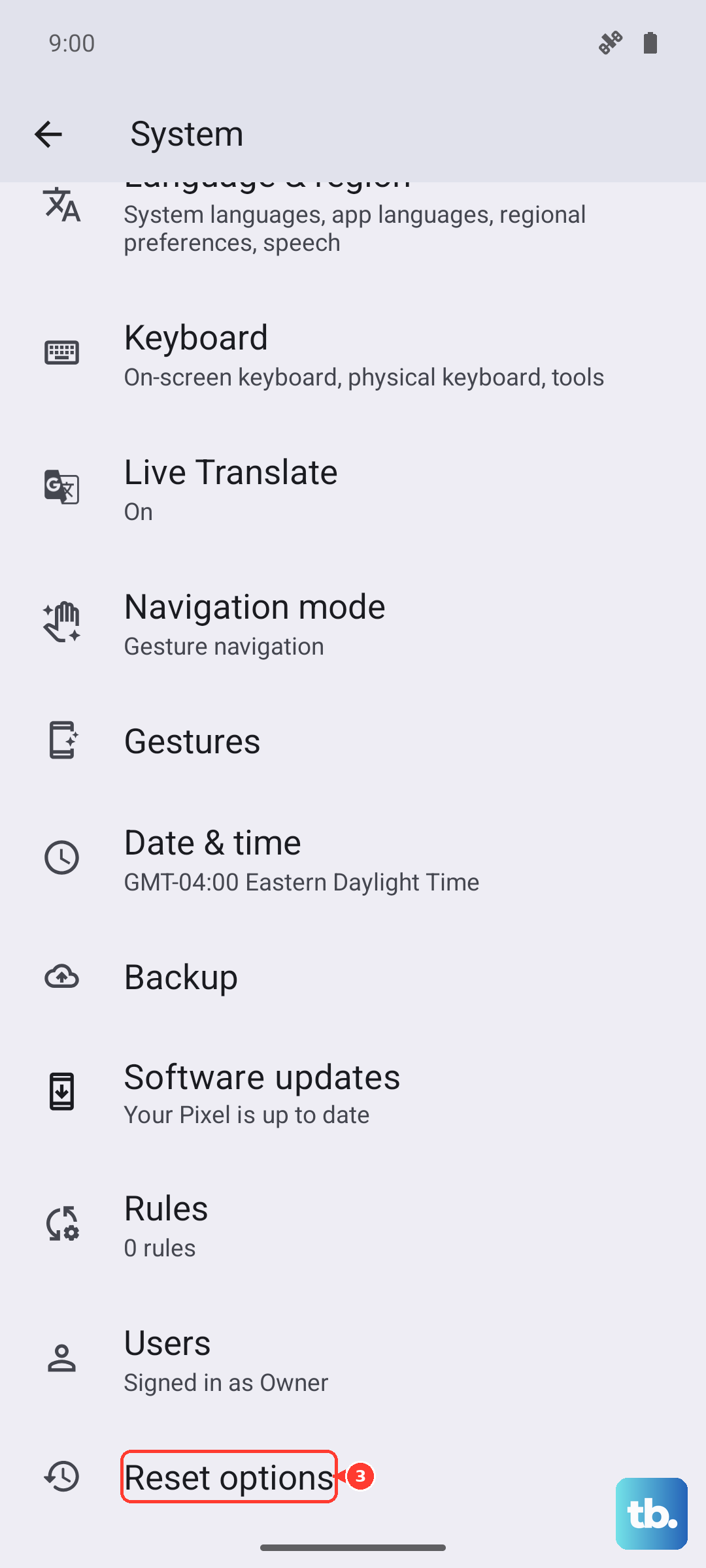
Tap to confirm. After the phone restarts, you'll need to reconnect to Wi-Fi and re-pair Bluetooth accessories, but this often clears up persistent network glitches.
Ensure You Have Enough Storage Space
Your Pixel needs a bit of free space to process and send media files. Open Settings > Storage to see how much space is left. If you're running critically low, try deleting some old downloaded files or clearing app caches to free up room.
Check for Carrier Service Alerts
Sometimes the issue is entirely on your carrier's end. They might be performing maintenance or experiencing an outage in your area. A quick visit to your carrier's website or their support account on social media can often provide that information.
Try a Different Messaging App Temporarily
If you're still stuck, you can test if the problem is isolated to the Google Messages app. Download an alternative like Textra or your carrier's own messaging app from the Play Store, set it as the default, and see if MMS sends correctly. If it works, the issue is likely with your primary app's data or installation.