
When your Google Pixel 10 Pro's microphone stops picking up your voice, it can turn simple tasks like making calls, using Google Assistant, or recording videos into a real hassle. The first thing I'd do is confirm which microphone is affected, as your phone has several for different purposes.
To separate a hardware fault from a settings problem, try a quick mic test in your browser. Record a few seconds and play it back, and you will know exactly what you are dealing with.
Test Your Pixel 10 Pro Microphone
Open the Voice Recorder app that comes pre-installed on your Pixel. Tap the red record button and speak for a few seconds, then play it back. If the audio is muffled or silent, you've got a problem. You can also try making a quick video with the Camera app to test the audio there.
Another great test is to activate Google Assistant. Say "Hey Google" or press and hold the power button. Ask it a simple question like, "What's the weather?" If it doesn't respond or consistently misunderstands you, that's a strong indicator of a microphone issue.
Check for Physical Blockages
Your Pixel 10 Pro has microphone ports at the bottom near the USB-C charger, at the top of the frame, and on the back near the camera array. Take a close look at these tiny holes. It's surprisingly common for pocket lint, dust, or even a bit of debris from a case to get lodged in there.
Gently clean the openings with a dry, soft-bristled brush like a clean toothbrush. For more stubborn gunk, a can of compressed air can work wonders. Just give it a short, controlled burst. Avoid using metal objects like paperclips, as you could easily damage the sensitive microphone mesh inside.
Remove Your Phone Case and Restart
Some cases, especially bulky or poorly designed ones, can partially cover the microphone ports. Take the case off completely and test your microphone again in a call or with the Voice Recorder app. This simple step resolves more issues than you might think.
Next, give your phone a fresh start. A force restart can clear out temporary software glitches that might be interfering with the audio hardware. On the Pixel 10 Pro, press and hold the Power button and the Volume Up button together for about 10 seconds until you see the Google logo appear on the screen.
Disconnect Bluetooth Accessories
If you have wireless earbuds, headphones, or a smartwatch connected, your phone might be trying to use their microphone instead of its own. Swipe down from the top of your screen twice to open the full Quick Settings panel and tap the Bluetooth icon to turn it off temporarily.
Now try your microphone again. If it works with Bluetooth off, you know the issue is with audio routing. Try forgetting and re-pairing your Bluetooth device from Settings > Connected devices.
Review App Permissions in Android 15
In Android 15, app permissions are managed a bit differently. If your microphone only fails in specific apps like WhatsApp, Zoom, or Discord, that app might have lost its permission. Go to Settings > Privacy & security > Permission manager.
Tap on Microphone and look through the list. Find the app that's having trouble and make sure it's set to "Allow only while using the app" or "Ask every time" if you prefer. Sometimes toggling the permission off and back on can reset a stuck setting.
Update Your Apps and System Software
A buggy app update can sometimes break microphone access. Head to the Google Play Store, tap your profile icon, and go to Manage apps & device > Updates available. Install any updates, especially for communication apps and the Google app itself.
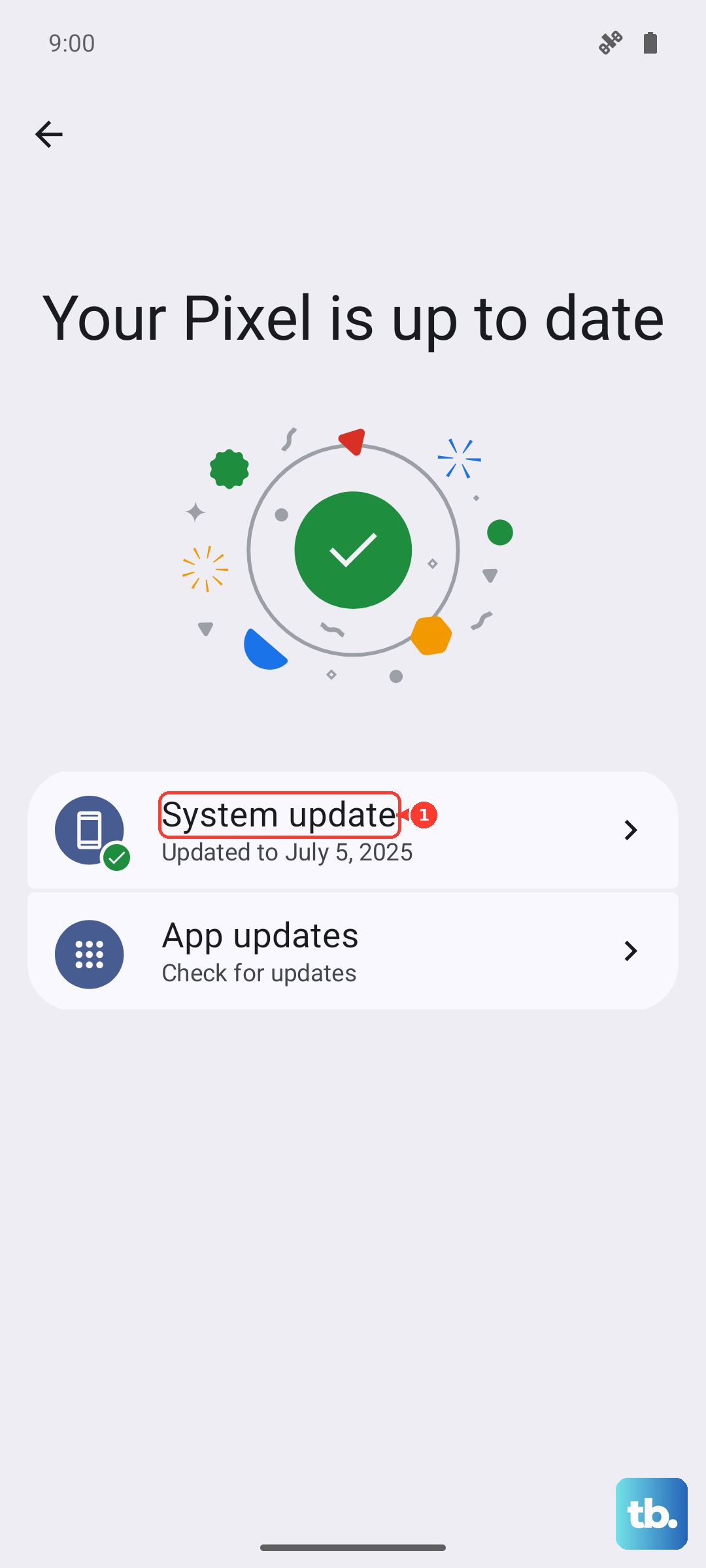
More importantly, check for a system update. Google frequently releases patches that fix audio and hardware-related bugs. Go to Settings > System > System update to download and install the latest Android 15 build for your Pixel.
Reset App Preferences or All Settings
If the problem is widespread, resetting app preferences can help. This won't delete any personal data, but it will reset all your notification settings, default apps, and background data restrictions. Go to Settings > System > Reset options > Reset app preferences.
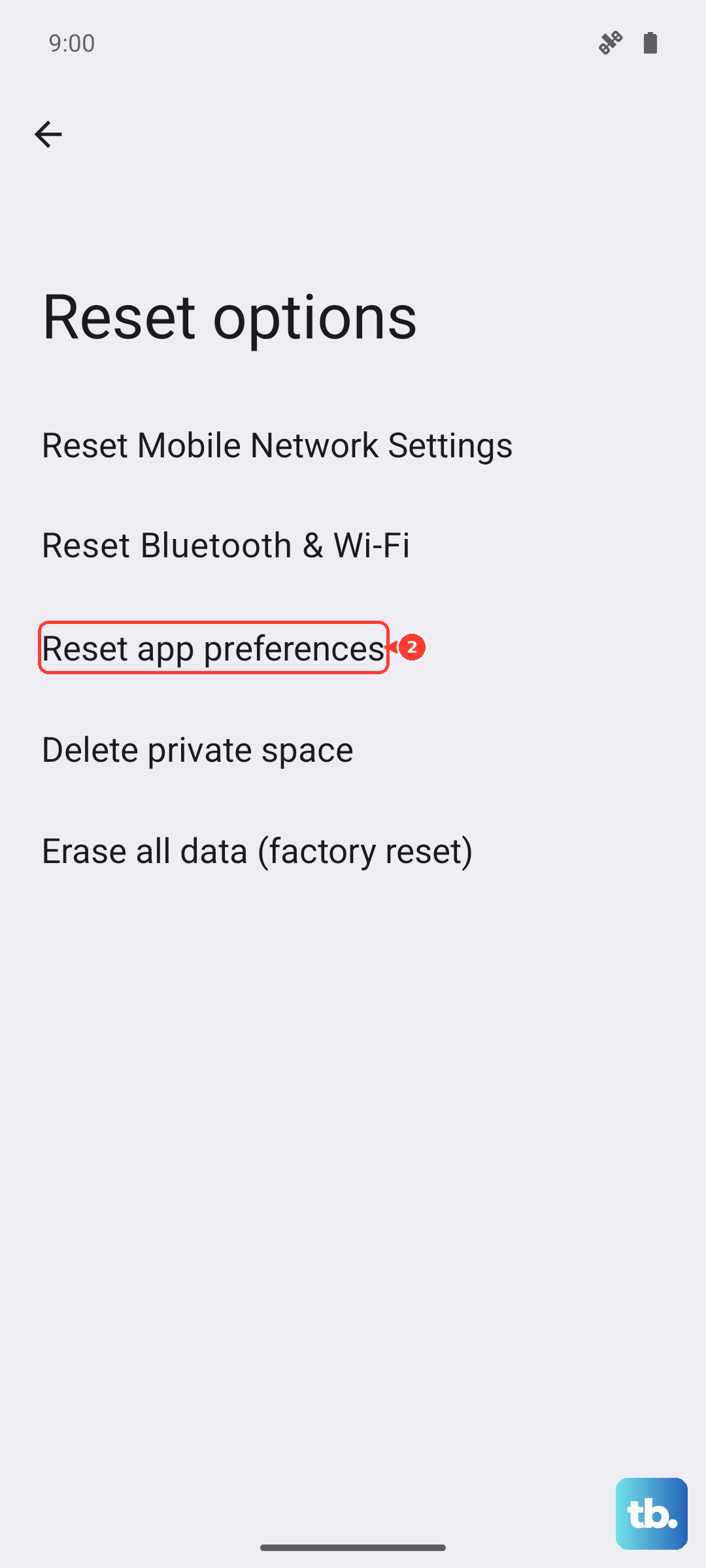
For a more thorough reset that tackles system-level configuration issues, you can try resetting all settings. This will revert your Wi-Fi passwords, Bluetooth pairings, and custom display settings back to default. You can find this in the same Reset options menu. It's a solid step before considering anything more drastic.
Check for Hardware Damage
Think back to whether your phone has had any recent exposure to water or a significant drop. While the Pixel 10 Pro is water-resistant, it's not immune to damage. Persistent microphone failure across all apps after trying every software fix often points to a hardware problem.
If you suspect physical damage, the best course of action is to contact Google Support directly through your phone's Settings app or visit an authorized repair partner. They can run diagnostics to pinpoint if a specific microphone module needs replacement.