
When your Pixel 10 Pro's keyboard disappears or you get a "Gboard keeps stopping" error, it can stop you from replying to a message or searching the web. The good news is that this is usually a quick software glitch you can fix yourself.
I'd start by simply restarting the app. Swipe up from the bottom of your screen and hold to enter the app switcher. Find Gboard in the list and swipe it all the way up to close it. Then, tap a text field to bring it back. This clears its temporary memory and often solves the problem right away.
Force Stop and Restart Gboard
If a simple close didn't work, you can force stop the app through your settings. This is a more complete restart for the keyboard service. Go to Settings > Apps > See all apps.
Find and tap on Gboard in the list. On the app info screen, tap Force stop and confirm. Once it's stopped, just back out and try using your keyboard again. It should restart fresh.
Clear the Keyboard's Cache and Data
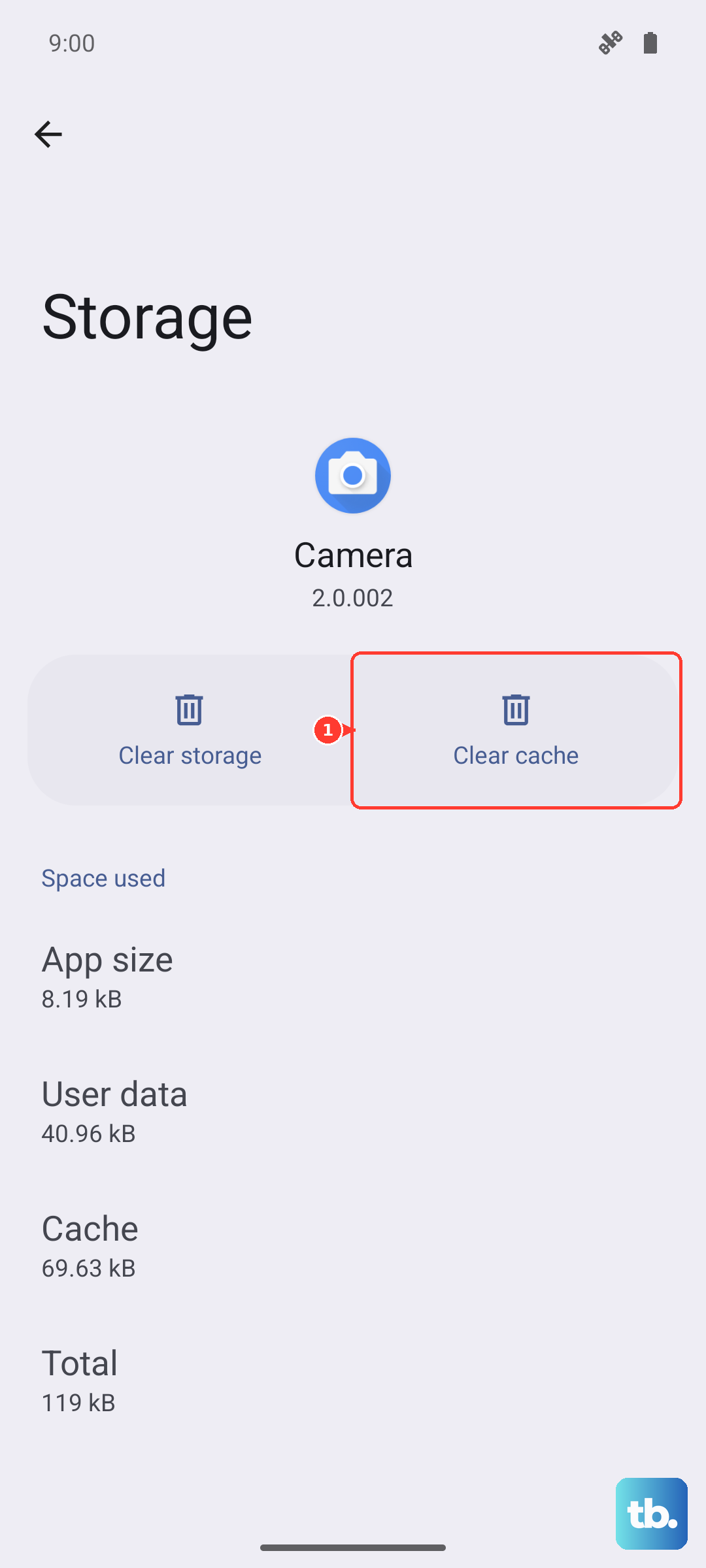
Corrupted temporary files can cause the keyboard to crash. Clearing the cache is safe and won't delete your personal dictionaries or saved text. Go back to Settings > Apps > Gboard and tap Storage & cache.
Tap Clear cache first. If the problem persists, you can tap Clear storage or Clear data. Be aware this will reset Gboard to its default settings, so you'll lose any custom themes, preferences, or saved words.
Check for Gboard Updates
An outdated version of Gboard might have a bug that's causing the crash. Open the Google Play Store and tap your profile icon in the top right. Go to Manage apps & device and look under "Updates available."
If Gboard is listed, tap Update next to it. Keeping your apps updated is one of the easiest ways to prevent these kinds of issues, as updates often include stability fixes.
Restart Your Pixel 10 Pro
A full system reboot can clear out a wider range of temporary glitches that might be affecting the keyboard. Just press and hold the Power button until the power menu appears, then tap Restart.
If your screen is unresponsive, you can force a restart by pressing and holding the Power button and the Volume Up button together for about 10 seconds, until you see the Google logo.
Boot Into Safe Mode
If the keyboard works after a restart but then fails again, a recently installed third-party app might be interfering. Booting into Safe Mode temporarily disables all apps you've downloaded. Press and hold the Power button on the screen.
When the power menu appears, tap and hold the Power off option. You'll get a prompt to reboot to Safe Mode, tap OK. If your keyboard works perfectly in Safe Mode, you know a third-party app is the culprit. Start by uninstalling apps you added around the time the problem began.
Reset App Preferences
This is a useful middle step that resets permissions, default apps, and background restrictions without touching your personal data. Go to Settings > Apps > See all apps. Tap the three-dot menu in the top right and select Reset app preferences.
Confirm the reset. Afterward, you'll need to re-grant permissions to apps when you use them next, and your default app choices (like which browser opens links) will be cleared. This can resolve conflicts that cause system apps like the keyboard to malfunction.
Check Your Active Keyboard in Settings
Sometimes, the system can get confused about which keyboard is supposed to be active, especially if you've installed other keyboard apps. Go to Settings > System > Languages & input > On-screen keyboard.
Make sure Gboard is toggled on here. You can also tap Default keyboard to ensure Gboard is selected. If you see multiple keyboards enabled, try disabling any you don't use to prevent conflicts.
Update Android
Since your Pixel 10 Pro runs Android 15, a system update from Google could contain a fix for a keyboard bug. Go to Settings > System > System update. Tap Check for update.
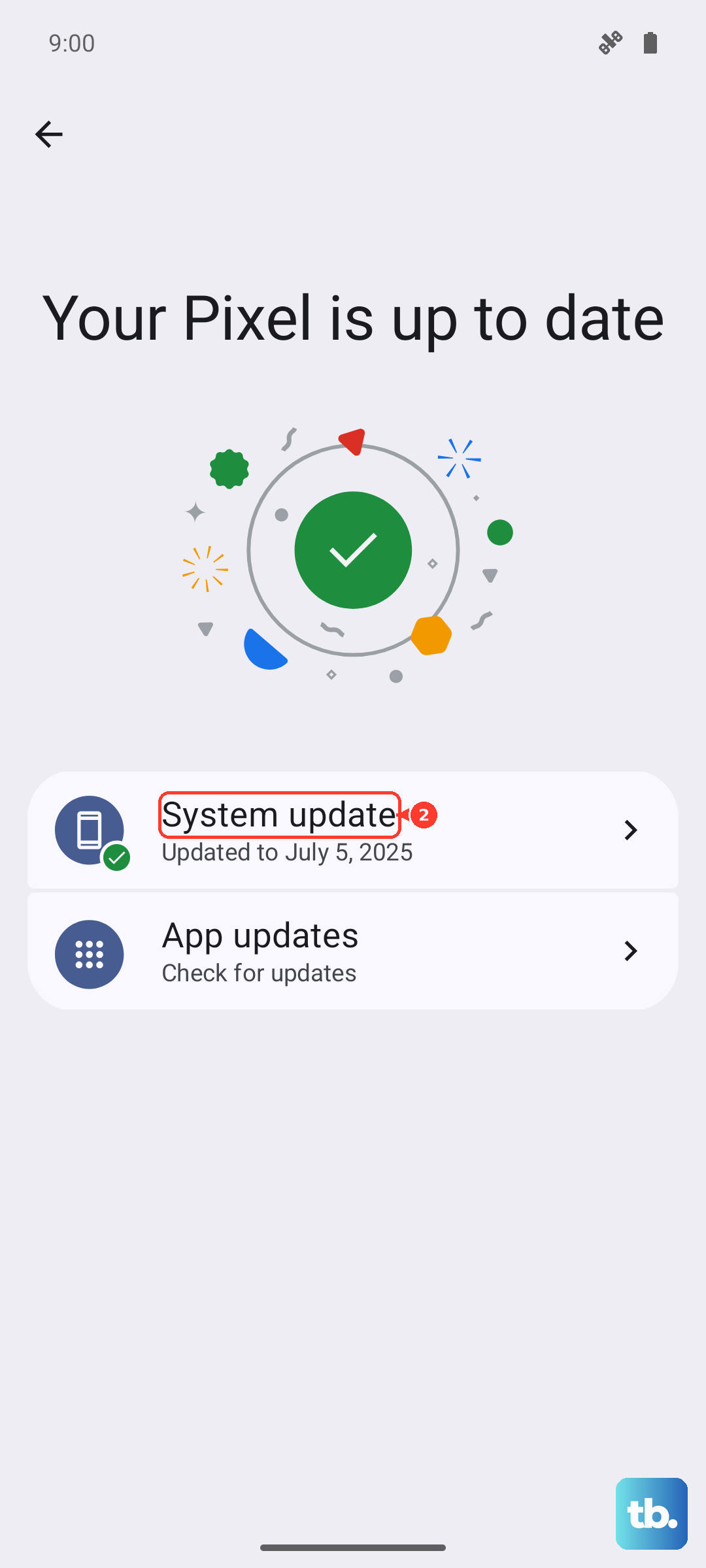
If an update is available, install it. It's a good practice to keep your phone plugged in or have a good charge before starting a system update. Most keyboard issues are resolved by working through these steps, starting with the simplest app restart.