You reach for your Pixel 10 Pro, the screen is lit but completely unresponsive, and no amount of tapping or swiping does anything. A frozen phone is unsettling, especially on a device you rely on all day, but in most cases the cause is a stuck app or a temporary software hiccup rather than a hardware failure. The good news is that the Pixel 10 Pro is a standard Android phone with physical Power and Volume buttons, so every recovery step you need is built right in.
The fixes below are ordered from the safest and quickest to the most involved, ending with the official reset and support paths. Start at the top and stop as soon as your phone is responsive again. Most freezes clear up within the first two or three steps, so you likely won't need to go far down the list.
Force the Frozen Screen to Restart First
When the screen is on but locked up and ignoring your taps, the first move is a forced restart. This clears whatever has the phone stuck without touching any of your data, which is why it is the safest place to begin.
According to the official support guidance, if your phone is frozen with the screen on, hold down the Power button for about 30 seconds to restart. Keep holding even if nothing seems to happen at first; the phone needs the full duration before it cycles off and back on.
Note that this force restart uses the Power button alone. The Power plus Volume Up combination does something different on this phone (it opens the power menu used for safe mode), so for a simple force restart, stick with the long Power-button hold.
Clear Out Storage When It's Nearly Full
A Pixel that is running low on free space can start behaving erratically, including freezing. The official guidance notes your phone can have issues when less than 10% of storage is available, so a quick cleanup is often all it takes.
Open Settings > Storage to see how much room you have left. If you are near or below that 10% mark, free up space and then check whether the freezing stops.
Open the Settings app.
Tap Storage to view your available space.
Delete unused apps, old photos, and downloads until you are comfortably above 10% free.
Use the phone for a while to confirm the freezing has stopped.
Install the Latest Android Update
Software bugs are a common cause of freezing, and many are fixed in updates. Your Pixel 10 Pro launched with Android 16 and is covered by seven years of OS, security, and Pixel Drop updates, so there is regularly something new to install.
Open the Settings app.
Near the bottom, tap System, then tap Software update.
When the update status appears, follow the on-screen steps to download and install any available update.
Let the phone finish the update and restart on its own. Installing the newest build can resolve the underlying bug that was causing the freezes.
Bring Your Apps Up to Date
An out-of-date app can lock up the phone just as easily as an outdated system. Updating your apps through the Play Store is a fast, non-destructive step that often clears the problem.
Open the Google Play Store app.
Tap your profile icon.
Tap Manage apps & devices.
Update any apps that have updates available.
If you don't know which app is at fault, updating everything at once covers all your bases. Then keep using the phone to see whether the freezing returns.
Force Stop Apps You Aren't Using
Sometimes a single app misbehaves in the background and ties up the resources the phone needs to stay responsive. Force stopping it frees those resources and can put an end to the freezing.
Open Settings > Apps > See all apps.
Open an app you are not currently using.
Tap Force stop.
Closing a stuck or resource-hungry background app is a low-risk way to test whether one particular app is to blame. If the phone improves afterward, you have found a likely culprit.
Use Safe Mode to Pin Down a Bad App
Safe mode temporarily turns off all of your downloaded apps so you can see whether one of them is causing the trouble. If the freezing stops while you are in safe mode, a downloaded app is the cause.
On Pixel 6 and later, including the Pixel 10 Pro, enter safe mode like this:
Press and hold the Power and Volume Up buttons for a few seconds.
On your screen, tap and hold either the Power off or Restart buttons.
Tap OK.
If your phone is currently off, you can start it directly into safe mode instead. Press your phone's power button, then when the animation starts, press and hold your phone's volume down button. Keep holding it until the animation ends and your phone starts in safe mode.
When you are finished testing, exit safe mode by pressing and holding the Power button plus Volume up button for a few seconds, then tap Restart. The phone will reboot normally with all your apps active again.
Uninstall Recently Added Apps One at a Time
If safe mode confirmed that a downloaded app is the problem, the next task is to find which one. The reliable way to do this is to remove your most recent installs individually rather than all at once.
Exit safe mode and return to normal operation.
Uninstall the apps you downloaded most recently, one by one.
Restart the phone normally after each removal.
Keep going until the freezing stops, which identifies the app that was causing it.
Working through them one at a time means you don't remove anything you don't have to, and you end up knowing exactly which app to avoid reinstalling.
Factory Reset as a Last Resort
If nothing above has worked, a factory reset wipes the phone back to its original state and clears out whatever software issue is causing the freezing. Be aware that a factory reset erases all your data from your phone, so back up anything important before you begin.
Before you start, charge the phone to at least 70% and connect to Wi-Fi or mobile data. Make sure you know your Google Account sign-in details, because you will need them afterward. The reset itself can take up to an hour.
- 1.Open the Settings app.
- 2.Tap System, then tap Reset options.
- 3.Tap Erase all data (factory reset).
- 4.Tap Erase all data.
- 5.Enter your PIN if prompted.
- 6.Tap Erase all data again to confirm.
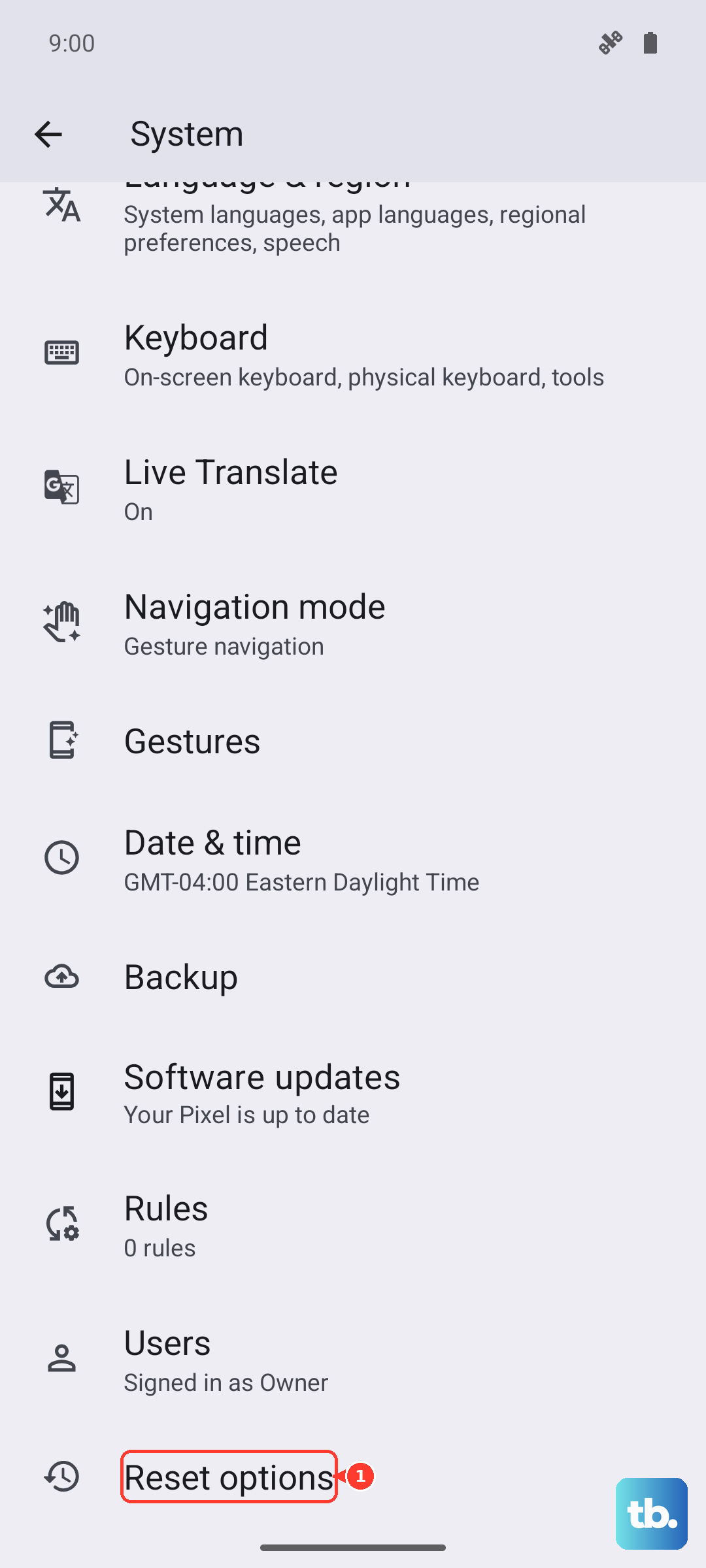
When the reset finishes, you will sign back in to your Google Account and set the phone up again. Because this step is destructive, save it for after the safer fixes have failed.
Get Further Help From Google
If your Pixel 10 Pro still freezes or won't respond after working through these steps, the issue may need direct support or a repair. At that point it is worth reaching out rather than continuing to troubleshoot on your own.
Use the official Get help with your Pixel phone page for support and repair options, or post your issue to the Google Pixel Help Community. Describe exactly what you have already tried so you can get more targeted assistance.
Frequently Asked Questions
How long do I hold the Power button to force restart a frozen Pixel 10 Pro?
If your phone is frozen with the screen on, hold down the Power button for about 30 seconds to restart. Keep holding for the full duration even if nothing happens immediately, and avoid the Power plus Volume Up combination, which opens the power menu instead of forcing a restart.
Will any of these steps delete my data?
Only the factory reset erases your data. A force restart, storage cleanup, software and app updates, force stopping apps, and safe mode are all non-destructive. Back up your phone before performing a factory reset, since it erases all your data.
How does safe mode help with a freezing Pixel 10 Pro?
Safe mode temporarily turns off all of your downloaded apps. If the phone stops freezing while in safe mode, a downloaded app is the cause, and you can then uninstall recently added apps one at a time to find which one is responsible.
How much free storage should my Pixel 10 Pro have?
Your phone can have issues when less than 10% of storage is available. Check your free space under Settings > Storage, and delete unused apps, photos, and downloads to stay comfortably above that threshold.
What should I do if the phone still freezes after a factory reset?
If the freezing continues even after a factory reset, use the official Get help with your Pixel phone page for support and repair options, or post your issue to the Google Pixel Help Community for further assistance.











