
Is your Google Pixel 10 Pro stuck in one orientation and refusing to flip when you turn it sideways? It's a common hiccup where the auto-rotate feature just stops responding, leaving you manually switching orientations in apps that support it.
The cause can be anything from a quick settings toggle to a deeper software glitch. Here are the most effective ways to get your Pixel's screen rotation working smoothly again on Android 15.
Toggle the Quick Settings Tile
The fastest fix is usually right in your notification shade. Swipe down from the top of your screen twice to open the full Quick Settings panel. Look for the "Auto rotate" tile, it might show a phone icon with arrows circling it or a portrait/landscape symbol.
Tap it once. If it was off, it should light up or change color to indicate it's now active. Give your phone a twist to test it. If the tile was already on, try tapping it off and then back on again to refresh the setting.
Check the Display Rotation Settings
Android offers a few more granular controls. Open your Settings app and go to Display > Auto-rotate screen. Make sure the main toggle at the top is switched on.
While you're there, look for an option called "Auto-rotate button" or something similar. Enabling this adds a small navigation bar button that lets you manually lock or unlock rotation on the fly, which can be handy if the sensor is being finicky.
Force Restart Your Pixel 10 Pro
A simple reboot clears out temporary system bugs that can confuse the accelerometer. Press and hold the Power button and Volume Up button together for about 10 seconds.
Release the buttons when you see the Google logo appear on the screen. Wait for your phone to fully boot up, then try rotating it again. I've found this resolves sensor glitches more thoroughly than a standard shutdown and power-on.
Test and Calibrate the Sensors
Your Pixel uses an accelerometer and gyroscope to detect movement. You can check if they're functioning properly. Download a free sensor testing app from the Play Store, like "Sensor Test" or "Phone Tester."
Open the app and find the accelerometer or gyroscope test. Lay your phone flat on a table, then slowly tilt it. The values on screen should change smoothly in response. If they're stuck or jump erratically, there might be a calibration issue or physical sensor problem.
Check for App-Specific Behavior
Not every app supports landscape mode. If rotation works in your camera app but not in Chrome, the app itself might be the culprit. Some apps also have their own internal rotation locks.
Try rotating the phone in several different apps, like YouTube, Google Photos, and your gallery. If it fails in just one, check that app's settings for a rotation lock. The issue might have started after a recent update to that specific app.
Update Your System Software
Google frequently releases updates that fix bugs, including sensor-related ones. Go to Settings > System > System update. Tap "Check for update."
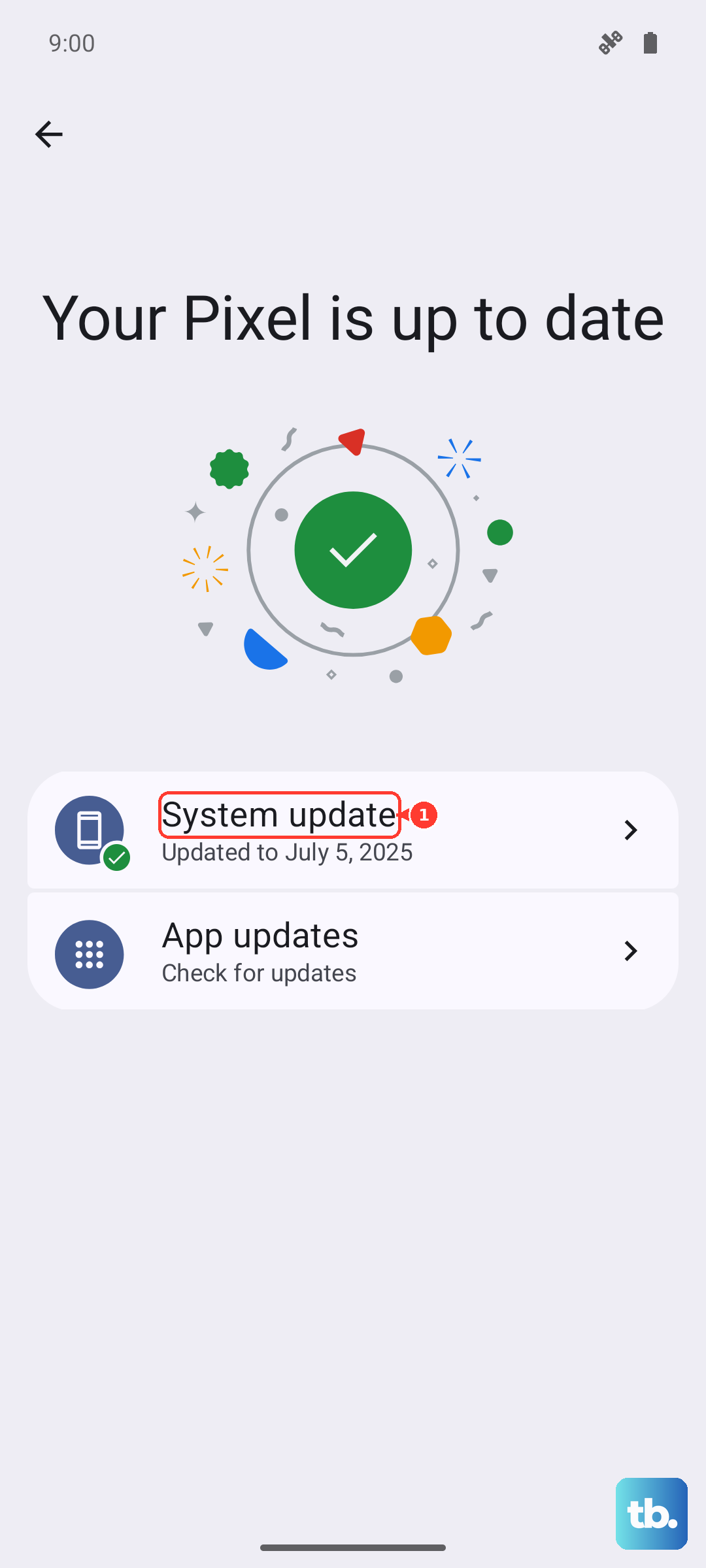
If an update is available, download and install it. Your phone will restart. It's a good practice to keep your Pixel 10 Pro updated, as patches for Android 15 often address minor performance and hardware interaction issues.
Boot Into Safe Mode
If a third-party app is interfering with system functions, Safe Mode will tell you. Press and hold the Power button and Volume Up button together until the power menu appears. Then, tap and hold the "Power off" option on your screen.
A prompt will ask if you want to reboot to Safe Mode. Tap "OK." Once booted, try auto-rotate. If it works perfectly in Safe Mode, a recently installed app is likely the cause. You'll need to restart normally and uninstall apps one by one to find the offender.
Consider a Factory Reset
This is a last resort for persistent software corruption. Before you do this, ensure all your important data is backed up to Google Drive or another service. Go to Settings > System > Reset options.
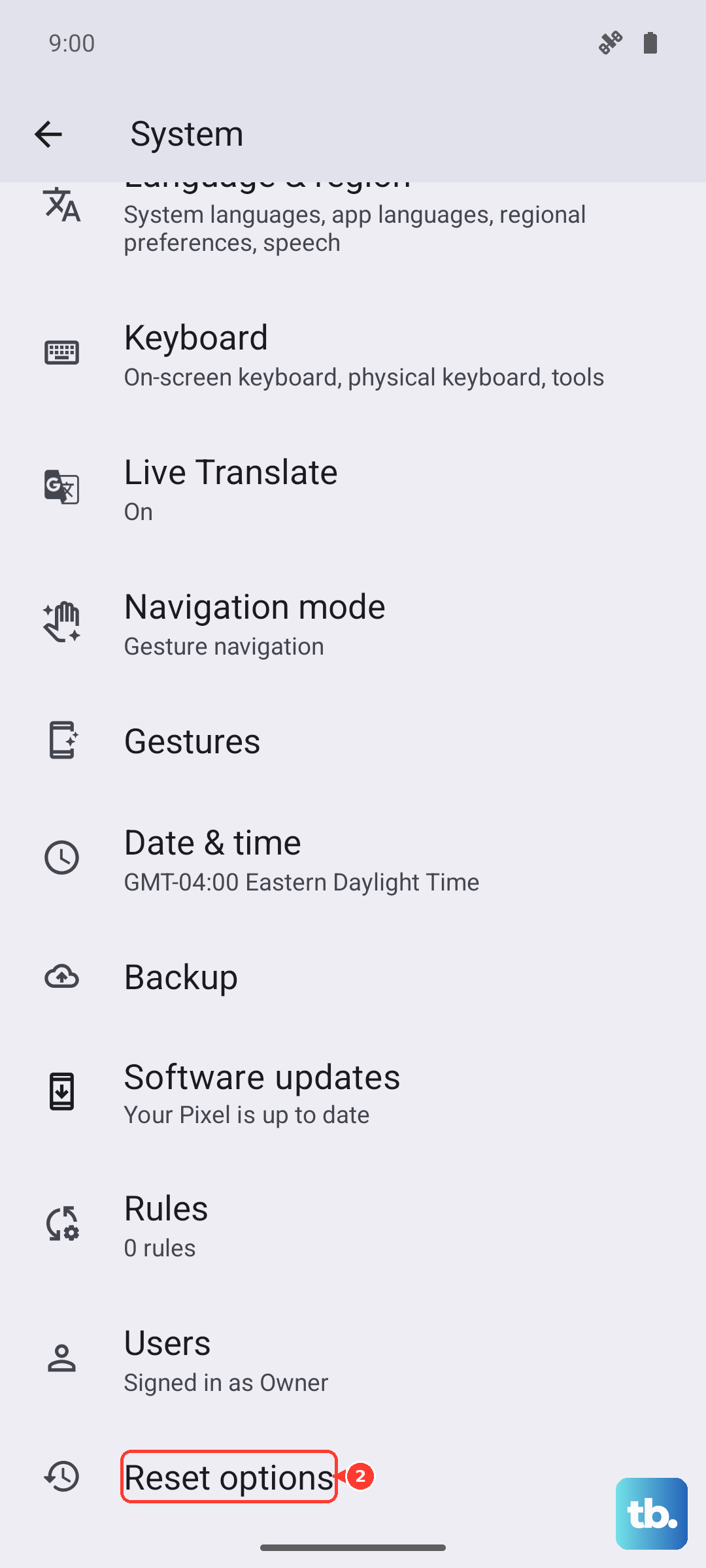
Select "Erase all data (factory reset)" and follow the prompts. This will return your phone to its out-of-the-box state. After setup, test rotation immediately before restoring your apps to see if the core issue is resolved.