
When your Google Pixel 10 Pro won't download apps, it can bring your phone to a standstill. You're trying to get a new app or update an existing one, and it just hangs or shows an error. I've found this is usually a quick fix, often related to a temporary glitch in the Google Play Store or your connection.
Let's go through the steps to get your downloads moving again, starting with the simplest solutions first.
Check Your Internet Connection First
This is the most common culprit. The Play Store needs a stable connection, whether it's Wi-Fi or mobile data. Swipe down from the top of your screen to open the Quick Settings panel and make sure you're connected. If you're on Wi-Fi, try toggling it off and back on.
Sometimes, a specific network can block the ports the Play Store uses. If downloads fail on Wi-Fi, try switching to your mobile data for a moment to test. You can do this quickly from the same Quick Settings panel.
Restart Your Pixel 10 Pro
A simple restart clears out temporary software bugs that can stall the download process. Just press and hold the power button, then tap 'Restart' on your screen. If you've downloaded apps before and this is a new problem, this often solves it right away.
For a more thorough refresh, you can perform a force restart. Press and hold the Power button and the Volume Up button together for about 10 seconds until you see the Google logo appear, then release.
Verify Date and Time Settings
Google's servers use your phone's time to authenticate downloads. If your clock is off, it can cause downloads to fail. Go to Settings > System > Date & time.
Make sure 'Set time automatically' is turned on. If it's already on and you're still having issues, try turning it off, manually setting the correct date and time, and then turning automatic setting back on.
Clear the Google Play Store Cache
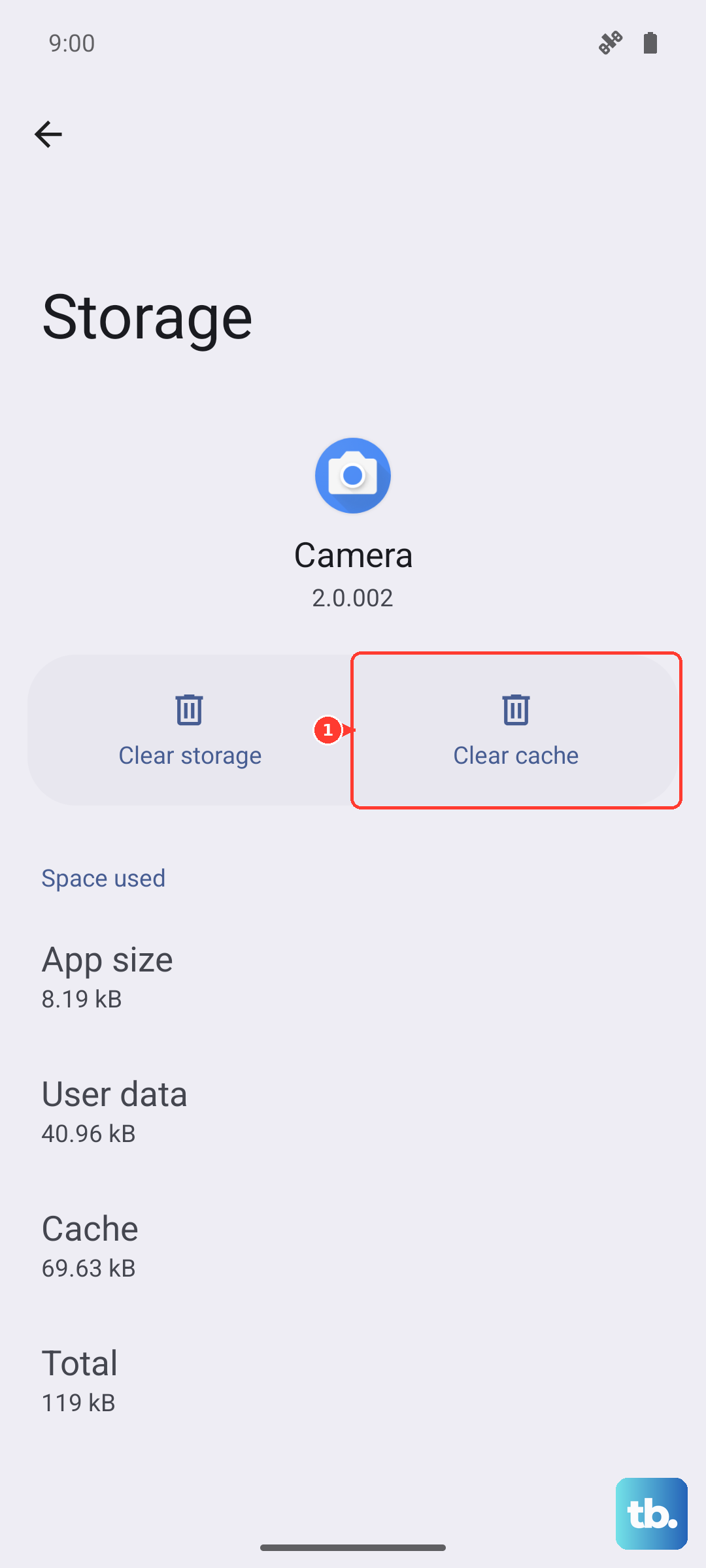
The Play Store stores temporary data that can sometimes become corrupted. Clearing this cache is a safe first step that doesn't delete any of your apps or account info. Go to Settings > Apps > See all apps.
Find and tap 'Google Play Store'. Tap Storage & cache, then tap 'Clear cache'. Open the Play Store again and try your download. If that doesn't work, you can go back and tap 'Clear storage' (this may reset some Play Store preferences).
Clear Google Play Services Data
This app works in the background to help the Play Store and other Google services run. Problems here can definitely stop downloads. Go back to Settings > Apps > See all apps and find 'Google Play Services'.
Tap Storage & cache. First, tap 'Clear cache'. If the issue persists, tap 'Manage space'. On the next screen, tap 'Clear all data'. This is safe, but you may need to re-sign into some services.
Check for Play Store Updates
It sounds odd, but the Play Store app itself gets updates. An outdated version can have bugs. Open the Play Store, tap your profile icon in the top right, and go to Settings > About > Play Store version.
The app will check for updates. If one is available, it will install automatically. After it updates, restart your phone and check if downloads work.
Review Your Google Account Sync
A hiccup in syncing your account data can interfere. Go to Settings > Passwords & accounts. Tap on your primary Google account, then tap 'Account sync'.
Look at the list; if anything seems stuck, you can pull down on the screen to manually refresh. For a more thorough reset, you can remove and re-add the account, but try a sync refresh first.
Check Your Available Storage Space
Your Pixel 10 Pro needs free space to download and install apps, even for updates. If you're getting an 'Insufficient storage' error, you need to make room. Go to Settings > Storage to see what's using space.
You can use the 'Free up space' tool there, or manually review and delete old downloads, clear app caches, or offload photos and videos to Google Photos.
Disable Any Active VPNs
If you're using a VPN (Virtual Private Network), it can sometimes interfere with the connection to Google's servers. Try temporarily disabling your VPN app and then attempt the download again.
You can usually do this by opening the VPN app and tapping disconnect, or by finding it in the Quick Settings panel you swipe down from the top of the screen.
Update Your Android Software
An outdated system version can cause compatibility issues with the Play Store. Google frequently releases updates that include bug fixes. Go to Settings > System > System update.
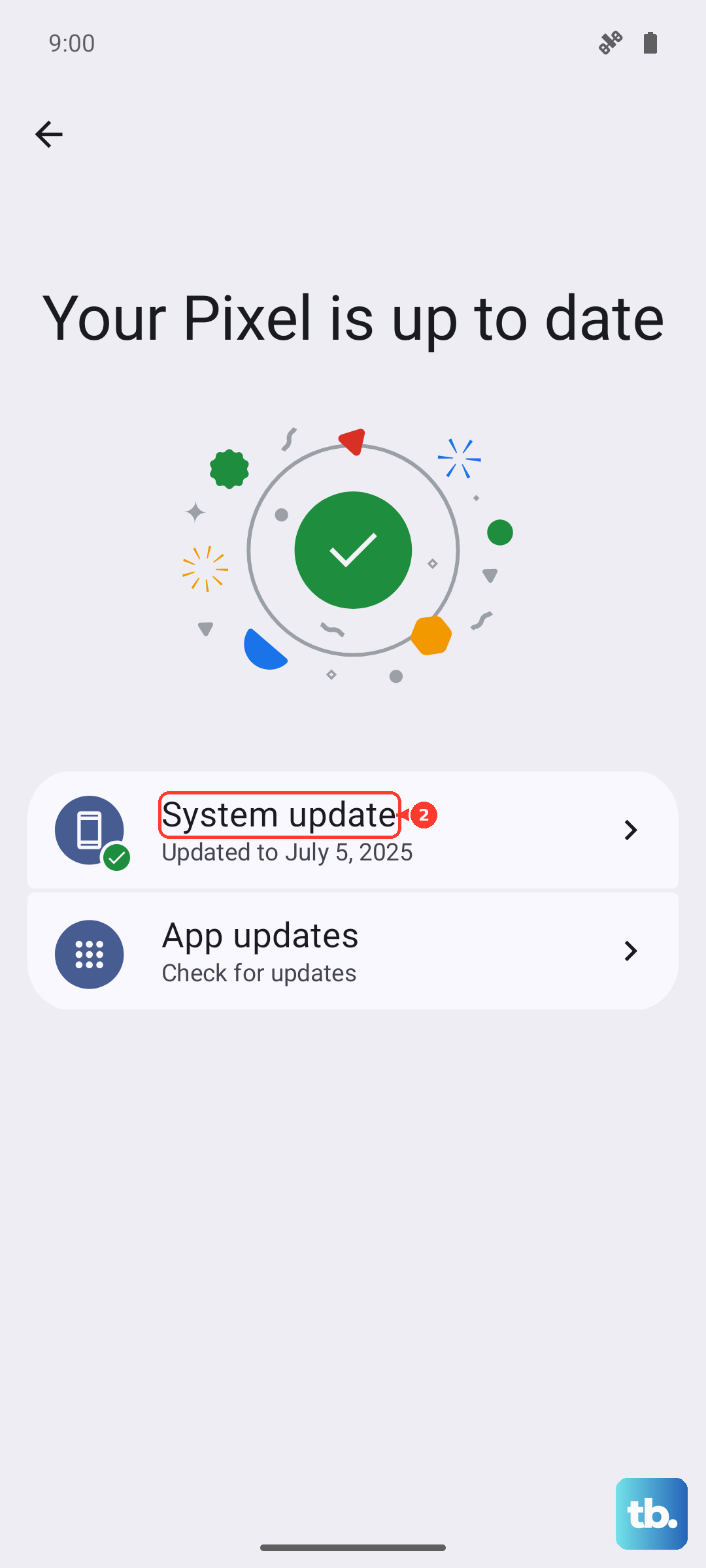
Tap 'Check for update'. If an update is available, install it. Your phone will restart as part of the process. After it boots up, try the Play Store again.
Reset App Preferences (A Safe Reset)
This resets permissions, background data restrictions, and default app assignments without deleting any personal data. It can fix issues where a setting was accidentally changed. Go to Settings > System > Reset options.
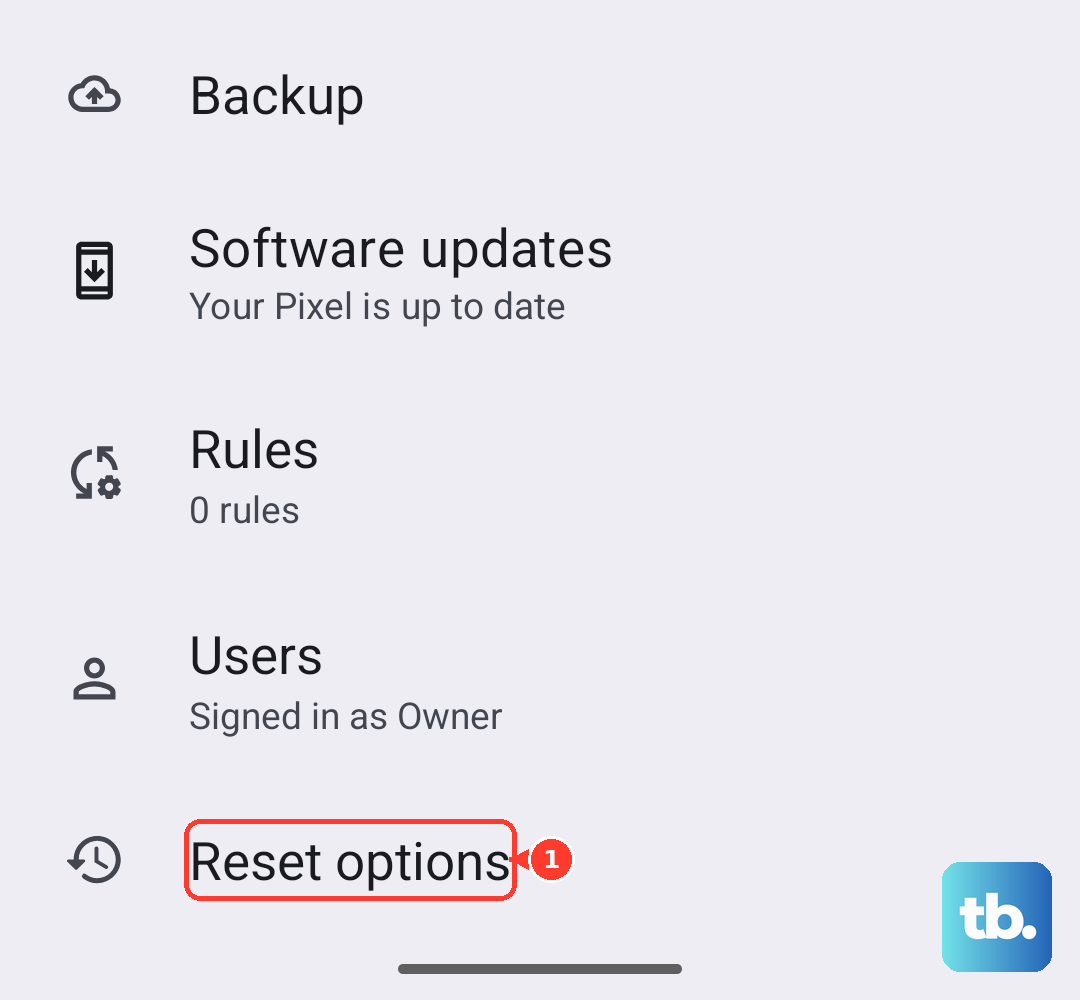
Tap 'Reset app preferences' and confirm. You'll then need to re-grant permissions the next time you use certain apps, but it's a very effective troubleshooting step.