
When your Google Pixel 10 stops ringing, it can feel like you're suddenly cut off from the world. This can happen even on a new device, but the Pixel 10 launched with Android 16, so start with current Pixel calling and network settings rather than older Android 15 menu assumptions. The causes can range from a simple toggle you accidentally switched to a deeper network glitch, but the fix is usually straightforward.
Start With These Quick Checks
Before we get into the weeds, run through these basic steps. They solve the problem more often than you'd think. First, swipe down from the top of your screen twice to open the full Quick Settings panel and make sure the Airplane Mode icon isn't lit up. Toggle it off if it is, or even toggle it on and back off to refresh your connection.
Next, give your Pixel a quick restart. On Pixel 6 and later, including Pixel 10, press and hold the Power and Volume up buttons for a few seconds, then tap Restart. This clears out minor software bugs that can block calls. While you're at it, take a glance at your signal bars. If you're in a basement or a rural area with poor reception, that could be the simple answer.
Review Your Do Not Disturb and Focus Modes
Android's Modes, including Do Not Disturb, can silence calls if their notification filters are configured that way. Swipe down from the top of the screen, tap Modes, and make sure Do Not Disturb is turned off. Also review any active mode, such as Bedtime, Driving, or a custom mode.
For a deeper look, go to Settings > Modes, choose the active mode or Do Not Disturb, and review Notification filters. Under People, make sure calls from the people you expect are allowed, and check Allow repeat callers if you rely on that exception.
Check for Call Blocking and Spam Protection
Google's call screening and spam protection can affect which calls ring. Open the Phone app, tap the three-dot menu, and go to Settings > Blocked numbers. Make sure the number you want to receive calls from is not listed.
Then check spam and call-screening settings separately. In Phone app settings, open Caller ID & spam and make sure See caller and spam ID is on. If Call Screen is available for your account and region, review its settings from the Phone app settings menu as a separate step.
Investigate Call Forwarding and Barring
It's rare, but sometimes call forwarding gets activated without your knowledge, sending your calls straight to voicemail or another number. To check, open the Phone app, tap the three-dot menu, and go to Settings > Calling accounts > [Your Carrier].
Tap 'Call forwarding' and ensure all options, like 'When busy' or 'When unanswered', are set to your carrier's default (often it will say 'Not forwarded' or 'Forward to voicemail'). Also, look for a 'Call barring' or 'Call rejection' menu to make sure all incoming calls are allowed.
Check Your SIM or eSIM
If you bought a Pixel 10 in the US, do not look for a physical SIM tray; Google says the Pixel 10, Pixel 10 Pro, and Pixel 10 Pro XL cannot use a physical SIM in the US. Open Settings > Network & internet > SIMs and make sure your carrier line is active and selected for calls.
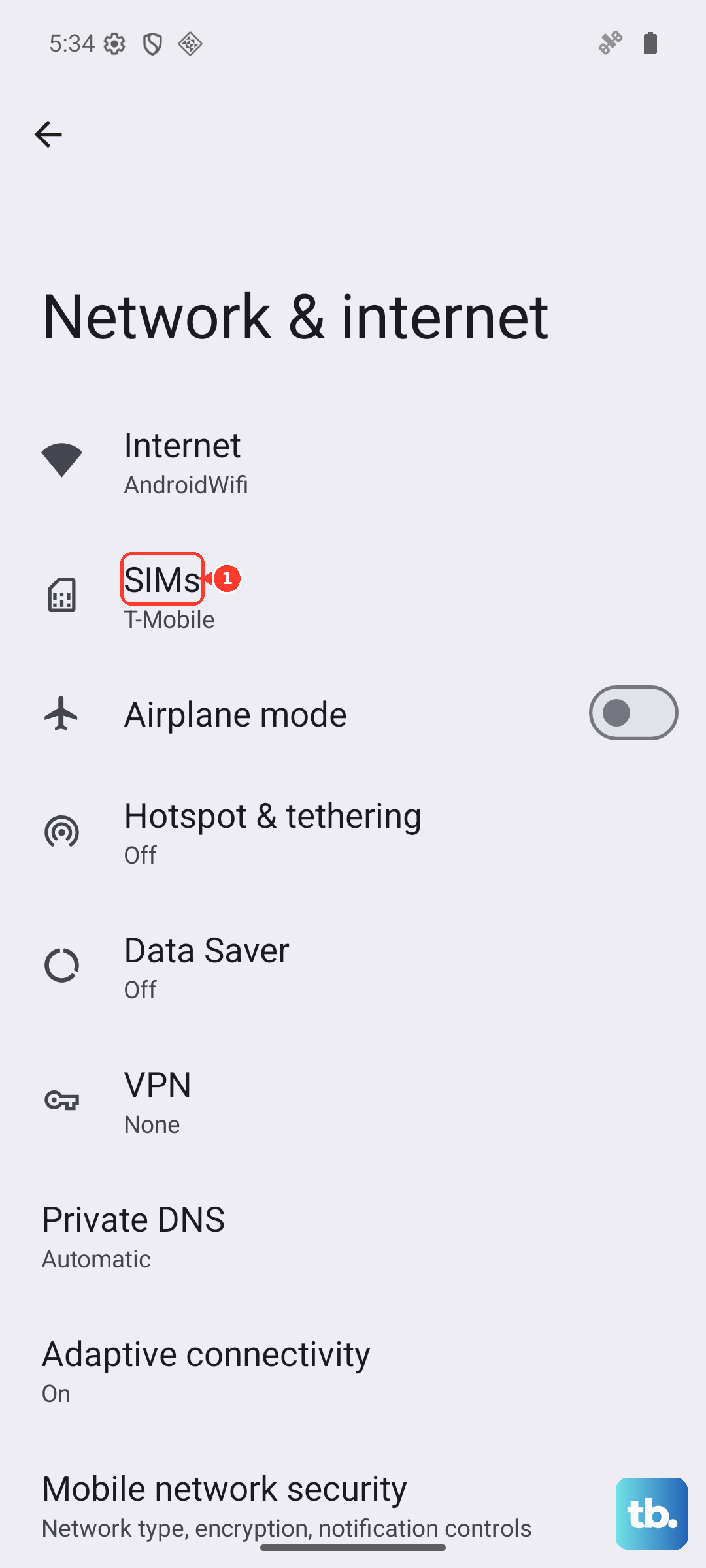
If you see a SIM or eSIM error, or if the line will not activate, contact your carrier to reprovision the eSIM or issue the right replacement SIM/eSIM for your account. If you are using a non-US Pixel 10 model with a physical nano SIM, power the phone off before reseating the card.
Reset Your Mobile Network Settings
If you're dealing with persistent calling or mobile-network glitches, reset the mobile network settings first. Go to Settings > System > Reset options > Reset mobile network settings and follow the prompts.
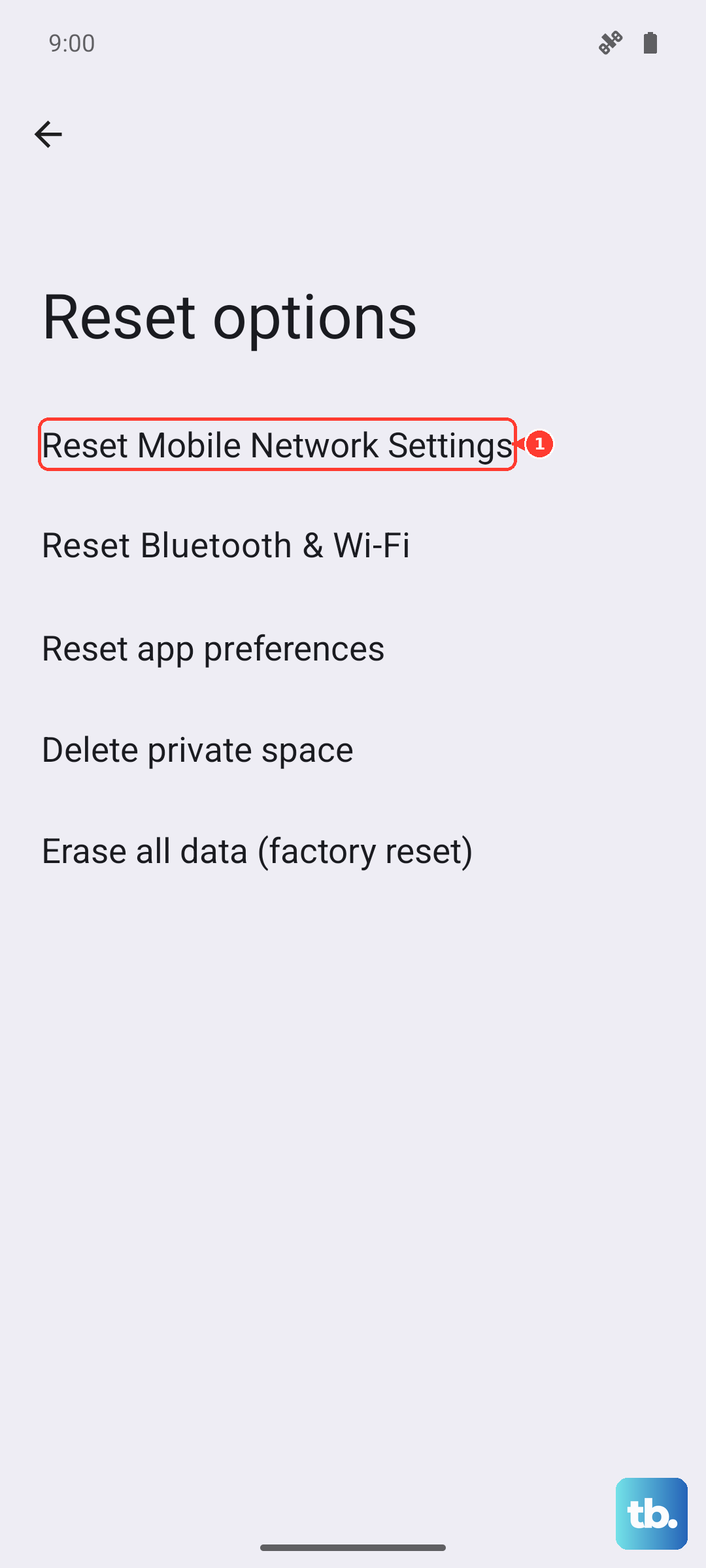
Do not use Reset Bluetooth & Wi-Fi as the mobile-call reset; Google lists that as the separate Wi-Fi and Bluetooth reset, and it deletes saved Wi-Fi connections. After the mobile reset, test incoming calls again and follow any carrier-specific activation steps your carrier gives you.
Update Your Pixel's Software
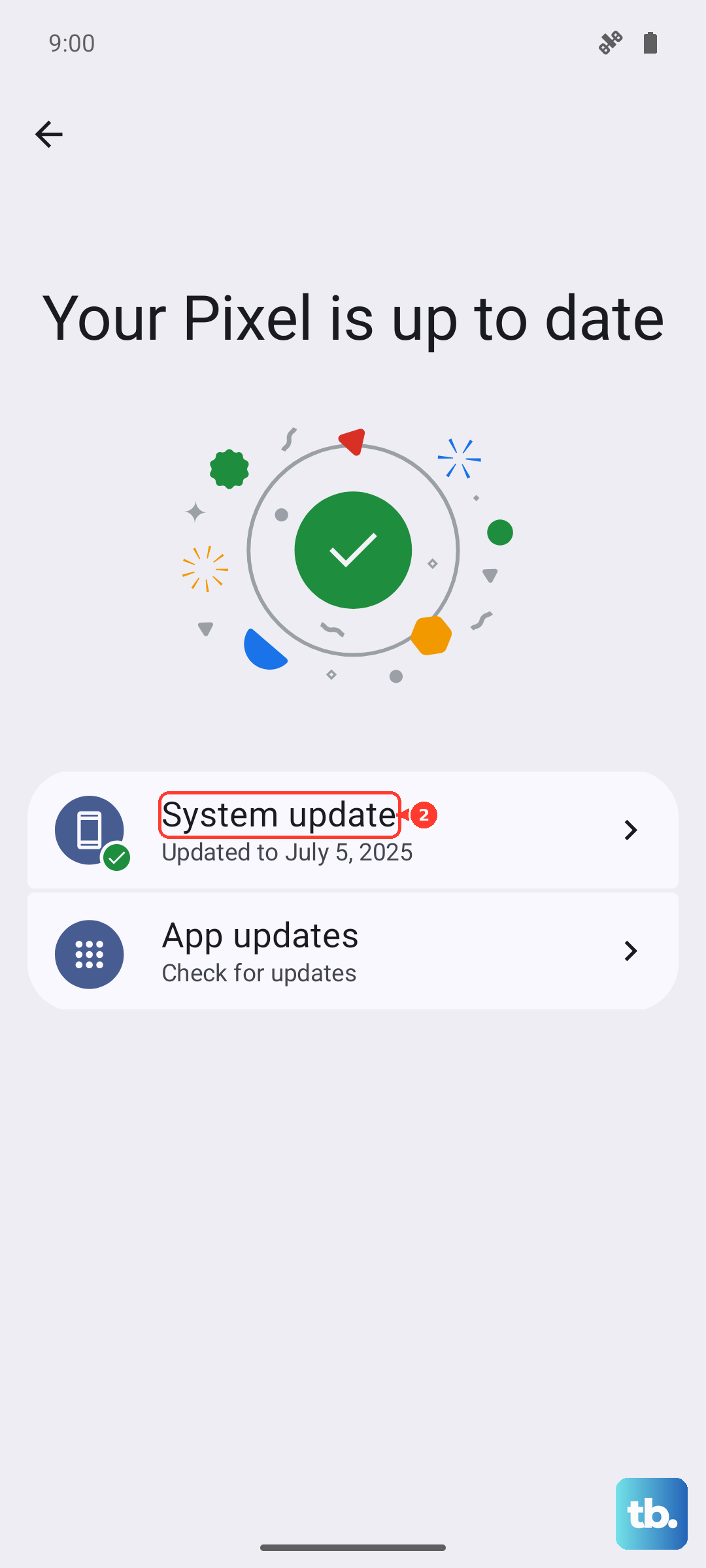
Google is constantly pushing updates that fix bugs, including ones related to calling and connectivity. Make sure your Pixel 10 is running the latest available version of Android.
Go to Settings > System > System update. Tap 'Check for update'. If one is available, download and install it. It's best to do this while connected to Wi-Fi and with your phone plugged into that official 30W USB-C charger.
Clear the Phone App's Cache and Data
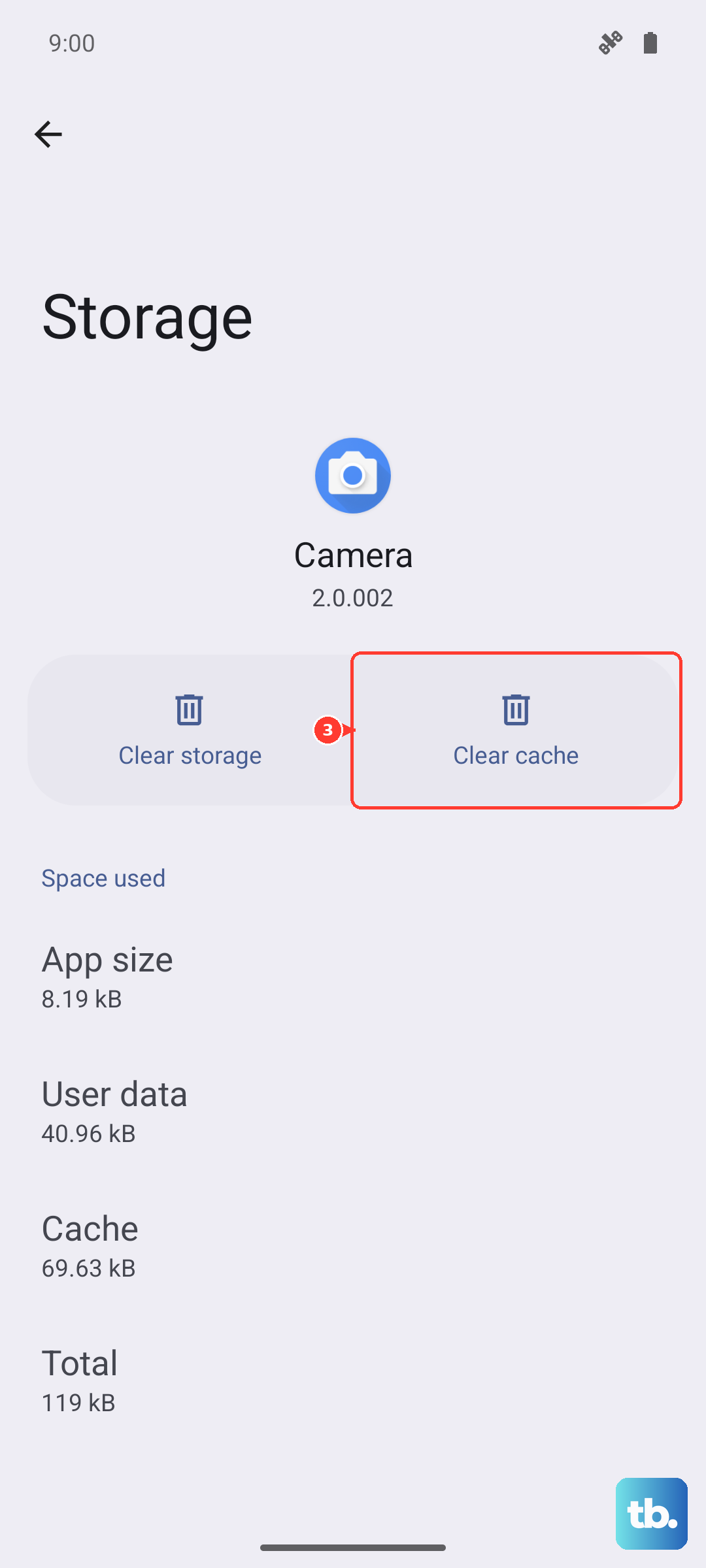
The Phone app itself can accumulate corrupted temporary data. Clearing this cache won't delete your call history or contacts. Go to Settings > Apps > See all apps and find 'Phone' in the list.
Tap it, then go to Storage & cache. Tap Clear cache first. Treat Clear storage, Clear data, or Clear all data as a last resort, because Google warns that clearing an app's data erases data saved in that app. If you use it, reopen Phone afterward and review permissions, notifications, voicemail, spam, and call-screening settings.
Boot Into Safe Mode
This step helps you figure out if a third-party app you installed is causing the conflict. Safe Mode temporarily disables all downloaded apps. To start it, press and hold the Power button and Volume Up button together until the power menu appears.
Then, press and hold the Power off or Restart option on your screen. A prompt will appear asking if you want to reboot to Safe Mode; tap OK. Once booted, you'll see Safe mode in the bottom corner. Pixel Help says Airplane mode turns on automatically in Safe Mode, so turn Airplane mode off before placing a test call. If calls work in Safe Mode, a recently installed app is likely the culprit, and you can start uninstalling them one by one to find the offender.
Contact Your Carrier
Sometimes the issue is entirely on your carrier's end. They can check for network outages in your area, reprovision your line on their network, or verify there are no account holds. It's worth giving them a call from another phone or using their online support chat.
They can also walk you through updating your carrier settings, which is different from a system update and can be crucial for call functionality. If all else fails, they might recommend getting a replacement SIM card, which is often free and can solve mysterious calling problems.