
When your Google Pixel 10's microphone stops picking up your voice, it can turn simple tasks into frustrating ones. You might find people on calls can't hear you, your voice recordings are silent, or Google Assistant just stares back blankly. Let's start by figuring out exactly which microphone is acting up.
To separate a hardware fault from a settings problem, try a mic test in your browser. Record a few seconds and play it back, and you will know exactly what you are dealing with.
Test Your Pixel 10's Microphones
Your Pixel 10 has several microphones. The main one is usually at the bottom near the USB-C port, with others near the top speaker and camera. A quick test in the Voice Recorder app is the easiest way to check. Open the app, tap the red record button, and speak for a few seconds.
Play it back. If you hear nothing or your voice is muffled, you've confirmed the issue. You can also try asking Google Assistant a question by saying "Hey Google" or holding the power button. If it doesn't respond correctly, it's another sign.
Remove Your Phone Case
This is the simplest fix and often the most effective. Some cases, especially rugged or poorly designed ones, can partially cover the microphone holes. Take the case off completely and test your voice in a quick call or recording.
While the case is off, take a close look at the microphone openings along the bottom edge and top of the phone. If you see any lint or pocket debris packed in there, gently brush it away with a soft, dry toothbrush or a blast of compressed air.
Disconnect Bluetooth Accessories
If you have Pixel Buds, headphones, or a smartwatch connected, your phone might be trying to use their microphone instead of its own. Swipe down from the top of your screen twice to open the Quick Settings panel and tap the Bluetooth icon to turn it off temporarily.
Now try your microphone again. If it works, you know the issue was with the audio routing. You can go into Settings > Connected devices and forget the specific device if it keeps causing problems.
Check App Permissions
In Android 15, apps need explicit permission to use your microphone. If an app like WhatsApp, Zoom, or your camera suddenly can't hear you, its permission might have been revoked. Open Settings > Privacy & security > Permission manager.
Tap on Microphone. You'll see a list of all your apps. Find the app giving you trouble and make sure it's set to "Allow only while using the app" or "Allow all the time" for calling apps. I've seen this fix microphone issues more often than you'd think.
Force Close and Reopen the Problem App
Sometimes a single app just gets stuck. If your microphone fails in one app but works everywhere else, force closing it can clear its temporary cache and reset its connection to the hardware. Swipe up from the bottom and hold to enter the app overview screen.
Find the app's window and swipe it all the way up to close it. Wait a few seconds, then tap the app icon to launch it fresh. This takes about 10 seconds and often resolves glitches without touching any settings.
Restart Your Pixel 10
A standard reboot clears out minor software bugs that can affect hardware functions. Just press and hold the Power button and Volume Up button together until the power menu appears, then tap "Restart." Give the phone a full minute to boot back up before testing the microphone again.
If your phone is completely frozen and won't respond to the power menu, you'll need a force restart. Press and hold the Power button and Volume Up button together for about 10 seconds until you see the Google logo, then release.
Check for Android Updates
Google frequently releases updates that fix bugs, including audio and microphone problems. Connect to Wi-Fi and go to Settings > System > System update. Tap "Check for update."
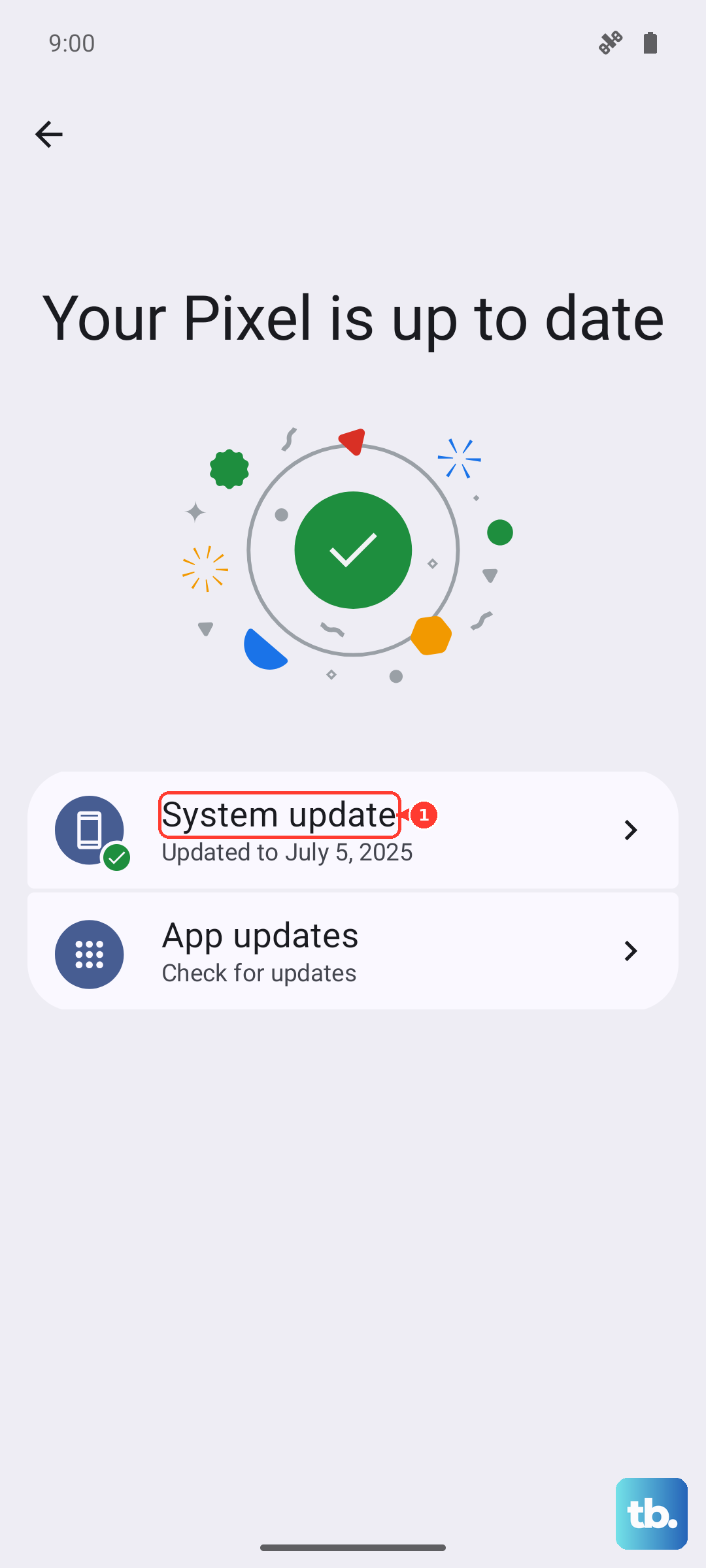
If an update is available, install it. Your phone will restart. It's a good idea to plug it into a charger using the official 30W USB-C brick during this process, just to be safe.
Clear the Cache of Affected Apps
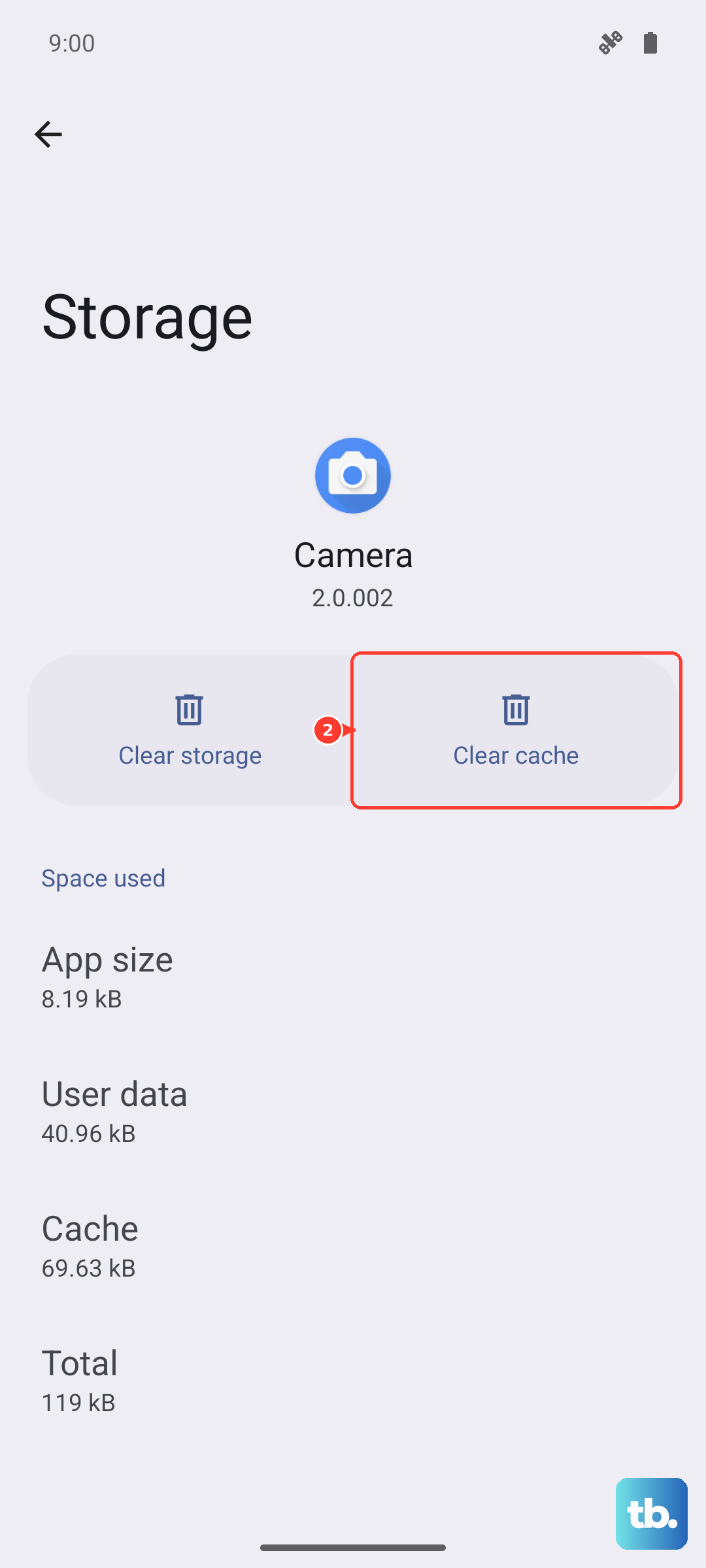
Corrupted app cache data can sometimes interfere with hardware access. This won't delete your personal data in the app. Go to Settings > Apps and select the app having microphone issues, like your Phone or Camera app.
Tap Storage & cache and then Clear cache. Do not tap "Clear storage" or "Clear data," as that will reset the app completely. After clearing the cache, restart the app and test the microphone.
Reset App Preferences
This is a broader fix than clearing a single app's cache. It resets all your app permissions, notifications, and default app assignments without deleting any app data. Go to Settings > System > Reset options.
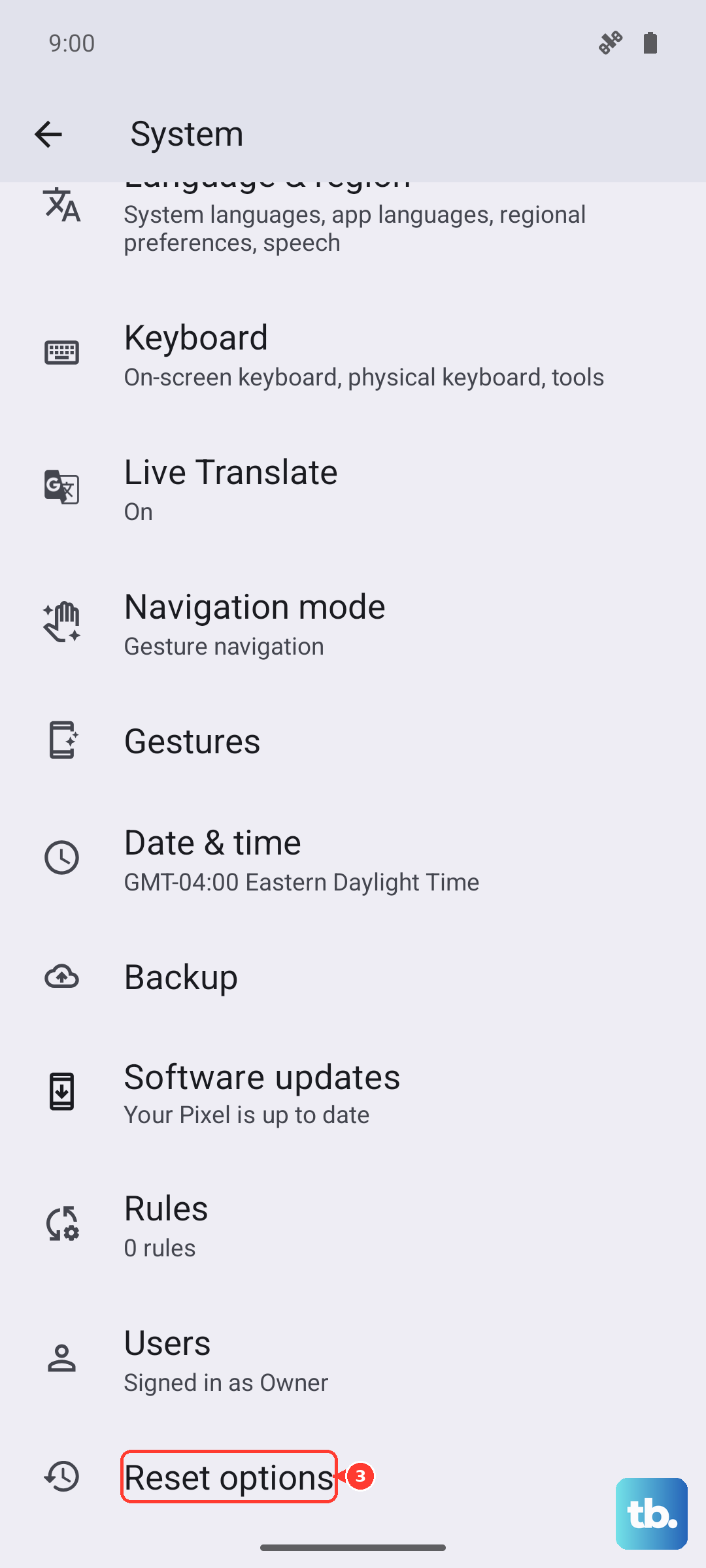
Tap Reset app preferences and confirm. Afterward, you'll need to re-grant microphone permission to apps when you use them for the first time. This can clean up any system-wide conflicts causing the mic to fail.
Perform a Factory Reset
If you've tried everything else and the microphone is still dead, a factory reset is the last software step. This will erase all data on your phone, so you must back up everything important first. Use Google One backup or manually transfer files to a computer.
Once backed up, go to Settings > System > Reset options > Erase all data (factory reset). Follow the prompts. After the reset, set up the phone as new without restoring a backup immediately, just to test if the microphone works on a clean system.