
When your Google Pixel 10's email stops syncing or sending, it can leave you feeling disconnected. Whether you use Gmail, Outlook, or another email app, these problems usually have a simple cause and an even simpler fix.
Before we get into the specific steps, let's cover the absolute basics. Make sure your Pixel 10 is connected to the internet, either via Wi-Fi or mobile data. It's also worth quickly checking your email provider's status page online to rule out a widespread service outage. Finally, a quick reboot of your phone can clear out temporary glitches, just press and hold the Power and Volume Up buttons for about 10 seconds until the Google logo appears.
Check Your Sync and Data Settings
Android manages how apps sync data in the background. If sync is turned off for your email account, new messages won't arrive automatically. Open the Settings app and go to Accounts. Select your email account and make sure the toggle for "Sync Mail" or "Sync Email" is switched on.
For mobile data, ensure your email app has permission to use it. Go to Settings > Network & internet > Data usage > Mobile data usage. Find your email app in the list and confirm it's allowed to use data in the background.
Toggle Airplane Mode to Refresh Connections
This is a classic trick that forces your phone's radios to reconnect. Swipe down twice from the top of your screen to open the Quick Settings panel. Tap the Airplane Mode icon to turn it on, wait about 15 seconds, and then tap it again to turn it off.
Your Pixel will reconnect to Wi-Fi and cellular networks. This often resolves temporary hiccups that can block email traffic without you needing to restart the whole device.
Force Stop and Clear the Email App's Cache
If the app itself is acting up, force stopping it can help. Go to Settings > Apps, then find and select your email app (like Gmail or Outlook). Tap Force stop, then confirm. Open the app again to see if it works.
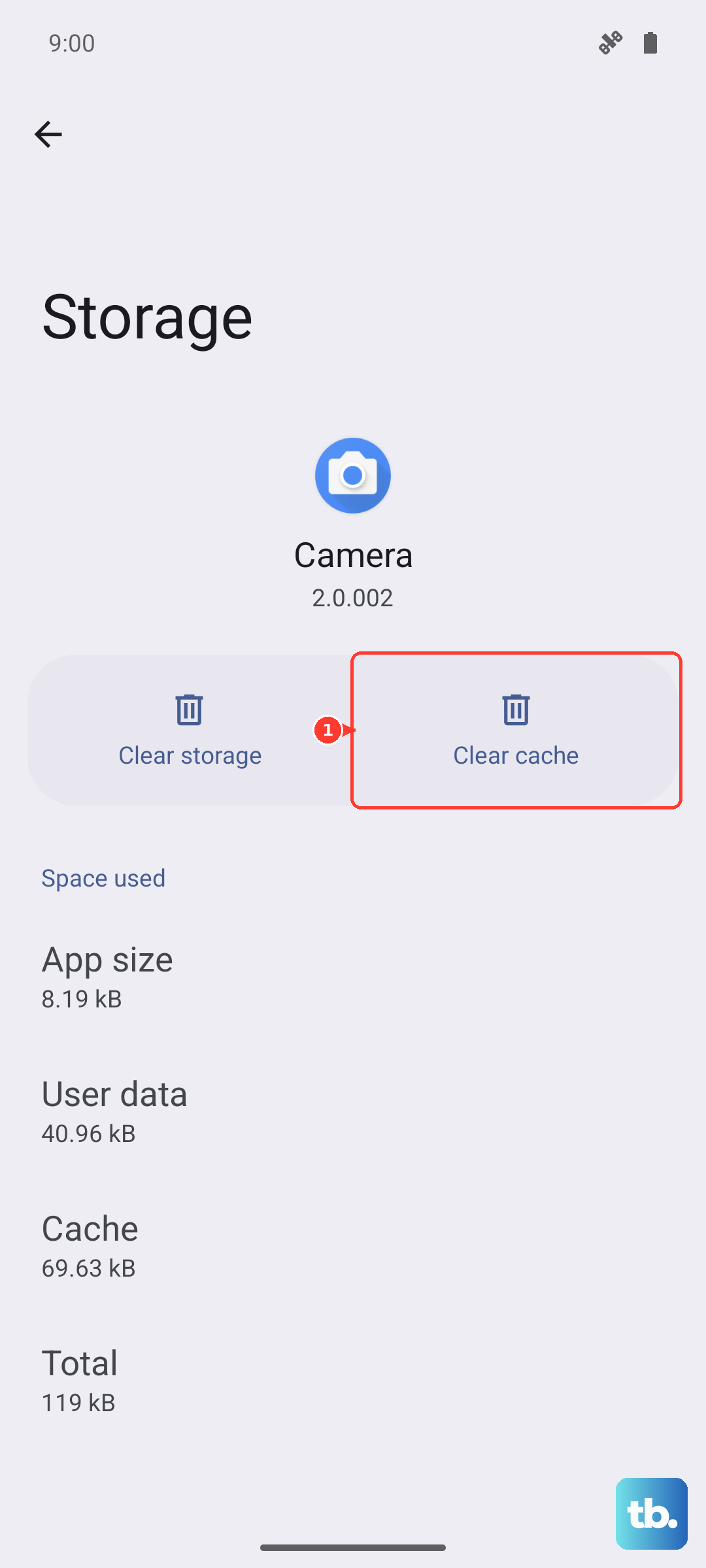
If the problem persists, try clearing the app's cache. In the same app info screen, go to Storage & cache and tap Clear cache. This deletes temporary files without touching your login or emails.
Verify Your Account Password and Security
Sometimes the issue is as simple as an expired password. Try logging into your email account through a web browser on a computer. If you can't sign in there, you'll need to reset your password through your email provider's website.
After resetting it, you must update the password on your Pixel 10. Go to Settings > Accounts, select the email account, and look for an option to update your sign-in info. Also, check if your provider has recently enabled stricter security, like two-factor authentication, which might require a new app-specific password.
Adjust Background Data Restrictions
Android's battery optimization can sometimes be too aggressive, preventing apps from checking for new mail. To check this, go to Settings > Apps, select your email app, then tap Battery. Set the battery usage to "Unrestricted."
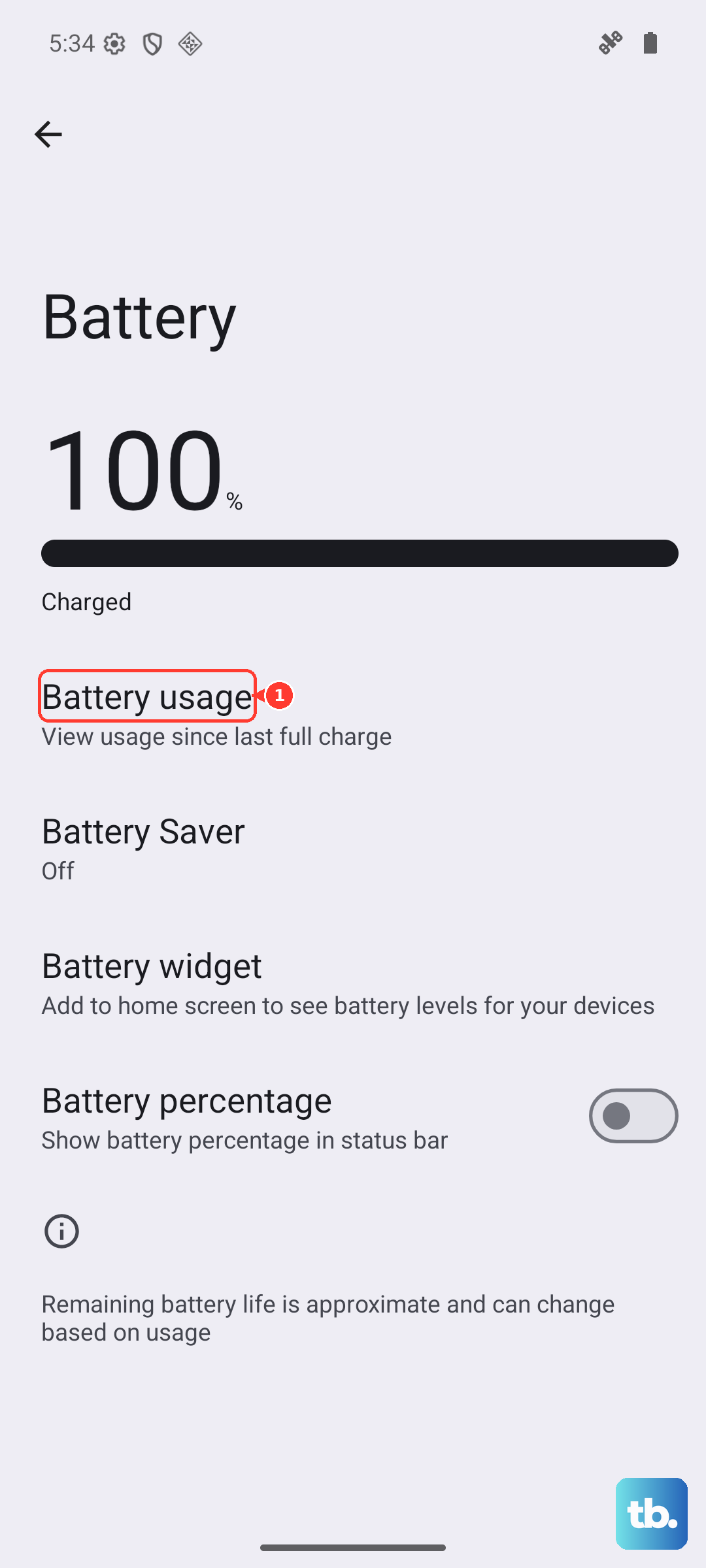
You should also check the general Adaptive Battery settings. Go to Settings > Battery > Adaptive preferences and see if any features there might be limiting background activity for your email app.
Check Your Date, Time, and Time Zone
Incorrect time settings can cause all sorts of sync problems, including with email. Your Pixel 10 should handle this automatically, but it's worth verifying. Go to Settings > System > Date & time.
Make sure the "Use network-provided time" and "Use network-provided time zone" options are both enabled. If they're already on, try turning them off and back on again to refresh the connection.
Review Your Notification Settings
If emails are arriving but you're not getting alerts, the issue is with notifications, not the email service itself. Long-press on your email app's icon and tap App info, then go to Notifications.
Ensure notifications are turned on for the app. Then, tap on "Mail" or "All emails" to drill into the specific notification channels. Make sure they are enabled and set to alert you properly with sound or vibration.
Disable Any Active VPN or Proxy
VPNs are great for privacy, but they can sometimes interfere with the specific ports and protocols email apps use. Open the Settings app and go to Network & internet. If you see a VPN listed, tap on it and select Disconnect.
Try accessing your email with the VPN off. If that fixes it, you may need to adjust your VPN's settings or use a split-tunneling feature to exclude your email app from the VPN connection.
Update Your Email App and Android
An outdated app can have bugs that break functionality. Open the Google Play Store, tap your profile picture, and go to Manage apps & device. Look for updates available for your email app and install them.
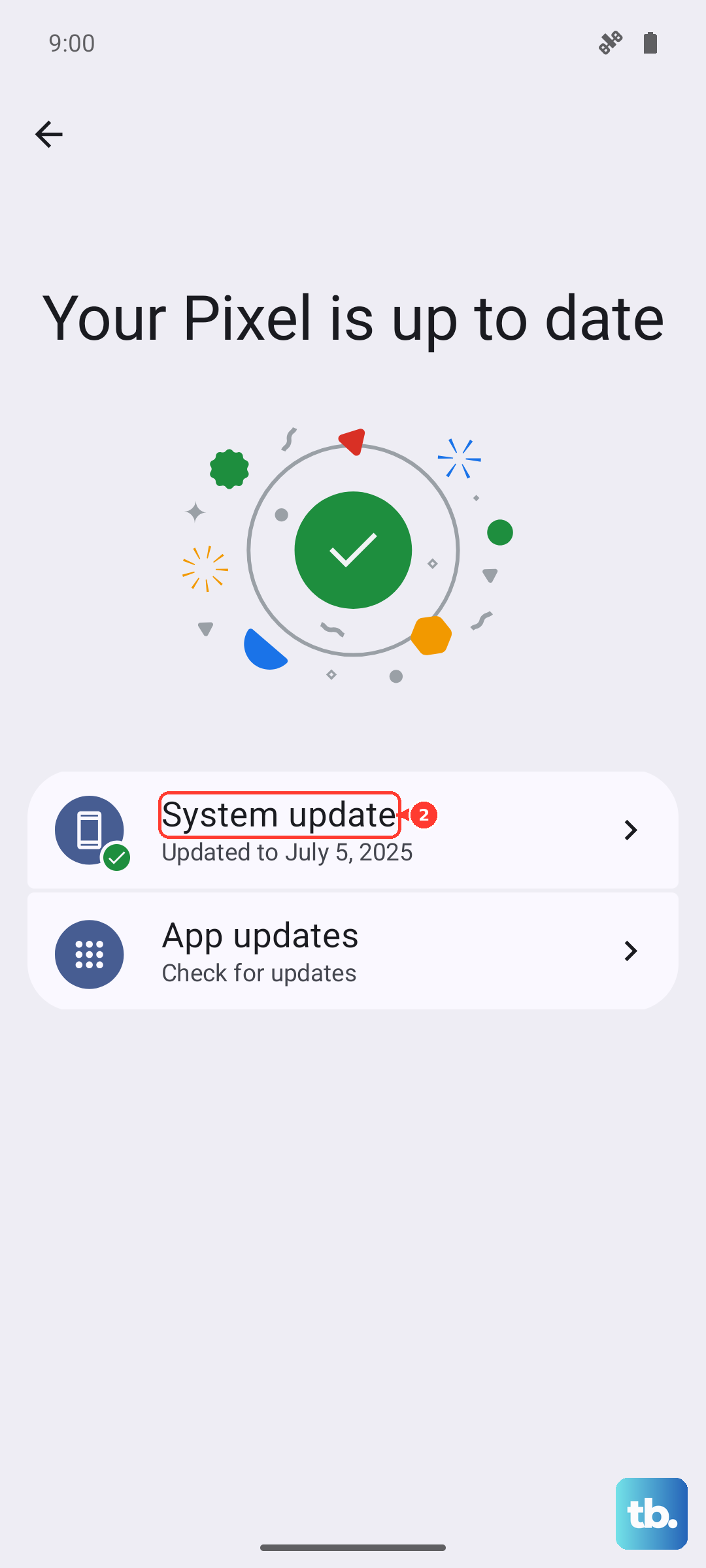
Similarly, a system update from Google can contain crucial fixes. Check for this by going to Settings > System > System update. If an update is available, I'd recommend installing it while your phone is charging and connected to Wi-Fi.
Remove and Re-add Your Email Account
This is the nuclear option for the account itself, but it often works for stubborn sync issues. It essentially gives you a fresh start. Go to Settings > Accounts and select the problematic email account.
Tap Remove account and confirm. Don't worry, this doesn't delete any emails from the server. Once it's removed, go back to Settings > Accounts > Add account and set it up again from scratch. You'll need to enter your email address and password.
Try a Different Email App Temporarily
This is a great diagnostic step. If your emails work perfectly in another app, then the problem is isolated to your primary email app. You can download a different client like Outlook or Edison Mail from the Play Store and add your account.
If your emails still don't work in any app, the issue is almost certainly with your account settings, your network, or your phone's system configuration. This helps narrow down where to focus your troubleshooting.
Check for Problematic Third-Party Apps
In rare cases, another app on your phone can cause conflicts. Think about any apps you recently installed that manage connectivity, security, or battery life. Try booting your Pixel 10 into Safe Mode to disable all third-party apps temporarily.
To enter Safe Mode, press and hold the Power button and Volume Up button together until the power menu appears. Then, long-press the "Power off" option on your screen until you see a prompt to reboot to Safe Mode. Test your email in this mode. If it works, a recently installed app is likely the culprit.
Reset Your Network Settings
This will erase all your saved Wi-Fi networks, Bluetooth pairings, and mobile data settings, but it can fix deep-seated connection problems. Go to Settings > System > Reset options.
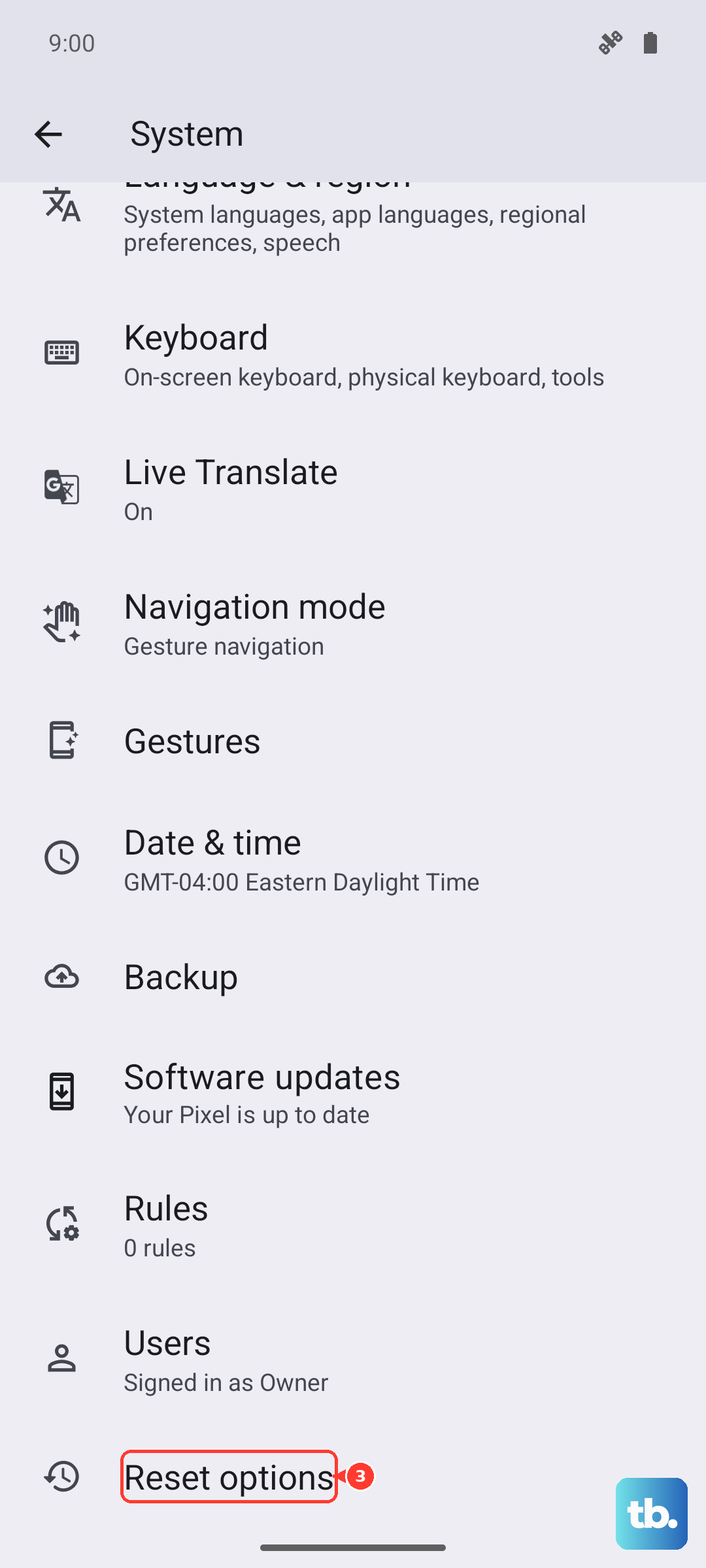
Tap Reset Wi-Fi, mobile & Bluetooth and confirm. After your phone restarts, you'll need to reconnect to your Wi-Fi and re-pair Bluetooth devices, but this often clears up persistent network-related email issues.