You tap the Power button on your Google Pixel 10 and nothing happens. The screen stays completely dark, even though the phone may have been working fine an hour ago. A black screen on a Pixel 10 is alarming, but it usually points to a drained battery, a frozen system, a misbehaving app, or a software glitch rather than a dead phone. The fixes below move from the safest and easiest to the most thorough, so start at the top and stop as soon as your screen comes back to life.
Your Pixel 10 runs Android 16 and is a standard Android phone with a physical Power button, Volume buttons, a built-in battery, USB-C and Qi wireless charging, and an OLED display. That means every step here, from a force restart to a factory reset, is supported on this exact model. Work through them in order.
Give the battery 10 minutes and try the Power button
A deeply drained battery can leave the screen black even when the phone is perfectly fine. Before assuming the worst, get some charge into it and try again. Remove any case first, since a case can block the charging port or interfere with a wireless charger.
- 1.Plug the phone in with a known-good cable, charger, and wall outlet. Google recommends a 30 W USB-C PPS adapter, or a USB power delivery (PD) adapter rated for 15 W or more.
- 2.Wait one minute for a charging or battery icon to appear on the screen.
- 3.If the battery was very low, leave it charging for at least another 10 minutes before continuing.
- 4.Press and hold the Power button for 5 to 7 seconds to try to turn it on.
If a battery icon shows up but the phone still will not start, that is a good sign. The battery is charging and you can move to the restart steps below with more confidence.
Rule out a screen that is simply too dim
A very low brightness setting can make a fully working screen look black, which sends people chasing a hardware problem that does not exist. Take a moment to confirm the phone is actually off rather than just dark.
Move into a dark room and look closely at the screen for any faint imagery or a slight glow.
You can also make the phone ring from another phone, or use the Find Hub app from a second device to ring it.
If the Pixel 10 rings but the screen stays blank, the issue is likely the display itself rather than the phone being off, which helps you focus the remaining steps.
Force restart a frozen Pixel 10
If the phone is frozen on a black screen and will not respond to anything, a forced reboot clears the stuck state without erasing any of your data. This is one of the most effective fixes for an unresponsive screen.
Press and hold the Power button for about 35 seconds.
Wait about 2 minutes.
Google's general power guidance also describes an alternative.
Press and hold the Power button for up to 60 seconds, and once the phone begins to reboot and the screen displays the "G" logo, release the Power button.
Either approach forces a clean restart, so try the first method and fall back to the second if needed.
Hold Volume Up and Power together for a screen that won't turn on
When the phone seems to have power but the display refuses to come on, there is a dedicated sequence for waking the screen. Keep the phone plugged in while you do this.
Plug the phone in to a working charger.
Press and hold both the Volume Up button and the Power button at the same time for at least 20 seconds.
If the display comes back, restart the phone normally to return it to its usual state.
If it still will not respond, leave the phone charging for a while longer and try this step again, since a fully discharged battery can prevent the screen from coming on.
Boot into Safe mode to expose a bad app
If the Pixel 10 starts up but the screen goes black on and off, a downloaded app may be the culprit. Safe mode loads Android without any apps you installed yourself, so you can quickly tell whether software you added is responsible.
Press and hold the Power and Volume Up buttons for a few seconds.
Tap and hold either the Power off or Restart button.
Tap OK to enter Safe mode. You will see "Safe mode" at the bottom of the screen.
If the black-screen problem stops while you are in Safe mode, a downloaded app is almost certainly to blame.
Uninstall recently added apps one at a time, restarting after each removal, until the problem is gone.
When you are finished, exit Safe mode by pressing and holding the Power button plus the Volume Up button for a few seconds and selecting Restart.
Install the latest software update
Display glitches and stability bugs are often fixed in software updates, so it is worth confirming your Pixel 10 is fully up to date. Connect to Wi-Fi and charge the phone to at least 75% before you begin.
Open Settings.
Tap System.
Tap Software update (your Pixel may show "System update").
Follow the on-screen instructions to download and install any available update.
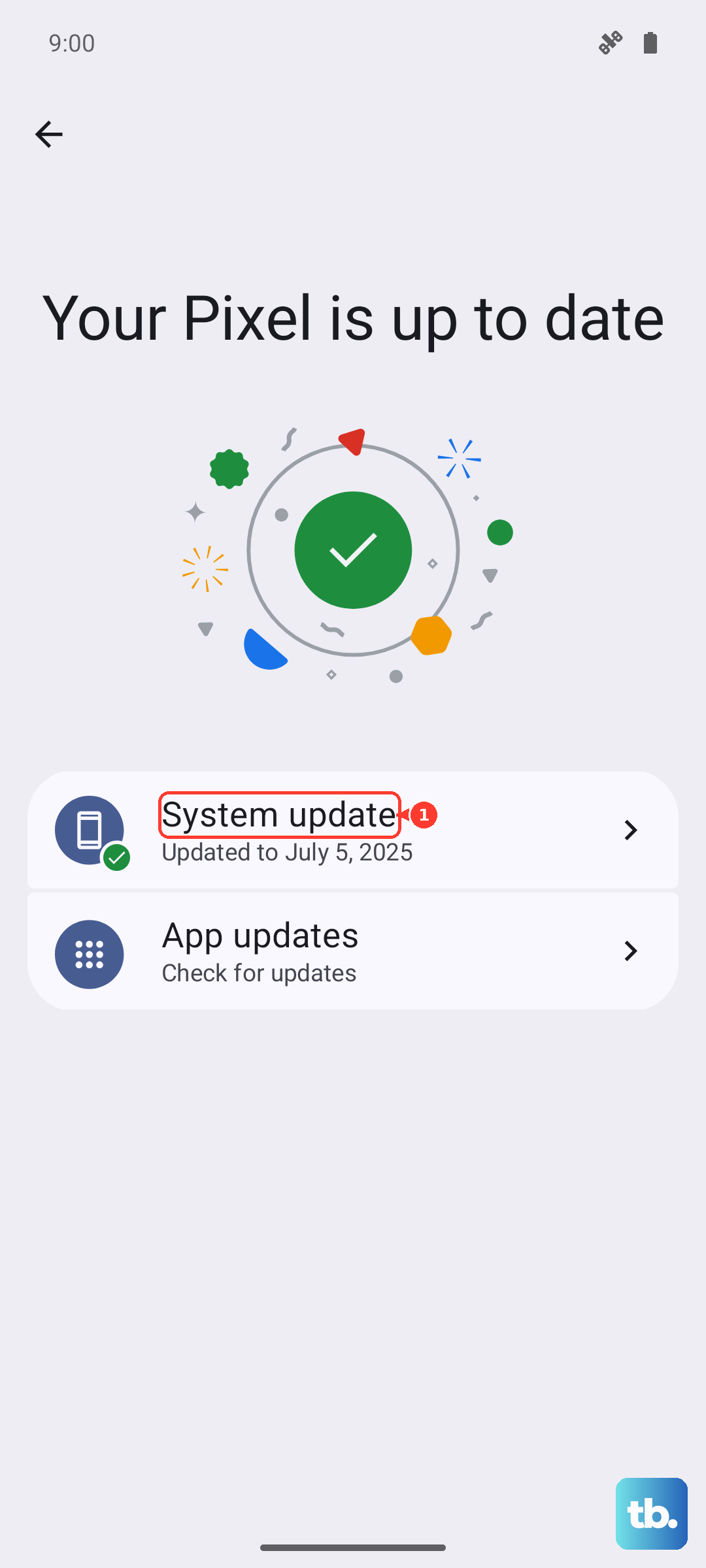
Keeping the Pixel 10 current means it keeps receiving the fixes that can resolve a recurring black screen.
You can confirm which release you are on under Settings > About phone > Android version.
Address flickering, lines, or a color tint
Sometimes the screen is not truly black but instead flickers, shows lines, or carries a color tint. These display oddities are often software related, and an update can clear them.
Open Settings.
Tap System.
Tap Software update and install any available updates.
If the flickering or tinting persists after updating, the cause may be physical.
A cracked screen or dead pixels cannot be fixed in software and require professional repair, so contact support or seek repair rather than continuing to troubleshoot at home.
Free up storage and rein in a problem app
Low storage or a single misbehaving app can cause freezes that show up as a black screen. Clearing space and updating or stopping the offending app often restores normal behavior.
First, check your free space in Settings under the storage section and remove files or apps you no longer need if space is running low.
Next, open the Google Play Store, tap your profile icon, and update your installed apps so a known bug in an outdated app does not keep causing trouble.
If a specific app keeps misbehaving, you can stop it from the Settings app under your list of apps.
Open the app's details and use Force stop to shut it down without uninstalling it, which is useful for confirming whether that app is behind the black screen.
Factory reset as a last resort, then get help
When nothing above works, a factory data reset can clear a stubborn software fault. This is a destructive step, so treat it as a last resort and make sure you understand what it does before you start. Charge the phone to at least 70% and connect to Wi-Fi or mobile data first.
Warning: a factory reset erases all your data from the phone. Apps and their data are removed, although data you have backed up to your Google Account can be restored afterward.
Open Settings.
Tap System.
Tap Reset options.
Tap Erase all data (factory reset).
Tap Erase all data.
Enter your PIN if asked.
Tap Erase all data again to confirm.
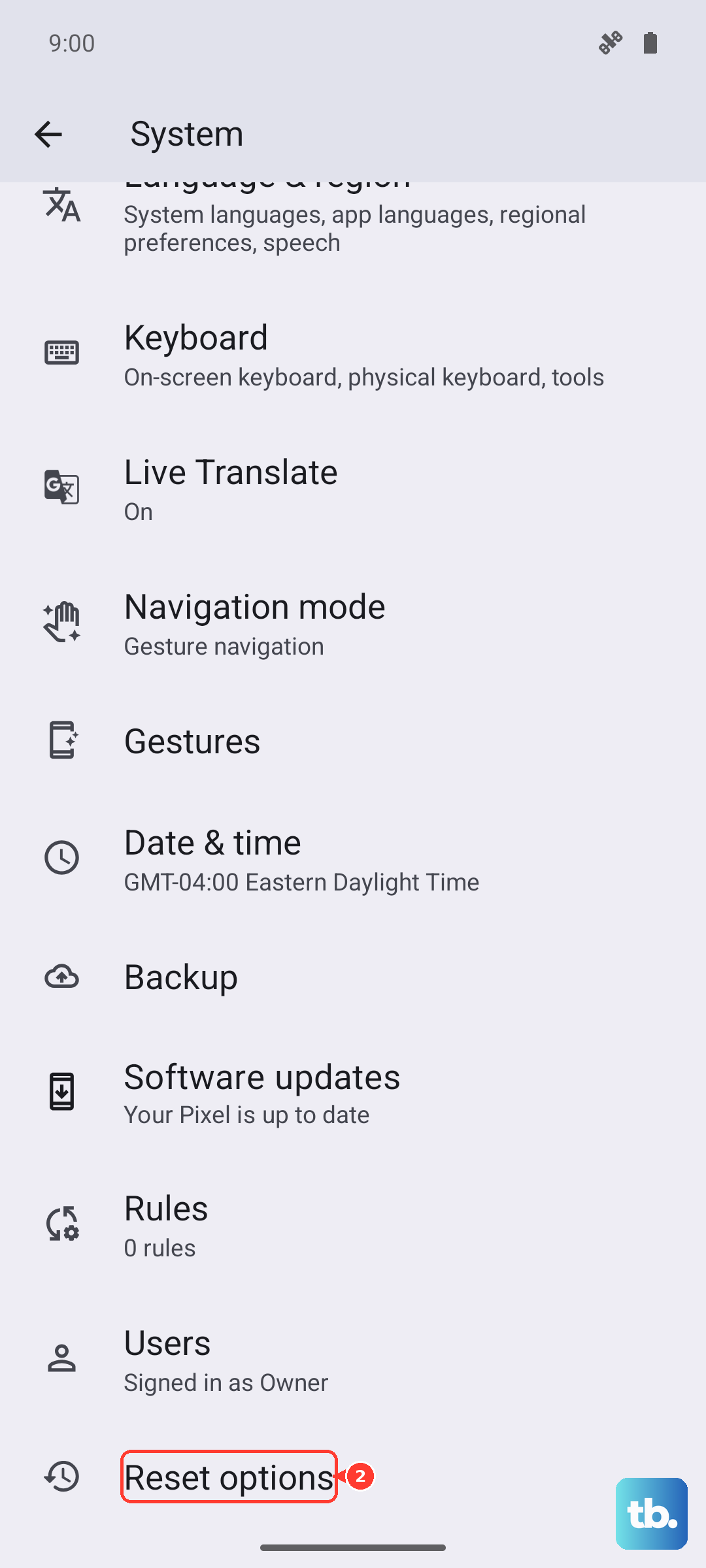
If the screen is still black after the reset, or the phone rings when you call it but shows nothing on the display, the problem is likely hardware.
At that point, contact your local authorized repair center for service.
Frequently Asked Questions
How do I force restart a Google Pixel 10 with a black screen?
Press and hold the Power button for about 35 seconds, then wait about 2 minutes for the phone to reboot. Google's general power guidance also describes holding the Power button for up to 60 seconds until the "G" logo appears, then releasing it. A force restart does not erase any of your data.
My Pixel 10 rings but the screen stays black. What does that mean?
If the phone rings from another phone or the Find Hub app but the display stays blank, the issue is more likely the screen than the phone being off. Try the force restart and the Volume Up plus Power sequence first. If the display still does not come on, contact your local authorized repair center.
Will a factory reset fix a black screen on my Pixel 10?
A factory reset can clear a software fault that is causing the black screen, but it is a last resort because it erases all the data on your phone. Charge to at least 70% and connect to Wi-Fi or mobile first, and remember that data backed up to your Google Account can be restored afterward.
How can I tell if my Pixel 10 screen is just too dim instead of off?
Look at the screen closely in a dark room for any faint imagery or glow, since a very low brightness setting can make a working screen appear black. You can also ring the phone from another device. If it responds but shows nothing, the display is the likely problem rather than the phone being powered off.
What charger does Google recommend for a Pixel 10 that won't turn on?
Google recommends a 30 W USB-C PPS power adapter or another programmable power supply rated for 30 W or more, or a USB power delivery (PD) adapter rated for 15 W or more. Use a known-good cable and wall outlet, remove any case, and wait at least 10 minutes if the battery was very low before trying the Power button again.











