
When your Google Pixel 10 apps keep closing unexpectedly, it pulls you right out of whatever you were doing. It's a common hiccup that usually stems from a software glitch, a storage crunch, or a conflict with a recent update. I'd start with a quick restart, as that often clears up temporary gremlins right away.
Press and hold the Power button and Volume Up button together for about ten seconds. Keep holding until you see the Google logo appear on the screen, then let go. This force restart is a bit different from the standard power-off menu and can resolve deeper system freezes that cause apps to fail.
Update Your Apps and Android System
Outdated software is a prime suspect for crashes. Developers are constantly pushing updates to fix bugs and improve compatibility with new Android versions. Head to the Google Play Store, tap your profile icon in the top right, and go to Manage apps & devices.
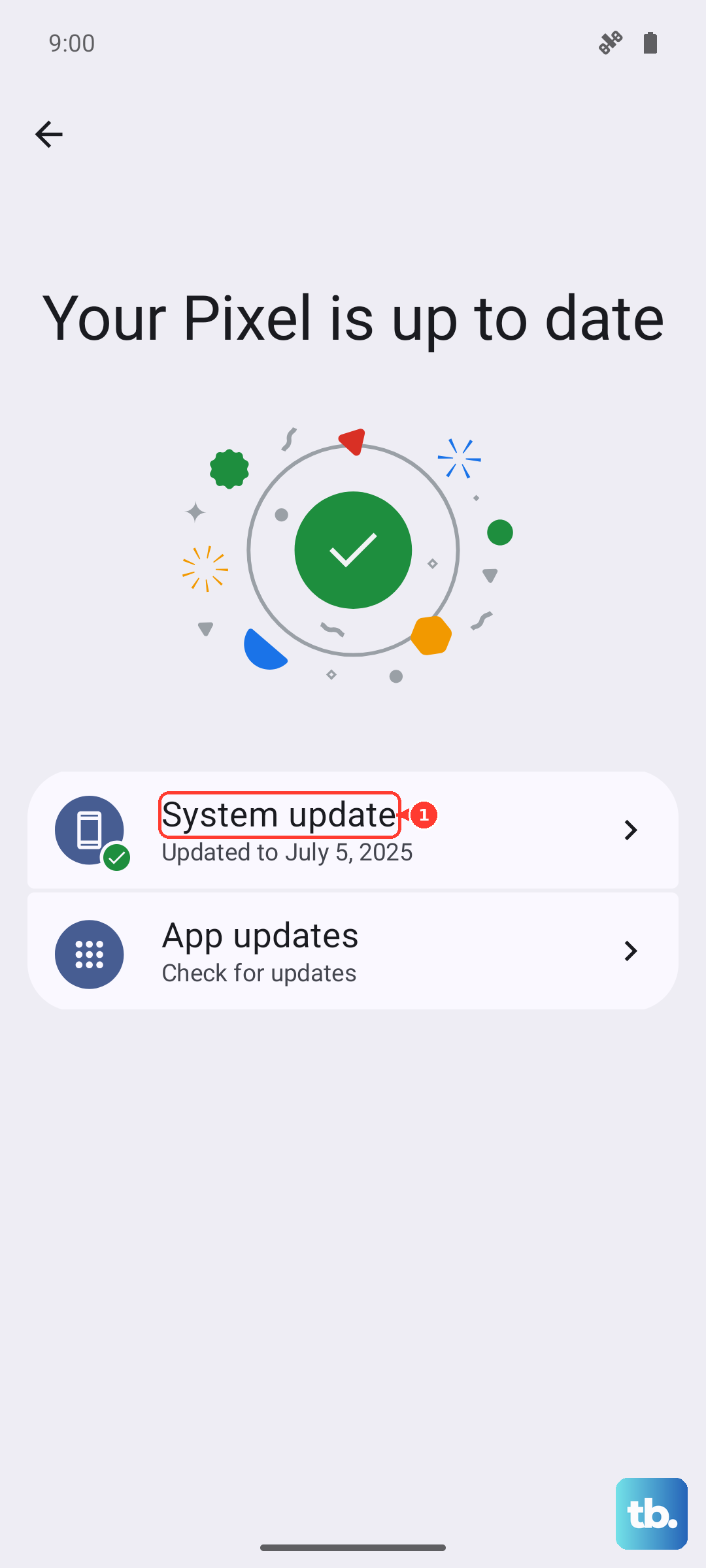
Check under the "Updates available" section and install everything. While you're at it, make sure Android 15 itself is up to date. Go to Settings > System > System update to download and install any available patches from Google.
Force Stop and Clear the App's Cache
If a specific app like Gmail or Chrome is acting up, force stopping it gives it a clean slate. Navigate to Settings > Apps and select the problematic app from the list. Tap Force Stop and then open the app again.
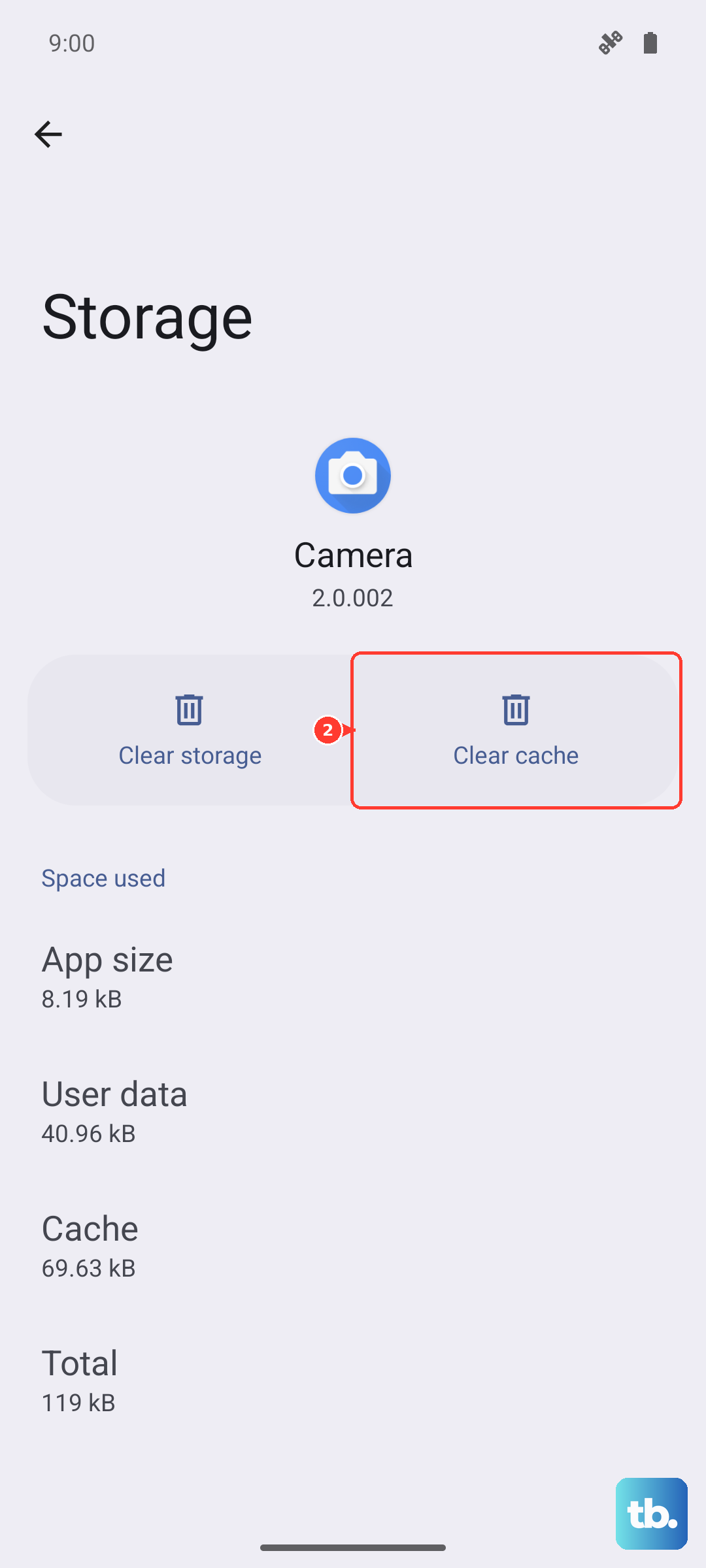
If the crashing continues, the app's cached data might be corrupted. In the same app info screen, tap Storage & cache. Choose Clear cache first. This deletes temporary files without touching your login info or saved data. It's a safe first step that fixes a lot of issues.
Check Your Storage Space
Android needs breathing room to operate smoothly. If your Pixel 10's storage is nearly full, apps can struggle to function and crash. Open Settings > Storage to see how much space you have left.
If you're running low, look for large files or apps you no longer use. The storage tool will often suggest things to clean up, like downloaded files or old app data. Freeing up even a few gigabytes can make a noticeable difference in stability.
Examine Your Internet Connection
Apps that rely on a live data connection, such as social media or streaming services, can crash or freeze if the network is unstable. Try toggling Airplane mode on and off from the Quick Settings panel to reset your cellular and Wi-Fi radios.
You can also try switching between Wi-Fi and mobile data to see if the problem is isolated to one network. A weak or intermittent signal is a common, easy-to-miss cause for app failures.
Reinstall the Problem App
When one app is consistently the troublemaker, a fresh install can work wonders. Uninstalling removes all of its data and settings, which eliminates any deep corruption. Press and hold the app's icon on your home screen and tap Uninstall.
Then, head back to the Google Play Store to download it again. This gives you the cleanest possible version. Remember, you'll need to log back into the app after reinstalling it.
Boot Into Safe Mode
If apps are crashing across the board, a third-party app you installed might be causing conflicts. Booting into Safe Mode temporarily disables all downloaded apps. To start Safe Mode on your Pixel 10, press and hold the Power button and Volume Up button together until the power menu appears.
Then, press and hold the "Power off" option on your screen. You'll get a prompt to reboot to Safe Mode. Tap it. If the crashes stop in Safe Mode, you know a downloaded app is the culprit. You'll need to uninstall recent apps one by one to find the offender.
Reset App Preferences
This is a useful middle-ground step that resets system settings related to apps without deleting any of your personal data. It will revert permissions, default apps, and background data restrictions back to their original state.
Go to Settings > Apps > See all apps. Tap the three-dot menu in the top right and select Reset app preferences. Confirm your choice. You'll need to re-grant permissions when you use apps again, but it can resolve strange conflicts.
Perform a Factory Reset
If you've tried everything else and apps are still unusable, a factory reset is the final step. This will erase all data from your Pixel 10 and return it to its out-of-the-box state. It's crucial to back up your photos, contacts, and important files first using Google One or your preferred method.
Once backed up, go to Settings > System > Reset options. Select Erase all data (factory reset) and follow the prompts. After the reset, you can restore your backup and reinstall your apps, which often clears up persistent software issues.