
The most common Galaxy Buds FE disconnect looks like a quick audio skip on the right bud that comes back on its own, or the buds drop audio entirely for a few seconds before reconnecting. Calls usually survive, but music and podcasts keep cutting out. The buds still show up as connected in your phone's Bluetooth list, so it feels like the problem is something else.
Start by toggling Bluetooth off on your phone, waiting five seconds, and turning it back on. That clears any temporary hang-ups in the phone's Bluetooth stack and takes about ten seconds. If the drops stop, you were looking at a minor software hiccup on the phone side, not the buds.
Pair Through Galaxy Wearable (Especially on Non-Samsung Phones)
Unlike some Samsung earbuds that handle the initial pairing directly through Android's Bluetooth settings, the Galaxy Buds FE need the Galaxy Wearable app (or Galaxy Buds Manager on older Android phones) to set up properly. If you paired them directly through Settings > Connections > Bluetooth without the app, the connection can be unstable from the start. Open Galaxy Wearable, tap your Buds FE, and walk through the guided setup. That installs the firmware and codec profiles the buds need to stay connected.
On iOS, download the Galaxy Buds app from the App Store first. The buds won't pair reliably through standard iOS Bluetooth alone.
Move Away From 2.4 GHz Interference Sources
Bluetooth shares the 2.4 GHz band with WiFi, microwaves, baby monitors, and many smart home devices. If you're sitting near a running microwave or a dense WiFi network, the radio noise can cause the buds to drop audio. Walk outside or into a different room far from electronics. If the connection stabilizes, the problem is environmental. The fix is usually moving your router to a different channel, switching to 5 GHz WiFi for devices that support it, or physically repositioning yourself away from interference sources during calls.
Clear Galaxy Wearable App Cache
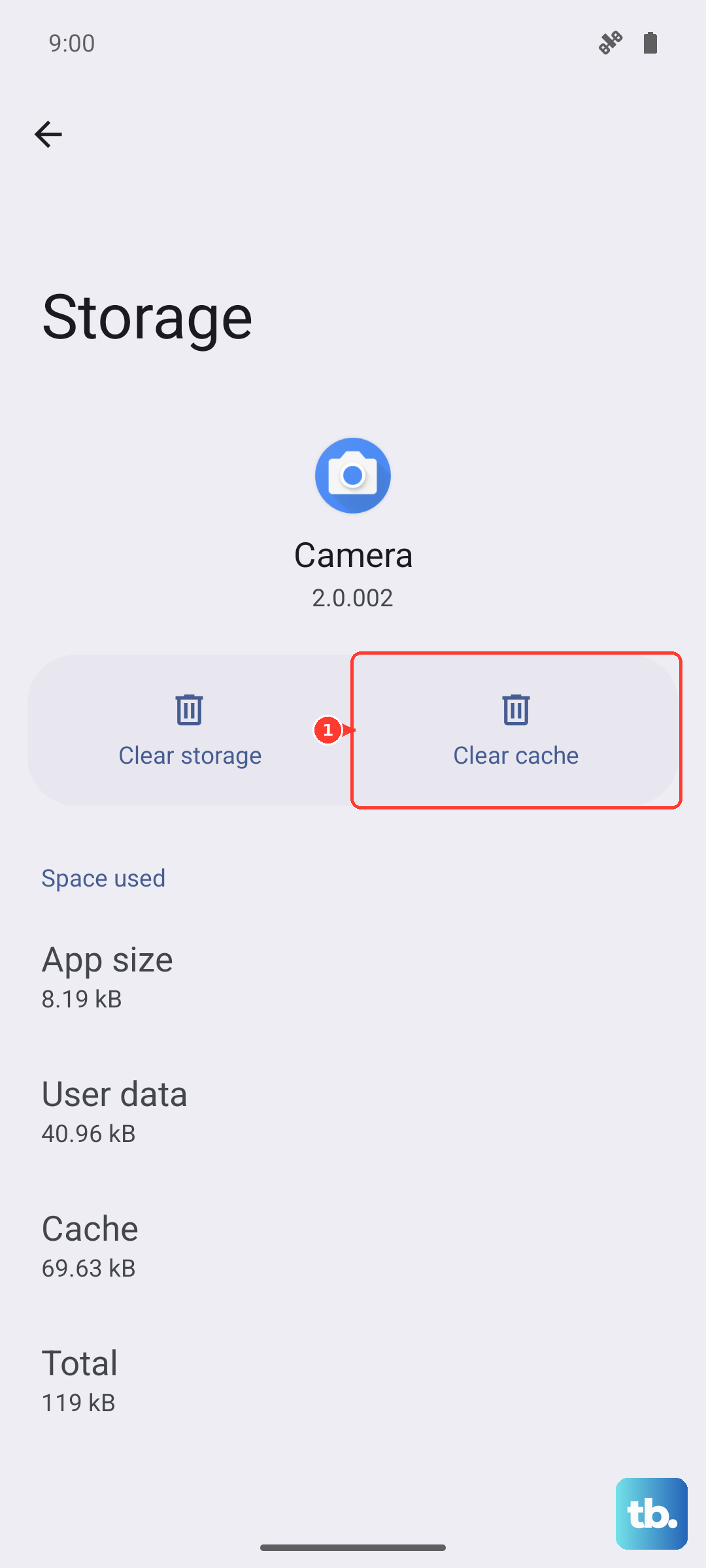
Galaxy Wearable builds up a cache over time that can cause connection management bugs. On Samsung phones, go to Settings > Apps > Galaxy Wearable > Storage > Clear cache. Don't tap Clear data unless you're okay losing your earbud settings, because that wipes all customizations. On non-Samsung Android phones using Galaxy Buds Manager, the path is Settings > Apps > Galaxy Buds Manager > Storage > Clear cache. Same fix, same caveat.
Reset the Buds Through Galaxy Wearable
If cache clearing doesn't help, reset the buds directly from the app. Open Galaxy Wearable, tap your Buds FE, scroll to About earbuds, tap Reset, and confirm. The buds disconnect and then re-pair automatically. This clears any internal pairing state corruption that might cause dropouts. After the reset, put both buds in your ears at the same time so they sync as a stereo pair before connecting to your phone.
Update Firmware in Galaxy Wearable
Samsung has shipped firmware updates specifically targeting Bluetooth stability on the Galaxy Buds FE. Open Galaxy Wearable, tap your buds, scroll to About earbuds, then Earbuds software update. Install whatever is available. Both buds need to be in the case with the lid open, the case needs more than 50% battery, and your phone has to stay close. The update takes about 10 minutes per bud.
Forget the Pairing and Re-Pair From Scratch
A corrupt saved pairing record on your phone can cause dropouts even after resetting the buds. Open Settings > Connections > Bluetooth, find Galaxy Buds FE, tap the gear icon, and choose Unpair. Then put both buds in the case, leave the lid open, and press and hold the Connect button on the bottom of the case (next to the USB-C port) for three seconds until the case LED flashes. That puts the buds in pairing mode. Galaxy Wearable should auto-detect them and run you through fresh setup.
Charge to 100% Before Judging Stability
Low battery on either bud can throttle the Bluetooth radio and produce dropouts that disappear once the cells are full. Drop both buds in the case, charge to 100% using the USB-C port (5W input is standard), then test again. The case itself needs enough charge to top off the buds, so plug it in if the battery indicator shows less than half.
Try a Different Phone or Source Device
If the disconnects only happen with one phone or tablet, the issue likely lives on that device's Bluetooth stack rather than the buds. Pair the Buds FE to a different phone for a quick test. If they stay connected fine, your original device needs its own Bluetooth troubleshooting: clear the phone's Bluetooth cache, update the OS, or reset network settings. That's a phone problem, not a bud problem.
Check for Physical Damage or Obstruction
Cracks in the charging case, damage to the buds' stems, or even dirt and debris can interfere with the internal Bluetooth antennas. A quick visual inspection with the buds out of the case rules out hardware issues before deeper troubleshooting. Also make sure the buds are seated correctly in the case during charging; the charging contacts need a clean connection to keep battery levels stable.
Disconnect Other Bluetooth Devices Temporarily
If your phone is connected to a Galaxy Watch, other wireless earbuds, or a car kit, the Buds FE have to share the Bluetooth controller's tight bandwidth. Go into your phone's Bluetooth settings and unpair or disconnect any devices you aren't actively using. Test the buds alone. If the drops stop, you were overloading the Bluetooth resource, and you can decide which devices to keep connected at the same time.