
Firmware updates on the Galaxy Buds FE are handled exclusively through the Galaxy Wearable app, and they're picky about conditions. Both buds need to be in the charging case with the lid open, the case battery needs to be above 50%, and your phone needs to stay within range for the entire process. Miss any of that, and the update either hangs or fails without a clear error message.
The most common reason for a stuck firmware update is simply a low case battery. The Galaxy Buds FE case only charges over USB-C, no wireless charging here, so make sure it's plugged in. Let it charge for 30 minutes or so, then retry. In my experience, that alone resolves the issue in a lot of cases.
Check That Galaxy Wearable Has the Right Permissions
Without the proper permissions, the Galaxy Wearable app can't push firmware to the buds. Open your phone's Settings > Apps > Galaxy Wearable > Permissions. Make sure Nearby devices (or Location on some Android versions) and Storage are both set to Allow. If they aren't, the update will hang immediately. Grant those permissions, then try again.
Charge the Case to at Least 50% via USB-C
The case acts as a relay for the firmware file, and it needs enough juice to push it to both buds. Plug the case into any standard USB‑C charger (5W input is fine) and wait until the charging LED shows solid green or the Galaxy Wearable app reports the case battery above 50%. While it's charging, keep the lid closed so the buds themselves charge too, each bud needs a decent charge level as well.
On the Galaxy Buds FE, wireless charging isn't an option, so don't bother with a Qi pad. USB‑C only.
Keep Both Buds in the Case With the Lid Open
Firmware updates apply to both buds at the same time. If only one bud is in the case during the update, only that bud gets updated, and the other will be stuck on the old version. Place both buds securely in the case, open the lid, and leave it open until the update finishes. Don't close the lid or remove a bud mid-update.
Stay Close to Your Phone While the Update Runs
The Galaxy Wearable app sends the firmware over Bluetooth to the case, which then relays it to the buds. If your phone goes to sleep or you walk into another room, the connection drops and the update aborts. Set your phone right next to the case, within a few feet, and don't pick it up or move away until the app reports success. Plugging the phone into a charger is a good idea so it doesn't fall asleep during a long update.
Clear the Galaxy Wearable App Cache
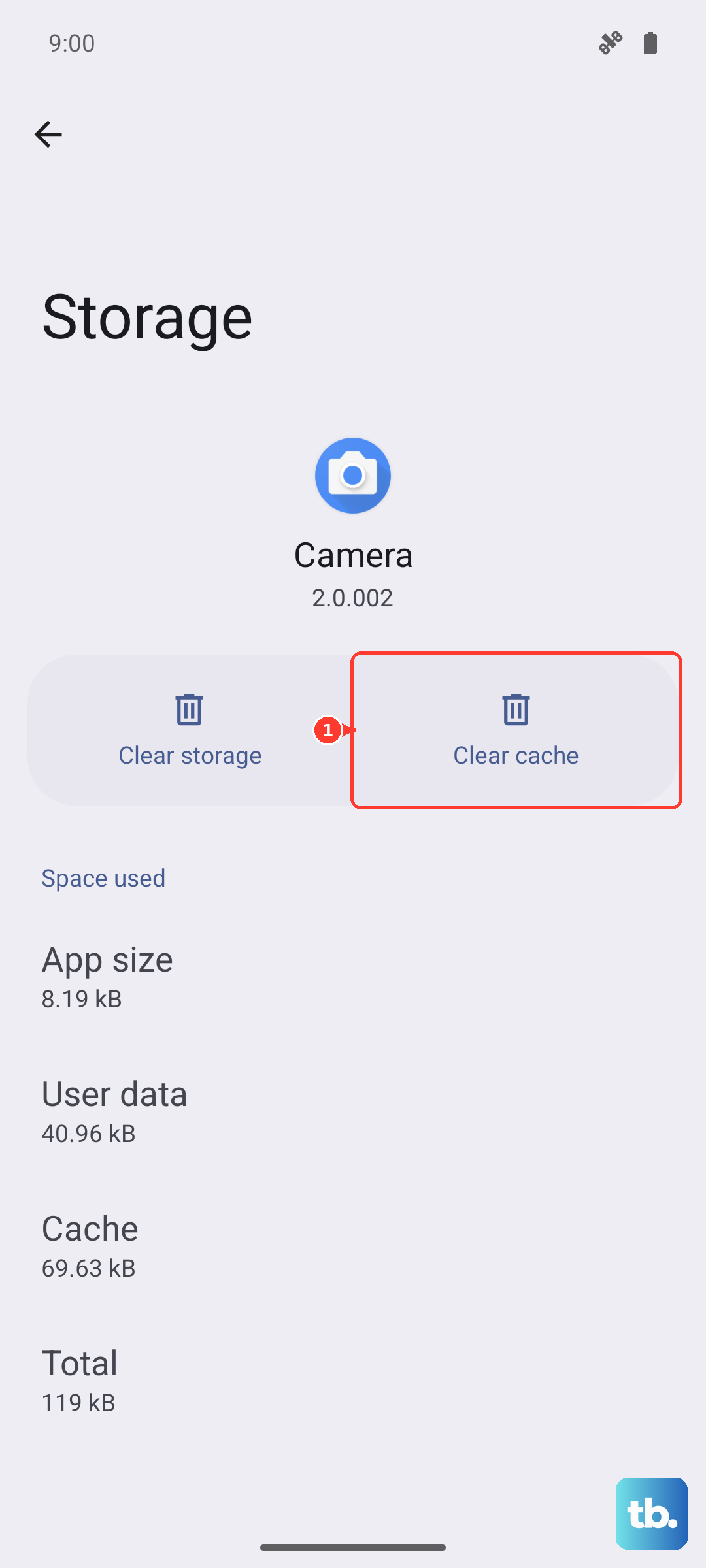
Sometimes a partial or corrupted firmware download gets stuck in the app's cache, and every subsequent attempt tries to reuse that bad file. Open Settings > Apps > Galaxy Wearable > Storage > Clear cache. Don't tap Clear data unless you're okay with losing your bud settings, that will erase your paired devices and preferences. After clearing the cache, reopen the app and try the update again. The app will download a fresh copy of the firmware.
If the Update Stops Midway, Wait and Reboot Your Phone
A partial update can leave the buds in a half-updated state. If you see the update stall or get a connection error, don't just retry immediately. Wait at least 5 minutes, then power your phone completely off and back on (not just a screen lock). After the reboot, open Galaxy Wearable and see if the update resumes cleanly. Skipping that wait or the reboot can cause the same failure to loop.
Reset the Buds Through the App Before Retrying
If you've checked permissions, charged everything, and it still fails, a full reset often clears the corruption. In the Galaxy Wearable app, go to About earbuds > Reset. This wipes your buds back to factory defaults and unpairs them from your phone. Then re‑pair them by opening the case lid near your unlocked phone, the setup card should pop up automatically. Once paired fresh, the app will usually offer the firmware update again, and a clean start has a much higher success rate.
This reset method is the official Samsung approach, so it's safe to use. Don't try any button‑hold resets on the case, the Galaxy Buds FE's only reset path is through the app.
Update the Galaxy Wearable App Itself
An outdated version of Galaxy Wearable might have bugs that block firmware installation. Open the Google Play Store (or Galaxy Store on Samsung phones), search for Galaxy Wearable, and tap Update if it's available. After the app is updated, retry the firmware update.
Try a Different Android Phone as a Last Resort
If nothing else works, borrow another Android phone (ideally a Samsung, but any Android 9.0+ device works with Galaxy Wearable). Install the app, log in to your Samsung account, and pair the buds fresh. Then run the firmware update from that phone. This bypasses any Bluetooth stack quirk or permission issue tied to your primary phone. Once the buds are updated, you can re‑pair them with your original phone without any trouble.